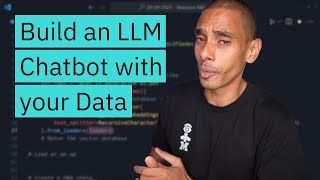

Cheapest LLM Chatbot with Your Data
45sReveals a cost-effective method to build custom AI chatbots, appealing to entrepreneurs and developers.
▶ Play Clip"The title accurately describes building an LLM chatbot with custom data using RAG, and the tutorial delivers exactly that."
This video demonstrates how to build a large language model (LLM) application that enables users to chat with their own data. The core technique used is retrieval augmented generation (RAG), which involves chunking custom data into prompts for the LLM to answer based on that context. The tutorial walks through building the app with Streamlit for the chat interface, integrating a Watsonx.ai LLM, and adding custom PDF data via vector embeddings.
The technique enabling chat with custom data is retrieval augmented generation (RAG), which chunks data into prompts for LLM context.
Dependencies include LangChain, Streamlit, and Watsonx.ai. These are explained as they are used.
Streamlit's chat components are used: chat input for prompts, chat message for display. Initially only the last message shows; fixed by storing messages in session state.
Using LangChain to interface with Watsonx.ai, chosen for state-of-the-art models and no data training. Requires API key from IBM Cloud IAM and project ID.
LLM responses are shown using Streamlit's chat message component with role 'assistant'. Messages are saved to session state for history.
Phase 3: Load a PDF using a function, pass it to a vector store index creator (using Chroma DB) with embeddings. Wrapped in st.cache_resource for efficiency.
Use an LLM retriever QA chain with the index and base LLM via chain.run to enable chatting with a PDF (e.g., on generative AI).
The tutorial successfully builds a working app that allows users to chat with their own PDF data using RAG, combining Streamlit, LangChain, Watsonx.ai, and Chroma DB for an efficient and cost-effective LLM application.
What is the technique used to chat with custom data in LLM apps?
Retrieval Augmented Generation (RAG), which chunks custom data into prompts for LLM context.
Which chat components does Streamlit provide?
Chat input for user prompts and chat message to display messages.
00:28
How do you fix the issue of only the last message showing in Streamlit?
Create a session state variable to store and loop through all messages for display.
00:45
What are the requirements for using Watsonx.ai?
API key from IBM Cloud IAM, ML service URL, project ID.
01:14
What role is used for LLM responses in Streamlit chat?
Assistant.
01:43
How is a PDF processed for RAG in this tutorial?
Load PDF, chunk it using embeddings, and store in vector database (Chroma DB).
02:11
What is the purpose of wrapping the PDF loading function in st.cache_resource?
To avoid reloading each time, making the app faster.
02:25
RAG as key technique
Provides the foundation for enabling chat with custom data, a critical insight for LLM applications.
Watsonx.ai benefits
Highlights a business-friendly LLM service that doesn't use user data for training, important for privacy.
01:14Vector store integration
Demonstrates practical use of embeddings and Chroma DB for efficient data retrieval.
02:11[00:00] In this video, I'm going to show you how to build a large language model app to chat with your own data. This is arguably the cheapest and the most efficient way to get started with LLM's for your own business. But before we do that, I want to back up a little. The technique that makes this work is called retrieval augmented generation. A fancy way of saying
[00:14] we chuck in chunks of your data into a prompt and get the LLM to answer based on that context. The first thing that we need to do is build an app to chat. There's a bunch of dependencies that I need to import. They're mainly from lane chain, but there's a little streamlit and what's the next running for good measure. I'll explain these as I use them so don't stress for now.
[00:28] Streamlit has a great set of chat components so I'm going to make the most of them. Add in a chat input component to hold the prompt and then display the user message using the chat message component via markdown. This means I can now see the messages showing up in the app, but it's only displaying the last message posted, not all of them. Easy fix, create a streamlit,
[00:45] save variable. I'll call that message and append all of the user prompts into it. While added, I'll save the roll type in this case user into the dictionary. And then I can test it out. But the history doesn't show up. Well turns out, I haven't printed out the historical messages.
[00:59] Yet, looped through all the messages in the session state message variable and used the chat message component to display them. And wait, did I save the app? Of course not, I'd never make a mistake like that. Let's just try that again and look at this. Historical prompts that have been passed through.
[01:14] Woop didunic, where's the LLM at? Well, let's do it. I'm going to use the lane chain interface to what's an x.ai. Why? Well, it uses state-of-the-art-lage language models, doesn't use your data to train and it's built for business. But that's just scraping the surface. To do that, I'll create a credential
[01:28] dictionary with an API key and use the ML service URL. You can create an API key from the IBM Cloud IAM menu. URLs for different regions are shown on the screen right now. Then, the LLM. I'm using llama 270b chat because I'm pretty fond of those furry bugs. Pass through some decoding parameters and
[01:43] specify the project ID from what's an x. Now send the prompt through to the LLM and boom! Woop wait, it looks like it's running. But I need to show the LLM responses as well. Easy enough with the streamlit chat message component. Note, the chat role for the LLM
[01:57] response is assistant rather than user. This helps to differentiate the responses. I'll render the prompt as markdown and save the message to the session state as well. That way the history is displayed in the app. And now it works. Yeah, yeah, that's great. But where's the custom data
[02:11] coming to play? Entering phase 3. Alad in a load PDF function and specify the name of the PDF here. Then pass out to the LLM vector store index creator and choose the embedding's function to use. This basically chunks up the PDF and loads it into a vector database, chroma DB in this case.
[02:25] Wrapping it in the ST.k resource function means that streamlit doesn't need to reload it each time, which makes it a whole heap faster. Anyway, I can then pass out index to the LLM retriever QA chain and swap out the base LLM for the Q&A chain using chain.run. And we can now chat with our PDF.
[02:40] In this case, a PDF to do with generative AI. Meta, I know.

⚡ Saved you 0h 02m reading this? Transcribe any YouTube video for free — no signup needed.