
AI Summary
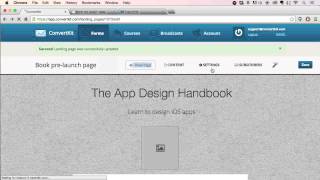
This video demonstrates how to create a landing page using ConvertKit's form builder. The presenter walks through the process of setting up a book pre-launch page, customizing its content and style, and previewing different layout options.
Chapters
Click 'Create Form' and name it, e.g., 'Book Pre-Launch Page'. Enter a URL slug like 'Pre-Launch'.
Select from three layout options: single column, sliding, or sidebar. The presenter chooses single column for this example.
Edit all text, upload images (like a book cover), and adjust styles including background color, button color, title color, and background patterns.
Click 'Save' then 'View Page' to see the landing page in a new tab. All changes are customizable.
Under Settings > Style, choose the sliding layout. Upload a background image, add content, and the opt-in form slides in when clicking the button.
The sidebar layout places the opt-in form on the side, leaving room for content. The company name (set under Account tab) appears at the top.
ConvertKit offers flexible landing page templates that are easy to customize. Upcoming templates and support are available for further assistance.
Mentioned in this Video
Tutorial Checklist
Study Flashcards (4)
What are the three landing page layout options in ConvertKit?
easy
Click to reveal answer
What are the three landing page layout options in ConvertKit?
Single column, sliding, and sidebar.
00:24
How do you preview a landing page after saving?
easy
Click to reveal answer
How do you preview a landing page after saving?
Click 'Save' then 'View Page'.
02:08
What happens when you click the button on the sliding layout?
medium
Click to reveal answer
What happens when you click the button on the sliding layout?
The opt-in form slides in.
03:17
Where do you set the company name that appears on the sidebar layout?
medium
Click to reveal answer
Where do you set the company name that appears on the sidebar layout?
Under the Account tab.
03:58
💡 Key Takeaways
Three Layout Options
Provides flexibility for different landing page needs.
00:24Seamless Background Patterns
Adds visual appeal without extra design work.
01:41Sidebar Layout for Content
Maximizes content space while keeping opt-in visible.
03:34Full Transcript
[00:00] Now I'll show you how to create a landing page. So we'll click on the Create Form button again. And then this time we'll just call it, let's say,
[00:12] Book Pre-Launch Page. And we want to create a full landing page. And we're going to put in a URL of just Pre-Launch.
[00:24] And then here we can choose between three different options. You can play around with it, but I'm going to choose the single column option. option and click create form and once that comes through then what we're going
[00:39] to do is you can customize any of this content so let's say we're doing a book I'm going to do the episode handbook it's on iOS apps and then you can fill
[00:57] fill out all of this information. Again, you can customize everything, upload a little image, customize the text. You can also change the style So right here you can set the background color if you wanted to go you know maybe you wanted something right around there and
[01:15] you could change the button color maybe if you wanted to do an orange instead or whatever color you feel like doing you know whatever is matching your book and
[01:29] and then you'd say you could darken that title color. You can also set background patterns. So we have a whole bunch of patterns that are just taking a second to load here.
[01:41] You can click through them and try out all the different patterns. They're all seamlessly repeating. They're wonderful. If you choose a dark pattern, then you're going to want to go back and switch out your text to something light.
[01:56] Okay, so there's all of that, and then you can upload a book cover or whatever graphic right there. So that's pretty straightforward, pretty simple. Once you pick one, you go back to the styles,
[02:08] change other things, but you get some nice patterns going. At any time, you can click Save, and then click View Page once it finishes saving I open that in the new tab And our page will just load up here
[02:24] And so you can see all of that. Again, you can customize everything. I'll just show you a couple of the other landing page styles really quickly. So you can go under settings and then you go to style. And we have the single column,
[02:36] but I'll show you the sliding one. We'll save that. Then we can come back to the content. This carried over our background that we said earlier.
[02:50] This sliding one, you can upload a background image. I'm not sure if I have a good one handy. Let's do this one. I'll show you what that looks like.
[03:05] This could be set to download the book. can add a bunch of content right here and then you can also click on that part of the button and get to the second area
[03:17] we save this and then refresh and I show you the new style and you can see that our image shows up in there so it some more content it be taller and all of that We click download the book then that form slides in
[03:34] So that is how to create a landing page. I'll show you the last option really quickly, and that is the sidebar layout.
[03:46] And we'll just refresh this one. You'll get a quick idea of what it looks like. there opt-in form over on the side you have lots of room for content another
[03:58] thing is this right up here is going to be your account name and you can set that by clicking under the account tab and setting a company name and you can
[04:13] save the account settings wait for that to refresh and it'll show up right there there so I think this is the only template that uses the company name up there the other ones don't we're coming out with some great new templates really
[04:27] soon so hopefully hopefully you'll really enjoy it feel free to contact support you just support at convertkit.com if you have any questions about getting that set up