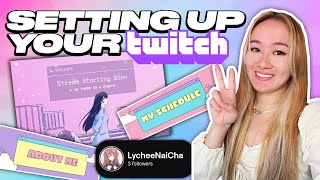

Make a Cute Twitch Profile Pic for Free
45sShows a free, easy way to create a custom profile photo using Picrew, appealing to budget-conscious new streamers.
▶ Play Clip"The title accurately describes the video's content: a complete walkthrough of decorating a new Twitch account from start to finish."
This video provides a step-by-step guide for new Twitch streamers to decorate their channel from scratch, covering profile photos, bios, panels, and offline screens using free tools like Picrew and Canva.
The video aims to help new streamers make their Twitch account look appealing with artwork, either by creating it themselves or purchasing affordable assets from the creator's Etsy shop.
Use Picrew to create a cute profile photo for free. Select a creator, customize the character, and download the image. Then upload it to Twitch via Creator Dashboard > Settings > Channel > Brand.
Write a bio as an elevator pitch to attract viewers, including games played and fun facts. Add up to five social media links under Settings > Channel > About > Profile Settings.
Under Settings > Moderation > Chat Rules, add default rules that new viewers see when they first join the stream.
Use Canva to design free Twitch panels. Search for 'twitch panels', customize a template, duplicate pages for different panels (about me, schedule, rules, etc.), and download as PNG. Upload to Twitch via About section > Edit Panels.
To add clickable links in panel descriptions, use the format: [text](URL). This is useful for crediting artists or linking to social media.
Design an offline screen in Canva using a 'twitch screen' template. Edit text, download as PNG, and upload to Twitch via Creator Dashboard > Settings > Channel > Brand > Video Player Banner.
By following these steps, new streamers can create a visually appealing Twitch channel using free tools, enhancing their professional appearance and attracting viewers.
What tool is recommended for creating a free profile photo for Twitch?
Picrew
0:20
How many social media links can you add to your Twitch bio?
Up to five
2:45
What is the format to create a clickable hyperlink in a Twitch panel description?
[text](URL)
5:55
Where do you upload the offline screen image in Twitch settings?
Creator Dashboard > Settings > Channel > Brand > Video Player Banner
6:56
What should you include in your Twitch bio according to the video?
An elevator pitch including games you play and fun facts about you.
2:01
Free Profile Photo with Picrew
Provides a free, easy method to create a custom profile photo, essential for new streamers.
0:20Bio as an Elevator Pitch
Emphasizes the importance of a compelling bio to attract viewers.
2:01Free Panels with Canva
Shows how to design professional-looking panels without spending money.
3:15Hyperlinking in Panels
Teaches a useful formatting trick to make panel text clickable.
5:55Offline Screen Customization
Explains how to create a branded offline screen using free templates.
6:10[00:00] so you want to be a twitch streamer
[00:02] you've made your Twitch account but your
[00:03] account looks ugly like it is dead there
[00:05] is no artwork nothing let's make it look
[00:08] cute together also if you don't want to
[00:09] go through the work of doing all the art
[00:10] yourself you can go and buy assets I
[00:12] have an Etsy shop I have a lot of assets
[00:14] for you know very affordable prices but
[00:16] yo I was a broke college student I made
[00:18] all my stuff myself step one let's get a
[00:20] cute profile photo so you don't look
[00:22] like a bot for this you can go to pit
[00:24] crew which is literally a lifesaver in
[00:26] making cute Arts so literally just the
[00:28] first link just hit agree and play so we
[00:31] can just kind of scroll down and then
[00:32] over here we can click see more and I
[00:34] would check the commercial box just
[00:36] because you're using this for your own
[00:37] like streaming and you can eventually
[00:38] make money on that then go and find one
[00:41] of these pit crew creators that you like
[00:42] if you like the art style for any I
[00:44] think this one is really cute so most of
[00:46] the time many artists who offer like
[00:47] both non-commercial and commercial use
[00:49] you kind of gotta translate what they
[00:51] have to be ethical but this person says
[00:53] basically for commercial use they just
[00:55] want to be credited so we're gonna go
[00:57] hit play and then you can go and
[00:59] customize this character to whatever
[01:01] liking you would like so whenever you're
[01:03] satisfied here's my little person we're
[01:05] gonna hit done and it's gonna load for a
[01:07] second and then download the image and
[01:09] we can then click our little
[01:11] non-existent profile photo here and go
[01:12] to Creator dashboard go to settings and
[01:15] then Channel and then go to Brands and
[01:17] then add a profile photo find the one we
[01:20] just downloaded make sure it's cropped
[01:22] well and then hit save and then now we
[01:24] look less like a bot I'll walk you
[01:26] through giving credits in the panel
[01:27] section in a part one I showed you how
[01:29] to make a cute profile photo for free
[01:31] this is ours and now we're gonna go and
[01:34] add some much needed text information on
[01:36] our stream because right now this is
[01:38] looking a little Bland and this is the
[01:40] default bio it's always so funny so
[01:42] we're gonna click our profile photo and
[01:44] then we're gonna go to Creator dashboard
[01:45] and we're gonna click settings and we're
[01:48] gonna go to channel sorry I'm going on
[01:50] light mode I know it looks gross my
[01:51] phone just bugs out trying to film dark
[01:53] mode for tick tock anyways under the
[01:55] about we're gonna scroll down to where
[01:56] it says profile settings and under bio
[01:58] go and add your bio I recommend the
[02:01] thinking of your bio as a short little
[02:02] elevator pitch as to why people should
[02:05] go and click on your streams so things
[02:07] to include are maybe games that you play
[02:09] fun facts about you that would Intrigue
[02:11] people I like to make my bio a little
[02:12] bit clickbaity so mine says yes I am
[02:15] that girl that drank 10 bobas on the
[02:17] stream and I get so many comments about
[02:18] that all the time so here's just like a
[02:20] you know a chill one that I drafted up
[02:22] for my fake bio now we're gonna want to
[02:24] scroll down here where it says Social
[02:25] Links here you can then link all of your
[02:28] other social media and it will appear
[02:29] next to your bio I'll show you where it
[02:30] is in a sec so link title will be the
[02:33] text that shows up and the URL is the
[02:35] link that it directs people to so I
[02:37] added my tech talk over here we're gonna
[02:39] go and click add my bad I need the full
[02:41] URL okay and then once you're done it
[02:43] looks like this go and add all of your
[02:45] links or you can only add up to five so
[02:46] up to five and one last thing that's fun
[02:48] to add if under settings you go to
[02:50] moderation and then we scroll down to
[02:53] where it says chat rules you can add
[02:55] your own default rules that people see
[02:57] for the first time when they're in your
[02:58] stream so you can set it like so and
[03:01] then click save changes and then if we
[03:03] go back to our Channel now we have a
[03:06] cute little bio we have our links right
[03:08] next to it and then if people are in
[03:10] your stream for the first time I don't
[03:11] know why it does that for myself but
[03:13] your rules will pop up now let's go make
[03:15] some panels and if you didn't know
[03:17] panels are these little things that
[03:19] appear on the people's streams there is
[03:20] an image that goes above and then the
[03:22] text UI below so again if you want you
[03:24] can buy panels from artists I have an
[03:26] Etsy shop in which I have panels that I
[03:27] sell for in my opinion pretty affordable
[03:29] prices but yo I was a college student
[03:31] bowling on a budget that made everything
[03:32] myself so I'm going to show you how to
[03:33] do it for free this time using canva so
[03:35] we're gonna look up canva and click the
[03:37] first link so under search content we
[03:40] can literally type in twitch panels and
[03:43] there's already a ton of default ones
[03:44] you can pick from be careful though
[03:46] because the ones with the crown or the
[03:47] paid ones so you want to do the free
[03:49] ones oh I guess this is also paid huh oh
[03:51] this is a cute one so click on it and
[03:54] then go to customize this template so it
[03:56] already has so many different panel
[03:59] variations made I recommend having an
[04:01] about me a schedule you could do like a
[04:02] social panel too and the rules I would
[04:04] also add like a tip one and then a
[04:06] credits one if you saw episode one when
[04:08] we walked over making a profile photo I
[04:10] showed you how to use pit crew and to
[04:12] get commercial usage some artists want
[04:14] credit so the one that I use asks for
[04:15] credit so we're gonna make a credit
[04:17] panel to give them credit there so if
[04:19] you like this text already you can leave
[04:20] it but if you don't like it we can
[04:21] double click it and then just edit the
[04:23] text to something that you actually do
[04:25] like and if any one of these formatting
[04:27] or colorways suits you and you'd like to
[04:29] make more just click the duplicate page
[04:31] one so it makes a separate one or I'm
[04:33] tripping over my words and I'm just
[04:34] gonna name this credits we're gonna
[04:36] Click Share and then we're gonna click
[04:38] download we're gonna download all of the
[04:40] pages and it always downloads as a zip
[04:42] folder so we're gonna unzip it by right
[04:44] clicking it and click extract all now to
[04:46] add panels on Twitch we're gonna go to
[04:47] about scroll down to where you see this
[04:49] edit panel toggle and click this so
[04:51] we're gonna ignore all this stuff for
[04:52] now all we care about is this little
[04:54] plus thing click it and then click add
[04:56] text or image panel go click add image
[04:58] and then choose use and drop your file
[05:01] and it should already default crop to it
[05:03] so click done you can add a panel title
[05:05] if you want it appears above your panels
[05:07] so it would look like that I just
[05:09] personally don't like the way that looks
[05:10] so I don't add it if you do want people
[05:13] to click on your panel and have it link
[05:14] them somewhere you can add the link
[05:16] right here and description is where you
[05:18] add your text I like adding cute little
[05:20] bullet points to my panels like these
[05:22] little heart ones that I have here to do
[05:24] that go to coolsimple.com and there's a
[05:26] ton of different little bullet point
[05:27] things hover over one you like it will
[05:29] copy it and we're gonna have to manually
[05:31] copy and paste it so for you about me I
[05:33] like adding information that will you
[05:35] know like let people get to know you
[05:37] better but whatever you are comfortable
[05:38] disclosing so you know like name
[05:40] location it could be like country
[05:42] favorite games education if you want to
[05:44] talk about that whenever you're done
[05:46] with this we're gonna scroll down and
[05:47] hit submit sometimes it will bug out
[05:49] literally just keep hitting submit again
[05:51] and then turn off edit panels and then
[05:53] bam we have our panel also you can
[05:55] hyperlink stuff in your panels to do
[05:58] that this is the formatting so the text
[05:59] you want people the click on and square
[06:00] brackets the actual Link in parentheses
[06:02] this is what I did with the artist and
[06:04] now it's clickable
[06:05] but now all of this stuff up here is
[06:07] dead Let's Pretend There's No offline
[06:08] screen I couldn't delete mine so let's
[06:10] go make it together so I'm just using
[06:11] canva for this example but we're gonna
[06:13] go to canva and then under the search
[06:15] bar here we're gonna look up twitch
[06:16] screen just click that and there are
[06:18] already so many cute default ones what
[06:20] the heck this one is so cute anyways I'm
[06:22] gonna use this one just click the one
[06:23] you like and click customize this
[06:25] template so this one is so pretty even
[06:26] though it's animated the animation does
[06:28] not matter for your offline screen
[06:30] because that is not animated it has to
[06:32] be a still image but anyways if you like
[06:34] it as is that's great but because I want
[06:36] to make this an offline screen um this
[06:38] is the wrong text so I'm just going to
[06:40] double click this so I can edit the text
[06:41] so I changed some of the text to make it
[06:44] a little cuter now up here we're gonna
[06:46] Click Share we're gonna click download
[06:47] and make sure it's not an MP4 video but
[06:50] it's a PNG it's just high quality and
[06:52] click download now we're gonna click our
[06:54] profile again and then we're gonna go to
[06:56] Creator dashboard we're gonna click
[06:58] settings and then we're gonna click
[06:59] Channel we're gonna click brand and
[07:01] scroll down to the bottom so the video
[07:03] player Banner is actually your offline
[07:05] screen so let's pretend there's no one
[07:07] here because I literally could not
[07:08] delete this but we're gonna click update
[07:10] click plus here and select the one that
[07:13] we just made we gotta wait for this to
[07:15] finish uploading and now my stream has a
[07:17] really cute looking stream offline
[07:19] screen and again in case you didn't know
[07:20] the offline screen is literally the
[07:22] image that appears if you go to your
[07:23] Twitch account when you're not live you
[07:25] will see this artwork instead
⚡ Saved you 0h 07m reading this? Transcribe any YouTube video for free — no signup needed.