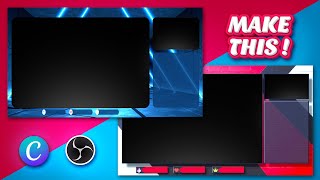

Why Canva is TERRIBLE for stream overlays
45sControversial opening sparks debate among Canva users and designers.
▶ Play Clip"The title accurately describes the video's content: a guide to making stream overlays in both Canva and Photopea."
The video critiques Canva for professional graphic design, arguing it's only suitable for quick, one-off social media posts. The creator then demonstrates how to build a Twitch intermission overlay in Canva, highlighting its limitations, before showing a more powerful and flexible approach using the free tool Photopea. The video also includes a sponsored segment for Own3d Pro, which offers pre-made goal bars and overlays.
Canva is great for quick, disposable social media graphics but not for professional, branded designs.
Own3d Pro offers 600+ overlays, a chat bot, and a new goal bar tool that can be easily added to OBS.
In Canva, you cannot add outlines to shapes, control stroke thickness, or export with true transparency.
To use a Canva overlay in OBS, you must use a chroma key or color key filter to remove the background color.
Photopea allows adding strokes, drop shadows, bevels, and adjusting opacity, giving much more creative control.
In Photopea, you can create a transparent overlay by using a raster mask and inverting it, avoiding the need for chroma key.
The extra steps in Photopea result in a significantly better-looking overlay that stands out.
What is Canva good for, according to the video?
Canva is good for quick, one-off designs like social media posts, but not for professional, branded graphics.
0:16
What is Own3d Pro and what does it offer?
Own3d Pro is an all-in-one service that provides overlays, a chat bot, and goal bars for streamers.
1:10
What custom size should you use for a Twitch overlay in Canva?
1920x1080 pixels.
3:19
What limitation does Canva have regarding shapes?
You cannot add outlines to shapes in Canva.
4:29
How do you make the background of a Canva overlay transparent in OBS?
You use the chroma key or color key filter to remove the background color.
10:03
How do you crop a source in OBS?
Hold Alt and drag the sides of the source.
11:09
What is Photopea?
Photopea is a free browser-based alternative to Photoshop.
11:38
What effects can you add to shapes in Photopea that you cannot in Canva?
You can add strokes, drop shadows, bevels, and adjust opacity.
13:25
How do you create a transparent background in Photopea?
You use a raster mask and invert it (Ctrl+I) to make the background transparent.
18:14
What is the main advantage of using Photopea over Canva for overlays?
You can export with true transparency, so no chroma key filter is needed in OBS.
18:25
Canva's Limitations
Establishes the core argument that Canva is not suitable for professional graphic design.
0:04Chroma Key in OBS
Shows a practical workaround for Canva's lack of transparency export.
10:03Adding Effects in Photopea
Demonstrates how to add professional effects like strokes and drop shadows.
13:25Transparency Mask in Photopea
Key technique for creating a transparent overlay without chroma key.
18:14Investing in Quality
Summarizes the video's message: extra steps in a better tool yield significantly better results.
19:00[00:00] in one of my most recent videos i said a
[00:01] lot of negative things about canva and
[00:04] some people were not happy with what i
[00:05] said okay i realized that canva is
[00:07] probably the worst tool that you can
[00:09] possibly use to do anything remotely
[00:11] creative i kind of stand by that but
[00:13] keep in mind that canva is actually a
[00:14] great system if you want to do like
[00:16] one-off things right you have a new
[00:17] schedule you would like to make a cute
[00:19] visual post it on twitter and then boom
[00:21] get rid of it you're done canva is great
[00:23] for that you want to make a quick
[00:24] instagram story kind of is great for
[00:25] that but if you want to do proper
[00:27] graphic design if you're designing
[00:28] something where it has to do with your
[00:30] brand and you have to pick a specific
[00:32] graphic style and you want it to look as
[00:34] good as possible and indistinguishable
[00:36] from other people's stuff then canva is
[00:39] not that good if you're watching this
[00:41] and you're an avid canva user you can't
[00:43] tell me that every time you go to a
[00:45] twitch stream and they use canva you can
[00:47] immediately tell that's a problem
[00:49] because as soon as everything becomes
[00:51] uniform then where's the creativity in
[00:53] that that being said today we're going
[00:55] to be using canva to make a twitch
[00:57] overlay we're gonna be making an
[00:58] intermission screen only using canva
[01:01] maybe i'll quickly show you how to make
[01:02] one in photo p after that but if you
[01:04] don't wanna go through the trouble of
[01:05] meticulously creating your own graphics
[01:07] then you're gonna be happy because
[01:08] today's sponsor basically takes care of
[01:10] all that if for some reason you don't
[01:12] know anything about owned pro it is an
[01:14] all-in-one service that gives you
[01:15] everything you need in order to be a
[01:17] successful live streamer you get access
[01:19] to a lot of overlays i'm talking a lot
[01:21] i'm talking 600 plus overlays that are
[01:23] each available in at least nine
[01:26] languages all the overlays are one-click
[01:28] installed so no stress for that you get
[01:29] a twitch chat bot to moderate your chat
[01:31] and also add custom commands but this is
[01:34] not what we're here to talk about they
[01:35] just added this new thing if you go in
[01:37] your dashboard and you go to tools you
[01:39] will find gold bars so yes that makes
[01:41] the rest of this video irrelevant
[01:43] because you can just go up there click
[01:44] create goal select what type of goal you
[01:46] want subscriber goal for example put a
[01:48] title help me get a glittering unicorn
[01:51] and then you can choose your style and
[01:52] of course in good old owned fashion you
[01:55] have a ton of options like a lot
[01:59] let's go with the arcade pro just click
[02:01] here to select it and then enter the
[02:03] goal amount boom let's go for 50 subs
[02:05] then you can set for the goal to end at
[02:07] a specific date or not click save and
[02:09] publish from there it's easy peasy copy
[02:11] your url to the clipboard go to your obs
[02:14] add it as a browser source and boom you
[02:15] have a way better looking sub goal than
[02:17] the original twitch one keeping in mind
[02:19] that you can set it up for follows you
[02:21] can set it up for bits and for donations
[02:23] anyways i'll let you check it out over
[02:24] at own dot gt level pro that is o w n 3d
[02:28] dot gg slash get level pro so we go to
[02:31] canva.com and we are already logged in
[02:33] usually you would want to type whatever
[02:35] you want to create let's say twitch
[02:37] overlay for example i haven't seen what
[02:38] they have let's click on that and see
[02:41] what's up so a lot of those actually
[02:43] just look like webcam borders like this
[02:45] one is just a thin line i guess you
[02:47] could call that an overlay but it
[02:48] doesn't give you anything that that
[02:50] differs from a webcam overlay right some
[02:53] of them do have the labels bar like this
[02:55] one but as you can see it's paid that
[02:57] this one is also paid that is legit a
[03:00] two minute design on on photo pia
[03:02] anyways
[03:07] [Music]
[03:11] i'm gonna stop this lander i'm gonna go
[03:13] ahead and i'm gonna click i'm gonna
[03:14] create something similar because i don't
[03:16] really have a choice let's click on
[03:17] create a design and let's go with custom
[03:19] size this time we want to go
[03:21] 1920 by 1080 and then create new design
[03:25] nice while we're here we're going to go
[03:26] to photos on the left side here and
[03:28] we're going to find something cool i'm
[03:30] going to type something like uh abstract
[03:32] okay so i do have some stuff with
[03:34] transparency which is which is cool i
[03:36] guess this is pretty nice i might get
[03:38] back to this later is that text on top
[03:40] of it oh those are pro
[03:42] i can't use those
[03:44] oh no all right let's use this i'm gonna
[03:47] click and drag the corners to make it
[03:48] bigger nice and basically on an
[03:50] intermission screen what you usually
[03:52] want is a space for your webcam to be
[03:54] like full screen basically and then a
[03:56] place for your chat and then a spot for
[03:58] your labels bars some intermission
[03:59] screens will have a spot for your
[04:01] gameplay like if you're in the lobby or
[04:03] something like that or if you want to
[04:04] display your logo if you want to play
[04:05] some clips whatever you want to do it's
[04:07] cool to have like a cool empty space
[04:09] like that so we're going to go to
[04:10] elements or basically going to put a
[04:11] bunch of rectangles it would be cool if
[04:13] i could find like some rounded
[04:14] rectangles or maybe some some extra let
[04:16] me click on lines and shapes and see
[04:18] what i can find and that's it that's all
[04:20] i get when it comes to lines and shapes
[04:22] all right looks like there is a rounded
[04:24] rectangle here so i'm going to click on
[04:25] that can i have like an outline uh no i
[04:29] don't okay canva is like no you can't
[04:30] you just can't have an outline on your
[04:32] uh let me delete that and click on that
[04:34] one that one comes with an outline nice
[04:36] please tell me i can i can control the
[04:38] thickness of the outline
[04:41] nope all right now i can't uh let's
[04:42] delete that one and let's try this one
[04:45] at least it has a thinner what is this
[04:47] why is there two what is going on nope i
[04:50] guess we're gonna go with the simple one
[04:52] then okay cool cool cool
[04:54] now if i stretch it out will it maintain
[04:58] the proportions of the rounded uh
[05:00] rectangle let's see
[05:03] it does that is cool that is great that
[05:06] is amazing it's not stretching it out
[05:08] it's really keeping the curve
[05:10] really really really curvy the way it's
[05:12] supposed to be i love that all right so
[05:14] we're gonna go for something that is
[05:15] kind of like a wide screen we're gonna
[05:17] have the labels bar at the bottom of the
[05:18] webcam so this is the spot where the
[05:20] webcam is gonna be nice and we're gonna
[05:21] have the chat on the right here and then
[05:24] we'll keep a spot for that lobby
[05:26] gameplay basically boom click on it
[05:28] again let's do that i'm i'm actually
[05:30] really happy about the proportions here
[05:32] let's click on that now for the gameplay
[05:34] it doesn't really matter if it uh if we
[05:37] have a 16 by nine we're gonna eyeball it
[05:39] so that it's it's closer to 16 by nine
[05:41] on this spot it really doesn't matter
[05:43] that much you're not meant to actually
[05:44] watch the gameplay from there okay cool
[05:46] what i'm actually technically i could be
[05:48] like hey you're done
[05:49] but let me go ahead and add some stuff
[05:52] for the labels we're gonna add three of
[05:54] them maybe another rounded rectangle one
[05:57] and this time i'm gonna grab that
[06:00] oh i can't stretch that out
[06:02] anymore
[06:05] that kind of sucks let's see if i have
[06:07] any other options maybe a thin rounded
[06:09] rectangle would be cool nope now the
[06:11] quote-unquote rules of graphic design
[06:13] makes it so that hey i started with
[06:15] something rounded i got to keep it
[06:17] rounded in order to maintain the style
[06:19] but i'm struggling to find something
[06:21] that i can make very very thin and also
[06:23] rounded i guess that's the closest one
[06:24] let's click on that
[06:26] and let's see
[06:28] i can't even stretch that from top to
[06:30] bottom oh my god
[06:32] like that maybe nice okay that's cool
[06:34] that's cool okay uh top here what is
[06:37] that transparency let me lower that a
[06:39] little bit
[06:40] actually i'm gonna give it color first
[06:42] so we want to basically go with those
[06:44] blue colors that's pretty cool that it
[06:45] takes the photo colors and it gives you
[06:47] the main colors here so that's that's
[06:49] pretty nice so that's my main color is
[06:51] it okay how do i change the secondary
[06:53] color
[06:54] right there
[06:56] nice i like that okay we're gonna lower
[06:59] the transparency a little bit
[07:01] nice and we're gonna duplicate this how
[07:03] do i duplicate okay copy
[07:05] paste
[07:06] nice we're gonna keep it in line paste
[07:09] keep it in line nice can i select
[07:11] multiple things let me hold shift
[07:13] yes okay look at that look at me being
[07:15] all positive about canva is that
[07:17] beautiful i can even scale them together
[07:19] pretty nice if i really wanted to i
[07:21] would keep this i would like put this
[07:23] here but let's put it down there the
[07:24] thing is we're gonna cut out those parts
[07:27] once we get into obs later on and then
[07:29] from here what i would want is basically
[07:30] add some some logos so i can go there
[07:32] and i can upload some stuff but usually
[07:34] you want a heart for follows you want a
[07:37] star for subscribers you want a bit icon
[07:41] for the cheers which is probably the
[07:43] only thing that i'm gonna upload here
[07:44] let me click upload media and i'm gonna
[07:46] go find in my stocks that diamond right
[07:49] there nice i'm gonna click on it
[07:51] boom
[07:52] doesn't matter if the the edges are so
[07:55] jagged because i can lower it like that
[07:57] okay not bad can i zoom in on this yes i
[07:59] can the bottom here there's a zoom thing
[08:02] okay not too bad not too bad let's see
[08:04] if they actually give me some um some
[08:06] icons like a heart okay i just want like
[08:09] i just want a normal
[08:10] shape or maybe in shapes actually i
[08:12] didn't look for a heart or anything are
[08:14] there no hearts in the shapes there's no
[08:16] way there's a heart here okay there we
[08:18] go nice i'm gonna change the color
[08:22] doesn't have to go with red i might even
[08:24] keep it purple just for the spirit of
[08:26] twitch
[08:28] so i can use my arrows to move things
[08:30] around all right and let's say we want a
[08:32] crown so i'm gonna go under elements and
[08:35] lines and shapes actually no i want a
[08:37] star that's for subscribers
[08:42] all right this is what we made does it
[08:44] look good uh no but you made it with
[08:46] canva so
[08:48] i'm gonna click on that bits icon and
[08:51] there's edit image here i wanna see what
[08:53] that does oh i can just add a bunch of
[08:54] filters and i just put a color
[08:57] all right let's actually give those some
[08:59] colors
[09:01] see how that looks i really don't like
[09:03] how it looks i really don't like how it
[09:05] looks but anyways chat is not going to
[09:07] be transparent so we actually do want to
[09:09] have a certain um color there so i'm
[09:11] going to pick that i'm going to give it
[09:14] that color and i'm going to make that
[09:15] transparent too so reminisce of um the
[09:19] labels bar nice so your chat is gonna
[09:21] appear here give it a cool look and then
[09:23] the rest if you want you could even go
[09:24] like with a green screen right you can
[09:26] make this green make that green and then
[09:28] you just chroma key it but you don't it
[09:30] doesn't matter what color you pick just
[09:32] pick something that is not blue like
[09:34] your background all right let's click
[09:35] share
[09:36] and download png even though we can't
[09:39] have transparency click download
[09:42] click save and you're good now let's
[09:45] open up obs i'm going to create a new
[09:46] scene all right and now i'm going to add
[09:48] it as an image because that's what it is
[09:50] png image and click add go to image and
[09:53] go find you can call it whatever you
[09:55] want you can go find it it's right there
[09:58] double click
[10:00] click ok
[10:01] right click filters plus to add a new
[10:03] filter and you can use chroma key if
[10:05] you're gonna use green or you can use
[10:07] color key and then pick whatever color
[10:09] you picked for your transparent parts
[10:11] right so chroma key okay it's already
[10:14] transparent nice now what i can do is
[10:17] add my camera for example so you're
[10:18] gonna click plus to add a new source
[10:20] you're gonna click video capture device
[10:21] call it whatever you want it's gonna be
[10:23] your camera call it camera and then uh
[10:25] wait
[10:26] oh hi it's me boom actually want to flip
[10:29] this so right click transform flip
[10:31] horizontal nice you want to drag this
[10:34] behind our overlay right because it's
[10:36] transparent and boom there you are now
[10:38] you can adjust it or you can keep it
[10:39] that way if you want to i'm going to
[10:41] adjust it
[10:43] that it really fits that screen that we
[10:45] created
[10:47] and in here uh you would put your game
[10:49] capture device right on the top right
[10:51] side i don't have a game open so i can
[10:53] just put a media i can just put a video
[10:55] of a game right so that would be the
[10:56] game again drag it underneath the
[10:59] overlay and then place it to make it fit
[11:01] it doesn't matter if it doesn't fit
[11:02] perfectly no one's going to actually be
[11:04] watching the gameplay from uh this
[11:06] screen it's also under my webcam i uh i
[11:09] cropped and i didn't tell you how to
[11:10] crop it uh you hold alt on your keyboard
[11:12] and then you drag the sides to crop
[11:14] right
[11:16] that way you can fit anything into
[11:18] anything boom just like that so while
[11:20] you're in the lobby you're in your
[11:21] intermission screen i'm not going to
[11:22] show you how to add your chat watch my
[11:24] full obs tutorial for that if you're
[11:26] using stream elements if you're using
[11:27] streamlabs you just go you add a chat
[11:29] and then you add it as a browser source
[11:31] but this is it with canva you
[11:32] successfully made this overlay uh now
[11:35] before i go i just want to show you how
[11:36] quickly you can do it while using uh
[11:38] photopia for example and why i don't use
[11:40] canva let's go to photopia.com i'm gonna
[11:43] try to comment uh to comment everything
[11:44] i'm doing a new project we're gonna go
[11:46] 1080p 1920 1080 and we're gonna go 300
[11:50] dpi high quality now if we wanted to go
[11:53] from a picture we would go from for a
[11:55] website that has um copyright free
[11:57] images we will go to abstract and we can
[11:59] find whatever we want i like that one
[12:01] copy this one and the advantage with
[12:03] photopia is that you really have access
[12:05] to everything i'm going to press ctrl v
[12:07] boom i'm going to press ctrl t to
[12:08] transform and i'm just going to drag
[12:10] this until it fills the whole thing nice
[12:13] press v to go to the move tool in case
[12:15] you weren't there and now i'm going to
[12:16] use my rectangle tool to the left here
[12:19] boom i can click here and if i want it
[12:21] to be rounded i can just add a corner
[12:22] radius but we're not gonna do that now
[12:24] i'm just gonna drag like this and i'm
[12:26] gonna eyeball i can hold space to move
[12:28] it while i'm adding it okay that's nice
[12:31] while i'm there i'm gonna move my mouse
[12:33] a little bit and i'm gonna create the
[12:35] box for the chat nice and i'm gonna
[12:37] quickly create the one for the gameplay
[12:40] now i can go and individually modify
[12:41] them ctrl alt t by clicking on the layer
[12:44] and i can hold shift to stretch just
[12:46] like that and if i have the move tool
[12:48] selected pressing v i can move them with
[12:51] my arrows on my keyboard okay boom boom
[12:54] boom
[12:55] that's pretty nice i'm going to group
[12:57] those i'm going to put them all together
[12:58] and i'm going to press ctrl g boom
[13:00] they're in a group i can move them
[13:01] together i can turn them off but i'm
[13:03] going to duplicate this group because i
[13:04] just want to have borders i'm going to
[13:07] duplicate this by holding alt and
[13:09] dragging up
[13:10] bone i have two groups i can turn one
[13:12] off and i'm going to add some borders
[13:14] and there's multiple ways of doing this
[13:16] if you have
[13:17] shapes you can just click the shape tool
[13:19] and then add a stroke but i'm going to
[13:21] use the effects panel because it's one
[13:22] of the most powerful things that both
[13:24] photo pi and photoshop have add a stroke
[13:26] boom it actually added it but it's also
[13:28] red so you can't see it i'm going to go
[13:30] and click that color as soon as you have
[13:32] a color picker it's uh gonna turn into a
[13:34] color picker so you can just pick
[13:36] whatever color you want from anywhere
[13:37] you want right we're adding it to the
[13:39] stroke right so this color is like a
[13:41] blue so i'm gonna exaggerate that blue a
[13:44] little bit maybe not too much nice i'm
[13:46] gonna click ok and here i can check the
[13:48] width of the stroke let's go for six i
[13:50] really want it to be visible actually
[13:52] let's go for eight all right that's nice
[13:55] no never mind let's go for four
[13:58] okay cool let's add a drop shadow nice
[14:00] so now it feels like it's uh it's
[14:02] physically there it's hovering above
[14:04] that wall we're gonna play with the
[14:06] angle and this is basically the angle
[14:08] where the light would be coming from so
[14:10] down that way let's bump up the distance
[14:12] a little bit we can make it a little
[14:14] softer with the size it just looks
[14:16] better
[14:17] now even more than that we can add a
[14:19] bevel and emboss to make it like bump up
[14:22] a little bit you see that the cool thing
[14:24] is with transparency later on we're
[14:25] gonna be able to to play around with
[14:27] that a little bit so i want the depth to
[14:29] be a little bit more we actually want
[14:31] the size to be a little lower we don't
[14:32] want that effect to be too visible three
[14:35] should be fine maybe two actually that's
[14:37] good okay click okay
[14:39] and let's say i want more saturation on
[14:42] that red i'm gonna click on that layer
[14:44] so whatever i add next is going to be on
[14:46] top of it i'm going to add an adjustment
[14:47] layer which is going to be vibrance all
[14:50] right and i'm going to bump up the
[14:51] vibrance so we have better colors
[14:54] basically i'm done with this i can click
[14:56] on anything else you can even turn off
[14:58] this panel and remember the red is all
[14:59] the parts that are going to be
[15:00] transparent we're not actually going to
[15:01] use this specific red we're going to use
[15:03] the red from the background let me add
[15:04] my labels bars actually let me create
[15:06] that by doing this i'm just going to
[15:09] click on the rectangle tool i'm gonna
[15:11] put one rectangle down and now since we
[15:14] are working with some sort of arrow
[15:15] shape like that i'm gonna click and hold
[15:17] on that tool i'm gonna go to custom
[15:19] shape and up top here where it says
[15:21] shape i'm supposed to find a bunch of
[15:23] shape whatever shape i want i'm gonna
[15:24] click on this arrow shape right there
[15:26] and i'm gonna create one
[15:28] i'm gonna hold shift to maintain
[15:30] proportions so it's kind of perfect you
[15:32] know and we want it big like that let's
[15:34] drop it okay it created a new shape now
[15:36] i can ctrl alt t right click flip
[15:38] horizontally and drop it towards the
[15:40] middle we want the arrow to show
[15:43] let's click enter and let's double click
[15:45] on the icon of the shape and let's pick
[15:48] the color that we want i think that
[15:49] color is nice
[15:51] cool i'm going to hold alt while i click
[15:53] on that arrow so it basically will limit
[15:56] itself to the rectangle underneath it
[15:59] boom now i can move it around and it's
[16:00] not going to move away from that
[16:02] rectangle basically right
[16:04] nice okay now let's pick actual colors
[16:07] double click on this being the rectangle
[16:09] at the bottom and pick a color that
[16:11] really resembles the actual red that you
[16:14] have here if that's what you want you
[16:15] can also go with white for example but i
[16:18] kind of like this red nice click okay
[16:20] now you successfully created one labels
[16:22] bar i can press ctrl select the arrow
[16:24] that's on top of it hold alt drag drop
[16:27] and just move it
[16:28] if you want to learn another way to
[16:30] duplicate is while i'm in here and i
[16:32] know both of those are selected i can
[16:33] hold alt
[16:34] drag and drop and then drop it i'm going
[16:36] to select all of them the whole labels
[16:39] bar and i'm going to control g to group
[16:40] them that way i can go to the frames
[16:43] here they have this effect that i added
[16:45] the bevel and emboss stroke drop shadow
[16:48] i can hold alt drag
[16:50] and then just drop it
[16:52] boom and now they have the same now the
[16:54] shadow is not what i want it to be i can
[16:56] double click on it manage the distance a
[16:58] little bit maybe i don't want to stroke
[17:00] on that one
[17:01] nice click okay you're good now you just
[17:03] want to add the shapes i have a folder
[17:05] with a bunch of shapes here so the bit i
[17:07] can drag
[17:10] drop
[17:12] it's right there
[17:14] hold alt
[17:16] to drag from the center place it with
[17:18] the arrows you have a heart that would
[17:19] be for followers same thing
[17:24] and let's say if you wanted a crown
[17:28] for like top donator or something like
[17:30] that you just place it and you're good
[17:31] now there's a couple of things i want to
[17:32] do i want the chat to be visible so
[17:35] we're not gonna keep it with that bright
[17:37] red so it's that top folder it should be
[17:39] that one i'm gonna double click on the
[17:40] icon and i'm gonna pick a color that i
[17:42] have around here okay
[17:44] boom that's nice i can even go to
[17:46] opacity here and lower it just a little
[17:49] bit nice so that's going to be the chat
[17:50] the other thing i want to do is select
[17:52] those two shapes so i'm going to hold
[17:53] ctrl on my keyboard and i'm going to
[17:55] click on the icons
[17:56] then i'm going to hold control plus
[17:58] shift to add another selection
[18:01] click on that icon so i have two of them
[18:03] selected i'm gonna collapse the group
[18:04] and now i'm gonna group everything
[18:06] together holding shift here clicking on
[18:07] the bottom and i'm gonna group them ctrl
[18:10] g nice now at the bottom of my layer
[18:12] list i can click on
[18:14] raster mask created a mask and don't
[18:16] worry don't worry press ctrl i to invert
[18:19] the mask boom and there you go now i can
[18:21] turn off the background lock
[18:23] and turn it off
[18:25] and i have a pre-transparent
[18:27] intermission overlay all i have to do
[18:29] now is click on file export as png click
[18:32] save click save how do i add it to obs
[18:34] the same way except with less steps
[18:37] let's go here and i'm gonna turn off
[18:39] this overlay or better yet i can just
[18:41] double click on the overlay and then
[18:43] replace it click browse
[18:44] new one already transparent
[18:47] nice you don't even need the filter but
[18:49] the filter is added now and now you just
[18:51] have to adjust a couple of things you
[18:52] want that camera to really fit nice you
[18:55] want that media source you want that
[18:56] gameplay to be right there and that's
[18:58] the big difference between canva and
[19:00] something like photopia it's not
[19:01] necessarily more complicated maybe
[19:03] there's more steps to it but that's the
[19:06] whole thing adding more steps like hey
[19:08] this would be cool if i could add a
[19:09] border to it if i could add a drop
[19:11] shadow to it yes that's the step that
[19:13] you're gonna add but it's gonna make
[19:14] your thing look significantly better and
[19:16] it gives you more possibilities
[19:18] unlocking your own creativity so of
[19:21] course i'm not telling you to not use
[19:22] canva at least not this time but i'm
[19:24] showing you how easy you could be making
[19:26] better stuff simply adding a little bit
[19:28] of glow a little bit of shadows can
[19:30] really make your work stand out anyways
[19:32] hopefully you learned something in this
[19:33] video and if you have any questions you
[19:35] can leave them in the comment section
[19:36] below for now i gotta thank you for
[19:38] watching i'll see you guys next time go
[19:39] out there make me proud get level out

⚡ Saved you 0h 19m reading this? Transcribe any YouTube video for free — no signup needed.