How to Create Viral Wealth Graphics
45sThe promise of replicating a proven viral finance page style is highly appealing to aspiring creators.
▶ Play Clip"Delivers on the promise of showing how to create viral graphics, but some fluff and self-promotion reduce the score."
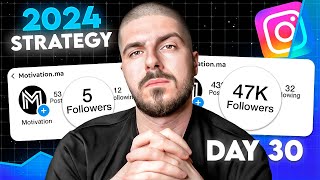
This video tutorial demonstrates how to create four different types of viral graphics for Instagram using Canva and AI tools. The creator, Alex, walks through step-by-step processes for making news-style posts, epic warrior-style images, and manifestation quotes, emphasizing the use of free tools like Canva, ChatGPT, and Leonardo AI.
The video aims to show how to create four different types of viral graphics for Instagram, starting with a news-based page style that focuses on finance, technology, and wealth topics.
Wealth pages use a repetitive, clickbait style that works well. The example uses a Tesla/Elon Musk post with a happy image, black gradient, and verified badge.
Search for high-quality images (e.g., 'Elon Musk 4K smiling') and enhance them using Canva's enhancer tool to improve quality.
Use Canva's elements to add a black gradient, position it forward, then add text with a chosen font. Duplicate and adjust for variations.
Create a logo and add a verified badge to make the page look professional. Use the 'verified' element in Canva.
Play with spacing, size, and effects like 'lift' to make text stand out. Use yellow color for emphasis.
Duplicate the design and change the image and text to create new posts quickly, e.g., a lion with a clickbait headline.
The second style is an epic warrior/animal graphic. Use a young lion image, enhance it, and use ChatGPT for epic quotes.
Use Canva's edit image features to darken, adjust contrast, clarity, and add vignette for a dramatic effect.
Add a simple logo (e.g., letter 'h') with effects like lift or glow, and incorporate the ChatGPT-generated quote.
Duplicate the design, change the image, and keep the same text and logo to create multiple posts efficiently.
Use free AI tools like Leonardo AI to generate images. For manifestation posts, use prompts like 'colorful space stars planets'.
Adjust brightness and other settings to ensure text visibility. Use filters to enhance the image.
Create a simple text template (e.g., 'believe in yourself') and use ChatGPT for 20 short manifestation quotes.
Use Google Sheets to store quotes, export as CSV, and use Canva's bulk create feature to generate 20 designs at once.
Change images for each design, adjust brightness, and ensure text is visible. The result is 20 graphics in seconds.
The video provides practical, step-by-step methods to create viral Instagram graphics using Canva and AI tools, emphasizing efficiency and customization. By following these techniques, viewers can produce professional-looking posts quickly and potentially grow their social media presence.
What is the first step to create a wealth-style graphic?
Find a high-quality image and enhance it using Canva's enhancer.
00:46
What element is used to add a black gradient in Canva?
Black gradient from Canva elements.
01:39
How can you make a graphic look more professional?
Add a logo and a verified badge.
02:35
What effect is used to lift text in Canva?
The 'lift' effect.
03:29
What AI tool is recommended for generating images?
Midjourney is the best, but Leonardo AI is a free alternative.
08:36
How do you bulk create designs in Canva?
Use Google Sheets to store data, export as CSV, and use Canva's bulk create feature.
10:59
Wealth Page Style
Explains a proven clickbait style used by many pages.
00:18Warrior Style Graphic
Shows how to create epic, high-engagement graphics with simple tools.
04:38AI Image Generation
Demonstrates using free AI tools to generate high-quality images.
08:36Bulk Creation
Reveals a method to create 20 graphics in seconds, saving time.
10:59[00:02] followers every single day from their viral posts in this video I'm going to show you how to create four different types of viral Graphics step by step so is a video for you here we have the wealth page which essentially is a
[00:18] wealth page which essentially is a news-based page which focuses on finance news-based page which focuses on finance technology wealth those types of topics as we scroll through we can see that they have this repetitive Style on their
[00:30] page and there are lots of pages with this style and it works really great as it's super super clickbait and I'm about to show you exactly how to do it for the with this Tesla one and we're going to replicate that on canva the first thing
[00:46] you want to do is to find your image of Elon Musk shareholders agreed to pay Elon Musk 56 billion in bonus so no wonder they've chosen a happy picture of him I need an Elon Musk picture which is high quality and also of him smiling so
[01:01] I'm going to put Elon Musk 4K smiling on Google so for example this image right here could work well the quality on those images from Google usually they're not like you know 4K so enhancing it is going to be the first thing that we do
[01:14] I've got my canva open now I'm going to make sure that the image I've chosen is I'm going to type in quality I'm going to press enhancer and from there I'm going to go choose file and I'm going to
[01:26] choose that file that I've just kind of picked and I'm going to press enhance face and then press enhance so I've got my image and as you can see it looks enhanced and it looks pretty good quality I want this to look as good as
[01:39] possible okay now as we can see from going back on wealth they have this like first thing we're going to go we're going to go to elements we're going to type in Black gradient I'm going to press my gradient with the gradient it
[01:53] does give you a bit more flexibility as your image doesn't necessarily need to at the bottom is going to to be black press the gradient press position make sure it's always pressed forward the next thing I want to do is do my text
[02:07] the really good thing about canva is that you can duplicate this you know important once you have your first one duplicate change it Etc now I'm going to duplicate change it Etc now I'm going to make this white I'm going to pick a font
[02:21] you know it could be any font that is kind of down to you so you can see here invest earn save they're doing a similar style what they do as well is they have this tick verified kind of thing with their logo on it so I'm going to also do
[02:35] that to give you guys more options so let's say my account is called let's say my account is called techhub world so that's my handle now what I'm going to do is duplicate that remove the app make this slightly bigger
[02:47] so that it is the same size and then this one I'm going to actually change the font and essentially what you want to do now is get like a logo I'm just going to make up a random logo now just for the purpose of this video video that
[03:00] doesn't look amazing but you know for the purpose of the video it looks fine then you simply go to here and type in verified and you should get the verified badge you don't want to make it too big but basically this just makes your page
[03:13] look more professional and you can zoom in right there and put it like something like that exactly and you can see that that already looks pretty good so now I'm going to do my text and you can do something like that play around with
[03:29] your space ping so make it tighter you can do it like this make it bigger you just essentially want to you know make it stand out so let's do yellow let's go to effects let's go to lift and that just lifts the text more and you can
[03:44] just simply you know keep playing around with this and you will find something that works but you know this obviously you can put it more Central and there is my wealth post now let's say I want to do another one and not another one about
[03:57] Elon Musk but you simply duplicate it I would remove this post add a new you let's say I'm going to do one about a lion I'll just add the lion and I will
[04:09] just press position to the back and I can just Lally just lion is first in history to have three eyes you know something I don't know clickbait so this is how you create wealth Graphics simply and you can start using these for your
[04:25] thumbnails for your actual graphics for swipes there's so much you can do it and you can obviously change the color of these you know make it purple make it Glow whatever you want to do but this is how you do it let's move over to graphic
[04:38] number two the next one is this epic kind of warrior or animal style graphic this page right here I don't know how to pronounce that 77,000 likes on this pronounce that 77,000 likes on this picture epic young May lion darkened
[04:53] it's going to happen because I'm going to make it happen now we're going to replicate something like this again on canva so here I've got a 1080 by 1350 again I'm just going to go on Google like I'm using free kind of images just
[05:08] to give you guys Insight Etc but you know if you do have platforms like motion rate mid Journey AI you know you will get much better quality stuff I'm
[05:20] just using free stuff just for those who potentially don't want to invest now let me use this one for example so I'm going to save this young lion I'm going to enhance it and just kind of see what happens at the same time what I'm going
[05:34] happens at the same time what I'm going to do is go to chat gbt and I'm going to to do is go to chat gbt and I'm going to get some kind of Epic quotes for us to get some kind of Epic quotes for us to use so come up with 20 epic Warrior
[05:47] mentality quotes now I'll go back on canva add to design and we can see how it looks so it looks pretty good actually and what you can do now is go
[05:59] to edit image and I'm going to make it darker and the good thing is you can do foreground background as well I don't know if you know that now they also do a know if you know that now they also do a black and white so perfect so now I'll
[06:11] go back I'll go to adjust again I will put the contrast high so you can see it starting to kind of come together and you just want to really play around with you just want to really play around with that so Clarity also can be super useful
[06:24] when you've got an image like this that you're darkening to kind of just make sure that we can see the edge and all the contrast so I will do that can add a vignette which is basically when you add like some Darkness around the border and
[06:38] you can see how the image has kind of progressed like you could take images to another level with small things you know it might not always work that doesn't work but you know small things could work sometimes where you add like I
[06:52] don't know the tinest that isn't like too bad if I spent longer playing with it it could work but for their logo they just have a simple kind of letter so I will do like let's say h italic make it like orange down effects lift could add
[07:10] a shadow or something or a glow like something like that and then get my text now for the text I'm going to go back to chat gbt I've got my 20 kind of texts here this one here you just want to kind of spend some time working on that could
[07:25] be like this but if you want to go caps just press press this button I don't think this is the best font it's obviously small uh let's go back to fonts you know all of these little details is what is
[07:40] going to make the difference for your page you know every element has a sense of uniqueness so you look at that page and think that looks great so that one potentially could work great you know make sure you add the lift like add some
[07:53] spacing like that that is already kind of looking strong and I could put this slightly to the right you can make this bigger for example if you want to make it bigger but there essentially is your graphic and it looks pretty clean like
[08:08] and it's that simple and let's say you wanted to do another one again you would just duplicate it change the image you know which you could just literally copy the preset and you'd have your text you'd have this there and it's literally
[08:21] honestly that simple so that's how you make this style of content and potentially get this level of results the next one is a two in one I'm going to show you how you can make a ton of these quickly at the end first I'm going
[08:36] to show you AI for free mid journey is the best AI image generator in my opinion but for this video I'm not going to use it I'm going to use a free one leonard. a which gives you monthly uh
[08:50] some stuff so I'm going to use that so we're only a noo I'm going to make more of a manifestations type POS a bit more spatial spiritual so I'm going to type spatial spiritual so I'm going to type in colorful space
[09:05] stars planets now obviously the more research the better your keywords that you input in here the better for you so you know what let's actually use this one and I can press save image again as I showed earlier we can do an image
[09:20] enhancer to it we won't for this one but you can okay so I've got my image let's you can okay so I've got my image let's full screen it and there is my manifestation kind of image so you can do the exact same thing with mid Journey
[09:35] Leonardo AI spend some time writing prompts wherever you want I'm going to prompts wherever you want I'm going to quickly go to the filters and just do some small kind of edits to it so I'm going to decrease the brightness a bit
[09:50] and then it's just a matter of you kind of playing with it to how you want it to appear so the first one you want to do before you make loads of these is basically find the right kind of text template you want to use so for example
[10:03] something really small for this so let's say believe in yourself then I'm going to go for like a smaller text I personally believe smaller text looks always kind of classier more
[10:18] clickbait Etc add effects lift you can press this button to make it all caps and just put it in the center for example again you can just make this darker remember we want the text stand out so I'm just
[10:30] going to press adjust and I'm going to make it slightly darker and then you can have let's say self a page and that would be like your thing so what I'm going to do is go on chat gbt and write give me 20 manifestation quotes and make
[10:44] them short now if you're posting Reales in any Niche posting occasional Graphics can be very very useful or you can be using them as thumbnails but being able to create a lot of them quickly is basically extremely extremely useful at
[10:59] the same time I'm going to go over to my Google Drive and I'm going to basically create a Google sheet so I'm going to then go back to chat GPT and see what make them a bit longer okay that's perfect I'm going to grab that put that
[11:16] perfect I'm going to grab that put that into my sheet do download and go to CSV then I'm going to go back to canva what I'm going to do is bulk create I'm going I'm going to do is bulk create I'm going to press upload data continue connect
[11:29] dat to that and then I'm going to press continue and I'm going to generate 19 designs from that now I have 20 graphics and quotes literally done for me now all I could do is literally change the pictures so this one says Universe I'm
[11:43] going to type in Universe the photos and you could literally just pick one so I'm going to remove that I'm going to pick that one I'm going to go edit image I'm going to go reduce the brightness as I always want to make sure that the text
[11:55] is visible and there we go and I probably would actually make this even smaller and for me that looks great there is your image there is your graphic you've created 20 Graphics in a matter of seconds if you want to post
[12:09] them on Instagram you're struggling to grow your page make sure you watch my videos which are Instagram growth related if you are interested in creating reals check out my content creation for real section guys I hope
[12:22] this video has helped you understand how easy it is to create these Graphics my name is Alex make make sure you stick around and let's grow together
⚡ Saved you 0h 12m reading this? Transcribe any YouTube video for free — no signup needed.