
Stream Deck Plus: Dial Control for Creatives
48sThe satisfying visual of using touch dials to scrub through a timeline solves a common editing frustration.
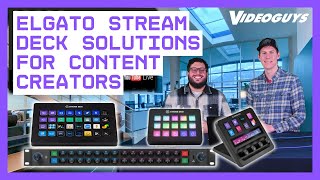
▶ Play ClipIn this episode of Video Guys Live, Chris Bergos from Elgato discusses the Stream Deck product line, covering models from the Mark 2 to the Studio, and their applications for streamers, creators, and broadcast professionals. The conversation highlights how these devices streamline workflows through customizable buttons, dials, and integrations.
Chris Bergos from Elgato joins Video Guys Live to discuss Stream Deck products.
Elgato started in the streamer/YouTuber space, focusing on easy-to-use desktop control panels for live events, chat, and graphics.
The Mark 2 is the standard bearer with 15 customizable keys, USB connection, and interchangeable face plates.
The XL is the powerhouse with 32 keys, suitable for sophisticated setups like live events and houses of worship. It can be network-enabled via a network dock.
The Plus has 8 keys, 4 dials, and a touch strip for creative tasks like video editing. It can control prompter speed and microphones.
The free Stream Deck software allows multiple actions per button press and has a marketplace with plugins for Adobe, PTZ cameras, meeting apps, and social media.
A 15.6-inch full HD teleprompter with magnetic monitor, powered by a single USB-C cable. Supports AI voice scrolling and can be used as a second monitor.
Designed for broadcasters and live events, it is IP-first (PoE), rack-mountable, with 32 keys, dual encoders, and an NFC reader for secure profile switching.
The Studio has a USB-C port to daisy-chain other Stream Decks. Elgato commits to both professional and streamer markets.
Elgato offers a range of Stream Deck devices tailored to different workflows, from the entry-level Mark 2 to the enterprise-grade Studio, all powered by free, intuitive software with extensive integrations.
What is the Stream Deck Mark 2's key feature?
15 customizable keys with interchangeable face plates.
2:06
How many keys does the Stream Deck XL have?
32 keys.
2:53
What unique input method does the Stream Deck Plus offer?
Four dials and a touch strip for controlling multiple functions.
4:24
What is the Prompter XL's display size and resolution?
15.6 inches, full HD.
8:40
How is the Stream Deck Studio powered?
Power over Ethernet (PoE) with a single cable.
11:08
What security feature does the Stream Deck Studio have?
An NFC reader for secure profile switching and locking.
13:56
What is the Stream Deck software's pricing?
It is free.
6:30
Can the Prompter XL be used as a second monitor?
Yes, by adjusting opacity.
10:36
Elgato's Creator-First Origin
Explains the company's focus on intuitive, powerful tools for streamers and YouTubers.
0:40Stream Deck XL for Live Events
Demonstrates real-world use in live production, including houses of worship.
2:53Stream Deck Plus for Creative Work
Highlights the dials and touch strip for fine-tuning in video editing and audio control.
4:24Prompter XL's AI Voice Scrolling
Introduces a novel feature that auto-scrolls text based on speech, enhancing teleprompter use.
8:40NFC Security on Stream Deck Studio
Shows enterprise-grade security for multi-operator environments like houses of worship.
13:56[00:00] Hello everybody. Thank you for joining
[00:01] us for another episode of Video Guys
[00:03] Live. It is Tuesday. It is about three
[00:05] o'clock Eastern. Uh today we are really
[00:08] excited to be joined in studio by Chris
[00:11] Bergos from Elgato,
[00:14] no longer at VizT. Uh Chris, how are you
[00:17] doing today?
[00:17] >> Uh I'm doing really well. We have a lot
[00:19] of cool things we're going to be going
[00:20] over, but thank you for having me in
[00:22] studio. It's uh always a unique
[00:24] experience to be working with and
[00:26] talking with people about what Elgato is
[00:28] doing, especially in the world of Stream
[00:29] Deck.
[00:30] >> Absolutely. So, Chris, why don't you
[00:33] tell us a little bit about Elgato
[00:35] because this is a first time that we're
[00:37] talking about Elgato on video guys.
[00:40] >> Yeah, so uh Elgato's origins really come
[00:42] out of the streamer and YouTuber space.
[00:44] Um these people were looking for a way
[00:47] to better control their live events,
[00:49] control their chat, add some graphics.
[00:51] So the stream deck was this really easy
[00:53] to deploy desktop ccentric panel of
[00:57] buttons just an ability to hit some keys
[00:59] and just control some stuff that you
[01:00] might traditionally do in your stream
[01:02] making it less difficult to admin
[01:06] moderate or in some instances just add a
[01:08] little flare to it. So that's where we
[01:09] sort of started that creator built but
[01:11] also really intuitive to use ideology
[01:15] and that grew into this entire line. Um,
[01:19] >> yeah,
[01:19] >> you know, we have products that are, uh,
[01:23] able to be used in racks. We recently,
[01:26] uh, released a module, so if anyone
[01:27] wants to make a custom build, uh, for a
[01:29] desktop table, uh, the Stream Deck Plus
[01:32] and some of the Stream Decks we're going
[01:33] to go over, the whole core ideology was
[01:35] always that they can all function easily
[01:38] and they all can be very powerful. So,
[01:39] despite whatever form factor they may be
[01:41] in, they all have that same DNA.
[01:44] >> Oh, 100%. and we've been using them
[01:46] throughout not just our studio but in
[01:48] our office and they are super easy to
[01:51] configure and like you said very
[01:52] powerful and you know just shaving as uh
[01:56] Brian said earlier shaving minutes off
[01:58] of workloads. So that is fantastic. So
[02:00] let's let's go one at a time and start
[02:03] about start with the Stream Deck Mark 2.
[02:06] >> The Mark 2 for me is the standard
[02:08] bearer. It was our first stream deck.
[02:10] It's a re a revision on it. says it's
[02:12] the Mark 2, but that same functionality
[02:14] with a little bit of updates to it. And
[02:16] it's really core 15 customizable keys,
[02:20] simple USB connection. We have these
[02:22] interchangeable face plates for people
[02:24] who want to really add a little bit of
[02:25] flare, personality to their setups, and
[02:27] easy to use software. And again, this is
[02:30] sort of like where the streamer started
[02:32] to get these multiple command setups. I
[02:34] want to be able to do something more
[02:36] sophisticated than what I might be able
[02:37] to with a mouse and keyboard. So the
[02:39] Mark I is the starter for Stream Deck
[02:42] >> 100%. And we will get into some of those
[02:44] software features at uh towards the end
[02:47] of the show.
[02:48] >> Yeah.
[02:48] >> So if we are starting with the Stream
[02:51] Deck Mark II, what's the next step up?
[02:53] >> So the XL is the powerhouse. We see
[02:55] these a lot in productions. We see these
[02:57] a lot in people who are using really
[02:59] sophisticated setups. I had an XL before
[03:01] joining Elgato on my computer setup
[03:04] because I wanted to be able to interact
[03:06] with all kinds of things. But at 32
[03:08] keys, you have a lot more actions at
[03:10] your fingertips. Still using that USBC
[03:12] connection. Something that isn't
[03:14] promoted here, but I do want to talk
[03:15] about the base. The XL sits on is
[03:18] actually a little bit more unique
[03:20] because of its size. You can fit in a
[03:22] different product called the network
[03:23] dock. And now you can network enable
[03:25] your XL. So that's a little cool piece
[03:27] that we don't talk about. But again,
[03:29] premium build with this heavy duty
[03:31] stand. And then same easy to use
[03:33] software. And we look at this again,
[03:35] especially in live events, guys. Doing
[03:36] live events, uh, houses of worship. You
[03:38] want something that's got all your
[03:39] buttons available, controlling multiple
[03:41] things, XL is your choice.
[03:43] >> You're talking about live events, and we
[03:45] do this live show every Tuesday at 3:00
[03:47] Eastern. So, thanks for watching. And
[03:49] actually over at our Tririccaster TC1
[03:52] Pro, we have a Stream Deck XL and Adam
[03:55] is able to change uh various things.
[03:58] Pull up our memes, pull up comps, uh
[04:01] switch inputs, be able to pull up our
[04:03] graphics. All of this is being run off
[04:05] of the Stream Deck XL.
[04:07] >> It's such a powerful tool to have and I
[04:09] think the beauty of it is you get those
[04:11] extra buttons. Again, it's it's for the
[04:13] power users, but it's just so cool to
[04:15] say, "Hey, I have a custom button. does
[04:16] like six things for me and I have the
[04:18] icon set and it's all ready to go.
[04:20] >> Perfect. And next up would be the Stream
[04:23] Deck Plus.
[04:24] >> So very different DNA on the Stream Deck
[04:28] Plus. So we looked at some of our people
[04:30] who are in the more creative space. So
[04:33] think of like your video editors, people
[04:35] using Photoshop and we took a different
[04:38] approach. So we have less keys here with
[04:39] only eight keys, but we have these four
[04:41] dials that can do multiple functions.
[04:44] Right above those dials is a touch strip
[04:45] that you can actually swipe through and
[04:47] change what those dials are doing. It's
[04:49] got the built-in stand so ready to stand
[04:51] up for your desktop. And same software,
[04:55] but something unique it does in this
[04:57] sort of world is the prompters. You can
[05:00] actually control the prompter speed with
[05:02] the Stream Deck Plus. And I think I we
[05:04] see a lot of people using the plus in
[05:06] way more different ways than we see our
[05:08] traditional production guys, but it's so
[05:10] intuitive that they get right behind it
[05:12] and they're doing something that they
[05:14] really needed to. And then one last
[05:15] little feature here is uh in the image
[05:17] itself is showing control over
[05:19] microphones and headsets. So you're sort
[05:21] of, you know, where your thoughts go is
[05:23] the limitation. Like how much can you
[05:24] do? Well, there's a lot that you can
[05:25] customize.
[05:26] >> Oh, 100%. And just because we were
[05:29] talking about how we use our Stream Deck
[05:31] XL, we actually have a Stream Deck Plus
[05:34] in our editing room and we have the
[05:37] Adobe Premiere plugin. And my favorite
[05:40] feature on that is being able to use
[05:42] those knobs to scrub through the
[05:44] timeline and be able to go frame by
[05:46] frame. You know, when I'm using the
[05:47] mouse, sometimes I I skip three or four
[05:50] frames on accident. So being able to,
[05:52] you know, really go fine-tune with those
[05:54] knobs and not even have to think about
[05:56] it. It becomes second nature at the end
[05:57] of the day.
[05:58] >> You're going to notice a lot and and
[06:00] different people are going to notice
[06:01] that once they start to use their stream
[06:02] deck, it just becomes an extension of
[06:03] making their life a little bit easier.
[06:05] And that's what I've always preached
[06:06] when I'm getting behind it. It's like,
[06:08] yes, I have my full knowledge and
[06:09] capability to do this stuff, but having
[06:11] more buttons easy. Also, if I need to
[06:13] like take a vacation, I have all the
[06:15] buttons here. Here's everything you need
[06:17] to know. This will get you 99% of the
[06:19] way there and that's all I care about.
[06:21] >> That's great. And we mentioned earlier
[06:24] at the top of the show that there is
[06:25] some software involved to be able to get
[06:28] these things up and running, right?
[06:30] >> Yes. So, Stream Deck software is free.
[06:32] Uh it's got a really simple to use UI.
[06:34] The goal is to allow for multiple
[06:36] actions on a single button press and we
[06:39] have a growing marketplace with all
[06:40] kinds of uh deep integrations. you
[06:42] talked about using it with Adobe, you
[06:45] know, um on our marketplace, you can
[06:47] probably find a plugin for free for just
[06:49] about anything. Um some of the software
[06:51] switchers out there have some some PTZ
[06:53] manufacturers, some devices, some uh
[06:56] meeting applications. It's really unique
[06:58] the kinds of things you can do. Social
[06:59] media apps you want to get out to Tik
[07:00] Tok, there's an application to use your
[07:02] Stream Deck to work with Tik Tok. So, I
[07:05] I very much say if you're going to get
[07:07] into Stream Deck, visit the marketplace,
[07:09] look at some stuff, and you'll be like,
[07:11] man, I could control that. And then
[07:12] start to sort of look and say, well, you
[07:15] know what? I'm doing something on a Zoom
[07:16] meeting pretty consistently, but I also
[07:18] need to update this file while I'm
[07:20] working. Uh maybe I'm controlling my
[07:23] camera specifically. Now I can use that
[07:25] stream deck to do all those things and
[07:26] I'm not like in the middle of the
[07:27] meeting like okay I gotta hit the share
[07:29] button and oh I have to share my second
[07:31] screen or like I have to do this window.
[07:33] Stream deck give you a single button to
[07:35] just make that all happen
[07:36] >> and because you have the ability to
[07:39] customize these things. You have not
[07:41] only multiple pages but you can say oh I
[07:43] only need these three features from
[07:45] Adobe and these five from teams and
[07:48] these three from you know the
[07:50] tririccaster or whatever. You can have
[07:52] just the buttons that you need from
[07:54] various programs on one page or you can
[07:56] have multiple pages and one page be set
[07:59] for a certain program.
[08:01] >> The other thing I'm going to notice and
[08:03] I think the video will play here is it's
[08:05] super easy to use the marketplace.
[08:06] You're going to find the app you want.
[08:08] You'll click get and it actually just
[08:10] pops open the Stream Deck software. So
[08:12] there's no sort of guessing. There's no
[08:14] understanding, hey, where did this
[08:15] install or do I have to go through this
[08:17] different file? the integrations are
[08:18] really tight and I do love that for
[08:21] people who are approaching stream deck
[08:22] and saying well is it for me if there's
[08:24] something on the marketplace it's for
[08:25] you because it's just going to make your
[08:27] life a little bit easier and we
[08:29] typically talk about production setups
[08:30] but I do think there's opportunities
[08:32] beyond that where you know its origins
[08:34] were not in a traditional production and
[08:36] there's just so much you can do with it.
[08:38] >> No absolutely.
[08:40] Next thing that I want to talk about is
[08:42] this thing uh over my left shoulder here
[08:45] and that is the Prompter XL which is
[08:48] shipping now. As you can see we have one
[08:50] here. Um can you tell us a little bit
[08:52] about the Prompter XL?
[08:53] >> Prompter XL is part of our new ideology
[08:57] because we're working with more
[08:58] professional setups. We know that there
[09:01] are things like podcasts, there are
[09:02] things like corporate events where
[09:03] someone needs to be able to read
[09:04] something particularly right. Maybe it's
[09:06] an ad read. Maybe there's something new
[09:08] that's happening at the uh
[09:10] infrastructure level. Maybe we have a
[09:12] new process we're going through. Well,
[09:13] the Prompter XL is at 15.6 inches. It's
[09:16] got that nice big full HD display. It's
[09:19] also got something that's a little
[09:20] interesting in that that monitor that
[09:22] gets reflected. It's actually magnetic.
[09:24] So, setup for this thing is painless.
[09:26] You put it together, pop the monitor on,
[09:28] and off of one USBC cable, you get
[09:31] power, you get image, and that control.
[09:34] So despite it looking like something
[09:36] that would cost significantly more, it's
[09:38] giving you a lot of what we do at
[09:40] Elgato, simplicity, ease of use, and
[09:42] that price point puts it in a really
[09:44] specific environment to say, man, maybe
[09:47] prompter wasn't something the thing I
[09:48] thought of before, but now I can get one
[09:50] and start to leverage it in any kind of
[09:52] setup I want to do.
[09:53] >> 100%. And just again, because we are
[09:56] using the products that we now carry,
[09:58] um, you know, a lot of these shows are
[10:00] live, but we do our product spotlights.
[10:02] We try to do one a month. Uh those are
[10:04] more scripted and this thing is already
[10:07] saving me time and effort. And on our
[10:10] next product spotlight, I will be
[10:11] looking right at the camera, not
[10:13] slightly to the left of the camera.
[10:15] >> It's so slick to use it. And one thing
[10:16] that is kind of really special with
[10:18] this, and this kind of goes to Elgato at
[10:21] a greater level, if you have a very
[10:22] powerful PC, you can enable AI voicing.
[10:26] So as you're talking, it will scroll to
[10:29] just follow along with you. You could
[10:30] also, like I said, use a stream deck
[10:32] plus and change the scroll as you want
[10:35] to. Uh, you can even mess with the
[10:36] opacity, which sometimes people will
[10:38] say, well, why would I do that? You can
[10:39] use the prompter to actually act as just
[10:41] another monitor. And so, we see people
[10:44] using this in meetings where they're
[10:45] actually have the teams or Zoom meeting
[10:47] up. So, they're maintaining that ey line
[10:49] like you would do in the read. And so, a
[10:50] lot of flexibility. And I think again,
[10:53] you put it in the right hands, you start
[10:54] to see like, oh man, there's all these
[10:55] cool things that you can do.
[10:56] >> 100%. And then the last thing that we
[10:59] want to talk about is one of the newer
[11:02] uh products to the Elgato line and that
[11:04] is the Stream Deck Studio. Can you tell
[11:06] us a little bit about the Stream Deck
[11:07] Studio?
[11:08] >> So we noticed that a lot of productions
[11:10] were using Stream Decks. Um and
[11:13] naturally we went back and said, well,
[11:15] we designed the Stream Decks for
[11:17] streamers. We probably want to go back
[11:19] and redesign our product for or make a
[11:22] new product for these broadcasters,
[11:24] these live events. And so the Stream
[11:26] Deck Studio is that sort of product that
[11:28] covers that. It's easy to set up. It's
[11:31] got the responsiveness you need and it's
[11:33] got that enterprisegrade reliability.
[11:34] And one of the pre-shows we were
[11:36] actually as you guys were operating the
[11:38] switcher, it was just popping along with
[11:40] you guys that you could then hit the
[11:41] buttons on the stream deck studio and
[11:42] then control the switcher. It's it's
[11:44] just super easy to leverage. So you
[11:46] know, uh let's just you know, we talked
[11:48] about some of the stuff where it's
[11:49] versatility. It's also IP first. So it's
[11:53] PoE. Yep.
[11:54] >> So set up for this is a breeze. I mean
[11:56] over here on our setup in front of us,
[11:57] one cable.
[11:58] >> One cable. That's it.
[11:59] >> Uh we can streamline the workflows a
[12:01] little bit differently than what we do
[12:02] on the XL's and the MK is. But I think
[12:05] the coolest part is how scalable this
[12:06] guy is.
[12:07] >> I can get a bunch of Stream Deck studios
[12:09] operating different elements of my
[12:11] environment, have them at different
[12:12] stations and all contributing to this
[12:14] greater production. Or I could have them
[12:16] doing really unique things like I could
[12:18] have one behind the corporate boardroom,
[12:20] punch in a couple of things, change
[12:22] what's on the displays, reset the pretz
[12:24] cameras. So there's a lot of cool things
[12:26] that I think studio starts to enable.
[12:29] And because it's rack mountable, things
[12:31] get a little bit interesting. I do think
[12:32] people who are looking at it from
[12:34] broadcasting, looking at it from a live
[12:35] events or corporate AV space, this is
[12:37] actually the stream deck that may be
[12:39] powering their productions.
[12:41] >> Absolutely. As you can see, we have one
[12:43] here and we're going to be continuing to
[12:45] play with that as well.
[12:47] >> So, rack mount form factor, beautiful
[12:50] setup, easy to get in there. The 19inch
[12:52] rack mount,
[12:53] >> 32 keys, so customization. Uh, in this
[12:56] instance, we're showcasing uh something
[12:59] more like a router panel might look
[13:00] like. So, again, starting to think
[13:02] differently from where we're coming from
[13:03] in our origins.
[13:05] These two dual multi-function encoders
[13:08] are very specific to expanding
[13:12] workloads. Y
[13:13] >> so first and foremost you can dial them
[13:15] in swift go up and uh back and forward.
[13:18] You can do something like setting up
[13:19] multiple profiles or so a given stream
[13:21] deck studio you can go through and say
[13:23] hey I'm going for my morning show to my
[13:24] afternoon show. Twist the knob afternoon
[13:27] show is ready. You can actually push the
[13:29] buttons in to get access to different
[13:31] layers. So, if I wanted to, let's just
[13:33] say have PTZ cameras one to two and then
[13:35] push in have three and four, do
[13:37] something like that. Um, and it's
[13:39] interesting how much you can tweak.
[13:41] >> There's a whole color range on just the
[13:43] dial. So, just, you know, we give you
[13:46] that really deep level of customization.
[13:49] This one's probably going to be a little
[13:50] weird, but it's actually one of the cool
[13:52] reasons that when I joined Elgato, I was
[13:54] like, "Yeah, this is different." So, we
[13:56] have an NFC reader on the studio. And
[13:59] you might be thinking, well, Chris, why
[14:01] do I need NFC reader?
[14:03] If you're thinking about a larger scale
[14:05] organization or something where we're
[14:06] going to have multiple setups and maybe
[14:08] have different operators, well, my
[14:10] engineer could go in, tap the Stream
[14:12] Deck Studio with his NFC card, open up
[14:14] his configuration, make his changes.
[14:17] Okay, now we're ready for the next
[14:18] operator, tap the NFC card again, and
[14:20] now that's locked, and the operator
[14:22] can't interfere with anyone else's show.
[14:24] Alternatively, it could have different
[14:26] people at different positions tap into
[14:28] the studio and gain access. Let's just
[14:30] say I'm at a live event, right? I have
[14:31] an engineering station. Maybe I have a
[14:33] TD using one. Maybe my lighting director
[14:36] might be incorporating one because they
[14:37] maybe want to trigger different setups
[14:39] of the lighting. Or maybe someone in the
[14:40] back at the processor doing the LED
[14:42] work. All of these guys could have their
[14:44] positions, tap in, and now they're ready
[14:46] to go. And I didn't have to pre-program
[14:48] a bunch. I sent the the studios to
[14:51] different locations and everyone's ready
[14:52] to go. It's uh it's interesting because
[14:54] our designers were like why don't they
[14:56] do more of this and I think the idea is
[14:59] from our professional spaces is well we
[15:01] just teach the guys not to do that but
[15:03] now you get access to a whole different
[15:04] group of operators at different skill
[15:06] levels.
[15:06] >> No absolutely the the first thing that
[15:08] comes to my mind is specifically like a
[15:10] house of worship. You know you mentioned
[15:12] your engineers come in and then you
[15:14] don't want your volunteers to
[15:16] accidentally change something. So being
[15:19] able to lock out certain functionality I
[15:21] think is is is great. There the there
[15:24] are other products that do uh similar
[15:27] things with like PTZ controllers so you
[15:29] can't accidentally change the exposure
[15:31] but you can still move the camera.
[15:33] >> And the beautiful part of what we do
[15:34] with Stream Deck is that you can control
[15:36] all that stuff.
[15:36] >> And so you could pop in and tag like you
[15:38] said or maybe I tag for the easy
[15:40] profile.
[15:40] >> Hey, I'm not in. We're going to give
[15:42] them the four buttons and the stream
[15:43] button.
[15:44] >> Yep.
[15:45] Last but not least, we talk about
[15:47] expanding and interacting with different
[15:48] elements. It has a USBC port right on
[15:51] the front of it, which if you have any
[15:53] of the other stream decks, you could
[15:54] actually plug in, get power, and now be
[15:56] able to run that stream deck as well as
[15:58] part of your setup. So, you know, we're
[16:00] even thinking about people who are
[16:02] coming from our traditional space. Well,
[16:03] how would they want to incorporate it? I
[16:05] still love my stream deck. Still love my
[16:06] XL. Cool. I can also get the studio and
[16:08] sort of interact with it.
[16:10] >> That's great.
[16:12] Well, Chris, thank you so much for
[16:14] coming on to the show. As you can tell,
[16:16] there is a lot of great things that you
[16:18] can do with the stream decks, and there
[16:20] really is a stream deck for every kind
[16:22] of workflow out there. Uh, Chris, as
[16:24] always, whenever we have a guest on our
[16:26] show, especially when it's Chris Bergos,
[16:28] I mean, come on. Um, we like to give
[16:30] them the final word. Is there anything
[16:31] that you'd like to say to our viewers?
[16:34] Stream Deck and Elgato are in a unique
[16:36] space where we're going to be doing more
[16:39] than ever before. And I think it's
[16:40] important that we state this very
[16:42] firmly. We are making commitments to the
[16:44] professional market and still sticking
[16:46] with our streamer core. So you're going
[16:48] to be seeing a lot of different products
[16:50] coming at us coming from us that you
[16:52] might say, "Oh, cool. I'll need this or
[16:53] I might have thought about that." And
[16:55] just remember that ease of functionality
[16:56] out of the box is always going to be
[16:58] with us. So, I hope that sort of
[17:01] instills that I or you will be looking
[17:03] at the next stream deck that's coming
[17:05] out or getting involved with something
[17:06] we currently have.
[17:07] >> All right, Chris, thank you so much for
[17:09] joining us today. Um, if you haven't
[17:12] already, please like and subscribe to
[17:14] Video Guys or follow us on Facebook and
[17:17] we'll see you next Tuesday at 3 o'clock
[17:19] Eastern. Thanks.
[17:23] >> Video Guys is available Monday through
[17:24] Friday. Give us a call at 1-8003232325.
[17:30] Don't forget to follow us on Twitter and
[17:32] Instagram to stay connected with all of
[17:33] our updates. And you can like us on
[17:36] Facebook. Keep an eye out for our live
[17:39] videos and don't forget to subscribe to
[17:41] our YouTube channel. Thanks for
[17:42] watching.
⚡ Saved you 0h 17m reading this? Transcribe any YouTube video for free — no signup needed.