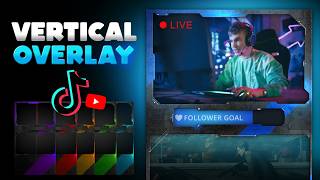

FREE TikTok Overlay - Step by Step Setup
45sOffers a free resource with clear instructions, appealing to creators seeking easy improvements.
▶ Play Clip"Delivers exactly what it promises: a free overlay and a clear setup guide, though some time is spent on minor adjustments."
This video provides a free, ready-to-use overlay for vertical live streams on platforms like TikTok, YouTube, and Twitch. The creator demonstrates how to apply the overlay in OBS Studio, customize it, and adjust elements like follower goals and alerts. The video also mentions a free pack of 14 PNG overlays and a customizable template available in Photopea.
The creator introduces the video, stating that he has created a free overlay for vertical live streaming on platforms like TikTok, YouTube, and Twitch. He promises to show how to apply and use it.
He selects the 'screen plus camera' template, sets the camera source, and clicks apply. He then adds the overlay as a source by selecting the file and adding it.
He right-clicks to fit the screen, adjusts the order to avoid touching the overlay, and moves the camera and follower goal into place. He also mentions using keyboard arrows for fine adjustments.
He shows how to change the follower goal to a gift goal by clicking the cogwheel and applying the change. The goal fills up blue as it progresses.
He demonstrates how to scale down the gameplay and move the overlay to avoid hiding important information. He suggests dragging the overlay on top of the image if needed.
He explains that the alert box is transparent until an alert occurs and can be moved anywhere, but should be on top of other elements to be visible.
He mentions a free pack of 14 PNG overlays available via a link in the description. He also shows a customizable template in Photopea where users can add socials, change colors, and save.
He explains that after saving the customized overlay, it can be brought into OBS or TikTok Live Studio. He also mentions other videos on his channel about vertical overlays.
The video delivers a practical, free solution for vertical stream overlays, with clear instructions for OBS and customization options. It's a quick, actionable guide for streamers looking to enhance their vertical broadcasts.
What platforms are mentioned for vertical live streaming?
TikTok, YouTube, and Twitch.
How do you add the overlay in OBS?
Click Add Source, select the file, and click Add Source again.
00:50
How can you change the follower goal to a gift goal?
Click the cogwheel next to it, select the gift goal option, and click Apply.
01:46
What is the purpose of the alert box?
It is transparent until an alert occurs, and it can be moved anywhere but should be on top of other elements.
02:41
How many PNG overlays are in the free pack?
14.
03:20
What tool is used for customizing the overlay?
Photopea.
03:37
Free Overlay for Vertical Streaming
Provides a valuable free resource for streamers on vertical platforms.
Follower Goal to Gift Goal Conversion
Shows a simple customization that can increase engagement.
01:46Free Pack of 14 Overlays
Offers additional free resources beyond the single overlay.
03:20Customizable Template in Photopea
Demonstrates how to personalize the overlay with socials and colors.
03:37[00:00] Hey guys, Gael Level here if you plan on live streaming on any vertical platform such as TikTok live or YouTube vertical and Twitch is also working So I spent my time creating this overlay from scratch.
[00:14] probably don't care, you just want the overlay. I will make it available for free. And now I'm just going to show you how to apply it and how to make it work.
[00:26] And I'm going to select the first template, which screen plus camera. if I go check my sources, I can set the camera so it picks the right
[00:38] Click apply. And here I am. Click on the cogwheel and select the right game. Right now I have this game playing So adding the overlay is as simple
[00:50] So let's click Add Source. Select the file, find the file and click Add Source again.
[01:03] For some reason I don't understand it. What you can do is right click full screen and fit the screen. and adjust order to make sure that you don't touch the overlay anymore.
[01:17] Boom. So now I can go ahead and select my camera, bring it down just a little bit, okay. Select my follower goal and adjust it so that it fits.
[01:31] And of course the follower goal can become a gift goal. And I can also use the arrows on my keyboard to adjust everything. Okay, I can click on the cogwheel next to it in my layers list
[01:46] and turn it into a gift goal by clicking here and apply. So as it fills up, it's going to get blue Okay, then for my gameplay, I just want to make sure that everything is visible.
[02:00] So what I can do is actually bring it down just a little bit. Like that and scale that down. And if you feel like the overlay for example, there's a big diagonal line here.
[02:12] is hiding too much information, important information on the gameplay, what you can do is just drag and drop it on top of the image. and as you can see, it's that huge of a difference.
[02:26] Of course, the game that I'm playing is specific. But if you have a different game where you need and things like that, I can understand you want it to be fully visible.
[02:41] So yeah, just put it on top of the image and you're ready to go. You have an alert box that is right there and it's kind of transparent right basically not going to be visible until there's an alert.
[02:54] But if you want you can also move it, place it somewhere else, place it in the middle, place it on the gameplay or something like that. you want to make sure that it is on top of it.
[03:07] That's more like it's that simple if you're using OBS studio. Just put them behind or on top. The description is just one image.
[03:20] But if you're looking for way more overlays, I actually have a free pack Link will be in the description and this one has a whole lot of them. I've done it a while ago and there's 14 png overlays in that being said,
[03:37] if you have a little bit of image editing skills, you can go to photo, go to the search bar up top and type my name gal level. And there should be at least one TikTok overlay here.
[03:51] I believe I made one There it is TikTok live gaming overlay. The difference with this one is that you can actually customize it. Right.
[04:05] You can add your socials. Double click on the T to type whatever text you want. you can go at the bottom and add an adjustment layer.
[04:21] Make it whatever color you want, and once you're done, Save and you'll have it boom!
[04:33] Now you can bring it into OBS or TikTok Live Studio and use it here. I believe I have some more on my channel so you can check those out. How to do vertical, how to use and how to how to do vertical overlays,
[04:52] So you should be fine. Make sure you subscribe. And thanks for watching.
⚡ Saved you 0h 05m reading this? Transcribe any YouTube video for free — no signup needed.