Steam's Hidden FPS Counter!
45sReveals a built-in feature that saves viewers from installing extra software, sparking curiosity and immediate utility.
▶ Play Clip"Title promises a built-in FPS counter and delivers exactly that, though content is minimal."
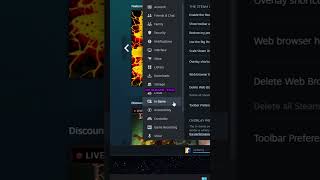
This video demonstrates how to enable the built-in FPS counter in Steam, allowing gamers to monitor their performance without installing additional software.
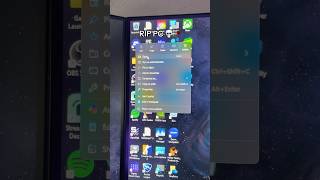
Open Steam settings, go to the 'In Game' tab, scroll down to 'Overlay Performance Monitor', and choose where to display the performance monitor.
Steam offers a simple, built-in solution for displaying FPS, eliminating the need for third-party software.
How can you enable the FPS counter in Steam?
Go to Steam settings, then the 'In Game' tab, scroll to 'Overlay Performance Monitor', and choose where to display it.
Built-in FPS monitoring
Shows users how to avoid third-party software for a common gaming need.
[00:00] If you want to see your FPS while gaming, Steam already has this built in. In Steam, you want to open up your settings, then go to the end game tab, then scroll down to overlay performance monitor, and show your performance monitor to wherever you'd like.
[00:12] Now you can monitor your performance without installing extra software. Follow for more content like
⚡ Saved you 0h 00m reading this? Transcribe any YouTube video for free — no signup needed.