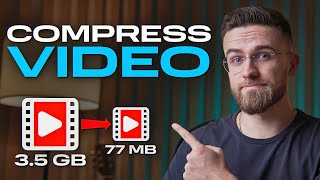

3 Ways to Shrink Video Files Without Losing Quality
45sImmediately addresses a common pain point (large video files) and promises a solution, hooking viewers who need to upload or share videos.
▶ Play Clip"Title promises quick compression without quality loss; video delivers three methods, though the '1 minute' claim is slightly exaggerated."
This video presents three methods to reduce video file size without sacrificing quality: HandBrake (a free desktop app), Cleo (an online service), and Mobile Video Converter (a paid tool). The host shares personal experience and tips for each option.
Cannot upload or send videos due to large file size; avoid deleting or compressing into low quality.
Online, free, and favorite method for speed and convenience.
Available for Windows, Mac, Linux. Steps: download, open video, choose MP4, check web optimize, set codec H.264, frame rate same as source, RF quality slider around 20-23.
Decent but complex interface, not beginner-friendly, lacks advanced editing tools.
Sign up with email, upload video, automatic compression. Simple interface, works with most formats. Free version may have watermark; subscription pricey.
Full-featured, intuitive, multi-language. Steps: open file, select compress, set target size, convert. Fast, good quality. Bonus: batch processing, trimming, audio extraction.
Reducing video size while keeping quality is possible. Recommends Mobile Video Converter with promo code for discount.
Reducing video file size without quality loss is achievable with the right tool; the host recommends Mobile Video Converter for its speed and features.
What is the recommended RF quality slider range in HandBrake?
Around 20-23.
0:41
What format should be chosen in HandBrake for compression?
MP4.
0:30
What is a drawback of HandBrake mentioned in the video?
Complex interface, not beginner-friendly, lacks advanced editing tools.
1:05
What is required to use Cleo online service?
Sign up with email.
1:29
What is a downside of the free version of Cleo?
It may add a watermark.
1:46
What are the bonus features of Mobile Video Converter?
Batch processing, trimming, audio extraction.
2:18
Which method does the host recommend as favorite?
Mobile Video Converter.
1:55
RF quality sweet spot
Provides a specific numerical guideline (20-23) for balancing quality and file size.
0:41HandBrake complexity
Highlights that free tools can be intimidating for beginners despite being powerful.
1:05Cleo watermark downside
Reveals a common trade-off with free online services: watermark or subscription.
1:46Batch processing bonus
Emphasizes time-saving feature that many users overlook.
2:18[00:00] can't upload or send a video because the
[00:02] file is huge. Don't rush to delete it or
[00:05] compress it into pixelated mess. Hey,
[00:07] Arthur here and I've been editing videos
[00:08] for over 10 years and today I'll show
[00:11] you three ways to reduce a video's file
[00:13] size without losing quality. One of them
[00:15] is online, another is free and the third
[00:17] one is my favorite for its speed and
[00:19] convenience. Let's start with Handbreak
[00:22] program for Windows, Mac OS, and Linux
[00:24] that can shrink video files with no
[00:26] visible quality loss. Download it from
[00:28] the official site. Open your video.
[00:30] Choose MP4 as the format and check the
[00:33] web optimize box. Next, go to the video
[00:35] tab. Leave the codec as H.264.
[00:39] Set the frame rate to same as source and
[00:41] slide the RF quality slider to about
[00:44] 2023. That's the sweet spot between
[00:47] quality and size. Keep in mind, if you
[00:49] set the frame rate below 25, the video
[00:52] might look a bit choppy from below FPS,
[00:55] like a jerky animation. But if you set
[00:57] it much higher, you won't reduce the
[00:59] file size by much. Let's give it a try.
[01:01] Save the settings and start the
[01:03] conversion. Well, not bad. Handbreak is
[01:05] a decent option, but its interface is
[01:08] pretty complex and can be hard to figure
[01:10] out, especially for a beginner. Those
[01:12] fine-tuning settings can be
[01:13] intimidating. Plus, the program doesn't
[01:15] support every format and it lacks any
[01:18] advanced editing tools. Sometimes you
[01:19] need not only to lighten the file, but
[01:22] also cut out extra parts and Handbreak
[01:24] won't help you there. The second way is
[01:26] an online service called Cleo. If you
[01:29] want the absolute smallest file, you
[01:31] will need to sign up with your email.
[01:33] After that, you upload your video file
[01:35] and the service automatically chooses
[01:36] the optimal compression settings in a
[01:38] minute or two. You can download the
[01:40] finished video and see how much it size
[01:42] dropped. The interface is simple and it
[01:44] works with almost every format. The
[01:46] downside is that the free version might
[01:48] slap on a watermark and the subscription
[01:50] is pretty pricey given the limited
[01:53] functionality. And the third option is
[01:55] mobile video converter. My personal
[01:57] favorite. It's a fullfeatured program
[01:59] with an intuitive interface and it's
[02:01] available in multiple languages. It's
[02:03] perfect for those who value their time.
[02:05] Open your file, click the drop-own menu,
[02:08] select compress file, set the target
[02:10] file size you want, and hit convert. The
[02:13] program works fast and doesn't ruin your
[02:15] image quality. Some bonus perks. You can
[02:18] batch process several files at once. A
[02:20] huge timesaver. Trim out unwanted
[02:22] fragments or extract audio. Very useful
[02:25] options when you need to tweak the video
[02:27] a bit but don't want to do a full edit.
[02:29] Reducing the video size while keeping
[02:31] good quality is absolutely possible.
[02:34] Just pick the right tool for your needs.
[02:35] And if you want to try a quick and
[02:37] convenient method, download Mobile for
[02:40] free via the link in the description.
[02:41] Catch my promo code to get a discount on
[02:43] a one-year mobile subscription. And
[02:46] happy compressing.
⚡ Saved you 0h 02m reading this? Transcribe any YouTube video for free — no signup needed.