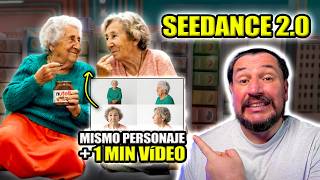

Breaking 15s AI Video Limit
41sReveals a secret method to extend AI video length, sparking curiosity and providing high value to content creators.
▶ Play Clip"Delivers on the promise of methods to create long videos, but includes some filler and self-promotion."
This video demonstrates two methods to create long, consistent cinematic videos using Seedance 2.0 and Higgsfield AI, overcoming the 15-second per clip limit. The creator shares practical tips on maintaining character and scene consistency across multiple clips.
Seedance 2.0 has a 15-second limit per clip, but this can be overcome with proper techniques. The video shows two methods to create longer videos while maintaining consistency.
A good prompt includes cinematic style, color correction, lighting, audio details, timeline in seconds (3-15 per scene), and emphasis on realism and physics. The creator shares his base prompt and offers a PDF download.
Upload images as visual references (e.g., character on white background, car) to maintain consistency. You can also use previous generations, videos, or elements from within Higgsfield.
Select model (Seedance 2.0), set seconds, aspect ratio (16:9, 9:16, 4:3), and resolution (max 720p). Cost is 90 credits per 15 seconds, currently discounted.
Be very specific in prompts. Avoid abrupt camera changes as AI may invent content. Better results with 8-10 second clips than 15 seconds, especially for longer videos.
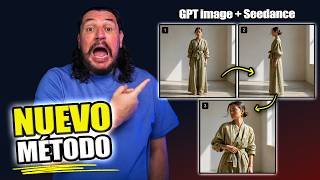
Create a grid of character images in various positions for consistency. After generating first clip, use the last 3 seconds as reference for the next clip. Add prompt specifying 'extends the video by 15 seconds with continuous scene from last frame' and maintain same character details.
Easy to use, no errors between scenes, ensures smooth continuous motion like a single shot. Ideal for seamless camera movements.
Create separate clips with camera changes and cuts, but maintain character consistency using reference images on white background. Example: two grandmothers in a supermarket with consistent faces.
For each character, create a grid of images on white background showing front, side, back views (360°). Upload these as visual references in Higgsfield.
For different scenes, create new background images (e.g., supermarket exterior) and attach them to prompts. More visual references help AI maintain consistency.
Control is more difficult with longer videos; AI may invent things. Simplifying prompts and reducing clip length (8-10 seconds) yields better results.
Special effects work well in 15-second clips but AI may make things up. Shorter clips with tailored prompts reduce errors.
By using either the extension method or consistent character references, you can create long, cinematic AI videos. The key is to be specific in prompts, use visual references, and keep clips shorter for better consistency.
What is the maximum clip length for Seedance 2.0?
15 seconds per clip.
00:13
What are the key elements to include in a prompt for cinematic AI videos?
Cinematic style, color correction, lighting, audio details, timeline in seconds, and emphasis on realism and physics.
01:02
What is the maximum resolution for Seedance 2.0?
720p.
03:08
Why does the creator recommend 8-10 second clips over 15 seconds?
Because shorter clips yield better results and reduce the chance of AI inventing content.
03:49
Describe the first method to create videos longer than 15 seconds.
Use the last 3 seconds of the previous clip as a reference for the next clip, and add a prompt that extends the video with a continuous scene from the last frame.
04:17
What is the purpose of creating a grid of character images on a white background?
To maintain character consistency across multiple clips by providing visual references from various angles.
04:30
What should be included in the prompt when using the extension method?
Specify that it extends the video by 15 seconds with a continuous scene from the last frame, and maintain same character details (e.g., white suit, spaceship, lighting, facial identity).
06:11
How does method 2 differ from method 1?
Method 2 uses separate clips with camera changes and cuts, but maintains character consistency using reference images on white background.
08:49
Specific Prompts and Short Clips
Key insight: being very specific in prompts and using 8-10 second clips reduces AI errors.
03:49Method 1: Extension Technique
Practical method to overcome the 15-second limit by using the last frame as reference.
04:17Method 2: Consistent Characters
Alternative approach using multiple clips with consistent character references for storytelling.
08:49Simplification for Better Results
Reducing clip length and simplifying prompts improves AI output consistency.
11:28[00:13] Sidans 2.0 has already been released worldwide and the 15-second limit is not a problem if you know how to work with it. In this video, I'm going to show you the two methods I 'm using to break the 15-second limit using Hitfill,
[00:27] thus maintaining consistency between shots without the characters maintaining visual coherence in your video for more than a minute. If this is your am Lorwiin Enrique, captain of the artificial ark. Let's begin.
[01:02] good videos is a good promo. The one I'm using is the following. As you can see in this introduction, we're putting the cinematic styles, whether it's epic, classic style, whatever you want. I specify what type of
[01:15] color correction, lighting, the audio, if there will be special sounds in the video, specify them. You
[01:28] but you can place it. Then I place the timeline in seconds. Remember that you can make videos between 3 and 15 seconds per scene. And finally, this is where you'll emphasize the styles, whether there's realism, whether there's good physics.
[01:41] You have to put all of this in this part of the pro. I insist, this is the one I 'm using and it has given me results, that's why I'm sharing it with you. I'll also leave a PDF on the blog for you to download, which will include this
[01:54] base promo plus the promo files for some of the clips I 'll show you in this video. They wo
[02:10] algorithm. But how do you make videos using SID you already know what interface you'll find, okay? You have to go to the top where you'll see it says top sedans. When we are already in the
[02:24] sidan interface, as you can see, the sidans model is marked. At upblop media you can do several things. You can place images, for example, I'm going to place my image on a white background as a visual reference. I'm going to
[02:37] put the one from the car on and I'm going to put this one on . Because? Because the idea behind these reference of the car I'm going to use in the video, and the other to keep a reference of how I'm dressed and the location in terms of colors. And as you can see next to it, it
[02:52] tells you that you can use images, generations that you have created within Hitfield, as well as videos, elements and images that you liked. Below you can select the model, in this case it is already Sidan 2.0.
[03:08] Here are the seconds you want. Here's the aspect that if 169 9 16 43 and finally the resolution. The only bad thing about Sidans right now is that it's a maximum of 720,
[03:22] okay? 15 seconds used to cost 90, but today it came with a discount. I don't know how long it will last, so make the most of it. Once I have everything and click generate, Once I have everything and click generate, the result is as follows.
[03:49] information that I've been noticing during all the tests I've been doing for the last two days, and that is that you have to be specific, very specific when creating the promo. Second, if you make many
[04:02] camera changes and they are very abrupt, the AI will start making things up. And another piece of information I'll give you , because I've verified it, is that I get better results making videos of 8 to 10 seconds than 15 seconds. And especially if I'm going to create something longer than
[04:17] a minute. I'll explain why a little later, but let's get to the point. How to make a video that is longer than 15 seconds, 30 seconds, or a minute? The first thing I did was this picture. Under the same
[04:30] universe I created a grit of my image in various positions. Why am I doing this? With a grid of multiple shots, you will be able to ensure that when the character moves, it maintains consistency in the video from beginning to end. And if
[04:44] you make other clips, maintain the same consistency.
[05:14] for the story and here comes the first method. Once you have created your first clip , if you go to where it says upload media, remember I told you that you could add images or videos? That's what
[05:29] you have to do. If I grab here, pin. Notice that it tells me I can choose up to 14 seconds, okay? So, what I'm going to do is take the last 3 seconds of this video, from the first video, and save it.
[05:44] When I save him, he will use it as a reference point. But what's going on? Since I don't want to lose reference to my character, I go to the images I uploaded and upload the image I had created with all the views. And to
[05:59] this I add a prompt. But the promo, even though it has the same structure as the one we used for the first one, you have to add something which is the following.
[06:11] And what this is telling you is that it extends the video by 15 seconds with extends the video by 15 seconds with a continuous scene from the last frame, and I'm also making sure it's the same main personnel, the
[06:24] same white suit, the same spaceship, the same lighting, and the same facial identity. In this case, this data is customized with my video. In your case, you need to add a different type of specification depending on what
[06:39] your video is about. And using this same method I made this other video. I
[07:04] method? It's easy to use, there's no room for error between one scene and another. It also helps to make everything you want to do much more continuous. In fact, if you've seen videos where the camera is continuous, you can achieve the same effect with this
[07:17] method, ensuring the image always moves smoothly to where you want it to, as if it were a single shot recorded in a single instant. And if you're enjoying this method and think it might work for you, I invite you to subscribe and
[07:30] hit the bell icon to receive notifications when I upload new videos. Above all, I also ask that if you're enjoying this, please comment on this video, give it a like, and spread the word. If you're already leaving, you can
[07:43] add hype to reach more people so they can get to know the channel, see my content, and also learn how to use the AI-powered tools focused on image or video.
[08:49] this video you just saw using method number two. see, it's not a continuous scene, but there are camera changes, there are cuts, yes, because it's clear that there are several videos, but the important thing here is how
[09:02] the consistency of the two grandmothers is maintained and tells a story. And it's me, who create with artificial intelligence, need to do: maintain the consistency of the characters so that their faces don't change or anything. For this video I created
[09:16] this setting which is a colorful supermarket, pink and such with colorful supermarket, pink and such with pastel colors and I also created Carmen. As you can see, I'm also using the same white background technique with her in
[09:28] various positions to maintain consistency throughout the 360. And on the other hand, I created Rosa; let me introduce you to Rosa. And I did the same with Rosa. I created a gritty white background where she could be seen from various angles, front, side,
[09:42] back, to have a 360 view of her. If you don't know how to do this grip prom, here's how . Once you have everything in Hitfield, you upload the photo of Carmen, Rosa, and the supermarket. For this
[09:57] scene, only the two of them were needed. And as you can see, it
[10:12] grandmothers find each other, they have the same Nutella because it's the golden one and hey, something's starting here. I'm not extending or grabbing the video now; I could have, but I wanted to see what other method could extract this without any problems. For
[10:26] this case, I'm keeping the same three photos: Carmen's photo, Rosa's photo, and the supermarket photo. And in this case, the prom was mostly just fighting, and he prom was mostly just fighting, and he took this clip.
[10:46] the scenes, I created new frames. Because? Because when I created this Because? Because when I created this clip,
[11:00] outside are still pastel colored, okay? That has a theme related to what's inside. That's why I created this other image and attached it to the prompt. And why? Because if Dance works in
[11:14] a way that if you increase the visual references, he will know where he is and he won't change anything, he simply maintains it. I recommend that you have the characters on a white background so that it doesn't add anything or make
[11:28] noise, and so that you don't get any copy of "because, oh, well, this is realistic, this person could be real." So, if you put it on a white background, it usually happens. I confess that working this way, control is a little
[11:43] more difficult for me because, as the videos are very long, and despite explaining or wanting many things, the model reacted well to some things, but then invented others. So, what I was looking for was to simplify things a
[11:56] bit. That's why I'm telling you that I reduced the video length to get a better result. Look, take a look at this video. I loved this video. loved this video. Not this part, but I loved this part. It
[12:21] loved this. So, another video, for example,
[12:41] because the special effects are exceptional, but since it's only 15 seconds long, they exceptional, but since it's only 15 seconds long, they tend to make things up a bit. So what I said was, look, I'll make things shorter and the promo, more tailored to those
[12:58] 10 seconds so you don't give Sidans a chance to make things up. Also, if you want to learn more, check out this video where I talk about everything you can do in more general terms, and I also give tips you can use to
[13:14] create your cinematic product videos and all that. In fact, if you want a video just on how to create advertising or video ads for e-commerce or for Google, for Meta, leave me a comment because that could be the
[13:30] comment because that could be the next Sids video.
[13:58] if you haven't joined the Telegram community, you'll find the link in the description so you can join directly. It's completely free, so 20. And finally, if you have a project that you don't know how to manage, how to
[14:10] put together, or how to execute, I offer consulting services where we can sit down for 75 minutes to work on how you can achieve it and, above all, leave with good solutions so you can work on your project. The
[14:24] link and the consultations will be in the description, and you already know that this is the artificial ARC. Here I'm going to leave you a definitive guide so you can continue learning how to create videos with artificial intelligence.


⚡ Saved you 0h 14m reading this? Transcribe any YouTube video for free — no signup needed.