Flashy Product Animation in 1 Minute
45sQuick, actionable tutorial with a visually appealing result that viewers want to replicate.
▶ Play Clip"Delivers exactly what it promises—a quick animation tutorial—but the intro and subscribe request eat into the one-minute timeframe."
This video is a quick tutorial in Portuguese demonstrating how to create an eye-catching product animation in under a minute using a design tool. The creator walks through the steps of setting up a background, layering elements, applying a cutout text effect, and adding animations and transitions.
The video opens with a promise to teach a flashy animation in under a minute, followed by a request to subscribe to the channel for weekly tips.
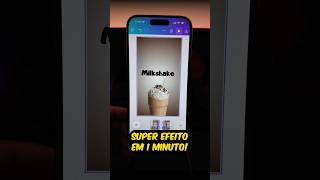
Place the product image and choose a background color. Add all elements to be animated, reduce their size, and move the product layer in front of the elements.
Write your text, select font and color. Duplicate the text layer, place it above the original, apply the 'vazado' (cutout) effect, and adjust layers so the first text sits between the product and the effect.
Duplicate the page, move the product on the second page, adjust elements, then animate each element individually by selecting the 'sopro' (blow) animation.
Add the 'combinar' (combine) transition between pages and show the final result.
The video provides a simple, step-by-step method to create an engaging product animation quickly, ideal for social media content creators.
What is the first step in creating the product animation?
Place the product image and choose a background color.
00:13
How do you create the cutout text effect?
Duplicate the text, place it above the original, apply the 'vazado' effect, and adjust layers so the first text is between the product and the effect.
00:27
Which animation is used for individual elements?
The 'sopro' (blow) animation.
00:43
What transition is added between pages?
The 'combinar' (combine) transition.
00:55
Layer Management
Shows a practical technique for controlling element depth to create a cutout effect.
00:13Cutout Effect Method
Provides a clear, replicable method for a popular visual effect.
00:27Individual Animation
Demonstrates how to animate elements separately for a dynamic result.
00:43[00:00] Aprenda como fazer essa animação super chamativa em menos de um minuto. Mas antes disso, se você ainda não é inscrito no canal, já se inscreve aqui. Nós temos vídeos todas as semanas, assim você não perde nenhuma dica. Coloque a foto do produto que você quer demonstrar e escolha uma cor de fundo.
[00:13] Depois você põe todos os elementos que você quer animar na tela, reduz o tamanho deles, vem aqui em camadas e move o produto para frente dos elementos. Escreva o seu texto, selecione a sua fonte e a cor da fonte. Agora você vai duplicar esse texto, colocar aqui em cima do texto original.
[00:27] Aqui embaixo em efeitos, você vai selecionar o efeito vazado. Agora você volta em camadas e coloca o primeiro texto entre o produto e o efeito vazado. Feito isso, você vai duplicar essa página. Na segunda página, você vai mover o produto e agora eu vou ajustar os meus elementos.
[00:43] Depois que eu fiz isso, eu posso animar cada um dos elementos de forma individual. Eu clico em cima do elemento, vou aqui em animar e eu vou selecionar a animação sopro. E para finalizar, eu clico aqui no meio e coloco a transição combinar.
[00:55] E esse é o resultado. Legenda por Sônia Ruberti




⚡ Saved you 0h 00m reading this? Transcribe any YouTube video for free — no signup needed.