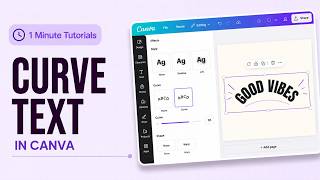

Curve Text in Canva Fast!
44sTeaches a quick, satisfying design trick that viewers can immediately apply, making it highly shareable.
▶ Play Clip"Title perfectly matches content; it's a straightforward tutorial on curving text in Canva."
This tutorial demonstrates how to curve text in Canva, a popular graphic design tool. The video provides a quick, step-by-step guide to applying and adjusting the curve effect to text elements.
First, select the text you want to curve in Canva.
Click on 'Effects' in the toolbar at the top of the editor.
Under the 'Shape' section, select the 'Curve' option to apply curvature to the text.
Use the curve slider to control the amount and direction of curvature. Drag right for a stronger curve, left for an opposite curve.
Click outside the text box to apply the changes. The text is now curved.
Curving text in Canva is a simple process that involves selecting the text, applying the curve effect, and adjusting the slider to achieve the desired curvature.
Where do you click to access the curve effect in Canva?
Click 'Effects' in the toolbar at the top.
00:05
Under which section in Effects is the Curve option located?
Under the 'Shape' section.
00:08
How do you adjust the strength of the curve?
Use the curve slider; drag right for stronger curve, left for opposite direction.
00:16
Curve Text in Canva
Core technique demonstrated in the tutorial.
00:02Adjusting Curvature
Key step to customize the effect.
00:16[00:02] curve text in Canva. Select the text you want to curve. Click effects in the toolbar at the top. Under shape, select curve. Your text will now be curved. Use the curve slider to adjust the amount of
[00:16] curvature. Drag the slider to the right for a stronger curve, or drag it to the left to curve the text in the opposite direction. Once you're happy with the result, click
[00:29] anywhere outside the text. And that's it. You've successfully curved text in it. You've successfully curved text in Canva. Thank you for watching.



⚡ Saved you time reading this? Transcribe any YouTube video for free — no signup needed.