
Let Your Chat Control Your Stream!
42sImmediately shows a cool new feature that empowers viewers, sparking curiosity and engagement.
▶ Play Clip"Delivers exactly what the title promises: a quick, practical tutorial on letting chat control your stream."
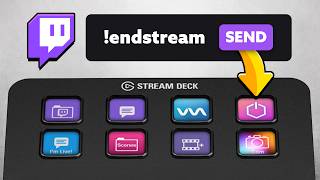
This video demonstrates how to let Twitch chat control your stream using the Elgato Stream Deck and the Atom Nexus app. The creator shows a quick setup process that enables chat commands to trigger Stream Deck actions, such as toggling lights, in under two minutes.
Chat can control lights, add voice changers, shut down the stream, and more via chat commands, subscriptions, or hype trains.
The setup uses Elgato Stream Deck software and Atom's main app, Nexus. Atom is known for its multi-stream plugin and automation tools.
In Stream Deck settings, enable 'MCP actions' to allow integration with Nexus.
In Nexus, add an integration for Elgato Stream Deck, name it (e.g., 'SD'), and wait for the connection to turn gray.
In Stream Deck, create a button (e.g., 'tube lights') that toggles the lights. Then in Nexus, create a new command with a trigger (e.g., Twitch chat message 'tube lights') and an action (run Stream Deck action).
The creator tests by typing 'tube lights' in Twitch chat, which toggles the lights on and off.
Any Stream Deck action can be controlled by chat, including starting/stopping the stream, changing OBS scenes, and more.
By connecting Stream Deck with Atom Nexus, streamers can easily let their chat control various stream actions, enhancing viewer engagement. The setup is quick and can be extended to many actions.
What two tools are needed to let chat control your stream?
Elgato Stream Deck and Atom Nexus.
00:26
What setting must be enabled in Stream Deck for integration?
Enable MCP actions.
00:56
What are the three components of a Nexus command?
A trigger (e.g., chat message), an action (e.g., run Stream Deck action), and the device (Stream Deck).
01:36
What can chat control besides lights?
Voice changers, shutting down the stream, starting/stopping the stream, changing OBS scenes, and more.
00:01
Chat Control Capabilities
Shows the broad potential of chat-controlled actions, from lights to stream shutdown.
00:01Enable MCP Actions
Key technical step for integration.
00:41Command Structure
Explains the trigger-action model clearly.
01:36Live Test
Demonstrates the feature working in real-time.
02:29[00:01] to be able to control your lights or add a voice changer to one of your teammates a voice changer to one of your teammates or shut down your stream, you can do that. Starting today, anything your Stream Deck can do, your
[00:13] chat can control by chat commands or subscriptions or hype trains or anything. And it's going to take me less than 2 minutes to show you how. between Elgato and Atom. And if you're not familiar with Atom, they're the guys
[00:26] plugin. They made the multi-stream plugin. But their bread and butter, their main app is automation. So, letting the stream control itself with your content. But I want you to know going into this, I invested in Atom a
[00:41] vertical plugin together. And this is also a paid tool. So, do what you will here, I've got the Stream Deck software and I've got Atom's main app called connect them is in the Stream Deck software. Going to go to the settings,
[00:56] going to check this enable MCP actions. Then over here, where we're choosing the actions right there. That's the whole thing on that side. gear. We're going to add an integration. We're
[01:10] Deck. Going to click Elgato Stream Deck software. Name it whatever you want. We're going to call it SD cuz we're short on time. Wait for this yellow to turn gray. Now it's connected. Now, over in Stream
[01:23] Deck, let's decide what we want our chat to be able to do. I've got these little tube lights behind me that you can see, these little purple guys. Just for fun, on. So, I'm going to title this tube lights.
[01:36] Then I'm going to go to Nexus and create a new command. To make a new command, we're going to add a trigger. What do we want to happen that changes the lights? So, we're going to choose Twitch cuz we want Twitch chat to do it.
[01:48] be anything. It could be a subscription. It can be bits. It can be hype trains. We're going to have it be a chat message. And that chat message is going to be tube lights. Now, we make an action. What do we want to happen when
[02:01] people type in tube lights? The device is going to be Elgato Stream Deck. The action type is going to be run a Stream Deck action. And then the action is Look at that. It sees the one right over here, tube
[02:14] lights. You can actually see if I change the name or delete the name, could just hit the play button here to test it, but I'm going to go to my Twitch chat and I'm going to type tube lights.
[02:29] Oh, I did the wrong This is the wrong light. tube lights. Ready?
[02:43] them back on. That's how this whole thing works. You tell Stream Deck what you want to happen, and then you tell Nexus when you want it to happen, what triggers that thing, and it all works. So, anything
[02:56] over here, I can start and stop my stream, I can change OBS scenes if I Deck, your chat can control. And I'm pretty sure I saw a Stream Deck on one of the desks at NASA during one of the launches. So, theoretically,
[03:10] you could control a rocket ship. Theoretically. So, pretty cool. How did nail it? How do you like that idea? Should we do 2-minute little tips and you like these? I don't know. Let me know. I'll see you in the next one, and
[03:24] as always, happy streaming.
⚡ Saved you 0h 03m reading this? Transcribe any YouTube video for free — no signup needed.