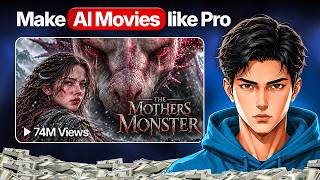

AI Short Film Earns 70M Views in 3 Weeks
45sThe shocking success of a nearly unknown channel with an AI-generated short film creates curiosity and FOMO about the potential of AI content.
▶ Play Clip"Delivers a solid step-by-step guide, but the 'complete' promise is slightly oversold due to a brief sponsor-like subscription ask and minimal depth on editing."
This video reveals the step-by-step process behind creating a viral AI-generated short film, inspired by Game of Thrones, which gained over 70 million views in three weeks. The creator demonstrates how to use AI tools like Claude, Google Flow, and Minimax to produce cinematic content at a fraction of Hollywood's cost, without a production team.
A channel with only three videos gained 240,000 subscribers, with its first video amassing over 70 million views in three weeks, all generated by AI.
The creator highlights that while Hollywood spends millions on animations, this AI short film was produced at a fraction of the cost without a production team.
Copy a provided prompt into Claude to generate 20 video prompts, each designed for a specific scene. The number can be customized by replacing '20' with any desired count.
Paste each scene prompt into Google Flow, select 'Ingredients to Video', set aspect ratio to 16:9, choose VO 1.1 Flash model, duration 8 seconds, and generate.
Ask Claude to generate a complete voiceover script based on the story, then use an AI voice generator like Minimax to convert it into narration.
Import video clips and voiceover into editing software like Adobe Premiere Pro or CapCut. Trim unnecessary parts, use minimal transitions (fade-ins, dissolves), and synchronize voiceover with scenes.
The final AI short film is presented, with a call to subscribe to the channel for more content.
Creating an AI short film is accessible and cost-effective using AI tools like Claude, Google Flow, and Minimax, enabling anyone to produce cinematic content without a production team.
Viral AI Short Film
Demonstrates the massive potential of AI-generated content, with 70 million views in three weeks.
Cost-Effective Production
Highlights the cost advantage of AI over traditional Hollywood production.
00:30Prompt Engineering for Scenes
Shows a practical method to generate structured prompts for storytelling.
01:06Minimalist Editing Principle
Emphasizes clean editing for a professional cinematic feel, avoiding flashy effects.
03:34[00:00] Right now, videos like these are trending heavily on YouTube. Just look at this channel. With only three videos uploaded, it has already gained 240,000 subscribers. And if we look at the channel's very first video, it has gained over 70 million views in just three weeks.
[00:15] The creator has even uploaded a teaser for part two of this video. So we can expect the next part to be released on the channel very soon. Basically, this short film is inspired by the story of Game of Thrones. The only difference is that this entire short film is AI-generated.
[00:30] Yes, I know many of you might be shocked to hear that, because a lot of people probably don't even realize that this short film was created using AI. While Hollywood spends millions of dollars creating animations and visual effects like these, this creator has managed to produce an entire AI short film at a fraction of the cost without even needing a production team.
[00:50] So, in this video, I'll give you a complete step-by-step guide on how you can create AI short films like this yourself. But before we get started, I'd like to ask everyone watching this video to please subscribe to the channel. My goal is to reach 4,000 subscribers by the end of this month, and I'd really appreciate your support.
[01:06] So, let's get started. First, you need to copy this complete prompt. I've added the prompt link in the description so you can easily access and use it. Once you copied the prompt simply open Claude paste your prompt here and click on Generate Claude will now provide you with 20 video prompts with each prompt designed for a specific scene We use these prompts to generate all the scenes needed
[01:27] to tell our complete story. For example, Claude has generated 20 scene prompts for me. However, if you want to create a longer story or need more than 20 scenes, you can easily customize the prompt. Simply replace the number 20
[01:39] with however many scenes you want to generate, such as 25 or 30. Once Claude has generated the prompts for all your scenes, you're ready to start creating your videos. First, copy the very first scene prompt. Now, open Google Flow and paste your prompt here.
[01:53] From the available options, select Ingredients to Video. Set the aspect ratio to 16 to 9. Select VO 1.1 Flash as your video model and set the video duration to 8 seconds.
[02:05] Finally, set the number of outputs to 1x and click on Generate. Within a few minutes, your video should be ready. Once your first scene is generated, go back to Claude and copy the second prompt. Then return to Google Flow, paste the prompt, and generate your next scene.
[02:21] Now, repeat the same process for all the remaining prompts. Copy each scene, prompt one by one, and use it to generate the corresponding video. Keep repeating this process until you've generated all the scenes for your short film.
[02:35] Now that we generated all our video scenes we need a voiceover to bring this story to life But before generating the voiceover we first need a complete script For that go back to Claude and enter the following instruction Now give me the complete voiceover script based on this story making sure to follow
[02:53] the entire storyline. Claude will then generate a complete voiceover script based on your story, which you can use to create your narration. I'll simply copy the script step by step and use an AI
[03:06] voice generator to turn it into a voiceover. For this tutorial, I'm using Minimax, but you can use any other AI voice generation tool you prefer. Simply paste your script here and choose your
[03:19] preferred narrator. Make sure you select a narrator with a natural, human-like voice rather than one that sounds robotic. Once you've selected your narrator, click on Generate and download your voiceover. And that's it! We now have both our video clips and our voiceover.
[03:34] All that's left is to combine everything into one complete short film. For editing, I'm using Adobe Premiere Pro, but you can also use CapCut or any other video editing software you prefer.
[03:46] First, import all your generated video clips and your voiceover into your editing software. Then, start placing your video clips on the timeline one by one, following the sequence of your story. While editing, pay attention to any unnecessary parts in your clips.
[03:59] If you notice anything that doesn contribute to the story Simply trim or remove it Our goal is to make the video as engaging as possible so that viewers enjoy the story and stay interested until the very end
[04:11] One important thing to remember is that you don't need to use unnecessary effects or flashy transitions. We want our video to have the feel of a proper cinematic short film, so try to keep the editing as clean and minimal as possible.
[04:24] You can use basic transitions, such as fade-ins, fade-outs, and dissolves, to make the transitions between scenes feel smooth and natural. Next, add your voiceover to the timeline and synchronize it
[04:36] with the corresponding scenes in your video. You can also add captions if you want to make your video easier to follow.
[04:48] And that's pretty much it. Once you've finished editing, your AI-generated short film is ready. So, here's the final result. High in the mountains, where the snow never melts and the wind never rests. A young woman walked alone.
[05:01] She was carrying a life inside her. The cold was cruel. Then, out of the white stillness, a wolf appeared. She had no time to run. She fought with whatever she had, a broken branch.
[05:13] For the first time, she was not afraid for herself. Somehow, she survived, and in the quiet that followed, her child came into the world. If you enjoyed this video, make sure to subscribe to AI Vision for more content like this.
[05:25] Thanks for watching, and I'll see you in the next one.

⚡ Saved you 0h 05m reading this? Transcribe any YouTube video for free — no signup needed.