
The 4 Layers of Every Hip Hop Beat
40sGives beginners a clear framework for beat making, easy to understand and apply.
▶ Play Clip"The title accurately promises a beginner-friendly hip hop beat-making tutorial, and the video delivers exactly that with step-by-step instructions."
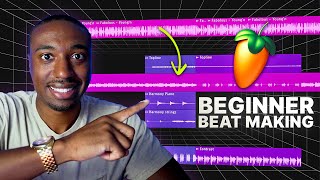
This tutorial teaches beginners how to compose a hip hop beat from scratch in FL Studio using only stock plugins. The instructor focuses on building a classic Boom Bap style beat, covering drum programming, melody creation, and basic mixing techniques.
The video is for beginners who just bought FL Studio Producer Edition and want to make hip hop beats. It focuses on composing from scratch using stock plugins, not samples. Project files are available for free at busyworksbeats.com.
The playlist is for arranging puzzle pieces in song mode. Pattern mode is for zooming in on details. Five key buttons: playlist, piano roll, channel rack, mixer, browser.
Every beat has four layers: Top Line (melody), Harmony (chords), Contrast (bass line), Rhythm (drums). Each can have an expression layer for variation.
Choose a kick, hi-hat, and snare from the drum kit. These are the key ingredients for the drums.
For Boom Bap, set BPM between 77-84. Route all drum sounds to the mixer using Control+L for individual editing.
Start with rhythm first. Use the picker panel to drag patterns into song mode. Build drums in the channel rack while listening in song mode. Snare on 2 and 4, kick on downbeat.
Use two hi-hat patterns with different step fills and move notes with Control+Shift+arrows for a realistic bounce.
Use Flex for realistic instruments. Download essential packs (piano, strings, winds). Turn off reverb and filter in the limiter. Adjust volume envelope release.
Top line: memorable melody. Harmony: chords. Contrast: bass line. Rhythm: drums. These combine into the melody composition.
Draw low notes (e.g., A2, A3) in the piano roll. Use half steps for movement. This is the contrast layer.
Add chords (e.g., A, C, E) in a new pattern. Use suspended chords (sus2, sus4) for tension. Humanize notes for a natural feel.
Use a seven-note system: start at root note (A), count up 5 notes, then 7 notes for the perfect fifth. Use this as a template for melodies.
Add a bass line using Flex bass packs. Quantize notes. Start mixing: group drums, add saturation, EQ, and compression.
Use time shift on hi-hats and snares for a laid-back groove. Add double kicks with lower velocity for variation.
Use Fruity Reverb 2 on piano with low frequencies cut. Send piano to reverb bus. Use Transporter for granulized reverb texture.
Use Fruity Delay 3 on piano for vibe. Filter bass with low-pass filter. Master channel: use limiters and compression for loudness.
By following this structured approach—building drums, layering harmony, contrast, and melody, then applying basic mixing—beginners can create a solid hip hop beat in FL Studio. The project files are available for free to practice.
What are the four layers of a beat according to the video?
Top Line (melody), Harmony (chords), Contrast (bass line), Rhythm (drums).
01:27
What BPM range is recommended for Boom Bap hip hop?
77-84 BPM.
03:47
How do you route all drum sounds to the mixer in FL Studio?
Highlight all drum sounds in the channel rack and press Control+L.
03:59
Where should the snare be placed in a basic hip hop drum pattern?
On the 2 and the 4 of the beat.
05:49
What is the seven-note system for creating melodies?
Start at the root note, count up 5 notes, then start at the root again and count up 7 notes for the perfect fifth. Add notes above and below these for a seven-note template.
14:07
What is the purpose of the 'humanize' tool in FL Studio?
To add random variations in start time and velocity, making the performance sound more natural.
12:00
What is a suspended chord?
A chord where the middle note is raised or lowered to create tension, e.g., sus2 or sus4.
10:51
How do you add swing to hi-hats?
Use the time shift parameter under the wrench tool to delay the hi-hats slightly.
20:47
What plugin is used for granulized reverb in FL Studio 2024?
Transporter.
26:17
What is the recommended snap setting for detailed note editing?
1 half beat or 1 quarter beat.
08:49
Four Layers of a Beat
Provides a foundational framework for beat composition that beginners can easily understand and apply.
01:27Seven-Note Melody System
Offers a simple, repeatable method for creating melodies without music theory knowledge.
14:07Using Time Shift for Groove
Demonstrates a practical technique to make programmed drums feel more human and groovy.
20:47Granulized Reverb with Transporter
Introduces a modern FL Studio plugin for adding unique texture to sounds.
26:17Mastering Chain with Limiters
Shows a practical mastering chain using compression and limiting for loudness.
32:13[00:00] All right, so you just bought FL Studio producer edition. You have no idea where to start. And you want to make hip hop beats like Griselda, conductor, all the goats who are really transitioning our attention back to classic hip hop. So in this video, we're not going to use the sample
[00:13] because I feel like that eats up a lot of the teaching you stuff. But we will cover samples in a different video. This video is how do you compose hip hop from scratch using stock plugins in FL Studio. You guys will get the project files for free. Just go to busyworksbeats.com, sign up for free,
[00:26] and go to where it's free downloads. So let's hop straight into FL. I'm going to be producing over my speakers. So I'm going to have to mute my mic every now and again. But the first step is to get the lay of the line does they say we're going to open up the piano roll here.
[00:38] Now the playlist is this button here. And this is where we're going to map out all the puzzle pieces. I like to produce in song mode more than pattern mode. Pattern mode is like when I want to zoom in on a specific puzzle piece and make sure all the details are right.
[00:50] Song mode is like, what does the puzzle actually look like? You know what I mean? So that's the difference. Here is the piano roll. Not that you guys need to memorize these buttons. But if you ever get lost in FL studio, these five buttons right here, all you need to know.
[01:03] You click here, this opens that thing. You click here, it opens that thing. You click here, it opens the channel rack. Click here, it opens the mixer and then click here, it opens the browser. So we're going to use some drums from my new pack called Blue Print. It's coming out soon.
[01:15] But you guys will get this project files for free, which will have the sounds in it. So don't try to like memorize everything. The first thing is getting the four layers. So firstly, we're going to go to the what's called the song mode. Click here, which is called the playlist.
[01:27] And then we're going to right click on track one and hit R. So I recommend this for beginners to advance. This advanced system works all the time. So we're going to rename this top line. The second section here is going to be called the harmony section.
[01:40] The third section here is called the contrast section. The fourth section here is called the rhythm section. So these are the four sections of each song and each beat that basically make up the DNA of the beat. Now on top of these, you can layer these with what's called
[01:54] the expression layer. So the top line expression layer, the harmony expression layer, the contrast expression, and ultimately the rhythm expression. So the rhythm expression might be something like a hi-hat role
[02:07] or some exaggerated way of going about it. So we'll get into what all this means in a little bit. So now you guys have the basic map of what you're building. Now it's time to build the pieces. So we're going to go through my kit. Blueprint is not out, but it will be at busyworksbeats.com.
[02:21] So don't worry about finding it here. But let me find the project files here. And so in Blueprint, we have drum breaks. I have one shot stuff for you guys. So let's probably do the one shot stuff for now.
[02:34] OK, so firstly, we need to find a kick, a hi-hat, and a snare. Those are the key ingredients to our drums. So I'm going to cycle through our library here to find some stuff.
[02:53] All right, so we found a nice kick. Now let's find a hi-hat, which I already know which one works. These are going to work. So let's right-click, open a new channel, and then we need our snare.
[03:08] So I'm going to mute my mic for a second. All right, so I'm giving you guys the good stuff in terms of our drum sounds here.
[03:29] So we have the hi-hat, we have the kick, and the snare. So from this point, we're going to go to what's called the pattern mode. If you guys want to hit Enter, you can start your sequence. And what you want to do is set the BPM. So for Boombat, like Resulta Style, we're going to go to like 77 BPM, 82 BPM, 84, that's
[03:47] the range we're going to stick in for this slower hip hop. So once you have your sounds, you're going to go to this button called the Channel Rack, and you're going to double-click everything to highlight everything, hit Control-L. When you click in the mixer, this will send everything to the mixer so that you can edit
[04:02] individual sounds differently. Like if you just want to solo in on my skin and saturate the skin, it will become brighter. If you want to go into my eyes and make them brighter, you can do it that way. So we're separating the pieces of the puzzle, so to speak. All right, so now we have the kick, the hi-hat, the snare.
[04:16] Let's start building a rhythm first. I recommend rhythm first for you guys or beginners, unless you truly understand composition, but there's a long die drive about that. What we're going to do is go to Song mode here.
[04:29] We're going to make sure we have what's called the Picker panel open. If you don't see this, click your playlist options. Go to where it says Picker panel, and then enable the Picker panel. Pick the Packer Peppers. Okay, now you're going to drag it on and drag it to about four bars in this case or two
[04:41] bars, actually two bars. And we're going to go back to where it says Pattern 1, because this says Pattern 1. We're going to go to the Channel Rack here, and we're going to build our drum sequence in the Pattern Rack, Channel Rack, but we're going to hear it in the Song mode that sounds
[04:55] convoluted. But basically, if I hit the Space Bar, we're going to turn on what's called the Metronome. This will keep track of the time. Now, if I hit Control B, I hit Control to highlight this, hit Control B to latch paste.
[05:08] Let me make sure I do that from scratch so they don't overlap. So highlight it, hit Control B to latch paste for about 16 bars. This will give you a good template to kind of build around. Now from this point, what we want to do is build our drums as we're listening to it in
[05:21] real time. So we're going to go hit Space Bar on the Song mode. We're going to go to where it says Channel Rack, and now we're going to build our drums. So a shortcut here is to click somewhere on the right somewhere, and right click and
[05:33] fill each two steps for the hi-hat, or right click and fill each four steps depending on what kind of groove you guys want. And we're going to put the snare on the two, so I'm not even hearing the beat yet, we're going to put the snare on the two on the four.
[05:46] What that means is every time the metronome clicks, we're going to put the met, we're going to count. So it's one, two, three, four. We're going to put the snare on the two and the four for this genre. So basically, the red spots in this case.
[05:59] So we're just going to do that for each one here. And what we want to do is just make sure that we have two bars in the actual playlist here. It looks like I went over two bars, so let's just get rid of some of these notes over here.
[06:12] Just right click to get rid of notes in your Channel Rack. You know, you guys don't need to be perfect about this because of the way the playlist works. The long story short, we have two bars. Okay, so if we want more movement, we can add another hi-hat.
[06:30] Let me show you guys how to create variations here. We are going to right click, fill each four steps this time, and we're going to hit Control Shift and use the arrows on our keyboard, left and right to move these notes around. So now it goes hi-hat, one hi-hat, two, hi-hat, one hi-hat, two, and this creates a more
[06:45] realistic bounce. I haven't even heard the beat yet, and I already know that it's what we need. So next we're going to add a kick. The kick usually goes on the downbeat, the first click, one, and then it goes kick, tre-ci-o-kick,
[07:03] tre-ci-o-kick, that's usually the pattern, so boom, boom, boom, boom, boom, boom, okay. And then basically we're going to take out that third hit of a kick, so it's not too many
[07:17] hits. Now you have your basic hip hop pattern, we can change that over time, but let's just build
[07:36] around this pattern. Okay, so now we have that, we're in song mode, we're going to go to a new pattern, it's very important to separate the patterns in FL Studio. All right, now for the instruments, we're going to use FLX, FLX is good for realistic instruments,
[07:50] so let's open up FLX. Let's go to the Store tab, download any of the Essential Packs here. Let's go to the Library tab, download the Essential Pannos, Central Strings Essential Wins,
[08:02] and let's start with the Piano Pack, let's go to Yamaha, C7, what I like to do is turn off the reverb and the filter and the limiter, so it doesn't change the sound, and let's up the volume envelope release, this knob here, just turn it up a little bit, so what we want
[08:17] to do is compose, now composition comes down to three main, well four main layers, we have the top line layer, that is the memorable melody, we have the harmony section, this is the chords of the song, we have the contrast layer, this is the base of the song and the rhythm section,
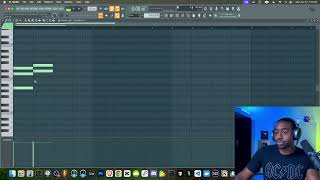
[08:31] so we can have all those things combined into the melody, composition. What we're going to do is go to the channel rack, we're going to right click and go to the piano roll, this is where we can draw notes starting from bar one, what I recommend you
[08:46] guys do is change your snap to great to one half beat, especially at 82 BPM or one quarter beat, go back to the playlist, go to song mode, and we're going to drag in pattern two, even though it's a blank, we're going to drag it in for about four bars, so now we're going
[08:59] to write music as we listen to the beat, and let's hit control beat, so we're not going to hear anything now, let's double click to go inside of pattern two, and if it doesn't open up the piano roll, right click, and select the piano roll from your piano, so from
[09:15] this point we're going to draw notes, and I'm going to do this over my earphones just I can hear the notes, but we're going to produce over the speakers though, so what we want to do here is add these notes, so let's right click, let's choose a really low note, like
[09:30] A2 for example, and A1, it might be too low, let's try A2 and A3, if you don't see these numbers or letters, go to the top left, go to where it says view, go to where it says key
[09:44] labels, all notes, so that you can see every single label, so we're going to drag this note out, just hit control to highlight the note, left click and drag it out, and then our ear
[09:57] wants to change, so let's left click the ending here, we're going to add a note just one note above this is called a half step, and we're going to copy these notes hit control, hit
[10:10] shift, left click, drag it over, so this is called the contrast layer, let's go back to the song mode, let's hit shift down and pull that down to the contrast layer, all right now we
[10:22] need harmony to this kind of bass line, so we're going to extend these notes out, let's go to a new pattern, let's go to our pattern selector, go to pattern 3, right click select piano roll, let's add A, and then let's add CE, you guys don't need to memorize all this stuff,
[10:38] just copy these notes for now, so we have ACE as the chord, okay so let's drag this
[10:51] out, hit control, left click to drag these notes, and at the very end instead of taking all the notes, pulling them up one, we're going to take the middle note, pull it up to the note D, this creates what's called a suspended chord, okay so let's copy the same chord over,
[11:11] we could also, if we want to start off with a more tense sound, we could pull this note down, so it's ABE, and then we'll pull it back up to C, that's a little two tense, so let's just do this method for now, so instead of repeating what we're going to do is pull that last note down
[11:36] to B, that creates a suspended second chord, this is a suspended fourth chord, so this is called the harmony, the chords of the track, let's go to the song mode, add that in the harmony section,
[11:48] so see how these are puzzle pieces to our track, right now this sounds very computerized, because there's no dynamic in it, so let's grab the ellipses at the bottom here, pull that up, switch this to where it says note velocity, so you can see the individual hardness of how hard we're playing each
[12:03] note, go to where it says tools, and we're going to go to humanize, okay so you guys can change this start time range and then mess with the start time offset, and then also you can mess with the velocity offset and the velocity range, you don't necessarily have to mess with offset,
[12:20] these mess with the range, so basically create the random value for each one of these things in that range, which makes it sound more human, let's grab the slice tool, it's shift right, click to delete any of the excess over the bar, if it goes over the bar we'll go a whole
[12:35] other bar, also we need to make sure notes aren't overlapping, the long story short there's a script for this, and image line forms, if you guys search up remove overlaps, piano roll script, and we're going to use that here just to save time, basically it gets rid of any overlapping notes,
[12:50] if notes overlap, FL studio mute them for some reason, so now this has a more human feel to it,
[13:10] okay so we need more grit in the cell, let's go back to pattern two, let's see if we turn up the velocity for these bass notes, we'll give us a different expression in the note,
[13:26] usually it does, it's not just a volume, now we get more grit out of the cell, now for this, let's just go down to the half step,
[13:44] instead of that suspended second chord, that way it doesn't sound so tense at the end there, now I'm giving you guys very like cookie cutter stuff, but you can make this sound way more human
[13:57] if you play it by hand, let's create a top line here, so let's left click, add this in, okay so there's, I'm going to give you guys a quick system, I don't have time to explain everything about everything, that's what my courses are for, it busyworksbeats.com to go
[14:09] much more depth, and I got you guys step by step as a beginner, right click, go to piano roll, what we're going to do is create a seven note system to create a melody, so we're going to start at the root note of our chord, which is A, it's finding a new pattern here,
[14:24] start at A, we're going to count up five notes, okay so it's one, two, three, four, five, and then we're going to start at A again, count up seven notes, this is going to give us what's called the perfect fifth at E, we're not going to play all these notes at once, we're just using this as
[14:37] a template, we're going to go, this started at the root note A, count up five notes, and then started the root note again, count up seven notes, and then add a note above that note and below that note, and then above the tonic and below the tonic here, so now we have a seven note system
[14:54] that we can use to create melodies, so all we're going to do is pull from the seven note system as if it's like a mini scale, let's drag this over here as a reference, turn the volume off, so we're going to usually start at the root note, hit Alt, left click to restore the velocity,
[15:16] now we're going to change our snap degree to one quarter beat or one half beat, and just add in notes, and all we're going to do is go from the root note to the perfect fifth, which is seven notes up,
[15:28] and then we can go anywhere from here, usually it's a half step back down, now this last note can be anything, so let's just pick a different note,
[15:40] and we get literally copy this whole structure hit control, shift left click, and then we can switch out the notes, so it's not just repeating itself, so this is with this
[15:54] little scale over here, it's four, we can use any of these notes, usually the ear wants to change at the end of stuff, so when we go out of key for those who are aware, we're going out of key at the end of the phrase,
[16:17] so okay, so it doesn't matter what key we're in, this always works, and again, I go into much more depth about how to make this feel more human, but let's just add our humanized script here,
[16:38] now it's called the top line because the top line usually sits over top of the chords, what I recommend is that we pull this up at least one octave higher than the chord progression,
[16:51] so this octave could work and we could pull it up another octave control up,
[17:04] so I like this vibe, let's pull the BPM down to 77, and then we're going to start adding a fix to make this, maybe go to 80 BPM, so now I'm going to move a little bit quicker here because this is more sound
[17:17] design, let's go to the channel rack, make sure every sound is accounted for in the mixer, and we don't have the bass line either, which we can add, so let's do that now actually,
[17:30] let's go to the channel rack at the plus icon, go to flex, flex has bass in here, so if you go to essential bass, here's some bass, we get used, we're going to turn off reverb delay, filter in the limiter, control L, let's go to the mixer, and we don't have to be crazy with the bass line here,
[17:52] so I'm just, you guys can right click here, it's like the scale if you want, I'm just going to play on my keyboard to speed up time, I'm just going to go down this scale down to A,
[18:11] okay, I was thinking too much is what I get, let's try that again,
[19:11] all right, so now we have the notes, we're going to start cleaning up the sounds, I'm making them more aggressive, let's double click, hit alt Q to quantize, now this is in the mix,
[19:31] so the beat feels a little slow, let's speed it back up, okay, so I'm going to move a little bit quicker here with the mixing, because this again could take an hour explaining every little thing here, let's go to our mixer, we're going to right click, insert A, call this drums as a group,
[19:46] we're going to hit alt left or right to move it around, highlight all your drums, hit control to highlight the drums, right click and route to this track only, so now all the sounds of the drums are going to the drums group, and now we can add more aggression to the drums,
[20:04] and start separating the sounds here, let's open up what's called the fruity mixer, excuse me, fruity limited, let's turn the ceiling all the way up, turn the saturation down, and then turn the gain knob up into the saturator,
[20:21] so this will give us a little more grit on the drums, let's open up a parametric EQ2, just turn down the volume a little bit on the left side, let's boost up the lows with this, and then change the frequency to around 60 hertz,
[20:38] 60 or 75, and also the drums sound a little stiff, because they're just right on the grids, so let's go to the high head, let's trim the high head for now, go to the wrench tool, turn up time shift,
[20:50] so do that for each high head, add a little time shift,
[21:05] we're also going to add another kick in here, so boom, boom, let's add a double kick here at the ends here, and then go to graph editor, turn the velocity down, go to the velocity tab, just turn it down, and then we're going to turn up what's called the swing parameter here in the top right,
[21:26] actually we don't need it for this beat, so now let's start delaying the snare sounds, first let's delay the clap, let's turn up the time shift
[21:38] under the wrench tool, let's delay the snare, so now has that groove,
[21:55] so I just realized the kick has a high head over it, so let's go to the kick, go to the envelope tab, we're going to mess with what's called the mod x, this is a low pass filter which gets rid of the high frequencies by default, get rid of that high head there,
[22:16] let's make the kick hit a little harder, we're going to go to the kick, click on it, go to the front tab here, go to where it's this pre-computer to fix and mess with the boost here, now the kick hits harder,
[22:35] so let's mix the bass a little bit, let's go to the bass sound gear,
[22:56] go to the bottom here with the gear icon, let's turn it up the four times over sampling, turn the mix level to about 50%, turn the curvature up a little bit,
[23:11] let's add saturation to the bass, let's mess the pre and the mix level on the post level, the bass doesn't need to be super strong because the kick is strong,
[23:32] now we need to piano to feel more haunted, so let's go to a new mixer insert, let's call this reverb, let's open up fruity reverb too, let's right click hit R to reset the wet level, turn the dry level
[23:46] down, separate the stereo enhance, actually let's pull to the right, so it makes it mono, up the decay curvature and take out the low frequencies in the reverb,
[23:58] and then we're going to left click on the piano and left click the up arrow to send it to the reverb, so now it's going to go to this reverb, it gives it more depth,
[24:22] let's add a fruity limiter to this piano, turn the ceiling up first to go to compressor mode and then let's mess up this compressor side, that a little attack here,
[24:44] so I'm compressing the piano for more of a glue sound, let's add a parametric EQ too, turn up the levels here,
[24:58] and we could change the drum timing or we could change the piano timing to fit, so it's not like
[25:10] not matching the kick, so let's change our snap to grid to one fourth beat so we can get more granular with the movements here, so we're going to keep the same notes but the move them around here,
[25:29] so now it has more bounce to it,
[25:48] so now we have the bounce inside of the piano, not just the drum,
[26:04] so we can make this even more haunted, let's add some more plugins to the piano, actually let's go to the reverb, let's add a plugin here, the new plugin called Transporter, this is an FL Studio 2024 plugin, so let's open up Transporter, we're going to just turn up
[26:18] these three knobs at the bottom here, the reverse, the octave and the down-up knob, we're going to set this to tempo mode, so basically we're taking the reverb and we're going to create a granulized reverb out of it, so that's what we're doing here, just going to add a subtle texture, so it adds this like
[26:40] glittery sound to the track, let's switch to the kick pattern a little bit,
[27:10] so just moving that kick over one step changes the whole groove,
[27:40] for this hi-hat we're going to actually go back and right-click only one hi-hat,
[28:07] fill each two steps, go to the graph editor, go to the velocity tab, turn down every other hi-hat, so it's not two different tones on the hi-hat,
[28:23] so we're just going to keep mixing up this kick pattern until it fits into the vibe,
[28:53] so we can get crazy with the pattern there, we're going to take out the clap, return it down,
[29:14] I think I'm just going to take out the clap,
[29:27] actually we need that clap for the tone, let's go back to the top line, the tie-let, all these, hit control G in the song, double-click,
[29:43] what I want to do is turn all this down, let's hit alt X and just turn down the velocity multiplier, so it's not super loud, let's turn it back up, let's run it through the compressor a little bit more,
[30:24] so I'm going to show you guys how to add a little vibe to your track, let's add fruity delay 3 to
[30:40] the piano track, we're going to turn down the dry level, turn the feedback level down, turn the delay time all the way down, everything else becomes an effect, let's move the modulation, time modulation,
[30:54] let's have the saturation, just going to add more of a vibe, we can also add the dry level back for chorus,
[31:16] we want to filter out the bass a little bit within EQ,
[31:41] choose a low pass filter here, so it feels more like we sample it, let's go to our master channel here, let's go to fruity limiter, turn up the ceiling here, let's mess with the saturation,
[32:13] add an EQ2, who stepped the levels here, let's run it to another fruity limiter, let's turn the ceiling off, turn it on compressor mode,
[32:26] that's the attack at like 30 milliseconds here, release at about 100 milliseconds, you can read the value in the top left, turn the ratio up to about 2 to 1, in the top left you can read that value,
[33:19] next up we're going to add a free limiter here, ceiling you got to turn it up, compressor mode, we're going to go to the opposite direction, so it's not 2 to 1 or 4 to 1, it's like 0.5 to 1 ratio,
[33:34] pull down the threshold, you guys only need to like map this all out, just pull the release time to a shorter so it has a fast attack, and basically every time the sound goes about the threshold it will boost the volume based on our ratio,
[33:54] now we need to cap out the volume here, let's go to fruity limiter, and now we're going to actually use this as a limiter here with just a ceiling, I think the first knob here is an input gain,
[34:08] but let's add a parametric EQ2, this will control the input volume, so again if you guys want to learn mixing go to busyworkspeeds.com it's just too much to teach in this
[34:21] short video, so we're going to push the volume into the mixer,
[34:44] so
[35:10] if you want to arrange this I have videos about how to arrange you would use your express direction layers or simply change out the thing at that specific point, so this is a contrast layer,
[35:22] so instead of using the piano base you might take out the contrast from the piano,
[38:14] all right, now we're going to do different styles of hip hop, so just go to busyworkspeeds.com
[38:41] to get these project files are free and to learn FL Studio for free, all right guys, subscribe if you're new, peace!
⚡ Saved you 0h 38m reading this? Transcribe any YouTube video for free — no signup needed.