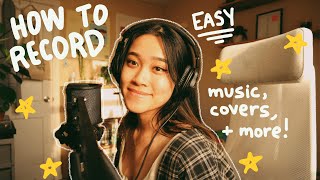

Starting from zero? I got you.
32sDirectly addresses beginner frustration and promises a solution, creating immediate relatability and engagement.
▶ Play Clip"Title accurately promises a beginner/noob guide and delivers exactly that—basic equipment, setup, and recording steps."
This video is a beginner-friendly guide to recording music covers for online platforms like YouTube or Spotify. The creator walks through essential equipment choices, from basic phone recording to using USB or condenser mics with an audio interface, and demonstrates the recording process in Logic Pro X. The tutorial covers syncing audio and video, then uploading the final product.
The video is for complete beginners who have a song idea but don't know how to record or post it online.
Recording can range from casual (using an iPod or phone) to complex (multiple cameras, lights, dancers). The basics start with a recording device.
For better audio, invest in a mic. USB mics are easiest for beginners (plug-and-play). Condenser mics offer higher quality but require an XLR cable and audio interface.
An audio interface converts mic/instrument signals into a format your computer recognizes. It can have multiple inputs for recording several sources at once.
Use a DAW (Digital Audio Workstation). Free option: Audacity. Paid options: Logic Pro X, FL Studio, Ableton, Pro Tools. The creator uses Logic Pro X.
Open a new project, select audio input/output, ensure the interface is plugged in, and press record (or R). Create separate tracks for vocals and instruments.
Sync recorded audio with video using software like Final Cut or iMovie. Then upload to YouTube or distribute audio to streaming platforms.
What is the simplest mic setup for a beginner recording music?
A USB mic plugged directly into the computer.
02:20
What additional equipment is needed for a condenser mic setup?
An XLR cable and an audio interface.
02:32
What is the function of an audio interface?
It converts microphone and instrument signals into a format that a computer recognizes.
02:48
Name two free or paid DAWs mentioned in the video.
Free: Audacity. Paid: Logic Pro X, FL Studio, Ableton, Pro Tools.
04:01
How do you start a new audio project in Logic Pro X?
Select 'Audio', ensure correct input/output, then press 'Create'.
04:29
Audio Interface as Translator
Uses a relatable analogy (immigrant family translator) to explain a technical concept.
02:48DAW Options for Beginners
Provides clear recommendations for free vs. paid recording software based on skill level.
03:48Step-by-Step Logic Pro X Setup
Demonstrates the exact workflow for recording vocals and instruments in a DAW.
04:29[00:00] So, you have a really cool idea, a song you want to sing over a chord, you want to
[00:18] put it online for everyone to see, but you don't know how to do it, like any of it. You don't even know where to start, and you've looked all over, but you're so confused about it all. Sounds a little something like you. Yep, that's me. Well, looking
[00:32] over there, grab the right place, sit tight, grab a drink, and note pad and let's get into it, shall we? When it comes to recording covers or music to post online, being familiar with your equipment is
[00:47] everything, so it really does depend on what you're doing though. Your equipment is going to vary, so you could be trying to post a cover on YouTube, or you could be posting a song on Spotify,
[00:59] whatever it is, I'll help you through it, and I got you. Recording a cover could be as casual or as complex and fancy as you want it to be, depending on whatever your taste is, from no budget,
[01:11] recording from year 2010 iPod to full-on cameras from every angle, lights, backup dancers, whatever floats your goat, but before we get to the backup dancers, let's just
[01:25] break it down to the basics. So, first things first, you're going to need whatever it is you're going to record yourself with, whether that be your iPod touch, or your phone, or your camera to capture
[01:38] your pores in 4K. Even better. And maybe this is where the equipment list stops for you, because you're not trying to get any new equipment, but if you got the mula, maybe you got a job, or maybe you're
[01:50] like 2014 me, who saved every single dollar and refused to spend it on anything so that she could afford equipment, you know, to each their own. Then the next few things would be a great investment for you. Next on the list is a mic to capture your crisp and clean vocals, so there are loads to choose
[02:06] from at different price points, so make sure to do your research and figure out which one works best for your budget. So, here are some budget mics. I'll have them pop up on the screen right now, and I'll also link them in the description below, so make sure to check that out. For those of you who
[02:20] are just starting off, which I know a lot of you guys are, I'd recommend maybe starting off with the USB mic, because setup is super easy. It's literally just a USB from the mic plugged into your computer.
[02:32] But for higher sound quality, I'd recommend using a condenser mic, which has a whole different setup, but I'll explain that. It's super easy, trust me. A condenser mic setup is a condenser microphone plugged into an audio interface using an XLR cable, which is then plugged into a computer,
[02:48] usually via USB. Simple. And if you're not sure what an audio interface does, it simply converts microphone and instrument signals into a format that your computer recognizes. So basically,
[03:00] a middleman that translates everything, or like if you're from an immigrant family, then that one kid who translates everything for their parents because they can't speak English. Depending on the type of interface that you have, you can record different types of audio in
[03:12] many different ways. So if your audio interface has multiple mic preamps and you can plug in multiple mics to record at the same time, or if you have designated inputs for instruments, you can plug in your
[03:24] guitar, your bass, or your synth or digital piano, you can do all that, or plug it into a mixing console and record multiple instruments at the same time. And here are some budget interfaces that
[03:36] you can start off with. And of course, I'll be looking them in the description below. Now that you have all the equipment that you need, the next step is recording, finally.
[03:48] And if you're recording straight from your camera and you're not using a mic, then this wouldn't apply to you. But if you're using a mic, then you're going to have to record separate audio. And here's how. First, you're going to need an application or a program or a doll to record your
[04:01] vocals or your instruments. Back in the day, I used to use Audacity, which is this free program that you can download online. It's available for Mac, PC, and Linux, and it's free. And if you guys are just beginning and you guys aren't trying to edit too much to your vocals or anything, I'd say go for
[04:17] this. Or if you guys are looking to invest into a better doll, there's Logic Pro X, there's FL Studio, Ableton, Pro Tools, list goes on. Currently, I use Logic Pro X, so I'm going to jump straight in,
[04:29] see to teach you guys how to work with the basics. I'm in Logic right now and I'm about to open up a new project. So we're going to go straight into selecting audio because I'm going to be recording vocals,
[04:41] make sure that your input and output is correct. And then we can press create. And we're going to make sure that our audio interface is plugged in. We can select on preferences, audio. And when we look
[04:56] into input devices, I have mine right here selected. And we can go straight into recording. So make sure that your interface is plugged in, turned on, and we can just go straight into pressing the record
[05:10] button that's right here. Or we can press R. So let's say we have a guitar that we want to record while singing for this cover. We can select a new track. It's like guitar or bass. My input is
[05:24] input two outputs correct and create. And there we can select our record both audios and then whenever we're ready, we can just select the red button to record.
[05:47] Now that you have your audio and your video recorded, you can sync them up using Final Cut. You can
[06:10] use iMovie. Maybe you have an app on your phone that you want to do this all on. Do whatever works for you. But after that, you can go straight onto YouTube and upload your video or you can take that audio and upload it onto some streaming platform. And you're pretty much done. And that's it for today's
[06:26] video. I hope you guys enjoyed it. I know it's very basic and it's only covering very like beginner entry level things. But this is for beginners. So hopefully this is helpful for you guys. If you guys have any questions, make sure to leave them down below. I'll make sure to read the comments and get to
[06:40] you guys as soon as I can. So thanks so much for watching. And until next time, bye!
⚡ Saved you 0h 07m reading this? Transcribe any YouTube video for free — no signup needed.