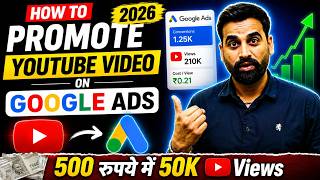

Stop Wasting Time on YouTube!
45sDirectly addresses a common pain point (channel stagnation) with a promise of a solution, creating immediate curiosity.
▶ Play Clip"Delivers a solid tutorial with practical steps, though some parts are repetitive and promotional."
This video provides a step-by-step tutorial on how to promote YouTube videos using Google Ads. The creator explains how to set up a video ad campaign, target the right audience, and optimize for views and subscribers, with practical tips for beginners.
Many YouTube creators face stagnant views and subscriber growth despite consistent uploads.
Promoting videos through Google Ads can help increase views and grow the channel.
Go to Google, search for 'Google Ads', and click on the official website.
If you don't have an Ads account, watch a tutorial on creating one (linked in video).
Click the plus button to start a new campaign, choose 'Video' as the campaign type.
Choose 'Video views' as the goal for best results, as it can lead to subscribers.
Select 'Infeed' ad format for better engagement; avoid skippable and shorts ads.
Set a daily budget (e.g., ₹500) and select YouTube as the network.
Choose location, language, and add related videos from your channel.
Use keywords to target content, ensuring only interested viewers see your ad.
Enter channel name, select video, add final URL, and optionally set call-to-action.
For ₹500, expect 300-3500 views, 80k-250k impressions, and CPV of ₹0.13-0.31.
Click 'Create Campaign', then 'Publish' after review; ad runs within 24-48 hours.
Promoting YouTube videos through Google Ads can effectively boost views and subscribers if done correctly. By following the steps outlined, creators can set up a campaign that targets the right audience and maximizes engagement.
What is the recommended campaign goal for promoting YouTube videos?
Video views
03:51
Which ad format is recommended for better engagement?
Infeed ads
05:13
What is the estimated cost per view (CPV) for a ₹500 budget?
₹0.13 to ₹0.31
11:54
How long does it take for the ad to start running after publishing?
24 to 48 hours
12:46
What should you select as the network to show ads only on YouTube?
YouTube
06:17
Choose Video Views Goal
Selecting the right goal is crucial for campaign success; video views lead to subscribers.
03:51Infeed Ads Recommended
Infeed ads are more effective for engagement compared to skippable or shorts ads.
05:13Keyword Targeting
Targeting keywords ensures only interested audiences see your ad, improving engagement.
08:06Estimated Results
Provides realistic expectations for views and costs, helping creators budget effectively.
11:05[00:03] you have a YouTube channel. You are uploading videos on it. But your videos are not getting many views and after uploading your video, you do get some views. Then your videos stop getting views. And neither are
[00:16] subscribers coming to your channel. You have been trying for a long time but your channel is not growing. And now you are confused that what should I work on so that my channel grows and one day I become a successful Uber. Look friends,
[00:29] if you are also facing this problem, then in today's video I would like to tell you a solution to it and that solution friends, is that if your channel is also stuck or is not growing, then you can run the video ad of Google Adsense on your channel
[00:46] and by promoting your videos on YouTube through Google Ads, you can also get those views and you can also grow your channel. See, in today's video I am going to teach or
[01:00] explain to you that brother, how can you promote your YouTube videos through Google Ads and how can you create the YouTube video ad campaign of Google Ads in the right way and how can you get views on your videos by promoting
[01:15] your videos and how can you bring subscribers to your channel and how can you grow your channel fast. So today in this video I am going to teach you by creating a campaign, I am going to teach you so that you can create your own
[01:28] Google Ads video ad campaign. You can promote your videos on YouTube and grow your channel fast by getting views on your videos. So today's video is going to be very important. Do watch the video till the end. I would like to make a request to all of you.
[01:40] Do watch the video till the end. I would like to make a request to all of you. like this video. Sharing with your friends. To join me, please subscribe to the channel and press the bell icon. Let us now begin
[01:54] Let us now begin today's video. your YouTube videos or your channel through Google Ads, then what will you have to do? Look, first of all you will have to go to Google on a new tab
[02:09] and type brother AIDS Google. Ok? And after typing AIDS Google, you simply have to click on the search button. Like friends, if you click on the search button here, add google.com, the website will appear in front of you here. So simply
[02:22] click on this website. As soon as you click on this, you can see here that the and what do you have to do here friends?
[02:34] I have already uploaded a video on this channel on how to create a Google Adsense account. I had made it recently. So you watch that video and create a Google Adsense account. If you don't know how it is made. Rest, if you have it ready then let
[02:46] So here you can see that I simply click on this ad account and as soon as I click on this ad account, its dashboard from where we can create any campaign in Google
[02:59] Ads will open in front of us. You can see that Google Ads will open in front of you. Ok? Now after the Google Ads dashboard opens, from here we will create our video ad campaign step by step and
[03:11] we will learn to promote our videos by Google Ads. Right? So given a plus button, you simply have to click on the plus button. Like friends, if you click on the plus button, now your goals or your campaign types will
[03:25] open in front of you here. And friends, whenever you are creating a YouTube video ad campaign, what will you have to do here ? Look, you have two options. Here you will get one option of video reach and another option of create campaign without
[03:37] So you can make any of the two. If you want good results then you will have to select this one here. Here the campaign objective is coming in front of you. So in the campaign objective you have to select the video with reach views and engagement.
[03:51] select it. Now you will get an option that brother, you choose the goal of your campaign, what do you want? Like video views are needed. Your videos need views. You have to increase the reach. You just have to show people your channel. And you have to bring subscription
[04:06] or engagement. Meaning, if you want subscribers on your channel then you can select this option Goal. But the best among these is this one with video views. If your videos are getting views, people like your videos, then
[04:19] definitely they will subscribe to your channel. Ok? So What are you supposed to do after that friends? Scroll down and here in the campaign type ours will be video. What to do after that? You have to click on the continue button.
[04:32] Right? As soon as friends, you click on the continue button, now one of your steps is completed. After completing one step, the next steps for creating our campaign will open before us. So here you have approximately three-four
[04:44] completed. Only then your Google Ads video ad campaign is created. So here you can see that the next step has opened in front of us. Look at this, it is telling you here that brother, your type is video campaign and
[04:59] your goal here is our video views. Ok? So, we will not make any changes in it. Here you can enter the name of your video campaign. Well, if you want to post, then enter its name here. Ok? I am leaving the optional list here now.
[05:13] After that you have to scroll down here and here you will see the ads format. So you can see the option in this. See, you can also run skippable ads. Can run infeed ads. Shorts can run ads. So brother, I would recommend you to
[05:25] remove this also. Remove this also. Run infeeds. Ok? This is the best option to bring your engagement. To bring subscribers to your channel and views to your videos. If you run it in shorts then the audience will
[05:39] not stay there for long. And secondly, here any video of yours will be watched for 15 seconds in skippable. Then he will skip it. Ok? So do n't involve us in this also. Right? Here you just have to select Infeed. Right? What is he supposed to do after that? Have to scroll down.
[05:51] Budding is coming to you. So, if you are looking for bedding, this option will not come right now, but later when your campaign is running, then the bedding option will come. After that coming here on two friends budget and dates. So here in the campaign budget,
[06:04] you have to select daily and whatever amount you want to spend daily, like add ₹500 , add ₹1000. Whatever you want to add in the promotion, you can add it here. After that scroll down. The network option is coming. So
[06:17] in the network option, you have to select YouTube here. Ok? We just have to show our video ad on YouTube. After that we will hide this also. After that comes location. So brother, in the location
[06:31] where you have to promote your video ad. For example, if you want to do it only in India or want to target any particular city or state, then next language is coming to you. So you will have to select the language. For example, suppose
[06:47] my video is in Hindi, then I will select Hindi language here. Hindi speaking audience will be able to see my video ad. Right? So in this way you will have to select the video language. After that comes the
[07:00] related videos. So what can you do, friends? In this you can add multiple videos of your channel within a single ad. So here you will click on it and you will have to type here. Like I type here
[07:12] Digital Marketing Guruji right and what will happen here is that I can add multiple videos of my channel. I select this video and click on it, it gets added. After that friends, what will I do again? I am posting it here again Digital
[07:26] Marketing Guruji. Right? So here I am going to come with my second video. Look, let's say So I select this and click on the Done button here. As soon as you click on this, you will see that both the videos have been added in the related videos.
[07:39] Right? Similarly, you have to see additional settings here. So what do you have to do with devices? By clicking on this, remove the specific devices and TVs etc., tablets etc. from here. You just have to
[07:53] run it on your computer or mobile phone. If you want good results, simply target your mobile phone friends, you have to scroll down. Here you do not have to give any name in the add group. Have to scroll down. Add audience. If you want to add an audience. If you want to
[08:06] I would tell you brother, you should target the keyword directly. Ok? Target the content. How will content be targeted? It will happen from here. So here we will click on keywords. Ad on keywords and suppose my video is on digital marketing. So here I will put
[08:20] will click on the enter button. What will happen now? So here you can see, click on this. And whatever keywords you want to add, brother, you can add those keywords here. Whatever you think,
[08:33] ? So all the keyword ideas should be added. So in this way you will also have to find your keywords. And then if someone searches for your video through those keywords, your video will be visible there only. So what will happen with this? This will
[08:46] bring to you only that audience which is interested in your niche or your content. Such audience will not come who have nothing to do with digital marketing. They are also watching your video. Whatever your niche is, for which you make videos, like you
[08:59] , entertainment videos, you will have to enter keywords of the same type. Only then will you get an audience with real engagement. Right? What is to be done in the same way? Have to scroll down. And here finally you have to
[09:13] create the ad. So to create an ad, I enter the channel name here. And what will happen here? Any video will be available. You can add any video add this video here. So this video will be added here.
[09:26] After that you are getting the final URL. So if you have any website or something then I add www.media I have a website. You will have to enter this. I do
[09:40] nowadays you have to enter the final URL here. After that, friends, if you want, you can also put a call to action here. What will happen in call to action is that if someone wants, he can also visit your website. Ok? So here, just look,
[09:53] you can put any download button here. Look at it this way. Right? After that friends, what you have to do is you can see the option of headlines here. So if you want, you can also put a headline. And this is basically for those people who want to
[10:09] advertise their company. If you do not want to do company advertising, then they have no business. You have to remove the call to action. You just have to write the long headline. For example, suppose the title of my video is What
[10:22] is Digital Marketing. Ok? What is Digital Marketing? So I put its keyword here, what is digital marketing, I put it like this and you will have to put the description, so copy it in the description and
[10:37] paste it here, okay, I will put it here, only after confirming it, it will happen in this, this confirming it, it will happen in this, this video learn what is digital marketing, right, see, what is digital marketing has come here and in this
[10:50] video learn what is digital marketing, this option has come to you, okay, after that business name is coming, so you can put our channel name as business name. logo has arrived. Ok? And apart from this we should not use any other option.
[11:05] apply it directly here. If there are any changes later, we will do it automatically. Now if you look at estated, brother, if you look here, estated is coming. See, trip views will cost around ₹3500 to ₹00. Meaning, if you spend ₹500,
[11:22] you can get up to 3500 views or even 300 views. This is estimated. There is no real data. It is estated. Any number of views can come. But for ₹500 Google Ads is telling you for ₹0000
[11:39] views. Ok? And if you look at the impressions here, it can range from around 80,000 to 250,000 impressions. And the average CPV that will come is CPV, which means cost per view. Ok? So this can cost around 13 paise to
[11:54] 31 paise. Ok? This is its estimated value. Right? So your work gets completed here. After Estimated, we will click on Create Campaign. Right? Here we will click on Create Campaign. And as soon as you click on Create Campaign,
[12:07] our campaign will be created here. Ok? The campaign will be created and the campaign will go into our review. Ok ? But this confirmation is being said again and again. Let us confirm this once. And we will have to enter the OTP once. Only then will
[12:19] it process further. Ok? So I don't know what all things Google has added these days. So it is saying that you will have to enable two step verification. I will not use two step verification here right now. And one reason for this is that this
[12:34] account is not mine. It belongs to one of my clients. So I cannot put two step verification here. Ok? So what should I do, friends? I will cancel it here. Just what do you have to do? What is the final step to take? Here you have to
[12:46] click on Create Campaign. And as soon as you click here, the publish button will appear after the review. All you have to do is click on the publish button and your ad will start running in the next 24 to 48 hours. There will be no click on the publish button and your ad will start running in the next 24 to 48 hours. There will be no
[13:00] any doubt, then comment. I will definitely try to answer your questions. And one more information I want to give you at the end of this video. See if you have watched this video completely and you feel that you are learning a lot from what I am teaching you about creating a Google Ads
[13:12] campaign. And if you also want to learn Google Adsense ads at a more pro level, then we have a complete recorded course on Google Ads which you can buy. The price
[13:25] is also very low. My team number is in the description. Call or you will get the website URL. By clicking from there, you can directly go to our website and purchase the course. Or if you have any doubt or want to ask any question, you can contact my team.
[13:37] He will give you the answer. And after that, if you are interested, you can join our course. Or if you need any Google Ads service, you can contact our team. And I want to make one more announcement at the
[13:50] end of this video. Look, if you are a student, friends, you are a content creator. You are a business owner. You are a housewife, a working professional. Friends, are you also interested in learning digital marketing? You also want to become a digital marketer
[14:03] , start a startup, generate passive income , earn money by freelancing. So, we have launched our live digital marketing course. Our batches are running. If you also want to take admission in our live digital
[14:16] number is given in the description. Call our team. Take the details of the course and by and make your career in digital marketing. Ok? So that's all for
[14:31] like the video then like and share it. please subscribe to the channel and press the bell icon button. Let's meet video completely, supporting me and my channel and subscribing.
[14:47] my channel and subscribing.
⚡ Saved you 0h 14m reading this? Transcribe any YouTube video for free — no signup needed.