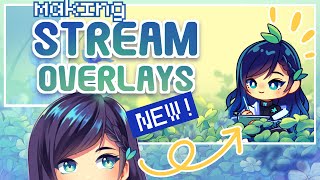

Making a New Stream Overlay!
45sViewers love behind-the-scenes content of creators updating their stream setup.
▶ Play Clip"The title accurately describes the video's content: making a new stream overlay, including the starting and ending screens."
The video is a two-part tutorial on creating a new stream overlay, starting soon screen, and ending screen for a drawing stream. The creator shares their process of designing the overlay layout, painting a clover-themed background, and rigging the animation in Live2D. The video concludes with troubleshooting and a final mockup of the overlay in OBS.
The video is split into two parts: first, discussing the overlay layout on screen, and second, showing the drawing and rigging process.
The creator emphasizes knowing your stream content and screen ratios to plan the layout. They use a screenshot of their screen mirroring app (Reflector 4) to determine the exact window size for the drawing area.
The old overlay includes a banner for tools, chat, socials, and a faded background based on a watercolor illustration. The creator plans to update it with a new clover-themed design.
The creator lowers the opacity of the background and adds borders with a multiplier/overlay setting for a faded effect. They separate borders to move independently and flip the layout to switch the drawing area from left to right.
The creator blocks in the background with circles for clover placements and adds larkspur flowers. They decide to keep clovers in the foreground and put more elements in the back.
The creator rigs their chibi persona and text in Live2D for a 30-second looping animation. They organize drawing parts into foreground/background and set parameters for movement (e.g., text ellipses, breathing, nodding off).
The creator replaces the old background with the new clover image, lowers opacity to 40%, and hollows out the center for the drawing program. They adjust chat box size and position, and test the layout with different programs (Procreate, Clip Studio Paint).
The creator encounters a freezing issue with Procreate when screen mirroring. They discover the 'Project Canvas' setting causes the problem; turning it off fixes the movement but changes the iPad ratio, requiring layout adjustments.
The video provides a comprehensive walkthrough of creating a custom stream overlay and animated starting/ending screens, from initial design to Live2D rigging and OBS setup. The creator emphasizes the importance of planning around your specific streaming tools and being prepared to troubleshoot technical issues.
What is the first step in planning a stream overlay according to the video?
Know what kind of thing you want to stream and the screen ratios to help imagine the layout.
0:47
What tool does the creator use to screen mirror their iPad to the computer?
Reflector 4.
1:29
How does the creator determine the exact window size for the drawing area in the overlay?
They take a screenshot of the screen mirroring app (Reflector 4) to see the window ratio.
1:06
What setting in Procreate caused the screen mirroring to freeze?
The 'Project Canvas' setting.
22:14
What is the purpose of a 'starting soon' screen in live streaming?
To give people time to come into the stream without missing the crucial beginning, and to allow the streamer to prep behind the scenes.
8:35
What software does the creator use for rigging the animation?
Live2D.
12:27
How does the creator create a faded effect on the overlay background?
By lowering the opacity and adding borders with a multiplier or overlay setting.
3:33
What is the key difference between the starting soon screen and the ending screen in terms of the chibi persona?
In the starting screen, the chibi is doodling on the iPad; in the ending screen, the chibi is sleeping.
10:13
How does the creator hollow out the center of the overlay for the drawing program?
They use the magic wand tool to select the inside portion, invert the selection, and place a gray background on a new layer, then clip the gradient and image to it.
18:21
What is the approximate opacity the creator sets for the new background in the overlay?
40%.
17:45
Overlay Design Principle
Emphasizes the importance of knowing your stream content and screen ratios to plan an effective layout.
0:47Using Screenshots for Precision
Demonstrates a practical technique to get exact window dimensions for overlay elements.
1:06Purpose of Starting/Ending Screens
Explains the functional role of these screens in live streaming for audience and streamer preparation.
8:35Live2D Rigging Workflow
Provides a concise overview of the rigging process: organizing parts, setting parameters, and animating on a timeline.
12:32Troubleshooting Screen Mirroring
Identifies a specific Procreate setting ('Project Canvas') that causes freezing, offering a practical fix.
22:14[00:00] [Music]
[00:04] hey guys welcome back to another video
[00:08] so today's video is going to be a little
[00:11] bit different as it is going to be
[00:12] segmented into two different parts so
[00:15] the first half of this video I'm
[00:16] probably going to be talking about
[00:18] what's on my screen right now and then
[00:20] the second half we be doing a lot more
[00:21] like drawing and I'll be showing you
[00:23] rigging and stuff but I told myself I
[00:27] wouldn't really stream in 2025 until I
[00:30] updated my stream overlays alongside
[00:33] with my starting soon screen and the
[00:36] ending stream screen so I am probably
[00:40] going to take you guys along with me
[00:41] while I make my stream overlay so to
[00:44] kind of start off I want to say that I'm
[00:47] not proficient in making stream overlays
[00:49] this is kind of like what worked for me
[00:51] for the most part but to kind of make it
[00:53] simple I think if you know what kind of
[00:57] like thing you want to stream and you
[00:59] know kind of like the screen ratios or
[01:01] anything like that it kind of helps you
[01:04] imagine how you want your layout to be
[01:06] so for myself I actually have this kind
[01:10] of like purple whoops wrong layer this
[01:13] purple rectangle and this is actually a
[01:17] filled in rectangle of a screenshot I
[01:20] took pretty much precisely of one of the
[01:23] apps I use to screen mirror my iPad to
[01:27] my computer so the one that I use
[01:29] currently ly is called reflector 4 I
[01:32] believe it's not for free I used to use
[01:34] a free program called a power soft but I
[01:37] believe they've change their branding a
[01:39] bit and it's no longer free so I
[01:43] recommend looking into your options if
[01:44] you wish to screen mirror your iPad to
[01:46] your computer there probably is other
[01:48] different types of screen mirroring
[01:50] programs out there so definitely check
[01:52] it out but for me I decided to take a
[01:55] screenshot of what reflector 4 looks
[01:57] like on my computer to see what the
[01:59] window kind of like ratio size is so
[02:02] that I could find how much I need to
[02:04] block out for it because I mostly use uh
[02:09] procreate when I'm streaming and drawing
[02:11] so I want this to be kind of like my
[02:14] main uh area for things to be blocked in
[02:17] so to start off uh let me talk about my
[02:21] old layout first so this is kind of the
[02:24] same ratio as reflector 4 it's basically
[02:27] just whatever is my iPad had uh length
[02:31] and width basically and then I had a
[02:33] banner to show the program or tools that
[02:35] I was using I have a little bit of a
[02:37] border I have chat over here my socials
[02:40] and I have kind of like a faded
[02:44] background so to show you
[02:46] guys what this actually looks like going
[02:50] to uncp that and I will get rid of
[02:53] [Music]
[02:56] my so this is actually the illustration
[02:59] that I had for my overlay now in the
[03:01] second half of the video I will be
[03:03] making a new one so stay tuned for that
[03:05] if you want to see how I tend to do more
[03:08] of like my
[03:09] floral drawings they're kind of like
[03:11] similar to the designs that I do on my
[03:13] notebook so if you want to see how I do
[03:15] like digital painting and planning for
[03:17] that then you can check out that later
[03:18] half of the video I'll make sure to put
[03:20] a timestamp somewhere on the screen it's
[03:22] kind of like based off of a old
[03:24] illustration that I did with watercolor
[03:26] piece but I really liked it as a
[03:28] background so I decided to use it as my
[03:30] overlay so what I did for this was to
[03:33] First lower the opacity adding my
[03:36] borders on top with kind of like a I
[03:39] think it's like a multiplier or an
[03:40] overlay setting and it kind of gives me
[03:42] this like faded effect on it which I
[03:45] think is kind of nice because it's not
[03:46] too overbearing so technically I don't
[03:49] have to have my background clipped to
[03:51] this border um I think I did for wanting
[03:54] to make this to have a gradient in the
[03:56] back or to make this have its own
[03:59] background
[04:00] so I'm going to separate my borders so
[04:02] that I can move them
[04:03] independently yeah I think that's what
[04:05] I'm going to do so usually I think in my
[04:08] streams I sit mostly on the left hand
[04:11] side and I Do cover a good amount of my
[04:14] procreate um screen sometimes so I kind
[04:17] of want to switch it so I'm going to get
[04:19] rid of my backgrounds here probably my
[04:23] borders so or not my borders my overlay
[04:27] so I'm going to select both of these I
[04:30] think I'm just going to flip
[04:31] it I know some people put like chat on
[04:35] top of their overlays or like within
[04:38] their screens I think it really depends
[04:40] on what you
[04:41] want cuz I don't need a lot of chat
[04:43] showing technically
[04:46] um but this is mainly going to be my
[04:49] screen for just procreate so I'm going
[04:51] to make probably a separate one for a
[04:53] clipo paint as well as a traditional one
[04:56] so I think I'm going to leave these here
[04:59] right down here I'll leave like a text
[05:01] box for myself because I like putting
[05:04] who and what I'm drawing usually as an
[05:06] indicator here I'm still kind of like
[05:09] thinking if I want to add this little
[05:12] box cuz I used to have it so that it
[05:15] would basically remain at the top to let
[05:19] people know what program I'm using
[05:21] alongside um any of my tools so I can
[05:26] still put who I'm drawing at the very
[05:28] bottom Maybe
[05:31] so this might also depend on how you
[05:33] want to capture
[05:34] your I guess like program of choice on
[05:37] OBS so for me I believe I have like
[05:40] pretty much the majority of our screen
[05:41] showing so for this
[05:44] one so this is my procreate version then
[05:49] I have this version which I'm going to
[05:51] shrink down and hold shift to make sure
[05:53] to to scale a blue color and then we can
[05:57] see that this is vastly different
[05:59] compared to our purple version so I
[06:01] can't really use the same overlay per se
[06:03] for clip Studio paint for procreate or
[06:06] procreate for clip Studio paint unless
[06:08] you want something to be like a lot
[06:09] larger or a lot smaller and have stuff
[06:12] like cut off or like awkward spacing
[06:19] [Music]
[06:34] so this is kind of like our current
[06:36] layout now for what exactly I kind of
[06:40] want to do for the background I actually
[06:44] have this particular piece already made
[06:47] so I'm going to switch over to the other
[06:48] footage where I show you guys how I make
[06:50] kind of like this background including
[06:52] some other elements so I'll see you over
[06:54] there in a bit and then I will come back
[06:57] probably after we're done doing the
[07:00] starting and ending screen and we can
[07:02] place this back into our overlays to
[07:04] actually kind of like make a proper
[07:06] aesthetic for everything so for the next
[07:09] few minutes I am going to be taking you
[07:11] guys along with me while I do kind of
[07:14] not exactly the full process of me
[07:16] painting our starting screen and end
[07:18] screen but you'll see the majority of
[07:20] the planning so starting off I decided
[07:22] to block in what I thought would be the
[07:24] general gist of my background and then
[07:27] the little circles and blobs were
[07:28] actually help helping me to do the
[07:30] placements for our objects so in this
[07:33] case because clovers were kind of like
[07:35] the main theme that I wanted to go with
[07:37] and I find them a little bit easier to
[07:39] draw if I have like a circle template
[07:42] because they are flat so I decided to do
[07:44] like a bunch of circles everywhere so
[07:47] that I could plan out where I wanted
[07:48] each Clover to be and then we have lar
[07:51] Spurs or I think they're like delum
[07:54] flowers that are going to be kind of
[07:56] like swaying back and forth now I
[07:58] thought I was going to have these
[07:59] flowers to be in the foreground so I was
[08:01] going to like fully render them but in
[08:03] the end I think the clovers already look
[08:05] kind of like overwhelming in the front
[08:08] so I decided to put more things in the
[08:09] back instead um just to kind of give
[08:12] more uh room for the clovers to kind of
[08:14] stand on their own and it'll make a
[08:16] little bit more sense a little bit later
[08:18] once I add in like uh like like my
[08:21] Persona the text and using this
[08:23] particular uh Clover background for our
[08:26] overlay as well so I think I have a few
[08:30] sketches of what I wanted for my
[08:33] starting screen and ending screen so if
[08:35] you're not familiar with a lot of like
[08:37] live streaming typically before the
[08:40] stream starts for like a live streamer
[08:42] or content creator you have like a
[08:45] starting soon screen it could be like uh
[08:48] stream starting soon um I don't know
[08:51] there's like a bunch of different
[08:52] phrasing that you can do that's like
[08:53] maybe more on brand with your character
[08:55] or your branding and all that so it
[09:00] kind of gives people time to kind of
[09:02] like come into your stream without like
[09:04] missing the crucial beginning I guess
[09:07] some people do like uh just chatting at
[09:09] the very beginning before they get into
[09:11] games or like anything like that just to
[09:13] let people roll on in and they don't
[09:15] really miss anything too important so
[09:17] just like maybe a few minutes at the
[09:19] very beginning you have an intro screen
[09:21] and then it allows you to also get
[09:23] prepped behind the scenes and then after
[09:25] that uh usually you go into your actual
[09:27] stream and that's where your stream
[09:28] layout and overlay will matter a little
[09:30] bit more and then after that usually
[09:33] when you end stream most people don't
[09:36] end it super like just like right away
[09:39] uh just in case if like live stream
[09:40] things cut off things or if you want
[09:42] like chat to be kind of like say their
[09:44] goodbyes and everything so it's kind of
[09:47] easier to have like an ending screen so
[09:49] people can have some time to linger
[09:51] before it kind of like cuts off so
[09:53] similar to my old version which I will
[09:56] put probably at the very end the
[09:58] comparison I don't think I remembered to
[10:00] put it anywhere here but basically I
[10:03] made like a night version of my starting
[10:05] soon screen to make my ending screen so
[10:08] I'm going to use that same concept for
[10:10] today's so you can see that I already
[10:13] Drew in the chibi version of like my
[10:15] Persona so I wanted to make sure that I
[10:18] could section everything off because I
[10:21] want to be able to rig this into live 2D
[10:23] so my previous starting screen that I
[10:27] did that has like walne on on top of
[10:29] like a bunch of larks spur flowers and
[10:31] like leaves and stuff was done kind of
[10:33] like frame by frame which is like
[10:35] totally a viable way of making your
[10:38] animation for let's say your starting
[10:40] screens your overlays whatever you want
[10:43] but for me because I've learned how to
[10:44] do ricking I thought it'd be nice to
[10:46] have a little bit more of like slightly
[10:48] more fluid movement I guess so I'm going
[10:52] to take advantage of that and hopefully
[10:54] make a about a 30 second Loop of an
[10:58] animation of my starting soon screen
[11:00] alongside with my Persona kind of like
[11:03] doodling on the iPad and I tried to make
[11:06] sure that I didn't miss any areas even
[11:09] though I knew they were going to be
[11:11] covered by our clover background so my
[11:14] Persona is going to be sitting behind
[11:16] the set of painted clovers at the very
[11:18] front and then behind my Persona I will
[11:22] have a bunch of like little grass blades
[11:25] along with like I think it's a little
[11:26] bit of one of the Larks spur and then
[11:28] the Larkspur will also whoops kind of
[11:30] like sway around and then for the night
[11:32] version which I don't remember if I do
[11:34] this like after I finished drawing
[11:37] basically the entirety of my chibi and
[11:39] kind of like sectioned it off but I will
[11:41] add like a multiply layer to make like a
[11:44] different lighting and then we'll add a
[11:46] few like fireflies or glowing lights and
[11:49] I will also rig my chibi to be sleeping
[11:53] instead which is kind of how I had my w
[11:55] new version as well which I think I like
[11:58] that lighting a little bit better on my
[12:00] w new one because it has like a glow on
[12:03] the character itself rather than just in
[12:05] the front um so I kind of wish I added
[12:08] that to mine but I I don't want to
[12:10] really fiddle with it right now maybe in
[12:11] the future I'll do another updated
[12:13] version of this but for now we'll just
[12:14] leave it so I also made sure to put the
[12:17] ending stream text and my little
[12:20] ellipses I guess for each one to be on
[12:23] separate layers before we prep it to do
[12:25] for our rigging which we are going to be
[12:27] doing in live 2D so in live 2D I open up
[12:32] my file which is like a PSD file and I
[12:35] went ahead and started to basically
[12:37] reorganize my parameters which is kind
[12:40] of like in this middle window and then
[12:42] on the very left has all of my drawing
[12:44] parts so I went ahead and also sorted
[12:47] everything out between foreground and
[12:49] background and then different elements
[12:51] so like uh my character's body anything
[12:53] that's attached to my character's head
[12:55] like the Sprout the hair the eyes the
[12:57] mouth is all on the same thing after
[12:59] when I sorted everything out I went
[13:01] ahead and started to fiddle around with
[13:03] how I wanted to do the pretty simple
[13:06] animation for our text so I just have a
[13:10] kind of like a starting portion where
[13:13] the text is just already on the screen
[13:15] because I kind of want this to be
[13:16] seamlessly looping for the most part so
[13:19] it was easier for me to have the text
[13:21] already placed and then the only thing
[13:23] that's going to be really moving for the
[13:25] text is the ellipses so I kind of have
[13:27] them moving back and forth kind of like
[13:29] as if it's loading I've seen a lot of
[13:30] people do
[13:32] loading uh screens as well I think
[13:34] there's like a lot of fun ways you can
[13:36] play around with your branding but for
[13:37] me I just wanted to like keep with
[13:39] something similar to my previous one but
[13:42] kind of like a small upgrade if anything
[13:45] because that drawing is like super old
[13:48] and then that drawing is based off of
[13:50] another drawing that was like even older
[13:52] so I just wanted something new so let's
[13:55] talk a little bit more about the raking
[13:57] again so the reason why have to do all
[13:59] of these little I don't know what you
[14:02] want to call these if you're not
[14:03] familiar with the rigging in live 2D um
[14:06] the best way I can think about it is
[14:08] like being able to manipulate objects
[14:12] and have movement depending on how you
[14:15] change them I guess and you can set them
[14:16] onto key forms and have that as your
[14:19] parameter then you can take all those
[14:21] elements of your drawings and your
[14:23] parameters into live 2D's animation
[14:26] portion of their uh program and I can
[14:29] basically start to time all of my
[14:31] parameters on a timeline and set them to
[14:35] move at certain times and it'll kind of
[14:37] fill in the spaces a little bit to make
[14:39] seamless um animation so it's kind of
[14:42] like the easiest way for me to make
[14:44] something not going to lie something
[14:46] simple to be a little bit more
[14:47] complicated to get like slightly better
[14:50] results just because like my skill level
[14:52] with live 2D isn't like super high I
[14:54] still would like to play around with it
[14:55] more but my lack of patience with this
[14:58] is a little bit bit low at this point
[15:02] but with kind of all of our parameters
[15:04] like mapped out I went ahead and opened
[15:06] up a animation file in live 2D and I
[15:09] started to place all the little key
[15:10] forms so all the little dots that you
[15:12] see on the little grid on the right are
[15:14] all my key forms and you can kind of see
[15:17] um where I'm placing certain parameters
[15:19] to be timed to appear or to move um at a
[15:22] certain point so that's kind of like
[15:25] going to be figuring out how I want the
[15:27] entire starting screen to look like and
[15:29] then after that I exported our starting
[15:32] soon screen and then I worked on our
[15:35] night version which will be our ending
[15:36] screen so right here I put back the
[15:40] filter I have our fireflies moving or
[15:42] our lights I also have the same
[15:45] movements for the breathing and our like
[15:49] leaves and flowers that are moving in
[15:51] the background to be exactly the same as
[15:52] the ones I had on my starting soon
[15:54] screen because I didn't really want to
[15:55] fiddle with it so for the animation for
[15:58] my chibi this time I wanted her to kind
[16:01] of like kind of nod off and then
[16:04] eventually when you tilt to forward you
[16:06] kind of like jerk back a little bit so I
[16:08] wanted a little bit of that to kind of
[16:10] be like how I wanted to portray me
[16:13] sleeping and dozing off I guess I think
[16:16] I'll show you guys a little bit more of
[16:17] the back end a little bit later in real
[16:19] time but this is kind of like me showing
[16:21] you the ending and starting screen right
[16:22] ahead and streamlabs OBS instead and
[16:26] just kind of testing it out before I
[16:27] actually made my overlays so I'll
[16:29] probably put in a little bit of Snippets
[16:31] of me talking about how I use this
[16:33] background of my clovers into my
[16:35] overlays to kind of have a more
[16:37] consistent look so let's go ahead and go
[16:39] back to real time me I
[16:42] guess okay so now that we had the
[16:44] background done I have the rigging for
[16:47] my own Persona alongside with our text
[16:49] and everything already rigged I went
[16:51] ahead and saved a separate version of
[16:53] our background which happens to be this
[16:54] one so I'm going to copy it over so I
[16:57] have my iPad version kind of like
[16:59] already open and what I'm going to do is
[17:03] basically
[17:05] replace this
[17:08] image with this one uh after pasting in
[17:12] our background you can kind of see like
[17:14] it is kind of like the perfect ratio so
[17:16] I don't really have to do too much
[17:17] adjusting I could like stretch it a
[17:20] little bit if I wanted to or make it a
[17:21] little bit bigger if I wanted to fill up
[17:23] more of the space but kind of where the
[17:25] clovers are sat in this particular
[17:28] layout I actually quite like it but what
[17:30] I'm going to do is lower the opacity
[17:32] forgot to get rid of my other one we're
[17:35] going to lower the opacity on this so I
[17:37] still want to keep kind of like this
[17:39] blue aesthetic to keep kind of the
[17:42] aesthetic almost equal I'm going to put
[17:45] it about 40% so for some of these other
[17:48] elements I might add a overlay layer um
[17:54] I might copy this filter so we can add
[17:57] it to
[17:59] chat as
[18:01] well so I do think this is what our main
[18:04] overlay is going to look like now the
[18:06] problem is is that for me to place my
[18:09] procreate and stuff behind my borders
[18:12] without like overlapping the little
[18:14] grass and clover detailing I do have to
[18:17] make sure that this is kind of like
[18:18] hollowed out so I'm going to take our
[18:21] magic wand I'm going to find where our
[18:24] border
[18:26] is I'm going to select
[18:30] the inside portion of where I want it to
[18:34] be hollowed out I'm going to invert my
[18:36] selection and then on a new layer I'm
[18:39] going to place a kind of like a gray
[18:44] background and we're going to clip this
[18:47] gradation onto our gray background I'm
[18:50] going to pull up this image again and
[18:53] also clip it so that we kind of have
[18:55] this hollowed out area now with the
[18:57] hollow out Center for my program of
[19:00] choice after that I have the background
[19:02] color of what I wanted to be the pro
[19:05] like The prominent color for my overlay
[19:07] and then I have my design kind of just
[19:09] like lightly placed on top to kind of
[19:11] give it more of that like softer look
[19:13] and I think this is what I'm going to do
[19:15] for my current overlay for now it's
[19:16] nothing too fancy it's just kind of like
[19:18] a small revamp if anything today I guess
[19:21] it'll be Saturday for you guys so I
[19:22] guess I'll be yeah I might stream today
[19:24] after I come back from a little group
[19:26] dinner with friends and we'll see how
[19:29] the the layout looks so uh I'll see you
[19:32] then okay actually I lied so here's my
[19:34] starting soon screen I'll probably put a
[19:37] video of like the full little Loop um
[19:40] somewhere in the video alongside with
[19:41] the ending stream but um you can see
[19:44] that that this is kind of like my iPad
[19:47] layer or new version so I have new
[19:52] overlay
[19:55] mean oh I think it actually looks quite
[19:57] cute like this I'm also going to move
[20:00] chat not this one so I'm going to
[20:03] delete where is my
[20:06] chat here it is slide it on
[20:10] over kind of like that I might even make
[20:12] my own tablet aset a little bit later so
[20:14] I can actually have like a visual
[20:16] representation of my iPad I opened up
[20:18] clip Studio paint so that I can kind of
[20:20] fit this in here a little bit better so
[20:24] that it's pretty much just my drawing
[20:25] space we'll see maybe for now I'll
[20:28] shrink it so that we can see my entirety
[20:30] of my clip Studio paint drawing I'm
[20:32] going to move down here the thing is
[20:34] like I used to have like a weird gap for
[20:36] certain things just because uh depending
[20:39] on which platform I was streaming on it
[20:42] was more easier to have my alerts in one
[20:45] spot but I realized it looks very empty
[20:48] otherwise so let's change the width of
[20:50] her chat box to
[20:54] be fairly
[20:57] small I forgot I had this this is
[21:00] actually a good placeholder for
[21:02] now uh we'll move whoops I'm actually
[21:05] going to lock my overl I actually forgot
[21:08] about
[21:09] that leave that at the top I think I
[21:12] have it as who I'll put this down here
[21:17] probably okay so I think we are good um
[21:21] I'll show you guys kind of like a little
[21:22] mockup I probably will put in my vtuber
[21:25] so that we can actually see it alongside
[21:27] with that and do kind of like a mock
[21:29] [Music]
[21:47] trial okay so I feel like there is an
[21:51] issue right now which is currently
[21:53] reflector 4 is not working with my
[21:55] procreate like at all for some reason so
[21:57] if I uh go to my home screen I can swipe
[22:01] back and forth uh for some reason when I
[22:03] click on procreate it completely freezes
[22:06] so okay this feels really stupid uh I
[22:09] think because of that error I was having
[22:12] so apparently there's a setting on here
[22:14] it's called project canvas and if you
[22:17] click
[22:17] it it basically won't allow you to like
[22:20] show the movement of when you're drawing
[22:22] and panning on the screen and all that
[22:24] stuff so if you turn it off it goes back
[22:27] to normal but the the problem is now is
[22:29] that my iPad ratio is like totally off
[22:33] so if I
[22:35] basically full screen the image that I
[22:38] have currently on my canvas you can see
[22:40] that I think the top and the bottom are
[22:42] actually cut off so I probably have to
[22:44] redo my layout just to smidge more that
[22:47] or I'll just leave it like this so we
[22:49] don't have like the tools in the way for
[22:51] the most part cuz I don't think it's as
[22:53] necessary uh to have the menus on the
[22:55] screen but you can see like now I can
[22:57] move Zoom without any problem so um and
[23:01] then moving on to our tablet version I
[23:05] might scooch myself over yeah I might
[23:08] fix some of the borders on this a little
[23:11] bit more to see if I can fit it a little
[23:13] bit better with my current layout of
[23:16] clip Studio paint since I don't really
[23:17] adjust it all that much and then moving
[23:20] along we
[23:22] have our traditional one
[23:25] so woo so I have
[23:30] wait is my webcam being so
[23:35] [Music]
[23:37] finicky calibration okay so for some
[23:41] reason if I move this wire it
[23:44] disconnects my webcam so I'm going to
[23:45] have to find a different way to connect
[23:47] everything but this is kind of like what
[23:49] the traditional setup would look like
[23:50] for the most part there is some like ah
[23:53] wait a second I'm an
[23:56] idiot let's
[23:59] do this I forgot I thought I made this
[24:01] like the wrong size
[24:04] um I forgot I basically like full
[24:08] screened it almost where is it where let
[24:11] me move myself
[24:13] [Music]
[24:19] actually this is why it's good to
[24:22] troubleshoot
[24:24] so uh where am I so but you can see that
[24:27] the webcam work works so I have my my
[24:29] vtuber alongside with my other webcam so
[24:32] that I could do traditional um mediums
[24:37] for like I don't know like watercolor
[24:39] painting wash painting whatever it is I
[24:42] just have to find like a proper setup to
[24:43] actually get like a good uh top view of
[24:46] everything but this is kind of like my
[24:48] sketch bre right now so yeah I I think
[24:51] that's what it's going to be like for
[24:53] future streams like I said I'm going to
[24:55] try to fix this layout a little bit more
[24:58] so so that maybe we can optimize it a
[24:59] little bit more with my clip Studio
[25:01] paint
[25:04] layout
[25:05] whoops and then for my iPad layout we
[25:10] can actually uh stream maybe on Saturday
[25:13] or Sunday we'll see but hopefully you
[25:15] guys enjoyed watching today's video and
[25:17] watching me make both my starting screen
[25:20] and my ending screen which I think I'll
[25:21] will use for today's uh session instead
[25:24] of my usual outro thank you guys very
[25:26] much for watching and I'll talk to you
[25:27] guys next time in the next video and
[25:29] hopefully catch you on a stream and
[25:31] stream more often I guess bye
[25:36] [Music]
⚡ Saved you 0h 26m reading this? Transcribe any YouTube video for free — no signup needed.