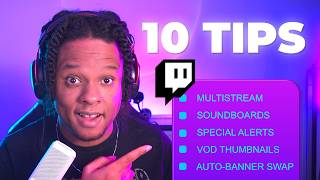

Grab a Custom Thumbnail for Your Twitch VODs!
44sPractical, actionable tip that helps new streamers improve their channel presentation, with a clear how-to that's easy to follow.
▶ Play Clip"Delivers a solid set of practical Twitch tips, though not strictly '10' and some sections feel padded."
This video provides a comprehensive guide for new Twitch streamers, covering essential tips and hidden features to enhance their streaming experience. The creator shares practical advice on managing past broadcasts, utilizing multi-action features, multi-streaming tools, and customizing alerts and channel points for greater interactivity.
Streamers can edit past broadcasts to select a better thumbnail from three auto-generated options or upload their own, update the title, and choose the right category. Videos under a minute can be set as a channel trailer.
Use multi-action to trigger multiple actions with one button, such as saving clips in landscape and vertical modes simultaneously via OBS replay buffer and Atom Vertical, and creating a clip directly on Twitch.
Tools like Aitum's Stream Suite and StreamElements SE.Live integrate with OBS for multi-streaming, while Meld Studio offers an all-in-one broadcasting solution with built-in multi-streaming and multi-chat.
Pulsebanner.com automatically switches Twitter banners when going live or ending streams, though Twitter may occasionally require re-authentication.
Connecting Twitch to Discord in user settings displays your Twitch on your profile, shows Discord servers linked to subscribed streamers, and updates your status to live when streaming.
Twitch's own alert system offers exclusive alerts like confetti overlays on the whole site, which cannot be triggered by external services. These can be customized in intensity.
Twitch combos can be customized with sounds and on-screen effects, and celebrations can be added to combos for more interactive alerts.
Hype trains and goals can be customized to trigger visuals and sounds when starting or reaching personal records, enhancing interactivity.
Use channel points with extensions like Sound Alerts for a simple soundboard, or use Streamer Bot for more advanced control, including specific sounds for VIP viewers when they type.
The video offers a wealth of practical tips for new Twitch streamers to improve their streams, from optimizing past broadcasts to leveraging multi-streaming and interactive alerts. By implementing these features, streamers can create a more engaging and professional channel.
What can you do with a past broadcast that is less than a minute long?
You can set it as a channel trailer.
00:30
What is the multi-action feature used for?
It allows you to trigger multiple actions with one button, such as saving clips in different formats and creating a Twitch clip simultaneously.
00:44
Name two tools that integrate with OBS for multi-streaming.
Aitum Stream Suite and StreamElements SE.Live.
01:27
What does Pulsebanner.com do?
It automatically switches your Twitter banner when you go live or end your stream.
03:05
How can you display your Twitch status on Discord?
Connect your Twitch account to Discord in user settings under connections.
03:45
What exclusive alert can only be triggered by Twitch's integrated system?
A confetti overlay that covers the entire Twitch website.
04:10
What can you customize in Twitch combos?
You can customize sounds and on-screen effects, and add celebrations to combos.
05:04
What can you trigger when a hype train starts or reaches a personal record?
Custom visuals and sounds.
06:15
What is a simple solution for a soundboard using channel points?
Using an extension like Sound Alerts.
06:54
Multi-Action Efficiency
Shows how to streamline clipping and saving in multiple formats with a single hotkey, saving time and effort.
00:44Multi-Streaming Tools Comparison
Provides an overview of popular multi-streaming tools, helping streamers choose the right one for their needs.
01:27Twitch Exclusive Alerts
Highlights a feature that external services cannot replicate, adding unique interactivity to streams.
04:10Channel Points for Interactivity
Demonstrates how to use channel points for soundboards and personalized viewer experiences, increasing engagement.
06:42[00:01] order. If you're an OG Twitch streamer, you probably know a bunch of those own Twitch tips in the comments to help out the newcomers. Let's begin. past broadcast and you go to edit, you can pick a better thumbnail out of the
[00:17] three automatically generated ones, or you can actually upload your own. The course, you can update the title, make it cleaner, pick the right category. Just don't forget to save. I believe you need to be affiliate for
[00:30] own videos to your Twitch channel. And if you upload a video that is less than a minute long, you'll be able to check the options and set as a channel channel trailer, basically, which will appear right there on your page.
[00:44] Remember to use the multi-action feature. For example, for clipping, I'll have my OBS Studio replay buffer, so I can save my clip landscape mode full HD. I have a system hotkey. This is actually my keyboard shortcut for Atom Vertical,
[00:59] so I also save my clip full HD, but vertical mode, TikTok ready. I also have I don't know, my clips didn't really work and I need to go back and add more context to the clip, and also create a clip directly in Twitch because saving
[01:13] the replay buffer or the Atom Vertical clip is not actually going to put the clip on my channel. All of that by pressing one single button. the main ways to achieve that. If you're streaming with OBS Studio, for example,
[01:27] Atom.tv has something called the Stream Suite. It basically turns your OBS into chat, it gives you control over the different platforms. You can change the titles on one tab. It basically installs a bunch of plugins and sets up a layout
[01:41] Another one is uh StreamElements SE Live, which handles multi-streaming and it's also an OBS Studio plugin, pretty much. It gives you your vertical layouts streaming and it handles multiple events, the same thing, but slightly
[01:55] setup is, but in my opinion, Aitum handles the vertical side a little bit better. Now, SE.Live actually has a system where you can apply for a stream key through TikTok. This hasn't worked for me, but I think a couple of people
[02:09] there, so something to test out. Now, if you're looking for the easy way to go live on multiple platforms at once, Meld studio.co is a whole broadcasting everything. So, as you can see here, multi-streaming is literally integrated
[02:24] plugins, no nothing complicated. I haven't personally [music] used Meld yet, but a lot of people have been trying it and saying great things about you would expect, multiple canvases, and also multi-chat integration. Finally,
[02:37] within their software. I believe it's Streamlabs Studio or Streamlabs Desktop, but I think you have to join Ultra cuz behind a paywall, but hey, if you're already a
[02:49] member of Ultra, you can use it. Obviously, those are not the only way to most popular ones or the most practical ones because they often are added to OBS platform, or they have their own platform that does way more than just
[03:05] multi-stream. If you ever saw streamers on Twitter go live, they do it using something called pulsebanner.com. It's a service that literally does just that. It switches out your banner when
[03:18] you're when you're done streaming. I actually collabed with them in the past believe there's also the profile picture option, but Twitter is kind of finicky with that, sometimes removing permission or asking you to log in just
[03:33] a little too many times, so be cautious when using it. And if you have any concerns before using it, you can tweet them. A while back when I was using it, it worked perfectly. This one is for Discord users. In your
[03:45] user settings, you want to go under connections and actually connect your Twitch account to your Discord. This will allow you to display it on profile, they can find your Twitch. That's optional, but also it'll show you
[03:57] Discord servers linked to Twitch streamers that you're subscribed to, so Furthermore, when you're live on Twitch, it will actually update your status to live. This has to do with your Twitch alerts
[04:10] in Twitch's own integrated alert system. Even if you're using another service like Streamlabs or Stream Elements to manage your alerts, there is a type of alert that you can only get directly from Twitch, basically. And that is the
[04:22] you want to celebrate. Let's say new follow right here, and I'm going to is basically turn it on, and at the bottom here, I'm going to make sure I basically it's going to put a bunch of confetti over the whole screen, over the
[04:38] whole website, which is something that I believe cannot really be triggered by any other external services, so it can make for pretty fun alerts. Let's save actually preview it over the page, but what's going to happen is if I preview
[04:51] alert here, you see the fireworks explosion of your own emotes, it's basically going to happen over the whole Twitch page here on desktop, and it's mobile. And of course, you can customize it, customize the intensity, and all
[05:04] Now, speaking of alerts, we don't talk about this enough, but Twitch has basically kind of like those TikTok GIFs. So, if I click on combos here, I can click on new variant, and from there I can customize basically what it does.
[05:19] sounds, you're going to see that there's no image here, but there will be an image just on stream. So again, this is one of those that utilizes just the website instead of like your broadcasting software. So, it'll tell
[05:33] on-screen effects for a more streamlined experience. We recommend you using only sound alerts." Now, the question is, can we actually preview the whole on-screen thing? We cannot. Or am I missing something, or am I forgetting how to
[05:47] that you can actually add celebrations to your combos. So, when you do get a combo, you can also trigger a different celebration. But yeah, I just wanted to Every time I hear the sound of the combo, I'm always like, "What is that?
[06:01] it. If you want to show it some love, do customize your alerts so that you know exactly what's happening. Oh, again on the theme of alerts, hype trains are also customizable. You can actually have something [music] happen
[06:15] when the hype train starts. Okay, that's the default thing. But also when you reach your own personal record of the hype train. So, I think this is pretty cool. Those are relatively new options in Twitch that we tend to forget about,
[06:27] but they're right there. There's also goals. A lot of people don't have reach a goal. Well, you can have a visuals that happen plus sounds when you reach a new goal. And I think that's cool. Anything that makes your stream
[06:42] more interactive, more reactive, is only going to benefit you. Speaking of making your stream more interactive, if you want like a simple solution for a soundboard, maybe people can use channel points to trigger stuff.
[06:54] >> through an extension on your Twitch pretty popular for that, and it seems like they've been adding more options like playing videos and having all sorts of widgets. I haven't personally used
[07:07] them in a while because I personally use Streamer Bot for everything now. I also might be worth taking a look if you're looking for again, very, very simple solutions. Walk on, I know, is a pretty cool option is specific viewers. You can
[07:20] have specific soundboards for them. So, when they walk on, kind of like Discord, so when they show up on your stream, the first message they type, a specific sound will play. So, [music] that's a cool way to welcome like VIP subscribers
[07:32] cool way to welcome like VIP subscribers and all that. you follow me on Twitch and also on Twitter. And also on TikTok. And also on Instagram, but most importantly, subscribe.

⚡ Saved you 0h 08m reading this? Transcribe any YouTube video for free — no signup needed.