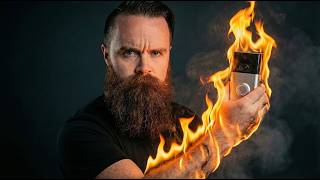

Your Cloud Cameras Are Spying on You
45sStarts with a shocking claim about cloud cameras being hacked and feeds sold on the dark web, instantly grabbing attention.
▶ Play Clip"Delivers on the promise of a local surveillance alternative, but includes lengthy sponsor and filler segments."
The video demonstrates how to set up Frigate, a completely local open-source AI surveillance system, using a Raspberry Pi and IP cameras. The creator emphasizes privacy, showing how to avoid cloud-based cameras and keep all data in-house. The tutorial covers installation, configuration, adding cameras, enabling AI features, and troubleshooting network issues.
Frigate is a completely local open-source AI surveillance system with facial recognition, license plate recognition, and object detection. It doesn't leave your house or touch the cloud.
The creator used Reolink E1 Pro cameras (about $56 each) and a Raspberry Pi as the Frigate server. Any device that can run Docker containers works.
Cameras must support RTSP (Real-Time Streaming Protocol) to stream video data to Frigate. This is an open standard, so it works with many camera brands.
For AI features like facial recognition and object detection, an AI accelerator is recommended. Options include the Raspberry Pi AI HAT+ or a Google Coral USB accelerator.
The installation involves updating the system, installing Docker, creating a docker-compose.yml file, and running 'docker compose up -d'. The Frigate UI is accessible via port 5000.
Cameras are added by configuring RTSP streams in Frigate's config file. The RTSP URL format includes username, password, IP address, port, and stream path.
AI detection is enabled by setting 'detect: enabled: true' and adding an 'objects' section with trackable objects like 'person' and 'keyboard'.
Recording is enabled by adding a second input for the substream and a 'record' section. The substream is for AI detection, while the main stream is for review.
Adding an AI accelerator (like the AI HAT+) dramatically improves performance: CPU usage dropped from 41% to 14%, and inference speed from 80ms to 9ms.
The creator upgraded to a desktop with an Nvidia GPU and a Google Coral USB accelerator to handle 10 cameras. The GPU handles video decoding, while the Coral handles AI inference.
The creator experienced network issues after adding 10 cameras. The problem was not bandwidth but high TX retry rates on the access point, indicating airtime congestion.
Three fixes: enable Constant Bit Rate (CBR) on cameras, use TCP instead of UDP, and add an additional access point to distribute camera load.
Go2RTC consolidates camera streams to a single connection, reducing the number of streams on the network. This is configured in Frigate's config.
Reolink cameras have known RTSP issues that degrade after about 20 hours. Scheduling a daily reboot (e.g., at 3 AM) helps maintain stability.
Frigate offers a powerful, private, and local alternative to cloud-based surveillance systems. With the right hardware and network configuration, you can achieve reliable AI-powered monitoring without compromising privacy.
What is Frigate?
A completely local open-source AI surveillance system with facial recognition, license plate recognition, and object detection.
00:13
What protocol must cameras support to work with Frigate?
RTSP (Real-Time Streaming Protocol).
02:06
What is the purpose of an AI accelerator in Frigate?
To speed up AI inference for features like facial recognition and object detection.
03:22
What command starts the Frigate container?
docker compose up -d
09:35
What is the default port for the Frigate web UI?
5000
10:16
What is the RTSP URL format?
rtsp://username:password@host:port/stream_path
14:13
Why use a substream in Frigate?
The substream is smaller and used for AI detection, while the main stream is for recording and review.
19:03
What was the CPU usage before and after adding an AI accelerator?
Before: 41%, after: 14%.
23:11
What was the root cause of the network issues with 10 cameras?
High TX retry rates on the access point, indicating airtime congestion, not bandwidth.
30:13
What are three fixes for network issues with multiple cameras?
Enable CBR, use TCP instead of UDP, and add an additional access point.
32:39
What is Go2RTC used for in Frigate?
To consolidate camera streams to a single connection, reducing network load.
33:53
Why schedule daily reboots for Reolink cameras?
Because they have known RTSP issues that degrade after about 20 hours.
34:12
Local AI Surveillance
Emphasizes privacy by keeping all data local, a key selling point.
00:13AI Accelerator Performance
Shows dramatic improvement in CPU usage and inference speed with an AI accelerator.
23:11Network Issue Root Cause
Identifies TX retry rate as the culprit, not bandwidth, a non-obvious insight.
30:13Network Optimization Techniques
Provides actionable fixes (CBR, TCP, additional AP) that solve real-world problems.
32:39Scheduled Reboots
Reveals a manufacturer workaround for known RTSP issues.
34:12[00:00] you through your surveillance cameras. Go ahead. in any way, someone might be watching, they sell these feeds on the dark web.
[00:13] but with frigate, that's not going to happen. This is a completely local open source AI surveillance system. Don't worry that AI is local and I cannot believe it took me this long to find
[00:25] It's got facial recognition, license plate recognition, object detection, but the best part is that it doesn't leave your house.
[00:37] it doesn't touch the cloud and sure your ring subscription might say your stuff is safe. Do you trust Jeff Bezos really to get you coffee? You're ready. Bring those surveillance cameras in-house. Lock 'em up. Let's go.
[00:54] what I did out of necessity. Lemme show you the cool thing about frigate is you can buy whatever security But I bought these super cheap cameras, like 56 bucks a piece.
[01:09] They're real link. E one pros and I bought all of these. How awesome is that? it destroyed my wireless network. We'll get to that here in a moment. but the reason I did that is because I was going to Romania to visit. Well,
[01:24] while I was gone. I didn't have time to run cable. I'm like, raspberry pie is my frigate server, which you can totally do.
[01:36] And with two cameras, it actually works incredibly well enough talking about it. Where's my pen? We're going to draw this out. A raspberry pie just yelled at me. Don't want that word scare you.
[01:51] really anything that can run a docker container because that's how we're going to install frigate, a docker container on a Linux server. Next, but you have to make sure it supports RTSP.
[02:06] This is the protocol that will allow it to stream it's video data to frigate, the more I feel like I'm not saying it right. It's okay. It's okay. And have you hacked YouTube today?
[02:21] notification bell comment. Let's hack YouTube today. Ethically, of course. Now these cameras again are the real link. E one pros. day before I left for my trip. I'm a last minute kind of guy,
[02:37] They don't need any kind of internet access to function, which is important because I'm going to shut 'em down. Cutting you off, buddy. And that's the third thing you're going to need Buffy.
[02:53] It's just required in it or doing anything home lobby or anything privacy Never chuck to coffee and back to cameras. It can be am Crest Dua and even unified Cameras All work. Now, honestly,
[03:09] that's all you really need. Bare minimum. But if you want to make this fun, it's right here. For all your Raspberry Pie users, which I do recommend a raspberry pie for this if you want to play around,
[03:22] I have the AI hat plus here. things. Now remember frigate, it uses AI or it can use ai.
[03:35] but if you want the cool features like facial recognition, object detection, Now I got this from my Raspberry Pi setup, but then when I added eight more cameras to it,
[03:48] So I upgrade to a desktop and I got this thing a Coral USB AI accelerator. What's the actual name? I think it's a coral TPU. There it is, I have it plugged into my gaming rig and forget,
[04:04] How does it do with that? I don't know. It's magic. All right here you can hold the AI stuff in your hand. That's my motto. Oh,
[04:16] I forgot to draw on the extras. Here we go. Bonus AI accelerators. It's one L and I got to fix it. It's going to bother me like crazy. you don't need this. Know what this whole project,
[04:31] I was going to Romania another country, right? out. Problem is my cell phone wasn't going to work when I got to Romania.
[04:43] I can't even get around without maps to arrive in a foreign country and not have That's why I'm extremely grateful for the sponsor of this video.
[04:55] Saly before me and my team left, we installed Saly on our phones. Now, Now, what's so cool about this is before I even left, I bought myself a Romania pass set up ready to go,
[05:10] And as soon as we got off that plane, I had internet access and throughout the entire trip, now on the way back, you better believe I set up Saily for Turkey before I got there and it totally
[05:25] worked. So if you do any kind of traveling, an EIM with Saly is a no brainer. it was France and I'm wandering around with a lost puppy trying to find a sim it up and get it installed. No more of that. Now,
[05:42] So you know Sili has built-in security features. block malicious ads and stay safer with web protection. They cover over 200 destinations and if you scan this QR code right here or just
[05:59] Network Chuck at checkout, you'll get 15% off. So scan the code or go to saly.com/network. Chuck, check it out. kids with frigging. Anyways, back to the video.
[06:17] Now I'm going to demo this with a raspberry pie because it's stinking small and Now we're going to do this in stages. First, we're going to just do the quickest most base install of frigate on this
[06:31] That means we're not going to use this AI accelerator just yet because not to slap this bad boy on there. End up talking. Let's get going. Now remember, which means the steps I'm showing you for the raspberry pie should be applicable
[06:46] to pretty much anything because Docker can run almost anywhere. Now, again, get your coffee ready, let's start building this. I installed raspberry pie os it's booted up plugging into my network.
[07:01] It can still work. But in this scenario, I'm not sure if I mentioned before these Rio Link E one pros do have a hardwired
[07:13] connection if I want to run cable eventually, but eventually it ain't right now, Now if you also have a raspberry pie and you're like, Chuck, I will have instructions below on how to get that set up.
[07:27] How to flash your very first image to a raspberry pie and start your raspberry pie journey, which is super fun. You can do so much with these things. chuck at 10 point 71 70,
[07:40] the IP address of my pie. First time. Here we go and we're in now whatever system you're using, it's a good practice, updating all your repos that you can install the freshest versions of whatever
[07:54] I'm going to breeze through this because Docker has a great document on their website on how to do it. Pretty much just copy and paste, copy and paste this, and then copy and paste this command here. Little coffee break while it's going.
[08:09] we'll make a new directory, M-K-D-I-R and we'll call this frigate and then jump in there, CDE frigate. Then we'll create a new file, nano docker, dash compose yml.
[08:23] I will have all this documentation below. environment, containers, networking, the works. And if you're like, Chuck,
[08:35] I've got two videos on that right here. If you want to dive deeper, but you'll appreciate it more if you go watch those videos. later. We're mapping some volumes. What does that mean? Well, for example,
[08:51] it's going to be recording things, So this line right here is saying, Hey, the actual computer,
[09:04] but we're going to map that to a folder inside the docker container, The same thing goes for config. So I point that out because you may want to change where you store your media,
[09:16] let's just get this thing up and running. Please don't leave it at password, please. This might be local and private. Now let's save our stuff. Ctrl X, Y, enter to save. And that's pretty much it.
[09:35] Pseudo docker compose up dash D. Ready, set, go. little coffee break.
[09:49] And now it's creating my image or my container. Done. It's created, it started. I'll do pseudo docker. PS oh, and look, it actually is running.
[10:02] It says it's been up for 19 seconds and it's healthy. It's still the case now if everything's working great and you see those we should be able to open up our web browser and go out to the IP address of our
[10:16] pie, which is 10 point 70.7. No, that's not right. Yes, Port should be 5,000 port 5,000. We did it. Nothing's here, but this is indeed the frigate ui, but there's no cameras.
[10:32] Let's add our real link cameras or whatever camera you have. Remember, RTSP is the real time streaming protocol. Is there a dash between real time?
[10:46] IP cameras like Rio Link and a bunch of other different brands, even cheap ones, they often have RTSP support. Frigate needs that your camera, which this is going to be my camera. It's my little Rio link. I better label it.
[10:59] If it supports RTSP like ours does, frigate will be able to connect to this camera and request a stream. And because RTSP is an open standard, it doesn't matter what camera you get,
[11:13] record it, do some cool AI things with it. And what's cool about this camera, substream. Why do you need two streams? I'll show you.
[11:25] And it actually helped me solve my wifi issues. Dude, my wifi was so crippled. what I'm about to go through is going to be different depending on what camera I'm going to walk through it very quickly so you can kind of be familiar with
[11:37] I'm just going to plug these into my power adapter. Be right back. Did I mention these things? Your PTV pen, tilt, zoom. That's so cool.
[11:49] And you'll be able to use frigate to control that too. Welcome to link. Please install real link app and scale the QR code on the camera. Comment by,
[12:12] they do have a web interface. So if you can find the IP address, do your stuff. This thing does not have a web interface at boot by default,
[12:26] but only really one time just for setup and config changes. It's staying local right here. So I'll go add it, click on the add button. I'll scan that little QR code we have here. There he is.
[12:40] And I'll configure it via Bluetooth. Connect it to wifi, give it a password, name it, and that's it. Look, it's working. Oh wait, hold on.
[12:56] these are some of the things you'll look for when you configure any camera. I'll click on the device to go to more device info network information. Now we're here down here at the bottom. We got RTSP. I'll enable it. Yes, I do.
[13:15] That's for controlling it. That's a whole separate protocol. And then that's it. I think it already saved it for me. It's a direct connection from my phone to the camera's IP address.
[13:31] let's make sure the RTSP stream actually works. We can do that via command line. So we'll do a pseudo A PT install FM peg.
[13:43] This is a great open source project that everyone uses for a lot of things. And notice I'm doing this on my pie because I'm going to test the connectivity between the camera and the pie before we try and add it to frigate.
[13:56] Doing that little step will help us avoid any troubleshooting rabbit holes. Are we're going to use this command with FFM peg. We're going to use the same URL to configure frigate. So ffm PEG dash i.
[14:13] Then we have the R-T-S-P-U-R-L. It starts with our username and password. Now my password's going to be blurred out, right Video editor. So username, password. Then we have our host name, the IP address, the port number,
[14:26] And then a forward slash with the location of our stream or the certain stream. Now this might be different depending on your camera. But this format for the R-T-S-P-U-R-L will be the same across the board.
[14:42] I can continue the command on the next line here I'm saying, hey, Stream it from this camera for five seconds and let's copy it to a file name test MP four. Let's try it out. Ready, set, go.
[14:57] it. Let's see if file was made. I'll type in ls. There it is. Test MP four. I'm going to pull that over to my desktop to take a look at it. I'll use SEP. Got it. Let's see how it looks.
[15:12] So first we'll go into our config folder, we should have a new config folder that was created by Docker. We'll jump in there, CD config, and then we'll create a new file with Nano.
[15:27] So we'll do pseudo nano config y AML yaml. Just a test ip. Alright, so we're going to cut out the base config. First we have an input argument.
[15:42] They have some presets on how to ingest the RTSP stream. Easier for me to say, You can check the website documentation on, forget to see what they got. Need to fix that. It's very similar to what we use to test with F feg.
[15:59] we do have the role of this stream detect, but we have it disabled. We have enabled false just for testing to make sure things work. So here we go. Let's bring down our container because right now for it gets not using that new
[16:16] config. And let's bring you back up. Pseudo ducker, compose up dash D. Ready, set, go. Start it. Sorry. Created, started. Let's do a docker. PS it's starting. It's starting.
[16:30] Starting up healthy. Cool. Let's go see if it's working. Ah, now it might take a second to come up for you, but dude, we have contact. That's because we're using the substream. We'll get to that here in a second.
[16:45] Dude, look at you. That's what you look like to me. That's going to be my new keyboard camera. Now at this point, you'll see CPU usage. It's not really doing much.
[16:58] Over here on the bottom right is super healthy. But look at what we've done. Now there might be some troubleshooting. I get that.
[17:10] Refer to your documentation of your camera to see what the RTSP or LS are and everything. But if you hold along with that config, it should work. This'll be using ai, so it's going to be heavy on this poor little pie.
[17:26] And over here on detect, Kind of cracked there to enabled true. And then just above our camera section, I'm going to add another section called objects. Just like this. Hit a colon,
[17:41] enter tab over and we'll say track colon, enter tab. Tab over. We'll do a dash and we'll say person and then keyboard. Definitely a person. I'm not sure about keyboard.
[17:55] when it sees it. That should be all we need for that config. Go hit control. X, I prefer to do down than up just to clean. I like to watch it happen.
[18:08] The one do up. It's up. Let's do a ps. It's still starting. start it up and already recognizes the keyboard. Look right here. Keyboard.
[18:22] let's see how it does with people. I'm going to refresh my page. So you can see the CPU spike. Where's the CPU? Give me my CPU stats buddy.
[18:35] Look at it. It's 41%. Trying to track that keyboard. Let's see how it does with people. Aha person, that's awesome. But 41% with one camera. We're not even recording, we're just detecting.
[18:49] It's now to enable recording. And we'll do the recording based on motion. pseudo nano config and under inputs. We're going to add one more. It'll be a new path option. And if your camera supports two feeds like mine,
[19:03] Now what does that mean? Well, right here we have our sub feed, We have a bit more of that config. The video itself is a smaller size.
[19:15] just enough for the AI itself to see things and detect things. This feed, it's for people review for us to see it.
[19:27] So now we have two feeds going to our Raspberry Pi, our frigate, These are two separate RTSP streams being streamed from the camera to the
[19:40] Now you're understanding why the wifi might've been like blah. but we'll also need record config. commands below, all config below. You can copy and paste.
[19:56] And this config is pretty basic enabling recording for seven days. the one do control X, Y enter to save. We'll bring our stuff down and then back up docker PS to see if it actually
[20:09] comes up. Okay, it's healthy. Alright, let's go check it out. Refresh our page. Okay, so actually you see at the top there, we already have some recordings. Motion. Hello? Another recording. So if we go to review,
[20:22] there's a recording, let's play it. That's pretty sick. Then we have our detections tab. It actually show like dude keyboard. we can see the keyboard or person detections. Jump in there, go to video,
[20:37] watch that. That's so cool. Person. Where was a person detected here? Seriously? Where was a person detected? Oh, right there when I turned up to my face. You see how powerful this is? This is your very own surveillance system.
[20:51] Now CPU is at 26%. Let's go check out the average. We can go to settings and then system metrics. Oh, detector CPU usage, 206%. This thing's being hit like crazy.
[21:03] We're about to do some fun stuff. But CPU detection speed, 61.93 milliseconds, which is fine. And the CPU usage, I'm going to add a second camera and see how badly we can make you cry.
[21:19] the way it's able to detect objects is with yolo. I think it's using yolo. V eight CPU is slow. Yeah, no kidding buddy. Welcome to Rio Link.
[21:35] Now for my second camera, I'm just going to repeat this config naming it. Rio Link two and changing the IP address for each path. It's simple. I think the first camera or the second camera is still initializing.
[21:50] You might see that when it's first getting started up and doing. Oh, yep, there it goes. Okay, so now we have two cameras. Both are doing detection, both are recording. Here we go. Me two angles,
[22:02] me and my keyboard. And that should be really hurting this respiratory body, So now we're at like 82.26 milliseconds on detector inference speed.
[22:14] CPU is still just being murdered. It's telling us CPU is slow. Yeah, we know. What do you say? We give him some help. Real quick, I'm going to shut down my pie and I'm going to install this on top. It's a hat.
[22:30] He's going to wear it. Now I'm just kind of doing this in a janky way. I don't want to remove anything. But there it is, We'll get 'em powered back up. Now with the halo setup,
[22:43] I'm not going to bore you with the details. In full disclosure, I've recorded this twice. of this because the way I did it before three or four months ago has changed,
[22:59] but I got it working now. And check this out. Woo. And look at the CPU 14%. If we go to our settings here, we go to system metrics. Notice a few things.
[23:11] And you see the power of this right now. We now have halo. It's only at 4.1%. Look at the inference speed. Before it was like 80 something, now it's at nine. Are you kidding me?
[23:25] That's amazing. That's amazing. Hold on, we're not even looking at it right now. That's amazing. Now let's detect a keyboard and we're just like, AI accelerators are awesome. Now we could also enable some other settings too.
[23:41] If I go to settings and I go to enrichments, enrichments, We can search for objects that are being detected and choose what model to run small or large. We can do face recognition, license plate, bird.
[23:57] Let's do that. So right now I've got two IP cameras streaming to my Raspberry Pi object detection with ai. It's got all the AI features enabled semantic search.
[24:14] this small being able to run your own surveillance. That's crazy. But this isn't too bad to have a self-hosted surveillance system.
[24:26] I want to be able to control these cameras. Let's make that change real quick. I'll just add this config to one camera here. Let's check it out. Okay, it's back up. Let's go to the camera. Ah, we have controls now check it out.
[24:39] Here we go. That's awesome. That's so cool, right? And the best thing ever is that I'm controlling this. It's in my control.
[24:52] No one depends. It's mine. You know what I mean? It's exciting to own your own stuff. Own your own everything. I was trying to do Zoom. This is so fun.
[25:08] Let's go look at my face detection. Look at that. So I added a photo of me by going to add face and it recognized that it's hey, it's me and I can train it. So yeah, that's me. Yeah, that's me.
[25:20] You'll see that later. But here's the thing, adding eight more cameras I think is going to kill this thing, which is why I decided to move up to a bigger machine, a desktop.
[25:36] This is actually one of the PCs I used in my daughter PC bill back in the day. but I'm putting them back in it's time for frigate. Now this guy's pretty good. He has a rise in CPU and Nvidia 2070 GPU. And then this little guy right here,
[25:51] even though this has a killer CPU and a great GPU for what we're about to do, Now I couldn't add this halo hat to it and I was impatient because I was about let's go. And I found the Google Coral USB accelerator similar to the halo.
[26:09] But it comes on the USB form factor and I can plug it into any computer and use it. Now here's how things work. The Nvidia GPU, it's being used. It's being used for video decoding. It takes those 10 RTSP streams.
[26:23] it takes 20 and turns 'em into frames that frigate can use. Coral. He has one job. I'm going to call him Carl. Carl has one job, AI inference. My computer is handling all of that.
[26:38] 10 reel link cameras. Five downstairs, five upstairs. And remember I'm lazy. I'm not going to go and install or run cable everywhere in a two story house.
[26:50] No thank you. I'll make wifi work mistake. I got a set up and you know what? It was working great. Look at that. I got my Nvidia super locked in CPU 27%. If I jump into my system,
[27:08] metrics detector, CPU usage, it's high. It's my coral. Inference speed is 10 milliseconds for 10 cameras. That's solid. All types of faces coming up in here. That's not Millie,
[27:23] that's Addie boom. It's kind of like Google photos. He can match the faces. The problem is my kids all look like my wife, so they're all my wife. I can search for things barking.
[27:38] What's happening here? It sounds like a horror movie. That's a house with six kids. Where are my kids?
[27:50] Others? One watching tv. So what you just saw there, My network got haunted. I'd be sitting there working and no pages loading.
[28:02] And then I look over at Frigate. Dude, a scene out of Pulter guys, just things flickering, cameras going nuts. Nothing loading. I had to take my morning standup with my team on my 5G connection.
[28:14] I totally get that. So troubleshooting, I'm like, okay, what changed my network? Well, I added frigate. So lemme shut frigate down. Boom, wifi comes back up. Okay, lemme bring frigate back up. Things are working 12 hours later. Boom.
[28:30] It blows up again. What is happening actually in the comments right now, let me know what do you think is happening? And it's not what you think. So I left. And when I tried to log back in and watch my house and my cameras,
[28:43] it'd be fine again. And I had to do this pretty often. And when I got back, I was just done. I shut down for a again, I said, I'm writing you off. Video canceled. I was so excited to talk about this within last week. I decided,
[28:57] Forget is too much of a cool idea. It's got to be a me issue. And I know what you're thinking. You're like, Chuck, it's bandwidth. You're destroying your wifi. There's too many things. Hey, wasn't,
[29:11] get your coffee ready. We're about to get a little nerdy with this. So I abandoned the project for two months, but I came back with determination. You add 10 cameras that are streaming, two streams,
[29:27] a video on your wifi, something's got to be hit, right? No, I jump into my unified controller, which is what I use for my network. Bandwidth was not even touched, barely anything. This is all my local network.
[29:40] What's happening at that 12 hour mark? But then I dug deeper. I jumped into my unified controller. there's got to be something with this. And I saw this metric on Dumble door.
[29:58] One downstairs is Hagrid, one upstairs is Dumble door. And I saw this metric TX retry rate. Let's get to some drawing. Dumble doors was really high.
[30:13] And around 12 hours after I rebooted frigate, it was around 29%. when Dumble door tries to send a packet to the IP camera, if it doesn't acknowledge it, then it's going to retry it.
[30:28] It's going to try and rescind it. And that's the retry rate at 29%. That means three out of every packets failed on the first transmit, which is bad. If you look at my AP downstairs, Hagrid, he's a 7%.
[30:41] It wasn't a bandwidth issue, it was an air issue. Imagine 15 people are all trying to talk together, everyone's talking over each other, they can't hear each other.
[30:58] Then imagine that just happening for 24 hours straight. Now this makes sense in theory, but why after 12 hours and it was sometimes like 20 hours, it would vary.
[31:12] because these cameras would be sending multiple streams and because there's so they start to fail in ap and my access point will. And the problem is that the connection between the camera and frit is
[31:28] And over time the memory gets full, the buffer gets full. It's like the Titanic. But then when I reboot Frigate Fresh Connection,
[31:41] home. So they added more cars to try and retry. And before you know it, And it wasn't just that I found out also that Rio Link cameras,
[31:54] specifically my model, the E one Pro, it's known for having RTSP issues, When it goes roughly over 20 hours starts to degrade in quality could freeze. And what's funny is real Link even has an option in their camera
[32:13] cause I poured through settings, I'm a nerd and I'm like, why do they have a reboot schedule? Why You can do it every week, every day. they want you to reboot their cameras periodically because the RTSP issue is
[32:27] there. So I did three things to fix my problem here. Problems. First I optimized some configuration. Second, I automated some resets, real link. And three, I added another access point.
[32:39] First in Rio Link I enabled a thing called CBR or constant bit rate. Some IP cameras like Rio Link try to have variable bit rate to handle bandwidth I wanted a predictable bit rate, which helps wifi handle it better.
[32:56] I also made sure I was using TCP instead of UDP. Rio Link does better with TCP. TCP is more stable. Uud P is lossy doesn't really care if packets get there. This is actually pretty awesome because in my environment I have my frigate
[33:09] And then when I used integrations like home assistant, which is awesome by the way, it would also receive a stream from that camera. even if I'm using a frigates web interface,
[33:23] What go RTC does? It says, no, no, no, no, none of this. we're going to have one connection to Frigate, it handles that and then it'll kind of advertise that stream from local host.
[33:38] So then every other device will now connect directly to Frigate for that stream, It's a bit weird. So I'll have all that documentation below. It can be as simple as our first example in the beginning with our raspberry
[33:53] See here I have a section called Go RTC. And this receives all the streams. And then the actual camera section is local host fix number two is a no brainer. So in each Relink camera I enable to reboot, I'll limit it to once per 24 hours.
[34:12] Kitchen reboot at 3:00 AM backyard reboot at 12:00 PM The only downside is I'm Three seconds of footage If someone wants to time something and comes still
[34:24] Why did I say inflatable dog? I don't have that. getting crazy. I wanted to clean that up a bit. I added a third ap, which is about three to four cameras per ap.
[34:41] And after I added those three fixes, I've had no issues with frigate at all. And lemme show you the network. Actually I haven't looked at this in a while.
[34:53] So this is Dumbledore for the past 24 hours. He's doing like what, I noticed I'm looking specifically at five gigahertz on wifi. I chose five because five gives you more bandwidth. And I'm streaming video.
[35:10] and you might have this on most access points, when I configure my wifi network, So every camera is connecting via five gigahertz.
[35:23] they have one they report to. I also assigned them static ip. Let's check the other aps like my new one. How's he doing? Whoa, So it didn't hit the max of like 29%, but it's still not doing okay,
[35:40] Let's go see what clients are connected to him on so on. It only has two connections right now. That's so strange. you could avoid all these issues by just running ethernet and you should do
[35:54] if you live in an apartment where you can't punch holes in the wall where you're It's probably easy and a no brainer if you're running three to five cameras. You just go to RTC,
[36:08] and sometimes you have real link cameras that just need to be rebooted on a schedule 80, 55 bucks. I'm okay with that reality because at the end of the day, I have local private surveillance with ai,
[36:23] no cloud of seeing my stuff, no one's peering into my house. These cameras, I can have them blocked off and also I can connect them to a lot of cool things she's not going to do it, but she does already use Home Assistant.
[36:37] That could be another video. But once you add it in, you got some awesome stuff. It'll show you when it finds people or umbrellas,
[36:49] Looks like my wife is making dinner. I need to hurry up. Look at all the sensors it has and all the automations you could do with this Lemme know what you think in the comments below. Are you going to try this?
[37:03] Have you done something cool I don't even know about? I would love to hear that. Hopefully you get a chance to deploy this and hopefully I helped you along with
[37:15] a few of the issues that I ran into because this took me a minute. you made it to the end of the video. You're still here. I just started recently and by recently, I mean in the past month or so,
[37:29] I am a Christian and I know many of you aren't and that's fine. I know it's kind of weird and it may not be your thing. That's cool. I want to pray for your life, your family. Yeah, that's it. Let's go. God,
[37:47] I thank you that they are passionate about it. I thank you that they value privacy and I ask that you bless them now, bless them as they deploy this technology or as they're considering it,
[38:02] I pray for their lives that they would be filled with joy, that they would feel satisfied in their career and that their career kind of
[38:15] sucks right now. God, just give 'em a path forward. Let them, Give them discipline and let them be steadfast with their study and
[38:27] Let them find that perfect opportunity. God and Lord, if they're dealing with just things that are bogging them down, frustrations,
[38:39] family issues, depression, I ask that you just release that from them. God, I remind them of the good things they have in their life and just fill them with joy today. I pray blessings over their families, over their lives,
[38:53] over their careers. God, just give them what they need right now. Thank you for letting me do that and I'm extremely grateful for you. and I truly believe that prayer works.
[39:10] And while I can share all the knowledge I can and make videos that I think you'll enjoy, I think this part I believe will have the biggest impact on you. I hope so. That's why I do it. Yeah,
[39:22] I'll catch you guys next time.



⚡ Saved you 0h 39m reading this? Transcribe any YouTube video for free — no signup needed.