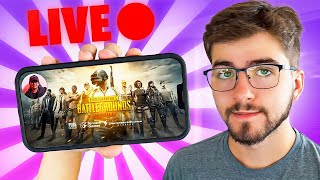

How to Stream Games on Phone
44sDirectly addresses a common desire with a clear how-to, making it highly shareable for aspiring streamers.
▶ Play Clip"The title promises pro-level streaming, but the content is a basic app walkthrough with no advanced tips or tricks."
This video is a beginner-friendly walkthrough of the Prism Live mobile app, which allows users to stream games and other content directly from their phone. The host demonstrates how to set up an account, customize camera scenes with filters and effects, and use features like VTuber mode and multi-streaming. The tutorial is aimed at aspiring mobile streamers who want a simple, all-in-one solution.
Download Prism Live from the app store, create an account using social media, and grant camera permissions.
Photo section offers filters, stickers, drawing tools, and a beauty effect to smooth skin and adjust facial features.
You can add media like logos, music playlists, custom text, and your website to your scenes by swiping left.
VTuber mode lets you use a virtual avatar instead of showing your face, with options to change emotions and backgrounds.
Choose between landscape and portrait orientation, and add extra elements like images or VTubers to your stream layout.
Multi-stream to different platforms by going to Profile > Stream Destinations and logging into each platform.
How do you get started with Prism Live?
Download the Prism Live app from your mobile app store and create an account using your social media.
00:01
What customization options are available in the photo section?
Beauty effects, filters, stickers, drawing tools, and the ability to add media like logos or music playlists.
00:29
What is a VTuber?
A VTuber is a virtual avatar that represents you instead of showing your face on stream.
01:46
How do you set up multi-streaming in Prism Live?
Go to your profile, then under 'Stream Destinations', log into the platforms you want to stream to.
02:53
What upcoming feature was mentioned for Prism Live?
A feature to implement your webcam on gameplay, which was not yet available at the time of the video.
02:40
Beauty Effects
Shows how to enhance your appearance on stream, a key feature for many creators.
00:29VTuber Mode
Provides an alternative to showing your face, useful for privacy-conscious streamers.
01:46Multi-Streaming Setup
Explains how to broadcast to multiple platforms simultaneously, a powerful feature for growing an audience.
02:53Upcoming Webcam Feature
Highlights a planned feature that will enhance mobile game streaming.
02:40[00:01] you how to stream using your mobile device let's get right into it the first your mobile app store and then just simply download the prism live streaming just going to have to make an account with prism but as you can see it's
[00:15] really easy to make an account because you can use virtually any social media you're obviously going to want to give permission to prism to use your camera and all that stuff so they can properly stream off your device once you have all
[00:29] like this the first section I'm going to be showing you is the photo section you can do a bunch of different things while taking your photos such as different filters for your camera or you can add Shades or stickers or all that type of
[00:42] stuff you can also draw on your screen if you want to show something important but what I find really interesting about the photo section is the beauty effect you can add to your face especially the natural beauty selection which helps
[00:55] with stuff such as the smoothness of your face the shape of it if you want your lips to pop out more and all that type of stuff they also have many different photo filters you can make it look vintage or have a black and white
[01:07] this pretty much goes for the video section as well but what you can also do to the photo or video scenes is that if you swipe to the left you can create your own sources such as adding some type of media like for an example your
[01:21] logo or if you want to add your music playlist to show on screen while you're taking a photo or video you can do that here you can also add customized text text and finally even add your own website if you want now I'm going to be
[01:33] talking about the most important part which is obviously live streaming on modes the first thing obviously being different filters and effects that you can add just like I did earlier to the
[01:46] don't want to show your face you can go to the vtuber section being a vtuber is representing you instead of having to show your face all the time you can show the vtuber instead they have many different preset vtubers you can pick
[02:01] from or if you have a vtuber yourself you can just add it here you can also change the emotion of your vtuber so if you're happy or sad you can do that here and finally you can change the background of where the vtubers at
[02:14] the screen section for live streaming just pretty much click on screen and then here is where you can choose two different options you can choose between landscape or portrait for this example I'm going to click on landscape and here
[02:27] is where they have a preset of what you're stream is going to be looking change everything that you want just by simply clicking on it if you go to the Plus in the top right corner you can add more features for your stream such as
[02:40] adding your website or an image or even the vtuber that we talked about earlier they will soon be add in a feature to where you can Implement your webcam on the gameplay which comes out very soon but at the time of this video it's not
[02:53] out yet finally if you want to multi stream to different platforms here's how profile and the top right corner underneath live settings as you can see it says stream destinations so just click on that and here is where you
[03:06] would just log into whatever platform you stream to and it should be good to go other than that I hope you enjoyed the video if you haven't already please be sure to drop a like And subscribe down below I hope you have a good day
[03:18] down below I hope you have a good day peace out
⚡ Saved you 0h 03m reading this? Transcribe any YouTube video for free — no signup needed.