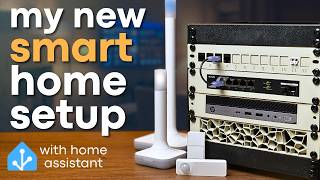
DIY Smart Home Gadgets That Actually Work
45sShows a relatable problem (forgetting garage remote) and promises a simple solution with cheap tech, hooking viewers with curiosity.
▶ Play Clip
[00:00] This little thing I made might look kind of goofy, but it actually solved a pretty annoying problem for me. And it's not the only one. I ended up making a handful of smart home gadgets that all integrate with home assistant using some cheap microcontrollers and components.
[00:13] Now this might seem a little complicated, but it was surprisingly straightforward thanks to a really cool framework called ESP Home. Now I'm sure many of you watching this channel are probably familiar with ESP Home, it's not exactly new or anything, but I have been meaning to try it out for quite a while now
[00:26] and while I finally got around to building some of my own DIY IoT devices. So in this video, I'll walk you through how I designed, configured, and built a few of these little projects. Not only was this process pretty fun, but the end result actually made my life a little
[00:39] bit easier, so let's get started.
[00:51] This video really started the way most of my projects do, I had a problem that I wanted to solve, while actually I had a few different problems. The first one was my garage door, now it works fine, but I have this bad habit of taking the remote from my life's car whenever I take our kid on bike rides, and sometimes I forget
[01:06] to put it back. I've also left it open overnight, a non-zero number of times. Another issue I have is that while I love home assistants, sometimes I hate having to pull up my phone just to do simple things like turning on a lamp, especially in the middle of
[01:18] the night when I don't have my glasses on. So I decided to tackle those problems and a few others by building some custom smart devices. There were definitely a few hiccups, but the whole process was surprisingly straightforward and made for a fun little project, so I figured I'd make a video showing how I built a four-button
[01:33] remote to control home assistant, a smart garage door opener, and a simple little temperature sensor. If you're not familiar, ESP home is an open-source system that lets you write simple yellow configurations to create smart home devices. Those configurations then get flashed onto ESP-based microcontrollers like the ESP 80266 or ESP32.
[01:51] These are inexpensive little boards that you can sometimes grab for as little as like a 3 bucks, and with ESP home and a bit of tinkering, they can become buttons, sensors, lights, or pretty much anything else you want them to be. ESP home integrates directly with home assistant, so once you flash a board, well, it sort
[02:05] of just shows up there. And everything runs on your local network, so you don't have to worry about any cloud services or anything. Now behind the scenes, ESP home compiles your YAML config into actual code and then builds a binary that gets flashed onto the board.
[02:18] So because of this, you don't really need to know how to code yourself. Honestly, most of the configs I'll cover in this video were initially generated by chat GPT, and then I just tweaked a few settings following the ESP home documentation. This gives you a lot of power to create devices that you want without making you feel like
[02:32] you need to know how to program. But maybe you do want to learn programming, and if so, you might have found that a lot of online courses are kind of boring. That's why the sponsor of this video, boot.dev, is approaching back-end development in a much smarter way, by actually making it fun.
[02:46] Back-end development is the foundation of the modern web, hence what powers databases, APIs, and servers, basically all the behind-the-scenes logic that makes websites and apps work. boot.dev teaches you exactly that, through practical hands-on lessons and Python and go.
[03:00] Instead of just reading about how things work, you'll build working back-end systems from the ground up. The courses mix real coding challenges, with just enough theory to keep things grounded. There's also an active Discord community, so you're never really going to be stuck alone.
[03:12] And with gamified learning, like XP, quests, and later boards, it stays engaging while still focusing on writing real, job-ready code. I've found boot.dev to be a great way to brush up my Python skills, while also having a lot of fun.
[03:24] And personally, one thing I love about it is that the entire site is navigable by keyboard shortcuts, which makes blasting through courses feel so much faster. You can try out any course with a free demo, and there's a 30-day no-questions-ass-refund policy. So if you're ready to start building the back-end systems that power the web, head on over
[03:38] to boot.dev and use my code, Hardware Haven, for 25% off your entire first year if you choose the annual plan. But before we get too far, I do want to be clear, I just started messing around with ESP
[03:50] home. I am not an expert, and I might get a thing or two wrong. I also won't be deep-iving into every parameter in the configs that I generate, but ESP home has solid documentation, and like I mentioned earlier, something like ChatGbT can get you most of
[04:03] the way there. When it comes to microcontrollers that work with ESP home, there are lots of options. You can go with something super cheap and low-powered, like this D1 Mini, which is based on the ESP 8266 chip, or you can use one of the Mini ESP32 boards that have beef your specs and
[04:17] more connectivity options. For the projects in this video, I ended up using two different types of controllers. First, that ESP 8266 based D1 Mini, and I used these because small they worked pretty well, but I also had a bunch of them from a previous project.
[04:31] It also helps that they're really cheap. The other one I used is this very tiny seed studio Jiao, I think I'm saying that right. The Jiao lineup comes in a few different flavors, but I picked up a three-pack of the ESP 32C3 versions.
[04:43] Now, when it comes to ESP32 boards, there's different variants like C3 and S3. You can look up the different specs. The C3 has a risk-five core, but I mostly got it because it has USB-C, and it's just so tiny.
[04:55] Now, these controllers don't really do much on their own, so you'll also need different components like buttons, switches, and sensors. If you're curious about trying out ESP home, you can usually find different Arduino kits or electronics bundles that include a bunch of reusable components for pretty cheap.
[05:08] Honestly, pretty much everything I used in this video came from different bundles that I had bought in the past. Now, to assemble everything, you'll probably need a few tools. A soldering iron is pretty much essential, and breadboards, jumper wires, and proto boards
[05:20] are super handy for prototyping and putting together the final project. If you want to build custom enclosures, a 3D printer definitely helps, but if you don't have one, you can pick up some small plastic project boxes for pretty cheap. Oh yeah, and I mentioned that these work with home assistant, so you'll probably want
[05:35] to be self-hosting home assistant. But you can run the full home assistant operating system, or you can also just run home assistant core in a Docker container. Just note that when you're setting up ESP home devices, it's a little trickier when you're running core.
[05:47] The full operating system includes an add-on for the ESP home device builder, but core doesn't support add-ons. You'll either need to run the device builder in a separate Docker container, or if you're running proxmox like I am, it's really easy to use a community script to spin it up in
[06:00] an LXC container. Both options work pretty well, but there are some differences, so I'll make sure to show you both of those here in a bit. Now before diving into any specific projects, let me show you just how simple ESP home can be with a quick demo. Just for this video, I installed home assistant OS onto a Raspberry Pi 4, and then from there
[06:15] in the add-on store, I installed the ESP home device builder. Once that was set up, I could open the add-on, create a new device, and give it a name, and then enter my Wi-Fi credentials. Since I was going to be using the D1 Mini, I selected ESP8266, and after that, the config
[06:30] was generated, and it gives you this API key, but you can just skip that for now, you can always copy it later. I clicked edit to make one tweak to the YAML configuration, which was just to change the board type to the D1 Mini, and then I saved it.
[06:42] I personally like to hit validate before I download or install anything, but once it was all good, I clicked install. Now with the ESP home device builder, you can directly flash your controller from the web GUI, but I found that with the D1 Mini, it just didn't really work.
[06:55] I found that manually installing the binary worked best. So I selected the manual download option, which just compiled a dot bin file. Now the D1 Mini is a little bit different from other boards. We have to short the D3 pin to ground before plugging it in to flash it.
[07:08] Once it was plugged in, I used this node MCU ESP8266 flashing software to flash the binary. And that's as simple as just selecting the dot bin file, choosing the device, which in my case was COM6, and hitting flash.
[07:22] After that, I power-cycled the D1 Mini, and sure enough, it showed up in the Home Assistant integrations tab. Now I didn't actually do anything yet, but that was to be expected. Back in the device builder, I hit edit to edit the config again, and this time I added a
[07:34] section for a binary sensor. Now once again, I'm not going to go into the details of how these configs work exactly. If you're curious, you can look up the ESP home documentation, and realistically chat GPT can get you most of the way there.
[07:46] Now one of the cool features of ESP home is that once you have ESP home actually installed on a device, you can edit the config and then update the firmware wirelessly, which is pretty helpful. Once that was done, my device shut up in Home Assistant is now having a switch entity.
[07:58] I set up just a simple toggle switch between the pin that I defined in the config and ground, and just like that, I had a simple switch. Now obviously this isn't the most useful device ever, but it does go to show just how easy
[08:10] it is to get started with ESP home. So now let's move on to solving some of my actual problems. I mentioned a few projects at the top of this video, but I decided to start with something a bit simpler, just a basic temperature sensor. For this, I used the D1 Mini again, along with an AM20302 temperature and humidity sensor,
[08:26] that I picked up for really cheap on Amazon. Now you might think that you need to write some code to handle the logic or convert signals from this digital sensor, but with ESP home, it's really simple. There are a ton of devices that are supported right out of the gate, so all I had to do was
[08:39] wire up power and then connect the data pin to whatever GPIO pin I set up in the config. Now this time, I used the device built with it I have running in an LXC container in Proxmox, rather than using the Home Assistant add-on. This works pretty much the same, except whenever you add the device to Home Assistant, you
[08:54] have to go manually copy that encryption key that's located in the YAML file. Once I flashed that to the D1 Mini, I had a working temperature and humidity sensor. It didn't really look great though. So I opened up on shape and used my basic CAD skills to throw together a simple enclosure.
[09:08] I used these heat set inserts, which you install with a soldering iron, so that then I could just use standard M2 screws to mount the sensor. Now this version of the D1 Mini doesn't have any mounting holes, so I just created this other hole for a little bracket that would hold it in place, but I definitely forgot to design
[09:22] that. One second. Once the bracket was ready, I used one more screw to secure the board in place. I printed this mesh lid to allow for some airflow, and to my surprise, it actually just
[09:34] snapped into place perfectly. I'm a complete noob when it comes to CAD and stuff, but I think this turned out pretty well. And now I've got a little Wi-Fi temp sensor that I can drop anywhere, plus it's super easy to just make more of these in the future if I ever need them.
[09:47] Next step, I decided to move on to building a simple remote just to control some things in Home Assistant. This was mostly so that in the middle of the night I could turn on our lamps and such without having to like, fumble around with my glasses and try to get my phone out. For this one, rather than the D1 Mini, I decided to use that Seeds 2DO's jabboard.
[10:02] Not because I needed anything specific from the ESP32C3 chip. I really just liked that it had USB-C, and I figured that would be easier to move around my house between different chargers, and it's also just really tiny. The setup was pretty much the same as before.
[10:14] I selected the correct board type, but this time I also switched the framework from Arduino to ESP-IDF. I'm not exactly sure why I had to do this, but it ended up making things work correctly. Then I made a config with four binary sensors, each mapped to a physical button.
[10:27] Also, I should note that originally I used GPIO pins 8 and 9, but I later found out that those are what's called strapping pins, which might have caused some issues, so I changed them, so if you notice the wiring kind of switched to 15 different points in the B-roll, that's
[10:40] why. Now for this one, I actually flashed the controller using the web GUI, but the device builder either requires you to be using HTTPS, or to have the microcontroller directly plugged into whatever's running Home Assistant, which can be tricky if you're running it in a virtual
[10:52] machine or in a container. So instead, what you can do is go to web.esphome.io, and then you can just upload your .bin file and flash it from there. This worked really well for the ESP-32 board, but like I mentioned earlier with the D1 Mini,
[11:05] I had to use that standalone flashing software. Once everything was flashed, I added the device to Home Assistant, and then just using a little test button, I was able to confirm that all of my button presses were showing up in Home Assistant like they should. Back in on shape, I designed a little enclosure that fits the controller down at the bottom,
[11:20] and also supports four MX-style switches on top. Starting the switches was straightforward, but soldering everything together was a little bit tricky, but eventually I got it done. This design also used TZ inserts again to attach the top and bottom pieces with M2 screws.
[11:33] I also designed some keycaps, but I printed these out with two different colors of PLA for some contrast, and overall, I think the final design turned out looking pretty good. In Home Assistant, I created a single automation with four different triggers, each having
[11:46] a different ID for each button, and then I just assigned actions for each trigger ID. To test it out, I just had it control different settings for a lamp in my office, and it worked great. Well, kind of, I did make one damn mistake.
[11:58] These tiny little boards don't have a built-in Wi-Fi antenna. This probably should have been pretty obvious to do the fact that there's no Wi-Fi antenna on here, and there's also a little connector for a Wi-Fi antenna. So my signal integrity was pretty bad, and every now and then certain keystrokes would be delayed
[12:13] a little bit. I probably could modify this to have a little antenna on the back or something, but honestly if I were to do this again, I'd probably just do a redesign and use a D1 Mini, although I'd probably try to find one that has USB-C.
[12:25] But still, even with a little bit of latency here and there, it works pretty well, and it's nice to just have a good old-fashioned button rather than trying to pull up an app or use a voice assistant or something. The last project was building that smart garage door opener, and I saved this for last because
[12:37] I knew it was going to be the most complicated. For this, I needed two things, a way to open and close the door, and a way to know whether the door was opened or closed. One thing I definitely wanted to avoid was messing with any of the existing wiring.
[12:50] So to control the door, my idea was to just wire up a relay to a wireless remote. It's not fancy, but it should get the job done. For detecting the door position, I could have used a re-switch, like the ones that are common for Windows and alarm systems, but instead, I went with this goofy looking thing.
[13:04] This is an HC-SRO4 Ultrasonic sensor that I had from an old Arduino kit. My thinking here was that when the door's open, there's this big flat surface at the top of the door that the sensor should be able to detect if I were to suspend it from this
[13:16] center rail in the garage. For this build, I went back to the D1 Mini. I hooked up a GPIO pin to a 5V relay and then used two more pins for the Ultrasonic sensor. Then with just a little bit of help from chat GPT, I built a config with four different components.
[13:29] First, there's a switch component, which is just for the relay, and this is set up as internal so that it doesn't actually show up in whole assistant. Next, there's a sensor component just for measuring the distance from the Ultrasonic sensor. Then there's a binary sensor, which basically just states whether the door is open or closed,
[13:44] and this is generated using a lambda function. Last is the cover component, which in Home Assistant shows the state of the door and provides controls for opening and shutting the door. And here, the state is returned by this lambda function, which is just the state of the garage
[13:56] door open sensor above, and then the open, close, and stop actions just trigger the relay. Once it was flashed, I had a cover component in Home Assistant, and I could either hit the open or shut the door button, which just triggered the relay.
[14:08] And the sensor was fairly accurate at attacking the distance, although I did have the logic backwards, so the door was showing open when it should have been closed. But that was a pretty easy fix. I was originally going to use this cheaper mode that I picked up on Amazon, but it basically
[14:21] just never worked, so I ended up just sacrificing this one from my car. I gave it a little test run in my garage, and... The enclosure for this one was a bit more tricky, and I ended up going with two separate
[14:35] pieces. One to hold the controller and the relay, and another for the sensor. That way, it would be pretty easy to adjust the position if needed. I wired up the controller and the relay to one proto board, and then the sensor to another.
[14:47] I didn't plan to have a long cable run between them, but to be safe, I ended up using some cat5e just so I could have better signal integrity with the twisted pairs. After getting everything wired up, I mounted the boards into their respective cases with some more heat set inserts, and of course, I soldered one of them to the wrong size board.
[15:03] Many minutes later. Okay, once I got it soldered to the correct size board, I was able to get everything assembled, and had this goofy looking contraption. I got it mounted above the garage door motor using some zip ties, and okay, yeah, it doesn't
[15:15] look great, but let's be honest, how often are you actually looking above someone's garage door? Anyway, once it was all installed, well, it just worked. Pretty much perfectly. So far, it's been a few days, and haven't had any issues with the sensor's accuracy.
[15:29] And even if temperature or something throws it off down the line, I can pretty easily just tweak the parameters and then push an update over Wi-Fi. It's been great having another way to control the garage door, and now I also get alerts if it's left open. I can even automate it so that at a certain point in the night, if it's open for some reason,
[15:44] it'll automatically close, which is really helpful. Is it perfect? No. Is it pretty? Definitely no. But do I love it? Absolutely. At the end of the day, I managed to make some cool little gadgets that are actually useful,
[15:57] all powered by these tiny, super affordable microcontrollers. Now, sure, it's not the cheapest project I've ever done, especially once you factor in the tools and extra components and everything, and you know, the fact that I sacrificed a perfectly good garage remote.
[16:09] But the upside is that I have a lot of extra components. Whenever you buy a lot of these components and microcontrollers, well, usually you end up buying them in packs of four or ten or something. So I have extra components that I can use to build more devices if I want to, which is
[16:21] pretty cool. And everything here is running completely locally. There's no subscriptions, no cloud services, just my own devices running on my own network. So massive shout out to the folks who helped develop ESP home, you're way smarter than
[16:33] I am, and I appreciate it, because this tool made this entire process so much easier than it should have been. Also, I'm very much aware that what I made in this video was pretty basic. This was just a fun project for me, and I wanted to kind of share with you guys how I pulled
[16:45] it off. I'm really just scratching the surface of what ESP home can do, and there are a lot of people out there doing really cool things, from automatic coffee bean roasters to car presence detectors, and more. Heck, I'm sure some of you guys have also had a lot of cool projects, so let me know what you've
[16:59] done with ESP home down in the comments below. I know this video was quite a bit different than some of the content I normally do, but I had a lot of fun, and I hope you did as well. If so, maybe consider liking, subscribing, or becoming a raid member for as little as a dollar
[17:11] a month. With that, you get early access to ad free videos, I think it's a pretty good deal. That's about it for this one though, so as always, thank you guys so much for watching. Stay curious, and I really can't wait to see you in the next one.
⚡ Saved you 0h 17m reading this? Transcribe any YouTube video for free — no signup needed.