
Magnetic Lens Filters on a Webcam?!
47sThe unique feature of interchangeable magnetic lens filters on a webcam sparks curiosity and engagement from tech enthusiasts.
▶ Play Clip"Title accurately reflects the wide-angle exposure of the room, though the 'EXPOSED' hype is slightly overblown for a straightforward review."
The Elgato Facecam 4K is a high-quality webcam offering 4K resolution at 60 fps with a wide 21mm lens. This unboxing and review video compares it to the cheaper Facecam Neo, demonstrates camera settings in Elgato Hub, and provides lighting recommendations for optimal video quality.
The package includes a USBC cable (3.5 Gbps), monitor mount, safety instructions, and the webcam itself with a standard tripod thread.
The webcam has a 49mm lens that supports magnetic filters for effects, though not demonstrated.
The camera has a 21mm wide-angle focal length and records 4K at 60 fps.
The Facecam 4K is larger than the Neo. Side-by-side comparison shown in Elgato Hub.
Users can adjust brightness, contrast, saturation, ISO, white balance, and sharpness. Settings are saved directly onto the camera.
Two lights (main and side) are recommended for best results, as demonstrated with lights on/off.
Facecam Neo costs €70, Facecam 4K costs €200. The 4K model offers noticeably crisper video.
The Elgato Facecam 4K delivers excellent image quality for its price, but good lighting is essential. The more affordable Neo is a decent alternative for budget-conscious streamers.
What is the maximum resolution and frame rate of the Elgato Facecam 4K?
4K at 60 fps.
02:10
What size lens does the Facecam 4K have, and what accessory does it support?
It has a 49mm lens that supports magnetic filters.
01:53
How does the Facecam 4K compare in price to the Facecam Neo?
The Facecam 4K costs €200, while the Neo costs €70.
06:56
What is recommended for best video quality according to the reviewer?
Using two lights: a main light and a side light.
05:04
Where are the camera settings saved after adjustment in Elgato Hub?
Settings are saved directly onto the webcam itself.
04:35
4K at 60fps
High resolution and frame rate are key selling points for streamers.
02:10Lighting Tips
Practical advice that significantly improves webcam quality.
05:04Price Comparison
Clear cost-benefit analysis between two models.
06:56Onboard Settings Storage
Settings persist across computers, a useful feature for multi-PC setups.
04:35[00:03] we're gonna unpack it and test it out. Thank you so much, Agato, for giving me this. Okay, not like last time. There's just a ripping open strip, so I'm just just a ripping open strip, so I'm just going to rip it open.
[00:41] Now we can just fold this open. And there's no plastic in it. I love that. First of all, a cable. And this one says uh 3.5 5 GBs per
[00:53] second. It's a USBC to USBC cable. So, this is for your webcam to the computer. Uh, they do have USBC, so it goes into your USBC port. You do have a little your USBC port. You do have a little safety important safety instructions. A
[01:08] mount to mount on top of your monitor. And here, wrapped in paper with a little Elgato sticker
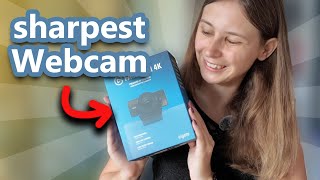
[01:26] It feels like a present. It feels like my birthday. And this is the webcam itself. It has a standard tread underneath it.
[01:39] And you can actually get the monitor mount underneath, but you can also get a mount underneath, but you can also get a normal tripod underneath if you want to. normal tripod underneath if you want to. Um, it does have a 49 mm lens, which
[01:53] means that you can equip any 49 mm filters on top of this lens. filters on top of this lens. Magnetic 49 mm filters will just fit on here. You can use that with this webcam. Sadly, I don't have any 49 mill um meter
[02:10] lens filters, so I cannot show you this, but they will work on this webcam. The but they will work on this webcam. The webcam itself is 21 mm wide. The the webcam itself is 21 mm wide. The the focal length, it films in 2,60
[02:27] pixels in 60 fps. This is how it looks from the front side view and back view and the other side. Not that it looks different, but just to be complete, you know, and the box is empty. So, if you do not have
[02:40] USBC port, you do need an adapter for this one. Otherwise, I would recommend to just putting it in your USBC port. So, I'm now behind the PC and I have So, I'm now behind the PC and I have added my webcam to my computer. Here's
[02:53] the Elgato Face Cam 4K. Here's the Elgato Facecam Neo next to each other. You can see the difference in how big they are. Where am I? And this is how it looks like in the Elgato Hub just when I hook
[03:07] it up. So, you can see I'm a little bit too light. Don't mind my notes. Uh because this camera angle is so wide. You can see my blueprint notes.
[03:19] Uh but we can uh if we want to we can make it like less wide. We can zoom in make it like less wide. We can zoom in like really closely. Yellow. But I like a light like a wide camera angle. So that's nice. We can set the
[03:34] contrast if you want to. Um see make it a little bit dark. the Um see make it a little bit dark. the saturation.
[03:48] Uh let's do this all in feeling the exposure. Well, um ISO of like let's see if we can get the ISO to be like quite low. Let's keep it like 300.
[04:02] Let's see if we can do that because we can get like the ISO high at like,000
[04:21] we overlay it. Also haven't put on lights. Maybe I should put on lights. Let's try and see if I can get the ISO to go down. This looks a lot better already. Uh the white balance. We're doing that
[04:35] ourselves. Something like this. like this. I think so. Yeah,
[04:48] we look pretty good. And then we're going to save this. Here we go. Saved. And it saves it actually on the webcam itself. Um, so this is how the Face Cam 4K looks like after I have figured with it and after I put like two lights on.
[05:04] So I do recommend putting on a main light and a sight light. So I have a main light right here and I've got a sight light. Uh, if I put my lights off right now, I can do that for you. It will look uh pretty bad. And but one
[05:18] main light uh that's the site light with one main light uh looks a lot better already. But I do recommend two lights for it. Uh because that does look a lot lot better. Cameras do look better if you use good lighting. That's that is
[05:33] If you have good lighting, it looks a lot better. Um if I'm going to switch to the camera Neo now. Um you have to wait a second. The preview is occupied. What is using the preview?
[05:47] Oh, my OBS is using the preview. Okay. I restarted OBS real quick. So it wasn't using the preview before this program. Uh but this is the Neo now with exactly anything. However, like everything is off. So we can uh autolock the focus. So
[06:03] I'm going to set the focus and the contrast. Uh like it a little bit contrasty. Saturation. Um let's see. Something like this. Sharpness. Something like this.
[06:25] Uh 120. I like the ISO to be low as possible. I like the ISO to be low as possible. I mean, yeah, as low as possible. I mean, yeah, as low as possible. Temperature
[06:43] I just what I do is I just move it and then uh after that I look at the screen then uh after that I look at the screen and just see what looks natural to me.
[06:56] Uh here we go. Uh so this is how the Neo looks like. Uh the price category for the Neo is a lot less. So uh just as a comparison, this is the Neo. The Neo comes in on €7, which is the cheap option that Elgato is
[07:10] offering. The cheap option will look like this. And the 4K one. The 4K one would look like this. And this one comes in on €200. in on €200. And I, if you ask me, I see a huge
[07:25] difference. This is the Face Cam 4K. If we just naturally put it in OBS, this is how it looks like. I look I think it looks really, really crisp. I leave the judge up to you. I don't want to decide anything for you. I just wanted to show
[07:40] you how it looks like. There's a stupid fly going around my face. like a little fruit fly. But like I just don't want to decide anything for you. That's not what this channel is about. My channel is about showing you things and then you
[07:54] decide yourself if you like it or not. I do not want to make decisions for you. But if you like this camera or you like the other one better, I don't care if you like the other one better. Like if your price category is for 70 bucks, it
[08:08] is fine by me. Um if you decide to go on a completely different camera, it's also fine for me. But if you do like the Oata cameras, I do have a code which is cameras, I do have a code which is actually giving you 5% discount which is
[08:23] I'll leave it down below in the description with an affiliate link. If you use my affiliate link, make sure to accept the cookies because otherwise the affiliate link won't work. So, I appreciate if you do. Also, just using
[08:36] link. So, use the affiliate link, click on the cookies, and then it will work as appreciate if you do that. If you don't decide to buy it and you buy something else, like I said, it's also fine. I'm not here to tell you what to buy. I'm
[08:49] just here to show you what you could buy and what is out there and I just help you make a decision. Again, thank you so much Elgato for sending me this camera. I did not get paid to make this video. They just sent me this camera, which I
[09:02] mean, to be honest, is already a huge thing for me. I'm just really glad that I got this camera. It is awesome. So, I'm just glad that I got it. And if you want to see some more videos about streaming gear, I do have a
[09:15] Subscribe to this channel if you want to see some weird things about Twitch streaming. And I hope to see you in my next
⚡ Saved you 0h 09m reading this? Transcribe any YouTube video for free — no signup needed.