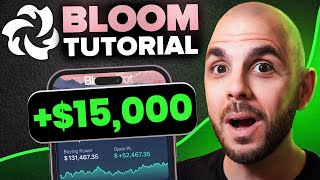

Bloom EVM Bot: 4 Chains, One Bot
45sHighlights major update making the bot faster and multi-chain, appealing to traders seeking efficiency.
▶ Play Clip"The title promises a tutorial on trading tokens with Bloom's EVM bot, and the video delivers exactly that with step-by-step instructions."
This tutorial explains how to trade tokens using Bloom's EVM Telegram bot, which now supports Ethereum, Base, Binance Smart Chain, and Hyper EVM. It covers wallet setup, bridging funds, buying/selling memecoins, limit orders, and advanced features like the Twitter sniper and referral program.
Bloom's Telegram bot has been updated for speed and UI/UX improvements, now supporting four blockchains: ETH, Base, BSC, and Hyper EVM.
Users need Telegram; after /start, a wallet and private key are generated. Private key must be stored offline and can be imported into MetaMask for backup access.
The bot now allows direct bridging between chains (e.g., ETH to Base) without needing to use a separate bridge, saving time.
Paste a contract address; the bot auto-detects the chain. Users can set buy presets, gas fees, slippage, and enable protection against sandwich attacks.
Limit orders can be set for take-profit or buy-the-dip based on market cap, price, or time. Orders run for up to 3 days.
Users can configure the bot to automatically buy tokens when a specific Twitter account posts a contract address, including via replies, retweets, or OCR in images.
Users can earn a portion of trading fees from referrals by sharing their unique link, providing passive income.
Bloom's EVM Telegram bot offers a comprehensive suite for memecoin trading across multiple chains, with advanced features like limit orders and Twitter sniping, plus a referral program for passive earnings.
What four blockchains does Bloom's EVM bot support?
Ethereum, Base, Binance Smart Chain, and Hyper EVM.
00:01
How do you generate a wallet in Bloom's Telegram bot?
Send /start to the bot; it will provide a wallet address and private key.
00:40
What is the purpose of importing the private key into MetaMask?
To have backup access to funds if Telegram or Bloom is down.
01:21
How can you bridge funds from ETH to Base within the bot?
Click 'bridge', set the source and destination chains, enter amount, and confirm.
02:43
What settings should you adjust before buying a token?
Buy presets, gas fee, slippage, and enable protection against sandwich attacks.
04:19
How do you set a limit order to sell when a token reaches a certain market cap?
Click 'limit orders', choose market cap, enter target value, set amount to sell, and create the order.
07:48
What is the Twitter sniper feature?
It automatically buys tokens when a specified Twitter account posts a contract address, including via replies, retweets, or OCR in images.
10:47
How can you earn passive income from Bloom?
Use /referrals to get a unique link; you earn a portion of trading fees from anyone who uses your link.
13:37
Multi-chain support
The bot now covers four major EVM chains, making it a versatile all-in-one tool.
00:01In-bot bridging
Eliminates the need for external bridges, saving time during fast-moving markets.
02:43Limit orders for automation
Enables hands-free profit-taking and dip-buying, a key feature for active traders.
07:32Twitter sniper with OCR
Allows buying tokens from images, giving an edge over manual traders.
10:47Referral passive income
Provides a way to earn ongoing fees without active trading.
13:37[00:01] how to trade tokens on Bloom's EVM Telegram bot, which recently had major updates, making it faster, improve the UI and UX. It's now available across four major blockchains from ETH to Base, Binance Smart Chain, and Hyper EVM,
[00:15] making it a great all-in-one tool for a seamless and efficient trading experience. Ladies and gentlemen, welcome back to another CryptoGorilla tutorial. As usual, I'm not a financial adviser. I also have zero control over
[00:28] what happens with this tool. So, always do your own research. Special thanks to Bloom for partnering with me for this video. And with that, let's jump right into it. So, Bloom is a Telegram trading bot, meaning you are going to need to
[00:40] download Telegram on one of your devices in order to use it. However, that is also the beauty of a Telegram bot. You could seamlessly use it across desktop, leave your house to be able to trade from anywhere all within the same
[00:55] account. So, I will put a referral link in the description down below. When you Telegram upon which you need to do /start or just click start on your mobile device at which point it's going to give you a wallet as well as a
[01:09] private key. Now, this private key is private. Don't share it with anybody because if they have it, they have access to your money. So, store it somewhere safely offline. Write it down on a paper, whatever. Hide it somewhere.
[01:21] However, I also suggest importing it into your MetaMask, your Rabby, whatever you use by clicking uh add account or wallet private keys and then pasting it here. That way, if Telegram is down, if Bloom is down for some reason, you still
[01:35] still able to trade. So, once your wallet is set up, you're going to need Now, like we said, there's currently four chains on Bloom EVM. There's ETH,
[01:47] Base, Binance Smart Chain, and Hype. You can send whichever one you want to the wallet that you just created. Or if you want to import your own wallet, you would do /wallets and then you would have to import the private keys here. I
[02:00] private keys safe, but this is all encrypted. And if you want to use your own wallet, you need to do this. However, I never use my main in any case of this video, I'm just going to use the wallet that they provided. So,
[02:14] like we said, uh to send money to this, you copy your wallet. You go to your centralized exchange of choice or you go to your decentralized wallet and you are going to have to send money to that account by simply uh inputting an
[02:28] amount, clicking continue, confirming and it's going to run the transaction. It's very quick. And if we return to our Telegram and we click the refresh button, we see it just updated and I now have more ETH in this wallet to start
[02:43] trading with. Now, let's say I currently only have ETH, but I want to buy a memecoin on base or Binance or Hype, whatever. You used to have to go to your there, and then send it back to your wallet, which takes so much time, and
[02:58] maybe the coin did a 50x in that time. But now, what you can do directly in Telegram is just bridge funds from one chain to another. So, in order to do this, I would click on bridge. You have to set up a wallet, which I already did,
[03:13] but you just click the set EVM address. You paste the wallet. In this case, I just used the exact same wallet since I only have one. And then you pick the chain you want to go from. So, ETH. You pick the chain you want to go to. So,
[03:26] let's just do base. And we click bridge. It's going to ask me how much I want to send. Let's just do 0.01 just for the test. And voila, my transaction has been sent. And if we go back to the uh start panel, we can see
[03:41] that the money has arrived in my base wallet. So now that we have our wallet set up, we have money in our wallet. We can go ahead and start trading memecoins. So uh if you already have a coin in mind, you would simply paste the
[03:54] contract address into the input, press enter, and it's going to automatically detect which coin you wanted. Now, in the super rare occasion that it's the wrong chain, you can simply swap through with the arrows here. So, you see it
[04:07] brought me to base, it brought me to Hype, and now Binance Smart Chain. I've literally never had to do this, but I'm just showing you how to do it on the off chance that it happens. And now we are ready to buy. So, there's a ton of
[04:19] options here that we're going to need to set up. The first one is your presets. yours. I remember when I first downloaded it, it was like 0.5 all the way to 10 ETH, which is a lot of money to be one clipping into a memecoin. So,
[04:32] if you want to change these, you would do / settings. You would click on the chain of choice. So, in this case, ETH. You click presets and then the buy presets or sell presets. You can change both. In this case, we're doing buy. And
[04:46] if you click one of these buttons, it's going to allow you to change it. So, I would just do that. Press enter. And you can see it has changed. So let's repaste our contract. And voila, the 1 ETH has become 75 ETH. Now if I click this, it
[05:01] no like are you sure or anything like that. Same thing if I click the uh X E. This allows me to manually set a number that I want to purchase with. The second
[05:13] you press enter, this is going through. So to get it to not happen, I just put a please enter a valid amount." But before we purchase, let's just keep going through all of the uh buttons here. So, we have the guay that you want to use.
[05:27] This really depends on the market. Like, there's no oneizefits-all that I can give you. However, there are websites you can visit that are going to show you what guay is currently at. So, even on the high end, guay is at like 0.25. So,
[05:40] with my five guay here, I have more than enough in order to be competitive that you're often going to change is your slippage. Now, there are cases where I set this really high, like if I really want to make sure my order goes
[05:54] through, especially on a token that's crazy volatile. Yeah, I might set it crazy volatile. Yeah, I might set it high, like 10, 15, 20%, whatever. In a right now, it's a super high market cap. It's not that volatile within seconds.
[06:08] So, we can set it really low. So, here I'm just going to put 1%. After that, I always make sure protection is turned on because I don't want to get sandwiched. limit orders which we're going to look at in a second. So let's go ahead and
[06:21] buy some WCT. I'm just going to click on the buy 0.05. And you're going to see it's automatically going to buy. So as you can see I have just purchased some WCT token. Uh we can see a ton of info here like how much I spent, what the
[06:37] average market cap is that I got in at, what my current balance is in tokens, as well as what my remaining balance is in my ETH wallet. Now, another thing that happened is it switched us from the buy interface over to the sell interface,
[06:51] which operates very much the same. It's just some of the buttons have changed. So, rather than a buy button for exact ETH amounts, we now have sell buttons in percentages. So, once again, you can change these in the presets. However, I
[07:06] don't mind these. There's also a button to automatically sell your initials. So, let's say the token 4 1/2xed and you want to get your initials out to ride for free. You can simply click the initial button. However, you can also
[07:19] choose to sell a custom amount of percentage or a specific amount in ETH and it's going to do that conversion for you. Cool. Now, we can also look at the buttons that we didn't look at on the buy side. We have limit orders, which
[07:32] are super powerful. This is what allows you to like walk away from your computer but still take profits or buy a dip. So on the sell side, if I click limit orders, it's going to allow me to create one. So there's a ton of options here. I
[07:48] can either automatically sell when the dev sells. I can sell when it reaches a certain market cap. So let's say I bought at 10 mil, it goes to 30 mil. Hey, I want to nuke my bag, but I'm going to bed. You can set based on the
[08:00] market cap. You can also set based on price or after a certain amount of time. But let's just try it with market cap. So in order to do that, we would have to click on a market cap to set it. So I'm just going to put since this is a really
[08:14] bill. But if you wanted to do 1 mil, you would do it with an M. They give some examples here, but let's just leave one bill. I press enter. It's going to fill that in. If I recall, you also had to set a specific amount. It was like at 1%
[08:29] or something. So, I want to sell my entire bag. I'm putting 100%. You can also do the guay as well as the slippage like we saw on the previous page. But now that I'm happy with this, I'm going to do create limit order. And voila, my
[08:43] take-profit limit order is now running for the next 3 days. Now, on the opposite end on the buy side, we can also do this. So, if I click limit orders, what's going to happen here is let's say I want to buy a dip. I like do
[08:59] if it reaches seven mil, I think it's going to shoot back up. I can automatically set up a limit order where it's going to purchase if it reaches down to that level. And I can have multiple uh limit orders set up at once.
[09:13] So here, if it goes to 100 mil, I want to automatically buy with, I don't know, to automatically buy with, I don't know, 0.05 ETH. We press enter, create limit order, and now if it goes down, it's going to automatically buy. Now, if ever
[09:26] you lost this page, you don't know how to get back to it, you just do slash orders. And if ever you forget slash orders, if you just do slash, it shows you all of the commands. But I know the commands for at least these ones. So,
[09:38] slash orders. We click on the token because you might have 50 tokens. And voila, we see all of our orders. However, I don't want these. So, I'm going to delete them. Delete. And now we have no more limit orders. Now, we still
[09:52] have our position open, but I lost it. So, how do I get back to that? Simple. I just do slashpositions and voila, I see my position. I can click it. I can go into it again. If you have like 50 different ones, they're all
[10:05] positions on different chains, in which case I would just toggle through with the button. Currently, I don't have any. Now, there is an option. Maybe I want to sell everything. I would do sell positions. It's going to sell 100% of
[10:19] going to click into it. Let's just do a sell so you guys can see it. Uh right here I'm going to do sell 100%. And voila, it's sold. If we do positions and voila, it's sold. If we do positions and go back, I do not have anything left in
[10:33] it for the core functions that you're probably going to use on a day-to-day basis if you are trading meme coins. But there's a ton of extra stuff you can do here. So, if we go back to the slash start, you can see there's an AFK mode,
[10:47] which is currently only available on BSC, but this just automatically trades for you when you're AFK. There's also a copy trade mode where you can put a wallet here. Maybe you found somebody who's a really good trader or like a K
[11:00] or one of your friends, you can automatically copy trade their wallet. So, there's a ton of different things you can do, but one of my favorites has got to be the Twitter sniper. So, what we can do is add a new config. And
[11:15] automatically buy when whoever I'm following on Twitter posts a contract. So, in this case, let's just do it for Elon Musk. I'm going to paste his Twitter. You can see now it's following Elon Musk. And we have a few different
[11:29] options. So, if he tweets out a contract directly, it's going to automatically directly, it's going to automatically purchase. If he replies to a tweet, or maybe not even him, right? maybe an AI like you're following Grock and somebody
[11:42] tricks Grock into posting a contract address, it's going to automatically purchase it for you. Now, similarly, if Elon maybe retweets something that has a contract address in it, it's going to purchase. And then there's also the OCR,
[11:56] which is when somebody posts an image that has a contract address in it, right? They don't want the bots to be able to copy paste it or like it's to beat all those people because you're automatically buying it based off of uh
[12:10] this bot reading the image for you. Now, we also have some presets we can set like, hey, don't buy unless it's already at a certain market cap or don't buy if it's past the market cap. Maybe they bundled it, they sniped it, and if the
[12:23] token's at like 100 million already, you might not want to buy that. We have a that you want to buy with your guay fee, the slippage, and max buy count. So, max buy count is how many tokens from this account do you want to buy? Maybe
[12:38] like 17 contracts. You don't want to buy all 17. If I put one or two, it's only going to buy the first two that that account posts. So, once we're ready, we would turn this on. And then if I go to slash Twitter, you can see I have
[12:54] something active for Elon Musk, right? Uh green is active and then red is inactive. So I could just toggle it on and off by doing this. And now it is no longer active. And then maybe you don't want this anymore. You would just do
[13:08] delete and confirm. And it is no longer here. We no longer have a task. So that's another really powerful tool. However, on top of all this, Bloom also has their plugin. If you're used to Bloom on Salana, there is a browser
[13:22] extension that is super powerful. And the good news is in the near future, their EVM bot. So, that's another thing to look forward to. However, another way of making money outside of trading memecoins is to possibly make money off
[13:37] of other people making memecoins. And the way to do this is by shilling your referral link, for which mine is in the description down below. But to get access to yours, you would do /referrals. And then whenever you share
[13:49] this link with your friends, with people on Twitter, with whoever, you are going to get paid a portion of their trading fees. And this lasts as long as Bloom is alive. So, you know, this can last you a hundred years and you are just passively
[14:03] making money. So, whenever I can, I try to share my links with somebody. send me uh, you know, Bloom their Twitter, I send them my referral link because I want to make sure I capture those fees. So, one more time, link in
[14:17] does it for today's video. I hope you enjoyed it and found it educational. If you did, be sure to give it a big thumbs up. If you haven't already done so, button, smash that bell notification. Thank you for watching another
[14:31] Cryptogorilla tutorial. Peace.
⚡ Saved you 0h 14m reading this? Transcribe any YouTube video for free — no signup needed.