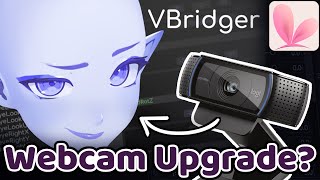

Webcam Tracking Just Got a Major Upgrade!
42sShows dramatic quality improvement over standard webcam tracking with extra mouth parameters.
▶ Play Clip"The title accurately reflects the content: VBridger's webcam tracking is a significant upgrade over standard VTube Studio tracking."
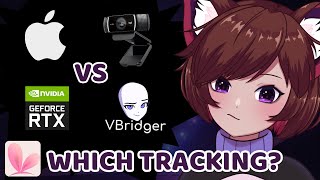
This video reviews the new webcam tracking support added to VBridger, a plugin previously known for its excellent iPhone tracking. The creator tests both Nvidia and MediaPipe tracking options, comparing them to standard VTube Studio tracking and highlighting setup steps, performance, and quirks. The video concludes that VBridger is now the best tracking solution for both webcam and iPhone users, despite some downsides like cost and extra setup.
VBridger now offers two webcam tracking options: Nvidia tracking (requires RTX card) and MediaPipe (works on any webcam).
For Nvidia tracking, you need to download the free VTube Studio Nvidia Broadcast Tracker from Steam.
Nvidia tracking is smoother and more accurate than standard VTube Studio webcam tracking out of the box.
To fix jittery movements, increase smoothing for each parameter in VBridger's parameter list.
Nvidia tracking works perfectly with glasses, with no loss in tracking quality.
MediaPipe tracking has issues with eyes and eyebrows, which can be fixed by linking their movements.
MediaPipe mouth tracking is not as good, but can be improved by using microphone for mouth inputs.
To use microphone mouth input, load the 'VBridger VSM AR Kit' file and adjust mouth sensitivity and audio delay (start with -500ms).
The main disadvantage of microphone mouth input is that it won't track smiles or frowns while talking.
VBridger is now the best tracking solution for both webcam and iPhone, but costs extra, requires an additional window, and needs more parameter setup.
What are the two webcam tracking options in VBridger?
Nvidia tracking (requires RTX card) and MediaPipe (works on any webcam).
0:49
What extra software is required for Nvidia tracking in VBridger?
You need to download the free VTube Studio Nvidia Broadcast Tracker from Steam.
1:14
How do you fix jittery movements with Nvidia webcam tracking?
Increase the smoothing for each parameter in VBridger's parameter list.
1:44
Does Nvidia tracking in VBridger work well with glasses?
Yes, there is virtually no difference in tracking quality with or without glasses.
2:16
How can you fix lopsided eye and eyebrow movements in MediaPipe tracking?
Link your eyebrow and eye movements together.
2:50
What feature does VBridger offer to improve lip-sync with MediaPipe tracking?
Use the microphone for mouth inputs by loading the 'VBridger VSM AR Kit' file.
3:58
What is the recommended audio delay setting for microphone mouth input?
Start with -500 milliseconds and adjust based on your setup.
4:40
What is the main disadvantage of using microphone mouth input?
It won't track smiling or frowning while talking because the mouth is overwritten by audio.
4:52
Smoothing Fix for Jittery Tracking
Provides a simple, actionable fix for a common issue with webcam tracking.
1:44Glasses Compatibility with Nvidia Tracking
Demonstrates that Nvidia tracking works seamlessly with glasses, a key concern for many users.
2:16Microphone Mouth Input for Better Lip-Sync
Offers a clever workaround for MediaPipe's poor mouth tracking using audio input.
3:58VBridger as Best Overall Tracking Solution
Summarizes the update's impact, positioning VBridger as the top choice for both iPhone and webcam users.
5:06[00:00] earlier this year I released a video
[00:01] about the different tracking types for
[00:03] 2D vtubers and we have a big update to
[00:06] go over here I mentioned a plugin called
[00:08] V Bridger which was currently the best
[00:10] tracking type but they recently added
[00:12] webcam support we're going to test the
[00:14] webcam support and see how it holds up
[00:16] so I'm currently using my iPhone for the
[00:19] tracking here and you can see my V
[00:20] Bridger window on the top left here I
[00:23] mentioned in my previous video that this
[00:25] is the current best tracking that we can
[00:27] get using iPhone and V Bridger gives you
[00:29] very smooth tracking very accurate
[00:31] tracking and also allows you to use the
[00:34] extra key forms on areas such as your
[00:36] mouth so we can do things like this
[00:38] which you ordinarily can't do with the
[00:40] other tracking types let's go ahead and
[00:42] look at our webcam options now so to get
[00:45] to the webcam options in V Bridger we
[00:47] need to go to this drop- down menu and
[00:49] our two webcam options are at the very
[00:51] bottom here it's Nvidia tracking and
[00:54] media pipe and video tracking requires
[00:56] you to have an RTX video card so if you
[00:59] don't have one of those media pipe is
[01:01] the option for you we're going to start
[01:03] off by looking at Nvidia tracking so
[01:05] here is the Nvidia tracker and this is
[01:08] currently using my webcam an important
[01:10] thing to note if you're planning to use
[01:12] the RTX tracking you need to have
[01:14] downloaded the vtu studio Nvidia
[01:16] broadcast tracker which is free on the
[01:19] steam store if a Tracker isn't working
[01:22] for you you may need to go into V
[01:24] Bridger settings and locate your vtube
[01:26] studio so out of the box the tracking is
[01:29] already a lot better than v b tracking
[01:32] through vtube Studio I'll put up a
[01:34] comparison on the screen real fast right
[01:38] now you may notice that your movements
[01:40] may be a little bit more jittery a good
[01:43] way to fix this is by going into V
[01:45] Bridger itself you can see the parameter
[01:47] list on the top right here simply go
[01:50] through these select them and you can
[01:52] turn up the smoothing which will remove
[01:54] some of the Jetta using webcam tracking
[01:56] through V Bridger you may be required to
[01:58] turn up the smoothing on quite a few of
[02:00] these parameters one of the biggest
[02:02] advantages with using V Bridger with the
[02:05] Nvidia tracking is that we can still use
[02:07] a lot of our extra parameters for
[02:09] example we have a lot of extra
[02:11] parameters set up in our mouth such as
[02:13] shrugging and puckering and good news
[02:15] for my glasses users out there I'm
[02:17] currently wearing my glasses right now
[02:20] and as you can see there's not really
[02:22] any difference between when I wasn't
[02:24] wearing my glasses and when I'm
[02:26] currently using my glasses it's kind of
[02:28] wild to see webcam tracking with
[02:30] completely lossless quality for glasses
[02:32] users next up let's take a little look
[02:34] at media pipe you don't need to download
[02:36] anything extra to use media pipe through
[02:38] V Bridger so this should just work
[02:40] Straight Out of the Box uh one thing I'm
[02:43] noticing right off the bat is that my
[02:45] eyes are behaving a little bit funky and
[02:47] my eyebrows as well if you are planning
[02:49] to use media pipe and these things
[02:51] bother you you can link your eyebrows
[02:54] and your eye movements together so that
[02:56] they're not looking a little bit
[02:58] lopsided all the time another another
[03:00] big thing I do notice as well is that my
[03:03] mouth tracking is not as good as the
[03:05] other two there is a easy fix for this
[03:08] however which I'll go over in just a
[03:10] moment and much like with vrtx tracking
[03:12] you are going to have to turn up the
[03:14] smoothness on the parameters here
[03:17] however much like the RTX tracking the
[03:19] big Advantage we do have here is that we
[03:22] can use our extra parameters again so we
[03:24] can do all the fancy things with our
[03:25] mouth one thing I do notice with the
[03:27] media pipe is that it doesn't track the
[03:30] shrugging very well and it doesn't track
[03:32] the jaw very well however in comparison
[03:35] with the base vtube Studio media pipe
[03:37] tracking this is quite a bit of an
[03:40] upgrade so now I'm going to test it with
[03:42] my glasses on and I'm already kind of
[03:45] noticing that it's struggling with my
[03:47] eye blanks you may be able to get around
[03:50] this by tweaking the parameters but your
[03:54] eyes are always going to look a little
[03:55] bit funky so another update that V
[03:58] Bridger added that will help with the
[03:59] lip sync especially on your media pipe
[04:02] tracking here is that it now allows you
[04:04] to use your microphone for mouth inputs
[04:07] to access this we need to press load and
[04:10] you're going to need to load the file
[04:11] which says V Bridger VSM AR kit so now
[04:15] when I talk my mouth forms are going to
[04:17] be overwritten by the microphone you may
[04:20] need to tweak this in your parameter
[04:21] settings cuz as you can see my mouth is
[04:23] opening up way too wide so I turned down
[04:26] my mouth sensitivities and as you can
[04:28] see now it's a little bit more realistic
[04:31] another thing to note with this mouth
[04:32] tracking is that you're going to need to
[04:34] turn down your audio delay otherwise
[04:36] your mouth is going to be very off sync
[04:38] of your audio the recommended amount for
[04:41] this mouth tracking is actually minus
[04:43] 500 milliseconds however I recommend
[04:45] going in and actually trying it out and
[04:48] see what works for you specifically the
[04:50] main disadvantage to using this is that
[04:53] we can't really emote very well when
[04:55] we're talking since our mouth face
[04:57] tracking is being overwritten but by our
[05:00] microphone it won't track your smiling
[05:02] or frowning whilst you're
[05:04] talking so here are my overall Thoughts
[05:07] with this new update V Bridger is now
[05:09] the best form of tracking that we can
[05:11] get for both webcam and iPhone please do
[05:14] note that there are some downsides to
[05:16] using it for one it costs a little bit
[05:18] extra than just using the vtube studio
[05:21] base it will be an extra window to run
[05:23] whilst you're using your tracking which
[05:26] might make things a little bit more
[05:27] Messier on your PC or may slow things
[05:30] down on lower end PCS plus one of the
[05:33] main benefits of V Bridger being the
[05:35] extra parameters means a little bit more
[05:37] work on your end or your rigger's end to
[05:40] get all of those extra parameters set up
[05:42] my co-i memberships are now open it's a
[05:45] lot like patreon where you can choose to
[05:47] support me monthly such as being
[05:49] featured in the video credits as well as
[05:52] having early access to any assets that I
[05:55] release the link will be in the
[05:57] description thank you for supporting the
[06:00] channel thank you for watching this
[06:01] video I hope it was informative for you
[06:04] if you interested in more V tubing and
[06:06] live 2D related content please do
[06:09] subscribe to the channel and let me know
[06:10] your thoughts on this new update in the
[06:12] comments down below thank you for
[06:14] watching and have a great day bye-bye
⚡ Saved you 0h 06m reading this? Transcribe any YouTube video for free — no signup needed.