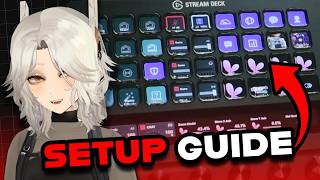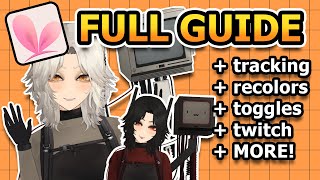

VTube Studio Crash Course: What You'll Learn
45sSets clear expectations and hooks beginners who feel overwhelmed.
▶ Play Clip"The title accurately promises a full beginner's tutorial, and the video delivers exactly that with comprehensive step-by-step guidance."
This video provides a comprehensive beginner's guide to setting up and using Vtube Studio, covering everything from model import and tracking setup to expressions, items, and Twitch integration. The tutorial walks through the entire process step-by-step, ensuring new VTubers can get their models working effectively.
Vtube Studio is free on Steam with a watermark; DLCs remove the watermark ($35 total for all DLCs) and enable VTuber collabs.
Basic tracking via webcam (easy setup), better tracking via phone (Android/iOS with Vtube Studio mobile app), and advanced tracking via iOS with apps like Vitamins or Vbridger for blend shapes.
Models can be obtained from Etsy, VGen, Ko-Fi, or Steam Workshop. The model folder must contain .moc3, .model3.json, .physics3.json, and textures. Drag the entire folder into the Live2D models directory.
When loading a new model, select 'Auto setup' to automatically populate standard tracking parameters (mouth open, head XYZ, etc.). This saves time and can be done later from the parameter menu.
Left-click drag to move, scroll to zoom, Ctrl+scroll to rotate. Lock model position with the yellow lock. For streaming, set background to transparent via Color Picker and use Spout2 capture for best performance.
For webcam: go to Tracking settings, toggle webcam on. For iPhone: use USB or Wi-Fi; configure IP and port (default 25565). For advanced tracking (e.g., Vbridger), connect phone IP and allow API access in Vtube Studio.
Set idle animations, tracking lost animations, correct outlines, adjust physics strength, and add manual parameters. Parameters map tracking input to model output; standard naming conventions apply.
Calibrate tracking first, then adjust input ranges to match your face movements. For example, set mouth open minimum to 0.008 if tracking picks up a slight opening. Smoothing and auto blink/breath can be enabled.
Items include regular (PNG/GIF), browser (web pages, local files), and Live2D items (rigged models). Pin items to model layers; use the item configuration to adjust pinning and layer order.
Create expressions by adjusting parameters and save them. Hotkeys can toggle expressions, animations, model positions, lighting, colors, and VFX. Hotkeys can be linked to Twitch Redeems, Stream Deck, OBS, or Streamer Bot.
Connect Twitch account in settings, then configure hotkeys to trigger on Twitch events (e.g., channel points redeems). Chat and email overlays are also available.
This crash course covers all the essentials for beginners to set up Vtube Studio, from model import and tracking to expressions, items, and Twitch integration. With practice and parameter tuning, you can achieve a polished VTuber experience.
What are the three main tracking methods for Vtube Studio?
Webcam, phone (Android/iOS), and iOS with additional apps like Vitamins or Vbridger.
00:50
What files must be in a model folder for it to load correctly?
.moc3, .model3.json, .physics3.json, and a textures folder.
04:31
What does the 'Auto setup' option do when loading a new model?
It automatically populates standard tracking parameters (e.g., mouth open, head XYZ) into the parameter setup.
05:55
How do you adjust the input range for a parameter to match your face movements?
Calibrate tracking, then change the input range values so that your maximum movement matches the parameter's maximum output.
13:46
What is the default port for Vtube Studio mobile tracking?
25565.
10:24
How can you remove the watermark from Vtube Studio?
Purchase the DLC that removes the watermark, or crop it out to a degree.
00:30
What are the three types of items in Vtube Studio?
Regular items (PNG/GIF), browser items (web pages, local files), and Live2D items (rigged models).
17:32
How do you pin an item between specific layers on a Live2D model?
Open item layer settings and adjust the slider to place the item between front and back layers.
19:14
What is the recommended capture method for streaming Vtube Studio with transparency?
Spout2, as it supports transparency and hides menus.
07:52
How can you create a hotkey for a Twitch Redeem?
Connect Twitch account in settings, then in the hotkey configuration, click the Twitch icon and set conditions for the redeem.
25:53
Tracking Options Breakdown
Provides a clear comparison of webcam, phone, and iOS tracking with specific app recommendations.
00:50Auto Setup for Parameters
Saves beginners significant time by automatically populating standard tracking parameters.
05:55Parameter Range Adjustment
Explains how to calibrate tracking to match individual face movements, improving model responsiveness.
13:46Pinning Items Between Layers
Demonstrates a recent update that allows precise layer placement for items, enhancing visual integration.
19:14Twitch Integration Setup
Shows how to connect Vtube Studio to Twitch for interactive channel point redeems.
25:53[00:00] You just got your commissioned model back,
[00:03] You open up Vtube Studio--
[00:07] That's okay.
[00:07] Today I'll be giving you a crash course
[00:11] about this app.
[00:11] There's a lot to cover today,
[00:14] we'll be discussing from the model import
[00:18] and Twitch Redeems.
[00:19] If you're looking for something
[00:21] feel free to use the timestamps
[00:23] Let's start by actually getting the app.
[00:26] You can pick up Vtube Studio on Steam.
[00:28] The app itself is free,
[00:30] If you want, you can purchase a DLC
[00:32] that removes the watermark for you,
[00:35] you can crop out the watermark--
[00:37] There is another DLC available
[00:40] If you buy that DLC, you'll be able
[00:44] and have their models on screen
[00:46] If you want to buy all of the DLC,
[00:50] Before we actually open the app, though,
[00:53] what form of tracking
[00:56] If your model doesn't have any form
[00:59] tracking or a mic input for movement, then
[01:03] Otherwise,
[01:06] I could do a whole video on this alone,
[01:09] Try not to get overwhelmed because it does
[01:13] If you need basic tracking,
[01:16] Webcam is super easy to set up.
[01:17] All you have to do is plug it into your PC
[01:21] And if you have an NVIDIA card,
[01:23] a slightly better form of webcam
[01:26] If you want a better, more
[01:30] either
[01:33] And if you want very, very accurate
[01:37] for things like lip pucker, tongue out
[01:41] iOS with an additional app like vitamins
[01:46] Keep in mind
[01:49] to be rigged for those things.You
[01:53] that isn't rigged for it,
[01:55] make sure that the model is compatible
[01:59] If you're choosing to use
[02:00] one of those enhanced tracking apps,
[02:04] app, which can be Vtube Studio,
[02:07] So make sure to do your research
[02:08] which one is best for you,
[02:11] can communicate with that specific mobile
[02:14] From there,
[02:18] to send tracking information
[02:20] I'm not going to be going over the Vtube
[02:23] to dozens of plugins and customization
[02:27] of how you would connect one of those
[02:30] If that's something that you're planning
[02:32] The rundown for pricing
[02:35] So 35 if you want all of the DLC
[02:39] VtubeStudio Mobile for the Pro
[02:44] So if you plan to use that app,
[02:47] And if you want the editor,
[02:49] But you don't need the editor
[02:53] that if you intend to make changes
[02:56] Vitamins is free.
[02:57] That's the app that I use personally.
[02:59] However, there's much less support for it,
[03:03] if that's the route that you go.
[03:05] If you're curious,
[03:09] studio mobile app, using WiFi connection,
[03:13] There are tons of configurations though.
[03:15] Like I mentioned before,
[03:18] picking what's in your budget
[03:20] We'll talk about the tracking connection
[03:23] After picking up Vtubestudio,
[03:26] if you want to save
[03:28] which is important f
[03:31] then you can also open up the app folder
[03:35] Once you have the app open, you can double
[03:38] This top icon is what we'll be working
[03:40] It's where you load in your model.
[03:42] To the right of
[03:44] Then we have background items, model
[03:48] settings logs and the collabs menu.
[03:51] But let's move on
[03:52] and get our model set up first
[03:55] If you don't have a model,
[03:58] how to make a simple PNG tuber
[04:00] but you can also find inexpensive
[04:04] and you can even load in free models
[04:07] by searching something up
[04:09] The Steam workshops even accessible
[04:13] all you have to do is pull it up
[04:15] and it'll automatically download the model
[04:18] Regardless of how you get your model,
[04:21] ready to go.
[04:22] If you use the Steam Workshop,
[04:23] it should be already downloaded
[04:26] So nothing to worry about
[04:27] but in most cases you'll have a zip file
[04:31] If your model folder is structured
[04:34] with your model runtime file,
[04:36] all of the deformer information,
[04:40] Your model Json file
[04:44] Your physics file
[04:46] The CDI3 file ,which isn't really needed,
[04:51] And lastly, your textures folder.
[04:53] If you're missing any of those necessary
[04:57] so make sure that everything is structured
[04:59] If you want your model to have an icon,
[05:01] you can also drop that into your model
[05:03] Just make sure it's 512 by 512 pixels
[05:07] Later on
[05:09] You might have some already,
[05:12] it's not like
[05:14] but these can be loose in the main folder
[05:17] you can put them in a subfolder
[05:20] This applies
[05:21] to animations as well
[05:22] to load your model, and we actually have
[05:25] Your models folder will be
[05:28] under Vtubestudio data -> streaming
[05:31] We can drag and drop our model in here:
[05:35] not just the contents.
[05:37] To actually open the model up,
[05:39] you'll click the little person icon
[05:42] If it's not,
[05:44] If you just put it
[05:47] a few times
[05:49] Then just click on it
[05:51] If it's a freshly exported model,
[05:54] about the model setup.
[05:55] This is telling you that the model
[05:56] doesn't have any tracking parameters,
[06:00] and if you select Auto setup,
[06:03] standard parameters
[06:05] I do recommend doing this
[06:09] and are using standard parameters
[06:13] head XYZ,
[06:16] because it is a tedious process
[06:18] to add all of those parameters manually.
[06:20] So just click through to setup
[06:21] and it should populate
[06:23] If you mess up and decide
[06:25] you can also auto setup from the parameter
[06:28] So don't worry
[06:30] You can always go back and overwrite
[06:33] or even just add auto setup after
[06:37] If you have a new export of a model
[06:40] you can also use auto
[06:42] setup to copy over all of those parameters
[06:45] You can even copy things
[06:48] Otherwise I will be going over
[06:51] If you didn't get this prompt, that means
[06:54] This should be the case
[06:56] as well as any models that you might have
[07:00] Once your model is loaded
[07:03] Scroll to zoom and hold the control
[07:07] Once you get your model situated,
[07:09] by pressing the yellow lock
[07:12] Changing your background
[07:14] You can choose from a selection
[07:17] or you can add your own
[07:20] This is also accessible
[07:23] you can just drag and drop it
[07:26] It should then be accessible
[07:28] In most cases, you'll be using your model
[07:30] for streaming though,
[07:33] The best way to achieve
[07:34] this is by selecting Color Picker
[07:38] We won't be going over the OBS side of
[07:42] on specifically will allow you to capture
[07:46] You can use game capture,
[07:49] so the best way to capture
[07:52] Spout2 supports transparency and hides
[07:55] It's the most performant
[07:57] If you intend to set that up later,
[08:01] but in short, you have to download
[08:03] and install a plugin and make sure
[08:06] I'll leave a link to that video
[08:09] Let's actually set up our model tracking
[08:11] Go to the cog menu and here you have
[08:15] ->Tracking settings -> Model configuration
[08:19] If you plan to use a webcam,
[08:23] your webcam here.
[08:24] Toggle your webcam on
[08:27] it's unobstructed and accurately tracking
[08:30] If you have an Nvidia card
[08:33] tracking, be sure to install the tracking
[08:36] If you're using an iPhone for tracking,
[08:40] So if you're a webcam user
[08:42] free to skip ahead.
[08:43] You can use a cable or WiFi
[08:45] Android only supports Wi-Fi connection,
[08:48] Cable is more stable for iPhone,
[08:53] and two possibly have to download iTunes
[08:58] your phone.
[08:59] It can be a nightmare in my experiences,
[09:03] This way it might be less of a problem
[09:07] like I am.
[09:08] If you're doing this from an iOS device,
[09:12] In any case, open the phone app.
[09:14] Now you can pull up the menu
[09:17] then go to your settings.
[09:18] If you'll be using Wi-Fi, make sure to buy
[09:22] for USB.
[09:23] Toggle on the USB option, then on desktop.
[09:26] Once plugged in, do the same.
[09:28] If your phone is properly plugged
[09:29] in, you should be able
[09:30] to instantly connect on windows, though
[09:34] devices list.
[09:35] If it's not there, that means
[09:38] And one of the main solutions to this
[09:43] which is like an ancient software
[09:46] Once it registers your phones in iTunes,
[09:49] connection in Vtube Studio again.
[09:51] I used to use this method personally
[09:55] every single app over and over again,
[09:58] plug in my phone until it worked.
[09:59] I don't recommend it for this reason,
[10:02] connection, it can be a great option
[10:05] We'll be using the sections
[10:08] We need to give our phone
[10:09] our computers information first,
[10:13] You can find this by typing ipconfig
[10:17] just select show IP list and Vtubestudio
[10:21] Just make sure you're not streaming,
[10:24] Make sure both apps have the same port,
[10:28] Then start the server on desktop
[10:30] On mobile, you should see a green light
[10:34] If you're using an additional app like
[10:37] and configure your phone's connection
[10:40] I don't have time to go over
[10:43] so I'll just be using what I believe
[10:46] If you're using ARkit tracking,
[10:47] which would probably be Vbridger
[10:51] First I would grab my phone's IP address.
[10:53] You can find this under your Wi-Fi
[10:55] where you can select your network
[10:57] to where your phone's IP is listed.
[10:59] This is the IP that you're tracking
[11:01] Once connected to your phone,
[11:02] you'll be streaming tracking data
[11:06] Now you need the plug in to further
[11:09] You'll want to set the connection
[11:11] toggle it on, and then wait for
[11:15] Once you allow Vbridger access,
[11:16] you should be able to see your model
[11:20] If you have a different combination
[11:23] any difficulties during the plugin
[11:24] tracking setup, I recommend checking out
[11:27] server to ask questions and troubleshoot
[11:31] You may
[11:31] or may not see your model responding,
[11:34] tracking parameters configured.
[11:36] We'll set those up in a moment
[11:38] but let's open up our model configuration
[11:42] If you have an idle expression
[11:43] or a tracking lost animation,
[11:46] Idle animations will continue
[11:50] animations will transition to and be in
[11:54] In the case that your connection fails
[11:57] like that.
[11:57] If you have any strange outlines
[11:59] on your model,
[12:00] which is common for models with deeper
[12:03] you can use this button
[12:05] The button below that is for being able
[12:08] which you most likely don't need,
[12:12] anyway, so I would pretty much just ignore
[12:14] The customize model section
[12:16] and recolor options,
[12:18] The movement config section down here
[12:21] and will input that to your model's
[12:24] If that's something that you're interested
[12:25] in, be sure to change your settings here.
[12:27] You can also mess with your physics
[12:29] Just be careful
[12:31] because your ringer likely already
[12:34] and you probably don't
[12:37] However, if something is moving
[12:39] you can toggle the strength
[12:43] If you have any manual parameters to add,
[12:47] and add the information here.
[12:49] The tracking input will be
[12:52] or any of the tracking inputs
[12:56] They will have a little label next
[12:59] plug in they're from,
[13:02] that controls the object on your model
[13:06] In most cases,
[13:09] because there are naming conventions
[13:12] You do have to repeat this process
[13:15] that you want to have tracked
[13:16] which is why automatic setup
[13:19] If you're using the Vtube studio mobile
[13:23] app, you will need to adjust
[13:26] Here, you can adjust the sensitivity
[13:29] messing
[13:31] If you change these settings
[13:32] in the Vtubestudio desktop app,
[13:37] So if you want to make these adjustments,
[13:40] If you're using your phone for tracking.
[13:42] Once all of your parameters are ready,
[13:46] We're going to do that by adjusting
[13:49] This is a bit convoluted,
[13:52] but just be nice to yourself
[13:55] because it can be kind of a weird process
[13:58] Rigging.
[13:58] Each parameter is rigged
[14:01] Most commonly,
[14:02] it will start at zero and go to a positive
[14:06] So things like your head movement
[14:10] and at the center being zero or the second
[14:15] is a parameter that goes from 0 to 1
[14:18] That's common for things like mouth open,
[14:22] open would be one.
[14:24] For most common parameters.
[14:25] These values are standardized,
[14:27] and I'll leave a resource below
[14:30] The standard range for that input
[14:35] And the output range should be
[14:38] unless your model was rigged
[14:42] your actual tracking value
[14:44] will be right here,
[14:47] in the symmetrical position
[14:49] To configure parameter to your needs,
[14:53] You need to have your tracking calibrated
[14:56] accurate on desktop with webcam
[15:00] You'll do it by tapping on this icon.
[15:02] In either case,
[15:03] after starting the calibration,
[15:06] looking straight and don't move
[15:10] Now that you're calibrated, most standard
[15:13] or hovering close to zero, aka
[15:16] The main concept for our adjustments
[15:20] should match up with our actual maximum
[15:25] For example,
[15:28] it should in theory land at 30.
[15:31] But if it's not, that means that the model
[15:35] of the full range of the parameter.
[15:36] At maximum, it's getting fed a value
[15:40] that I can actually reach.
[15:41] So we want to adjust our input
[15:44] And once we do that,
[15:47] so that you can actually reach
[15:49] without having to move your head farther
[15:53] to the model.
[15:54] This can also be applied to things
[15:56] A common example is that people will have
[16:00] not actually having their mouth open,
[16:03] and the tracking input might be picking up
[16:08] you can simply change your input value
[16:12] to be 0.008, and then it will change 0.008
[16:17] Hopefully
[16:20] You can and should go through
[16:23] and make sure that your input range
[16:27] This pretty much means
[16:29] making strange faces at yourself
[16:33] input value is,
[16:36] At the end of the day, it's just because
[16:39] So even if your rigger did
[16:41] trying to get the inputs to look really
[16:44] So going through and adjusting them
[16:48] and your personal movements
[16:49] the stiffness in your model
[16:52] Please remember that updating your model
[16:53] with exaggerated movements
[16:57] If you feel like
[16:58] any inputs are very jittery,
[17:01] And don't forget that you can toggle on
[17:05] If you have something like a PNG YouTuber
[17:08] for you and turn on auto
[17:10] before we move on to expressions
[17:15] The items menu is accessible.
[17:16] From here,
[17:19] If you have new items like a purchasable
[17:22] you can similarly do
[17:25] Just drag
[17:27] Then it should show up in your list.
[17:28] There are a few different kinds of items,
[17:32] real quick.
[17:32] First, we have regular items which are
[17:37] Then there are browser items
[17:39] and interact with a web page,
[17:41] support from local files as well,
[17:44] that's on your PC like an MP3,
[17:50] And finally, we have live 2D items
[17:54] and are technically a model in themselves
[17:59] Adding a PNG item is really easy.
[18:01] By default
[18:03] but you can choose to put it in front of
[18:06] You can also put it
[18:07] in between specific layers,
[18:10] For any item
[18:13] So scroll
[18:16] Plus scroll to resize
[18:18] Get the item into the general position
[18:21] to lock it in place.
[18:22] The item should now
[18:24] However, sometimes models have invisible
[18:27] and you'll need to configure the pinning
[18:30] If this becomes a problem on your model,
[18:34] pinning on them.
[18:35] You can go into the Customize Model menu
[18:39] Art mesh from item pinning.
[18:40] Within this menu, I would go ahead
[18:44] You can filter them out by typing in mask
[18:49] If you want to configure anything further.
[18:51] At this point, you can long press
[18:54] Here I can tell it specifically what art
[18:59] In my case, if I had this band aid
[19:03] I can look for the face color
[19:05] You can also see it is overlapping
[19:09] but thankfully due to a recent update,
[19:14] on our live 2D models now, so we can open
[19:17] And at the top
[19:20] and at the bottom
[19:23] So if you want it to be
[19:25] you'll have to look for a sweet spot
[19:29] in front of the face,
[19:33] it's right about here, so we can hit okay
[19:37] If you want to save this item
[19:40] you can click the triple star menu to open
[19:44] Once you save that, it'll be accessible
[19:47] The same setup applies
[19:50] some additional options
[19:53] Also, with the recent update,
[19:55] we now have the option to split the item
[19:58] If the rigger has configured it that way.
[19:59] This means you can tell the YouTube studio
[20:03] you want
[20:06] That means I could have the front
[20:09] or maybe behind my hair,
[20:13] but maybe in front of bug bot,
[20:15] Don't forget that live 2D items
[20:20] and some come with hotkeys.
[20:21] If you want to edit configurable settings
[20:26] you will have to take that item,
[20:29] as its own model,
[20:30] and then go through the hotkey process
[20:33] Once configured, you can
[20:34] then take the newly configured model
[20:38] And now all of the new hotkeys
[20:41] If the item tracks weird,
[20:43] you can also open up the item
[20:45] and adjust the settings here to better
[20:48] Finally, we have browser sources
[20:52] that loaded page to your model.
[20:53] The browser source is fully interactable
[20:57] meaning you can click and load whatever
[21:01] You can also turn on the local file
[21:05] So as long as you have access
[21:08] you should be able to load it in as a file
[21:11] files, PDFs, images, pretty much anything.
[21:14] You can also load
[21:18] Just obviously be careful
[21:20] It's off by default for a reason
[21:24] information
[21:25] To get rid of an item,
[21:29] and drag it to the invisible trashcan
[21:32] Or you can go to the main menu
[21:35] Now that you understand items,
[21:37] to Expression and Hotkey Setup,
[21:40] By the way,
[21:42] make sure to like, subscribe
[21:44] and drop a comment down below
[21:46] Just know that
[21:48] you can link them to Twitch Redeems
[21:52] feed, OBS studio plugin, or even through
[21:55] So just be aware that you don't have
[21:59] There are other options as well,
[22:02] Expression
[22:05] Then you can name the expression
[22:08] you want.
[22:09] Then save the expression file by hitting
[22:11] You can run through and make as many
[22:14] If you want them to have hotkeys,
[22:18] or if you want to generate them in bulk,
[22:21] for all unused expressions
[22:25] for every single new expression
[22:28] If you're doing this manually though,
[22:29] you can just name the hotkey,
[22:33] change to the expression you want to use,
[22:36] Now you can easily toggle it on and off.
[22:39] You can change the hotkey to activate
[22:42] but in most cases
[22:44] You do also have the option to turn it off
[22:47] and you can adjust the fade time here
[22:49] Hotkeys can also be used for animations.
[22:51] You can do things
[22:53] out for another idle animation,
[22:56] The switch
[22:59] where bug bot has a set of keys
[23:01] Or you can also run a one time animation
[23:06] once before.
[23:06] Stop it if you have an animation in mind
[23:10] One cool feature is that you can also
[23:14] so as long as you can act it out
[23:17] There are a lot of different options
[23:21] from toggling expressions, though, some of
[23:24] But the few that I want to discuss right
[23:28] changing art mesh colors or scene
[23:32] Moving your model is very easy to set up.
[23:34] Simply move it to the adjusted position
[23:37] I'd recommend having two main spots
[23:41] If you're fancy, you can use a bot like
[23:45] Depending on your obscene.
[23:46] To set up the lighting, let's first
[23:50] Here we can select which monitor
[23:53] There are some customization settings
[23:57] represent the left,
[24:00] that are being pulled from your screen.
[24:01] You can toggle them on and off
[24:03] Once toggled on, go to the model menu
[24:07] then select Customize Scene Lighting.
[24:09] Any art mesh that you toggle down
[24:12] from lighting, which makes it appear
[24:16] The most common setup is to
[24:19] components
[24:21] Once you're done with your setup,
[24:23] and then you can use this lighting
[24:30] Color setup is similar.
[24:32] You can also do this from the Customize
[24:36] Multiply Screen Color for Art mesh.
[24:37] Here I'm here
[24:38] toggle on the individual component
[24:42] Once you do one,
[24:45] so that the process goes
[24:47] When you're doing tons and tons of art
[24:51] to do this.
[24:52] Alternatively,
[24:54] you can use a plugin like Vtube Studio
[24:58] to change your colors as well as color.
[25:00] Tint is accessible through the API,
[25:03] you can finish up and choose
[25:13] Finally, we have VFX.
[25:15] VFX is under the webcam menu
[25:19] select Add Effects to configure.
[25:21] There is a list
[25:24] which you can fully adjust
[25:26] Just know that some of these do change
[25:29] method, and that using a ton of them
[25:34] If you want a full overview
[25:36] and the differences and capture methods,
[25:37] I also have a video on that too,
[25:41] Once configured,
[25:43] which is then accessible by a hotkey.
[25:53] The last thing that we have to cover
[25:56] Any of the hotkeys that we just made
[25:57] are usable via Twitch integration, though
[26:01] To set it up,
[26:02] go to the main settings menu and scroll
[26:05] From here, select Connect Account and give
[26:09] Then you should be able to log in
[26:12] that, you can open the configuration
[26:16] Here there's an email dropper
[26:17] and a Twitch message option,
[26:20] Just obviously be careful
[26:22] Of course for the hotkey triggers,
[26:26] Done.
[26:26] And now when you reopen your expressions
[26:30] and configure which options
[26:31] you would like to apply as conditions
[26:35] As long as you're
[26:36] you should be completely functional and
[26:40] And with that,
[26:40] I think that's a pretty decent
[26:43] you'll need to know about Vtube
[26:45] If there's anything you wish
[26:48] in the comments below, but happy vtubing
⚡ Saved you 0h 27m reading this? Transcribe any YouTube video for free — no signup needed.