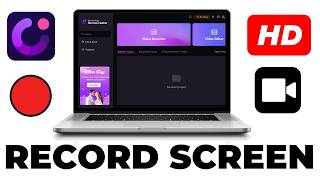

This Free Tool Records Screen, Camera, and Games
51sIt instantly showcases an all-in-one screen recorder that solves multiple content creation needs, making viewers want to try it.
▶ Play Clip"The title's 'You Won't Believe How EASY' is hype, but the walkthrough genuinely delivers simple, useful steps."
This video is a practical tutorial on recording your screen in HD using Wondershare DemoCreator. It walks through downloading and installing the software, configuring high-quality recording settings, and covers screen, camera, game, and presentation recording modes, plus built-in editing.
The video teaches step-by-step how to record your screen in HD with DemoCreator, aimed at anyone creating videos, PowerPoint presentations, or online teaching content.
Visit democreator.wondershare.com, click 'Try It Free,' and download the software. Install it like any normal app on your computer.
After launching, click 'Video Recorder' to access all recording modes: screen, screen and camera, game, and video presentations.
Select 'Screen and Camera' to record both your screen and webcam. You can toggle your camera and microphone on/off in the settings.
In the video settings, change frames per second from 30 to 60 and quality from normal to high for crystal-clear video. Then click 'Save Settings.'
A quick test recording shows the finished video is super clear and professional-looking, confirming the HD settings work well.
Choose 'Game' to record gameplay. You can select an open game window, add your webcam, and configure audio settings before recording.
Use 'Video Presentation' to create online courses. Pick a template, edit the text, add your webcam, and record your lesson with on-screen explanations.
After recording, export the video. DemoCreator includes an editor where you can split, delete, and join clips without leaving the software.
DemoCreator is a versatile all-in-one screen recording and video editing tool that makes HD screen capture, course creation, and game recording accessible to beginners.
What software does the video demonstrate for screen recording?
Wondershare DemoCreator.
00:01
What is the URL to download DemoCreator?
democreator.wondershare.com
00:13
Which menu option do you click to start recording in DemoCreator?
Video Recorder.
01:07
What two recording sources can you combine in 'Screen and Camera' mode?
Screen and webcam camera.
01:32
What settings produce HD quality in DemoCreator?
60 frames per second and high quality.
02:24
What are the main recording modes in DemoCreator?
Screen, screen and camera, game, and video presentation.
01:07
How do you create an online course in DemoCreator?
Choose Video Presentation, select a template, edit the text, add webcam and narration, then record.
04:32
What editing actions does the built-in editor support?
Split, delete, and join clips.
07:22
All-in-one recording modes
DemoCreator centralizes screen, camera, game, and presentation recording in one tool, eliminating the need for multiple apps.
01:07HD quality settings
Setting 60 FPS and high quality is a simple, actionable way to make screen recordings look professional.
02:24Template-based course creation
Using pre-built templates with webcam overlay lets educators produce structured online courses quickly.
04:32Integrated editing and export
The built-in editor allows splitting, deleting, and joining clips without leaving the app, saving time in post-production.
06:45[00:01] through step by step how to record your screen in HD. This is going to be helpful if you create any form of videos online that require you to record your screen. And if you do any form of PowerPoint presentation or teaching,
[00:13] you. Now, I'm going to make this short and detailed. So, let's get started. So, click on the first link down in the description or you can come over to this URL right here. It's at democreator.wondershare.com. Okay. So,
[00:28] it's basically an all-in-one software videos, put together presentations, and there's a lot of things you can do with this software. But in this video, I'm
[00:40] record your screen using this software. And I'm doing this video because of one of my subscriber that said they actually need help in recording their screen. So, here. Basically, once you're here, go ahead and click on try it for free to
[00:54] download the software for free. and it's going to redirect you straight to where And once it downloaded, you want to go computer. Normal way you install softwares on your computer. So once you
[01:07] proceed by launching the software. So basically once you launch the software, this is how exactly it is going to look like. So if you want to record your click on here where it says video recorder. And once you click on here,
[01:19] right here. So you can record your screen and your camera. And you can also you're kind of person that plays games on the internet, you can also record your games. And also, you can put together video presentations. And I'm
[01:32] actually use this software to do all of those things. So, for example, let's say very easily click on here where it says screen and camera. And it's going to redirect me straight to where I can record my screen and camera right here.
[01:45] Okay. And over here, you can see all the settings that they have. So, you can actually change from the screen recorder to other apps from this section. And your camera. For example, if I want to turn on my camera, can click on here and
[01:58] camera. And as you can see right here, this is my camera. And you're not seeing my face because my PC allows me to toggle off my camera. And my camera is I'm going to go ahead and cancel this out. And as you can see, it's actually
[02:12] disabled. And over here, I can record my audio. And this is my PC microphone. And that I'm using. So I can actually set this here. And over here, you can actually do a bunch of things. this your audio system. You can basically
[02:24] customize this however you want. And over here is a setting section where you can set this to look however you want. Remember I told you I was going to show HD. You can click on the video section here and actually change the quality. So
[02:37] over here it's at 30 frames per second. I can actually make it to shoot 60 frames per second and that is going to make your video crystal clear. And right here is the quality. I can change this from normal to high quality and it's
[02:49] higher. So, I'm going to go ahead and click on save settings here and I'm going to go ahead and put together a demo recording right here. Okay, so this is my channel right here and I'm going to do a quick test. This is a quick test
[03:01] to see how efficient the demo creator software can be. Okay, so I'm done with cancel this out right here. Once I cancel this out, you can see the video we just recorded right here. So, basically, this is how the finished
[03:14] you can see right here, I actually muted necessary. But if you look at the video right now, you see that this video is super super clear and this is very great
[03:26] professional look. That's basically it for the screen recording section. And camera for any reason, you can just click over and same thing with your self-explanatory. Okay, so if you're a person that actually want to record your
[03:41] here, click on here where it says game and once you click on there, it's going here you're going to see all the windows that's opened on your computer. So, it's this is the game I'm recording. I can just come over here, click on the game,
[03:54] and basically I can come over here and click on record and whatever I'm doing is going to record my game. And over here is a bunch of settings I can play with. I can actually use my integrated webcam. And also, if I plug in another
[04:06] camera, I will see that below here. And same thing with my audio, I can choose recording. It's basically simple. And over here is your settings. You can play around the settings section. So, that's basically self-explanatory. I do not
[04:19] because I don't believe I have gamers on the channel. Okay, so I'm going to exit this real quick and we're going to talk about how to record a presentation. Now, a course or you're trying to teach people something online. You can
[04:32] option that you have here. Okay, so it's right here, click on record screen, click on video presentation, and it's going to redirect you straight to where you can actually put together video
[04:44] presentations. Okay. And over here you are going to need to select one of these going with this template right here. I here. And once I click on the template, I can come over here, click on use
[04:57] template, and it's going to actually open up this template right here. Okay? is this used for? This is used for putting together courses. Okay? So let's marketing. So I can click here and edit this and be like, what is affiliate
[05:13] marketing? Okay. And I can come over here and write affiliate marketing is I can basically edit this, edit all of this and set this up for my class if I'm Okay. And another thing you can do is
[05:28] actually duplicate this. You can click on this three dot here and you can duplicate this section here. And you can basically use this to do whatever you seeing on my screen is actually my webcam. I can actually crop this. Crop
[05:41] this. And I can change this to circle. And as you can see, this is way better. I can basically explain things and my face is going to be showing on this section. And over here is going to be the things I'm explaining. Okay, let's
[05:53] marketing and I want to show you guys how to get the product. I can come over here and click here and basically say this is how you get the product and so all the settings, I can come over here and click on record and record my screen
[06:07] and basically put together a course. Okay. And over here is my camera. I can turn that on and I can also turn that off. And same thing with my audio. And basically, I'm sure we've already gone through this. Okay, let's say I'm trying
[06:19] over here, click on record, and it's going to do a little countdown here. And whatever I'm trying to put together. And once I'm done, I can come over here and click on stop, and it's actually going to render a preview for me. Okay. So,
[06:32] basically, this is the course. And I can basically come over here and export this. And it's going to start exporting. And over here, I can click on open folder. and I'm going to locate the file inside of my computer right here. Okay,
[06:45] basically that's how this software is. This is powerful. You can basically use it for whatever you want. You can use it to record or put together a course. You videos. You can also use it to edit your YouTube videos. And I'm going to show
[06:57] you how. Okay, so over here is your editor section. You can basically come on that, and it's going to redirect you straight to where you can edit videos using this software. That's why it's an allin-one software. So it's actually
[07:09] seconds for it to load. So over here is the editor. Okay, as you can see, it's a pretty nice editor and I can basically double click on the library section and I can import this course we just recorded. Okay, and this is the course
[07:22] let's say, chop the course, I can basically come over here, click on split and click on split and I can basically delete this part and join this part. Okay, it's very simple. So I'm just
[07:34] running through this so you know that a powerful software that does this exist. But if you want a dedicated video that can show you how to use this software, you can go ahead and search for that on YouTube. Okay, so I'm going to wrap this
[07:47] record your screen, which is the most important thing. I also showed you how to put together a presentation and how to do all those cool stuff. Okay, so I'm the thumbs up button if this helped you with what you want. And if you got value
[08:00] channel cuz I'm all about making money in your businesses. I give you strategies that you can use to sell stuff online and I create make money online videos that you can use to make
[08:12] money online. So, sub to the channel if that's what you want to see.

⚡ Saved you 0h 08m reading this? Transcribe any YouTube video for free — no signup needed.