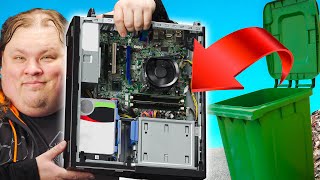

Turn Your Old PC Into a Server
38sImmediately hooks viewers by giving new life to an old PC, appealing to frugality and tech curiosity.
▶ Play Clip"Title accurately reflects content: the video delivers a practical guide to turning an old PC into a server."
This video shows how to repurpose an old PC into a home server for tasks like media streaming and file sharing, using Windows and free tools like Plex and Pulseway.
The word 'server' describes a role, not specific hardware. Even old PCs, laptops, or Raspberry Pis can act as home servers.
A $176 used PC with i7-3770, 128GB SSD, 1TB HDD, 12GB RAM, no GPU, and a 250W PSU.
For beginners, using an existing Windows install is easiest. Factory reset and upgrade to Windows 10/11.
Plex for media server, Pulseway for remote management via browser or app.
Right-click folder > Give access to > Specific people > Add Everyone with Read/Write permissions.
Use Storage Spaces to create a mirrored RAID 1 pool for data redundancy.
With minimal cost and effort, an old PC can become a powerful home server for media, file sharing, and remote access.
What is the key difference between a server and a desktop PC?
The word 'server' describes a role, not specific hardware. Servers are built for reliability with redundant power supplies and ECC memory, but any computer can act as a server.
00:52
What are the specs of the OptiPlex 7010 used in the video?
Intel i7-3770, 128GB SATA SSD, 1TB HDD, 12GB RAM, no GPU, 250W PSU.
01:35
What is the first step to repurpose an old Windows PC as a server?
Factory reset the PC and upgrade to Windows 10 or 11.
03:08
What tool is used to disable Windows bloat and telemetry?
WinArrow Tweaker.
03:36
What two applications are recommended for a home server?
Plex Media Server for media and Pulseway for remote management.
03:52
How do you set up a network share in Windows?
Right-click folder > Give access to > Specific people > Add Everyone with Read/Write permissions.
05:16
What must be enabled in Network and Sharing Center for file sharing to work?
Network discovery and file and printer sharing must be turned on, and the network must be set to Private.
05:55
What is the cost of two 12TB Iron Wolf Pro drives?
$400 each, so $800 total.
07:24
How do you create a mirrored RAID 1 pool in Windows?
Use Storage Spaces: create a new pool, select mirror resiliency, and format as NTFS.
09:45
What is the advantage of using Pulseway for remote management?
It allows headless control via web browser or app without exposing your IP.
06:21
Old PC in the closet
Opens with a relatable hook that immediately engages viewers who have old hardware.
DVD drive removal
Humorous moment when the host struggles with mounting a hard drive in place of the DVD drive.
08:52No display after upgrade
A real troubleshooting moment that adds authenticity and shows common issues with old hardware.
09:18[00:00] Remember that old PC you stuffed in the closet? Yeah, that one. Today, it's been given a second chance. This old machine isn't worthless.
[00:13] Even with its nine-year-old CPU and complete lack of a graphics card. What? How am I seeing out a little secret? Not all PCs need to be for gaming. Tired of paying for Google Drive?
[00:25] Post your own cloud storage. Hate running USB drives through your TV? host your own media server. The possibilities are endless. With the help of Pulseway, to watch you today's video, we're going to show you how to repurpose that old rig
[00:38] into your own personal server for cheap or even free.
[00:52] The first thing to learn is that servers are just computers. The word describes a role, not a specific type of hardware. Sure, the servers in big data centers do look different than your home PC. They're built for reliability, with redundant power supplies and ECC memory.
[01:08] They prefer many slower cores rather than a few fast ones. And they lack consumer I.O., like tons of USB, audio, or display outputs. But that's because they're serving hundreds, if not thousands, of clients.
[01:20] We're not. Which is why even our aging closet PC, an old laptop, or even a $30 Raspberry Pi can all act as our first home server. This OptiFlex 7010 we picked up from our local recycler, FreeGeek, is the perfect candidate,
[01:35] not just because it's cheap at $176, but because the bones are solid. It's got a hyper-threaded quad-core Intel i7-3770, 128GB SATA SSD for a boot drive,
[01:50] and a reasonable 1TB of bulk storage. At this price point, though, there are some compromises we have to make. Its 12 gigs of RAM are mismatched, and predictably, it doesn't have a GPU.
[02:03] And even if we did add one, we would likely run into issues with the power supply, because value-engineered power supplies like this 250-watt one, while they're generally pretty solid, they don't leave a whole lot of headroom to play with,
[02:16] nor does it offer additional PCI Express power cables. But, don't fret. What really matters here is that we have a blank canvas to work from. And by the way, now's a great time to open up your rig and give it a good dusting.
[02:28] And maybe refresh your thermal paste while you're at it. It needs some love. Now, let's set up our array. So before you say it, we're not going to install Linux today. We know that moving to a Linux or FreeBSD base option does have both performance and feature benefits over Windows However if you just starting out and you got an old Windows machine already around this is the easiest way to get your foot in the door
[02:54] And that's what we want this video to be. A start, not the end. If you guys want to see a follow-up where we use TrueNAS or similar, travel your sabers in the comments and get subscribed. The first thing you're going to want to do is factory reset the PC.
[03:08] Now, if you're running Windows 7 or 8, now is a good time to upgrade to Windows 10 or 11. Keep in mind that a lot of those old Windows keys will still work to activate newer versions of Windows. If you're already there, hit the Windows key and type Reset.
[03:24] Ha, it's slow. Then click on Get Started. All you need to do from here is run through the prompts until you have a fresh Windows install. We ran WinArrow Tweaker to disable automatic updates and kill Cortana,
[03:36] and also disable a lot of the extra bloat like telemetry that can suck away valuable resources from an older system like this. Now we're ready to set up our server to actually do stuff. For starters, we're going to download Plex Media Server for our media and Pulseway to manage our system remotely.
[03:52] If you're thinking, why would I need remote access to this dinosaur? Well, it's not because we plan on accessing it from across the world, but rather because we may not have a spare monitor, keyboard, and mouse to be connected to it, let alone the space.
[04:06] Instead, we can operate it headlessly. That is, completely controlled via any web browser or the Pulseway app. Neat. Setting up Plex is simple. Install the application, run through the prompts, and definitely read that EULA.
[04:20] Am I right? They are very legally binding. The beauty of using a Windows PC to start your server hosting journey is that the user experience isn't, and I mean this with the utmost respect to all command line warriors,
[04:33] complete crap. Usually. You just download what you need, the links are in the description, and install and configure it with a GUI, and then you're done. It really is that easy. We can't cover all the options here, of course. You could run a remote torrenting box or an ad-blocking server, for instance.
[04:49] But if you're following along and you do hit some roadblocks, hop on over to our forum where there are tons of friendly fellow nerds willing to help you out. Love you guys. Pulseway's setup is similarly easy. Just click through the wizard and sign in.
[05:02] At this point, you'll have full access to your files and settings from whatever web browser you use to access Pulseway. And we're done. Service is running. Pulseway is up. You can actually get away with not even setting up a network share or anything and just using Pulseway to manage your files remotely.
[05:16] But having a direct folder share on your local network is pretty nice, so we're going to do that too. It just takes a few more steps, and you won't be able to access it in Starbucks, unfortunately. Or fortunately. We got a drive set up here called LTT Simple Server that we go into and we have a folder we want to share What we do is we right click go to give access To and then click on Specific People From here either you can allow only one person to access the file like it is normally
[05:39] or, in our case, we're going to give everyone in our local network access, being sure to change their permissions from Read Only to Read and Write, creating a melting pot. And boom! The folder is now able to be added as a network share by copying the link into the Add a Network Folder prompt
[05:55] to any network machine on your local network. Don't forget to go to the Network and Sharing Center to ensure both network discovery and file and printer sharing are turned on under the private settings. Or if your network is set as public,
[06:07] you should set that as private because it won't work on public networks. It's not by default. Double-check that. Really, that's it for making a basic file server. And with it, we can do a litany of cool things. We can point our Plex server to the storage folders
[06:21] and access the entire drive over the network. We can set up a Windows Remote Desktop Connection or Go Easy mode and use Pulseway's built-in remote desktop tool to control our server from anywhere in the world without exposing our IP to the net.
[06:33] We can also update Windows without having to log into the system itself, even from your phone. And the best part is that we're still running Windows. We're not running Linux. You don't have to learn anything new. If your main rig borks itself, you have an easy-to-configure backup PC
[06:45] just waiting in the wings. But what if you want more control? Or what if you don't have a Windows license to throw at your pile of spare parts? You could run a standalone Linux server, of course,
[06:58] but as we've seen in the Linux challenge, that's not always for the faint of heart. Unraid and Proxmox are also feature-rich options, but they're not super easy to use either. For an intermediate user, we would suggest TrueNAS Core,
[07:12] previously known as FreeNAS. It's free, easy to install, and has a decent UI. That's it. Video over. Just kidding. Let's kick it up by adding more storage and data redundancy.
[07:24] These two 12-terabyte Iron Wolf Pro drives can handle that beautifully. At $400 a pop, they aren't cheap, but considering that 10 terabytes of Google storage costs $70 a month,
[07:36] if we did the math, this upgrade will pay itself off in under a year, including the PC, not to mention you will own and control all of your data. All right, we got the one terabyte drive out and the first 12 terabyte Iron Wolf in,
[07:52] but now we have a problem. Where does this go? We can't exactly, like, just throw it here and be done with it. We can't put it here. There's just not enough clearance.
[08:04] Like, there's no provisions. There's not even another SATA cable, unless... This optical drive now serves no purpose Oh there are some screws in there that I need to get rid of Ah okay cool But there another problem Yes this free up some room and yes this is SATA They not the same
[08:31] size, so that's where this comes in. This will accept a three and a half inch drive, like so, and slot in something like so. Oh, yeah, okay. Obviously I need to actually mount
[08:52] that first, but that's the plan. Let's get to it. Let's see if it still works. Now, with the DVD drive out, because who needs one of these these days, we have a freed up SATA
[09:05] power and data cable right where we need it. So, our second drive, now definitely screwed in, is absolutely plugged into the system. And I'm not getting a display. This is very troubling.
[09:18] One moment, please. Two things that we learned just now. First, always check your cables. Second, a lot of these old machines sometimes have issues with just like outputting anything via display ports. Yeah, these are the kinds of things that these old systems will sometimes
[09:33] to give you trouble with. But once you have it all set up and running, here we go. We've got 12 terabytes of storage right here. Did I say 12? I meant to say 12 terabytes of redundant storage.
[09:45] Yes. Now it's time to raid these things. We're going to be setting up raid one, which means the drives will be mirrored. There's no performance benefit on writes anyway, for reads there is. But if one dies,
[09:57] you get to keep 100% of your data. Hit the window key and type storage spaces. Then create a new pool using the steps we use links down below. You will need to format your drives first. Make sure you do that.
[10:09] There we go. On 490 drives. Hup. Ooh. I'm allergic to dull ****. Storage space, resiliency to a mirror, yep. File system, NTFS.
[10:22] Size, okay, so 10.9 terabytes. That's 12 terabytes. And create storage space. Formatting the storage space. We are good to go. And there we have it, a 12 terabyte redundant NAS box for under a thousand dollars.
[10:37] And each of these hard drives cost about 400 bucks. So that's telling you something. This particular form factor is actually really easy to hide somewhere inconspicuous, especially if you use Pulseway to do all of your remote monitoring and maintenance.
[10:51] So a huge thanks to Pulseway for sponsoring this video. We hope you enjoyed it, and if you want to see more of this sort of DIY server content, content, don't forget to get subscribed and check out all of our other server videos. We'll have those linked in the end screen for you.
[11:04] For now, see you later.



⚡ Saved you 0h 11m reading this? Transcribe any YouTube video for free — no signup needed.