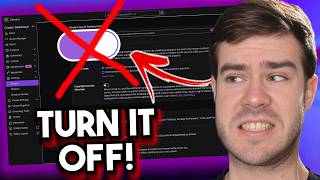

Fix Dead Chat: Low Latency Mode
45sReveals a hidden setting causing 20-second delays that kills chat interaction, relatable for streamers.
▶ Play Clip"Title accurately promises 10 settings; video delivers exactly that with clear instructions."
This video reveals 10 hidden Twitch settings that can negatively impact a streamer's channel, from chat interaction to discoverability. The host provides step-by-step instructions to fix each setting, emphasizing that default configurations often hinder growth.
Normal latency causes 10-20 second delay, killing chat interaction. Switch to low latency in Creator Dashboard > Settings > Stream.
Turning on followers-only chat deters new viewers. Disable it in chat settings and use AutoMod instead.
Twitch doesn't save streams by default. Enable 'Store Past Broadcasts' and 'Always Publish VODs' in Settings > Stream.
Restricting raids to friends only can block big opportunities. Allow raids from channels meeting minimum requirements (e.g., 2 viewers).
Add common bot phrases like 'get famous here' to AutoMod's block terms to filter 90% of bots.
Using wrong category (e.g., 'Just Chatting' for Fortnite) hurts discoverability. Always select the specific game.
Pre-roll ads drive away new viewers. Run 3 minutes of midroll ads per hour to disable pre-rolls.
Enable to keep stream live for 90 seconds during internet drop, giving time to reconnect without losing viewers.
Require verified email or phone for first-time chatters to block bots and trolls.
Enable clips and disable 'followers only' to allow anyone to clip and share, increasing viral potential.
By adjusting these 10 settings, streamers can improve chat interaction, discoverability, and overall channel growth. The host also offers a free pre-stream cheat sheet for further optimization.
What is the default latency mode on Twitch?
Low latency.
00:18
How much delay does normal latency cause?
10 to 20 seconds.
00:45
What setting should new streamers disable to avoid deterring viewers?
Followers-only mode.
01:01
What two settings must be enabled to save and publish VODs?
Store Past Broadcasts and Always Publish VODs.
01:42
How many minutes of midroll ads per hour disable pre-roll ads?
3 minutes.
04:38
How long does disconnect protection keep the stream live?
90 seconds.
05:50
What chat verification method blocks 99% of hate raids?
Phone verification for first-time chatters.
06:31
What setting should be off to allow anyone to create clips?
Followers only for clips.
07:19
Latency Mode Kills Chat
Explains that normal latency causes a 10-20 second delay, making chat interaction feel like a voicemail.
00:18Followers-Only Mode Hurts Growth
New streamers often enable this out of fear, but it locks out potential viewers.
01:01Raid Restrictions Block Opportunities
Locking raids to friends only can prevent a career-changing raid from a larger streamer.
02:39Midroll Ads Over Pre-Roll
Running 3 minutes of midroll ads per hour eliminates pre-roll ads that drive away new viewers.
04:38Disconnect Protection Saves Streams
Keeps stream live for 90 seconds during internet outage, preventing viewer loss.
05:50[00:00] It's 2026. If you're streaming on your
[00:02] channel with default settings, then
[00:04] you're streaming with the handbreak on.
[00:05] Today, I'm showing you 10 different
[00:07] hidden toggles on Twitch and some are
[00:09] off by default. And some of them you may
[00:11] have turned on by mistake. And one of
[00:13] these is the main reason that your
[00:15] Twitch chat is dead. So, let's fix it.
[00:17] First up, let's take a look at the
[00:18] setting that absolutely destroys your
[00:20] chat interaction. If your Twitch chat
[00:21] feels empty, it might be because you're
[00:23] broadcasting from the past. Go to your
[00:25] Twitch channel, go to the top right
[00:26] corner, click your icon, and go to
[00:28] creator dashboard. Then look on the
[00:30] lefth hand side, click on settings, and
[00:32] then click stream. Then you're going to
[00:34] want to find latency mode. Twitch tries
[00:36] to set this latency mode to low latency
[00:38] by default. However, updates to OBS
[00:40] Studio or account resets. [music]
[00:42] Can actually flip this back to normal
[00:44] latency without you knowing. And if
[00:45] you're on normal, then you'll have about
[00:46] 10 to 20 seconds of delay, which means
[00:48] you'll tell a joke, then sit in silence
[00:50] for 20 seconds, and then chat will
[00:52] finally laugh. But that's not a stream.
[00:54] That's a voicemail. So, go in your
[00:56] settings and double check that low
[00:57] latency is selected and don't trust the
[00:59] default. Now, while we're on the topic
[01:01] of fixing chat interaction, if you're a
[01:03] new streamer, then you got to stop using
[01:04] followers only mode. You're absolutely
[01:06] destroying your growth. I see people
[01:08] turn this on because they're scared of
[01:09] the box. But if I find your stream and
[01:11] want to say hi and a popup that says
[01:13] follow for 10 minutes comes up, I'm
[01:15] leaving out the door. You're essentially
[01:16] putting a locked door on an empty store.
[01:18] So, go to your Twitch chat. Go down to
[01:20] the very bottom where you hit the cog
[01:21] wheel chat settings next to the chat
[01:23] button. Then you'll scroll down and
[01:25] you'll see followers only chat. Make
[01:27] sure this is turned off. Use automod to
[01:29] catch the trolls or bots. And don't
[01:31] punish real humans for saying hello.
[01:33] Just go to the top right corner, click
[01:34] your icon, creator dashboard, moderation
[01:37] on the left hand side and settings, and
[01:39] you can customize all your automod stuff
[01:41] here. Now, this next one is actually
[01:42] really dangerous for your content. If
[01:44] you're a new streamer, Twitch actually
[01:45] doesn't save your streams when you press
[01:47] end by default. That means if you had a
[01:48] really good stream yesterday, but you
[01:50] didn't toggle this setting on, then it's
[01:52] going to be gone forever. We fixed this
[01:53] by going to your Twitch channel, going
[01:55] to the top right corner, clicking the
[01:57] icon creator dashboard settings on the
[01:59] left hand side, click it, and then go to
[02:01] stream. And then we're going to scroll
[02:02] down to where you see store pass
[02:04] broadcast. Make sure this is turned on.
[02:06] And while you're here, you might as well
[02:07] enable always publish VODs on because if
[02:10] you don't, then your little past
[02:11] broadcast, aka your streams that you've
[02:13] done, will be hidden by default for all
[02:15] your viewers, which ultimately hurts
[02:16] your discovery, and we don't want that.
[02:18] Now, those settings are all sort of set
[02:19] and forget. But there's a whole other
[02:21] set of settings that you need to check
[02:23] every single time you go live. I'm
[02:25] talking about your bit rate, your mute
[02:26] button, your game audio, and that's why
[02:28] I created the pre-stream cheat sheet.
[02:30] It's the exact Pilots checklist that I
[02:32] use before every single stream, and it's
[02:34] free. The link is in the description
[02:35] down below in the pinned comment. So,
[02:37] grab it, save your stream, and thank me
[02:38] later. Now, let's go back to the
[02:39] dashboard. But this one's a little
[02:41] controversial. We got to talk about
[02:42] raids because you might be blocking your
[02:45] big break on Twitch without knowing. Go
[02:46] to your Twitch channel, go to the top
[02:48] right corner, click your icon, creator
[02:50] dashboard, go to the left hand side,
[02:51] click settings, and then stream. Scroll
[02:54] all the way down until you see raids
[02:56] because sometimes the Twitch safety
[02:58] onboarding you fill out encourages you
[03:00] to lock this down to getting raids from
[03:01] friends only. So, make sure that you
[03:03] don't have any of these checked because
[03:05] if a bigger streamer than you wants to
[03:07] dump their 500 plus viewers to your
[03:09] channel and you have your door locked,
[03:10] then you just cost yourself a
[03:12] career-changing moment. Just make sure
[03:13] to allow raids from channels that meet
[03:15] the following requirements. And you can
[03:16] set these to what you want. I have it
[03:18] set to two because I don't like getting
[03:19] spammed with one person raids cuz that
[03:21] means literally anyone can raid you. But
[03:22] other than that, I like to keep
[03:24] everything pretty clear. You could
[03:25] theoretically change this from 30 to
[03:26] one. So, if you want to do that, you can
[03:28] too. But speaking of bots, if you turned
[03:30] off the follower only mode like we did
[03:32] earlier, then you're going to need a
[03:33] bouncer to make sure that you don't get
[03:34] hit. Here's how to stop those art
[03:36] scammer bots on Twitch without lifting a
[03:38] finger. Go to your Twitch channel, top
[03:40] right corner, click the icon creator
[03:42] dashboard. Look on the left hand side
[03:43] where it says moderation and then hit
[03:45] settings. Then we'll go to automod and
[03:47] message filtering and we're going to
[03:49] click on view advanced settings. Then
[03:51] scroll all the way down until you see
[03:53] block terms and phrases. And this is
[03:55] where you're going to click in this box
[03:57] and you're going to type in all the
[03:58] common phrases that these stupid bots
[04:00] use all the time. Start with things like
[04:01] get famous here, get big follows, buy
[04:04] followers, get cheap viewers, and that
[04:06] filters out about 90% of the bots you're
[04:08] ever going to get. That way, your chat
[04:09] stays clean. You don't have to ban
[04:11] people manually, and you're not
[04:12] distracted from those epic gameplay
[04:14] moments you're getting. Now, the next
[04:15] setting isn't a toggle, but it is a bad
[04:17] habit. Stop using the retro category on
[04:19] Twitch. When you're updating your stream
[04:21] information like this, are you tagging
[04:23] your game correctly? If you're playing
[04:24] Fortnite like this, but your category
[04:26] says just chatting, nobody looking for
[04:28] Fortnite can find you. And if you're
[04:30] playing an older game, don't use the
[04:31] retro category. It's honestly too
[04:33] crowded. You're better off using that
[04:34] specific game in order to get found cuz
[04:37] there's less competition. So, that was
[04:38] an easy one. But for my Twitch
[04:39] affiliates and Twitch partners, this is
[04:41] how you save your attention. Pre-roll
[04:43] ads on Twitch are destroying your
[04:44] discovery. Here's how to fix it. If I
[04:46] click on your stream and I instantly get
[04:48] hit with a 30-se secondond ad, then I'm
[04:50] gone. In order to fix this, go to the
[04:51] top right corner of Twitch, click your
[04:53] icon, go to creator dashboard, then go
[04:55] to monetization on the left and hit ads
[04:57] and go to the ads per hour and change
[05:00] this to exactly 3 minutes. That way, you
[05:02] fully disable those pre-roll ads for
[05:04] incoming viewers whenever people click
[05:06] on your stream. Because interrupting
[05:07] your loyal viewers for a quick 30 or 60
[05:10] seconds every now and then is a lot
[05:11] better than instantly blocking your face
[05:13] to any new viewers that might click on
[05:15] your stream. Now, I know what you're
[05:16] probably thinking. Cody, won't my
[05:17] viewers hate me for running midroll ads?
[05:19] Here's the secret, though. You control
[05:21] the narrative. When you see the ad
[05:23] incoming text appear above your chat
[05:25] room, don't let it upset you. Simply
[05:26] pause the game or do whatever you're
[05:28] doing and tell the chat, "Hey, there's
[05:29] an ad break coming up, so let's use this
[05:31] as a time as a health break instead. We
[05:33] can go grab some water, grab a snack,
[05:35] stretch your legs." Because when you
[05:36] reframe it as a health break instead of
[05:38] just an ad break, nobody complains. You
[05:40] get the revenue, even if it's pennies,
[05:42] the chat stays hydrated, and you don't
[05:44] have to piss your pants, which is half
[05:45] the reason I'm filming on a toilet
[05:46] today, and not because my power's been
[05:48] out for 2 weeks. But this next setting
[05:50] I'm going to show you is the only reason
[05:51] that saved my stream when my internet
[05:53] crashed last time because Twitch has a
[05:55] secret setting that instantly saves your
[05:57] stream when your internet dies. It's
[05:59] [music] called disconnect protection. Go
[06:01] to Twitch, go to the top right corner,
[06:02] click your icon, creator dashboard, then
[06:04] go to the lefth hand side, hit settings,
[06:06] and then stream. And right here at the
[06:08] top, you'll see disconnect protection.
[06:10] Make sure this is enabled. If your
[06:11] internet drops for a second or OBS
[06:13] crashes, instead of ending your stream
[06:15] and kicking out all the viewers you've
[06:16] gotten over the hour or so you've been
[06:18] streaming, Twitch will keep your channel
[06:19] live for about 90 seconds, showing a
[06:22] technical difficulty screen, which gives
[06:24] you time to reboot your router and
[06:25] computer, or restart OBS without losing
[06:27] your viewers. It's literally a
[06:29] lifesaver. So, make sure this is turned
[06:30] on. Now, we need to make sure that the
[06:31] people in your chat are actual real
[06:33] people. Stop letting anonymous accounts
[06:35] on Twitch ruin your stream. Go to
[06:37] Twitch. Click your icon in the top
[06:39] right. Hit creator dashboard. Go to
[06:41] moderation on the left and hit settings.
[06:43] Then go to chatter permissions and then
[06:45] go to view advanced settings. This is
[06:47] where you can set your chat
[06:48] verification. Like if you want to do
[06:50] some chatters must have a verified
[06:52] email. You do it just for the first time
[06:54] chatters in my channel because that's
[06:56] going to be a good firewall for trolls
[06:58] in box which is going to prevent them
[07:00] from spamming in your chat. Could also
[07:01] do phone verification for firsttime
[07:03] chatters for that same reason. But
[07:05] whatever you think is going to be best
[07:06] for your channel, you should at least
[07:07] have some sort of chat verification to
[07:09] prevent the bots and trolls because most
[07:11] bots and trolls will not burn a real
[07:13] phone number just to troll you. That one
[07:15] setting blocks 99% of hate raids before
[07:17] they actually happen. And setting number
[07:19] 10 is the one that's going to make you
[07:20] go viral. You're making it too hard for
[07:22] your viewers to make you famous. Go to
[07:24] your Twitch channel, hit the icon in
[07:25] that top right corner, hit creator
[07:27] dashboard, go to settings on the left,
[07:29] and then hit stream. Scroll down until
[07:31] you find clips. Make sure that enable
[07:33] clips is enabled. But the secret is
[07:35] making sure followers only is off.
[07:38] Because if a random person's watching
[07:39] your stream and finds a funny moment,
[07:41] you want them to clip and share it.
[07:42] That's all the work done for you. If you
[07:44] force them to follow first, then they're
[07:46] not going to bother to share the clip
[07:47] right away. So, let the strangers make
[07:49] you go viral and remove the friction.
[07:51] So, go change those 10 settings. Don't
[07:53] assume they're already set up correctly.
[07:54] And seriously, stop guessing with your
[07:56] tech. Download the free pre-stream cheat
[07:58] sheet right below this video. It's
[08:00] completely free and has stuff we didn't
[08:01] talk about in this video as well. So,
[08:03] grab it in the description below. And if
[08:04] you want to know what streaming gear you
[08:06] should buy, watch this playlist to the
[08:07] side of me. I have so many
[08:08] recommendations in this playlist. So, go
[08:10] give it a watch. My name's Cody and I
[08:12] will see you in the next


⚡ Saved you 0h 08m reading this? Transcribe any YouTube video for free — no signup needed.