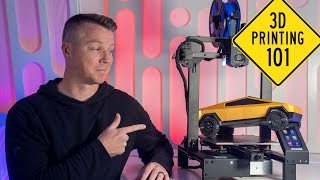

Ultimate 3D Printing Beginner's Guide
45sOpens with a comprehensive overview that hooks beginners eager to learn the essentials.
▶ Play Clip"Title accurately promises a comprehensive beginner's guide, and the video delivers exactly that."
This video is a comprehensive beginner's guide to 3D printing, covering everything from the differences between FDM and resin printing to filament selection, slicing, troubleshooting, and a step-by-step walkthrough. It aims to equip newcomers with the knowledge to go from unboxing a printer to successfully printing their own models.
FDM (Fused Deposition Modeling) melts filament layer by layer, while resin printing uses UV light to cure liquid resin. FDM is more common, cheaper, and easier for beginners, but resin offers higher resolution.
Key components include the bed, hot end, extruder, gantry, power supply, logic board, stepper motors, sensors, screen, and filament spool holder.
3D prints start with a 3D model (STL file) created in software like Fusion 360 or found online. Slicing software (e.g., Cura) converts STL to G-code, which contains instructions for the printer.
Common filaments include PLA (easiest for beginners), PETG (stronger), and ABS (durable but requires enclosure). Many specialty filaments exist like TPU, wood, and metal-filled.
The first layer is critical for print success. Proper bed leveling (manual with paper or automatic) ensures good adhesion. A clean bed and correct nozzle distance are essential.
Issues include first layer not sticking (clean bed, level), layer shift (tighten belts), nozzle clogs (use cleaning tool), and under/over-extrusion (check extruder and flow rate).
Minimize support usage, use low infill (5-15%) for decorative prints, invest in quality paid models, and join forums for community help.
16 steps from unboxing to printing: assemble, check voltage, level bed, load filament, clean bed, print test file, troubleshoot, download STL, configure slicer, slice, transfer file, and print with patience.
3D printing is accessible and rewarding for beginners, especially with modern FDM printers. Start with PLA, focus on the first layer, and leverage community resources to overcome common issues.
Fusion 360
tool
Blender
tool
Tinkercad
tool
Google SketchUp
tool
AutoCAD
tool
Thangs.com
link
Printables.com
link
MyMiniFactory.com
link
Thingiverse.com
link
Etsy
link
CGTrader
link
Colts3D
link
Ultimaker Cura
tool
PrusaSlicer
tool
IdeaMaker
tool
MatterControl
tool
Simplify3D
tool
Bambu Studio
tool
Eric
person
Wyatt
person
Robin
person
Michael from Teaching Tech
person
All3DP
link
Longer LK4X
tool
Longer LK5 Pro
tool
What does FDM stand for?
Fused Deposition Modeling
00:40
What is the typical layer height range for FDM printers with a 0.4mm nozzle?
0.08 to 0.3 mm (max 80% of nozzle diameter)
11:39
Name three common slicing software programs.
Cura, PrusaSlicer, Simplify3D
07:21
What is the purpose of support material in 3D printing?
To provide a base for overhanging parts that would otherwise print in mid-air.
09:35
What is the recommended infill percentage for most decorative prints?
5-15%
10:30
What is the main difference between PLA and PETG filaments?
PETG is stronger and more resilient but slightly harder to print than PLA.
13:44
Why is the first layer critical for print success?
If the first layer doesn't adhere well, the print will almost certainly fail.
16:57
What is a common cause of layer shifting?
Loose belts.
22:52
What is the output file format from a slicer?
G-code (or .g, .gx, .3mf)
06:38
What is the typical cost of a 1kg spool of PLA filament?
$15 to $30, typically $20-25.
13:31
8-year-old Robin's PETG advice
A charming moment where a young fan passionately advocates for PETG over PLA, showing the community's enthusiasm.
14:09Sweet Child of Mine belt tension joke
A humorous analogy comparing belt tension to playing a guitar riff, making a technical tip memorable.
23:16Prints can take days
Revealing that some prints take 7-11 days, emphasizing the patience required in 3D printing.
29:57[00:00] If you're new to 3D printing or thinking about getting into it, this is the ultimate beginner's guide. The 3D printing 101 course. You might want to get your notebook ready because we're going to be taking you from unboxing to getting ideal print during the course of this video.
[00:15] Here are the topics that we're going to be covering today. FDM printing versus resin 3D printing. What are the parts of an FDM 3D printer? 3D models and slicing. Filament selection.
[00:27] The first layer. Troubleshooting. pro tips and techniques, and at the end of the video, I'll provide a brief walkthrough of every step you need to go from unboxing to successfully printing whatever it is that you want.
[00:40] You'll find labeled chapters along the timeline of this video, so you can skip around however you'd like. First, let's talk FDM versus resin 3D printing. Hused deposition modeling, or FDM 3D printing, is probably what you've seen the most of.
[00:54] It's the concept of melting a spool of filament layer by layer to build an object on the printer. It's all in the name. You're fusing the filament together by depositing it onto the bed or onto other layers of itself to create the model.
[01:06] The filament that you're melting comes in a spool most of the time, kind of like a spool of cable or a spool of wire that you've probably seen before, but it can also be pellets in a hopper. So that's much less common for 3D printers, at least the kind that you and I will likely
[01:20] use. Now, resin 3D printing is actually an umbrella term for multiple types of printing technologies, all of which use a resin and a hardening process. The idea here is that a vat of UV curable resin is used for each layer and an LCD, a
[01:35] laser or a projector is used to target the UV light that the appropriate areas for each layer needs. As the print moves along, each layer is formed by UV light until the entire model is complete. Now there are many differences between these two types of printing, but here are some highlights.
[01:51] So first, FDM printing typically prints at a lower resolution than resin printing. That means that FDM prints won't be quite as smooth or as precise necessarily as resin 3D printing can be. FDM printing also accounts for the majority of 3D printers on the market today,
[02:06] though in my opinion, resin printers do appear to be gaining market share. Resin printers also use a toxic resin, so they require some cleanup after printing. It's recommended that you use gloves and a respirator to be safe when handling uncured prints.
[02:19] On that note, resin prints need to be washed after printing, typically with isopropyl alcohol or another solvent, and then cured with UV light some more to completely harden. It's more of a process all around. Resin printers also can't currently print multiple specific colors in one print
[02:34] the same way an FDM printer can. So printing something like this in one print can be done pretty easily on an FDM printer, but doing so on a resin printer is a major challenge and in some cases just not possible.
[02:46] Let's talk about getting to know your FDM 3D printer. Now, for the purposes of this video, we're going to be focusing on the very popular FDM-style 3D printers and not so much on resin printers, so let's see what we're working with here. This is the Longer LK4X, which is a pretty great example of all the parts on a modern 3D printer.
[03:03] In general, we have the bed, which is where all of the prints get printed onto. The hot end, which is the combination of parts that heat up the filament and then extrude it through the nozzle. The extruder, which is sometimes part of the hot end, like on this printer,
[03:17] and sometimes sits somewhere else and then pushes the filament through a tube, and that's called a bowed-in tube, and more on that when we cover filament. Now the gantry is this part of the printer that supports the X and Y movement typically.
[03:30] In this style of printer, it's actually this whole top part that makes it possible for the hot end to move side to side and go up and down. The gantry often refers to the entire raised portion that you see here,
[03:42] and this will vary from printer to printer. The power supply is typically located on the back or bottom of the printer and can often be switched between 110 and 220 volt electricity. The logic board is also typically in the back or bottom of the printer and it's pretty much always concealed.
[03:56] Stepper motors are used to move the belts for the X, Y, and Z axes so the bed or hot end can be wherever it needs to be. There are also sensors located to figure out when it's at the zero point or the max point.
[04:11] And then the screen is the user interface. Some of these are touch screens and some use a knob and a click setup instead. You'll also have a filament spool holder like this one up top here and then an SD card holder and that allows you to transfer your models to the printer and we'll talk more about that in just a
[04:27] minute here. Now 3D models and slicing. Let's dive into 3D models. All 3D prints start out with a 3D model. That model can be created in any number of software platforms like Fusion 360, Blender,
[04:40] Tinkercad, Google SketchUp, AutoCAD and more. The output from that model is what's called a stereo lithography file or an STL. That's a file that slicing software can understand it, ingests
[04:53] that and knows what to do with it. Aside from designing your own 3D models, these STL files can be found all over the web and we have a great video that covers the best places to find them right up here. So you might want to take a look at that one that Eric put together, one of our
[05:06] hosts from the channel here. In short, there are quite a few sites for finding free STLs such as fangs.com, printables.com, myminifactory.com, thingiverse.com, and a bunch of others.
[05:18] You can also purchase high-quality STL files on sites such as Etsy, CGTrader, Colts3D, and many more. There are sites that specialize in cosplay files, for example, and others that specialize in minifigures.
[05:33] So anything you want to print, you can pretty much find it out on the web. Once you find it, you just need to slice it. That's what we'll talk about next. The splicing software is a program that's located on your computer typically or even on the web that takes those STL files we talked about and figures out how to apply whatever setting you choose as far as how to print it and then converts those into instructions that your specific printer can understand.
[05:58] Think of it as the conversion layer. It's like a translator between the 3D model that you've purchased or that you've found online and then giving that to your printer in ways that it can understand.
[06:11] installed or you'll have to add the printer yourself and input the printer's specifications. Once you have that in the slicing software then you just tell the software how you want to print the model. How strong it should be, how smooth or
[06:26] rough it should be, what filaments you're using and what temperatures they need and more. A lot of this will come kind of pre-packaged for you but you have the option to control as much of this or as little as you like. The output file that
[06:38] the slicer saved is called a G-code file in most cases, but sometimes it's actually a .g or .gx and those are usually derivations of G-code. There's also what's called a 3ms file, but we'll get more into that in a little bit. Now
[06:52] the G-code file is a set of specific coded instructions that tells your printer what temperatures to use, where to move the print, and where and when to push filament out or to retract it back. And it also tells it how to handle each
[07:05] layer as it goes. It's everything your printer needs to turn a set of code into a solid object. There are many 3D printing slicers out there and which one you use not only depends on your personal preferences but also on your printer and your manufacturer. For example, this longer LK4X comes
[07:21] with Ultimaker Kira, which is probably the most common free slicing software out there. Kira is regularly updated and has some pretty cool features and it can also be used on most 3D printers nowadays. Many of the 3D printers out there, including this one,
[07:35] are already loaded into the software. So for this one all I have to do is go into printers add printer non printer non printer and then you can find your printer based on the manufacturer and model from there
[07:49] If you don't see the printer you own or the specs aren't quite right, you can also add a custom. So you can just go to custom, custom FFS printer, and enter in your parameters. However, as you can see, Kira has done a great job at including literally hundreds of printers
[08:03] in their software to make it as easy as possible to get up and running. Now other slicer software to check out include PrusaSlicer, IdeaMaker, MatterControl, Slicer, and all of those are free by the way, and you can also try some paid programs like Simplify3D
[08:17] which is paid but it's also one of the more comprehensive ones. Now most of these slicers are similar in terms of layout and setup and they usually have the same general settings that you can apply. Many printers, especially nowadays, are using proprietary slicing software and it's tuned to the specific printer that you buy.
[08:34] Bamboo Lab, for example, uses Bamboo Studio, and there are only three printers to choose from at the time, and each one is tuned to that printer's settings. So you download Bamboo Studio, and it will have you select one of the three printers that they produce,
[08:47] and all the settings are there. They even include settings for the different filaments that you might be using, and if you're printing with TLA, for example, then you tell it that you are, and it sets the bed and nozzle temperatures to the appropriate temperatures. One thing we're seeing more and more frequently is the ability to save what are called 3MS files.
[09:03] files. 3MF stands for 3D Manufacturing Format, and it's kind of like a PDF for your traditional printer. It includes a lot more information about the model or models that you're printing, including author information, thumbnails, the print colors, textures, information, all of that,
[09:18] and so much more. I think we're going to be seeing a lot more of the 3MF file type as time moves on. Now, no matter which slicer you use and which settings you apply, you'll need to be mindful of Support. Support material can be applied when you have a part of your model that would otherwise have to be printed in thin air.
[09:35] Have a look at the hands on this print, for example. Since printing moves side to side and bottom to top, there's really nothing for these hands to print on top of, so we need to provide something, and that something is called support.
[09:47] They're removable, and they're temporary. Their structure is designed to allow parts of the print to have something to print on top of if they don't already. Bridging is kind of similar but it occurs when you just need to span a short distance that has support on either side, like an actual bridge.
[10:03] Most printers use the cooling fan to blow air on the filament as it comes out to harden it, allowing for a decent amount of bridging, sometimes even several inches worth, but usually limited to about an inch or about 2.5 centimeters.
[10:16] Bridging occurs much less frequently in 3D models than the need for support, however. You're going to probably find lots of times when you just need to add a support to something. Another slicer setting to consider is infill, which is how solid the inside of the print actually is.
[10:30] It's very rare that you'll actually want to print a 100% infill or a completely solid object. It's common, however, to print at 15% infill, for example, which is usually the default on most slicers.
[10:42] The thicker your outside walls are, the less likely you are to need a high percentage of infill. I've printed many pieces that only have maybe 5-8% infill, and they can work just fine. Other times, like when I printed the neck of this ukulele, I printed it at 50% infill
[10:58] because I wanted it to be resistant to any sort of bowing or anything like that. And honestly, even a 50% may have been overkill for this type of structure. The most common setting you'll need to adjust is layer height.
[11:10] This is equivalent in many ways to resolution of an image for a 2D printer. Think of a pixelated image that you find online, maybe like this one. You can get the gist of it, but it doesn't actually look very good.
[11:22] like printing with a higher layer height, that larger number there. There are less layers to make up the shape and layers are a bit like pixels. If you then see a much higher resolution version of it, it looks smoother and crisper, kind of like using a lower layer height for printers. Most FDM
[11:39] 3D printers come with a 0.4 millimeter nozzle, which refers to the size of the hole that the filament is extruded through. Ideally, you want to keep your layer height no more than 80% percent of your nozzle opening size. So that's about 0.3 millimeter layer height on a 0.4
[11:55] millimeter nozzle. FDM printers can typically have layer heights or resolutions as low as about 0.08 or 0.1 while resin printers can reach layer heights as low as 0.01 with 0.05 being a common setting.
[12:10] If you're looking for ways to make your 3D print look less 3D printed, Wyatt, another host on our channel did an awesome job of creating a video showing exactly how you can do that, that you can check out right up here. Now going through the different slicer settings could be an entire video series because there are literally
[12:23] hundreds of options, but be sure to check whether or not you're using supports, your infill percentage, and your layer height at minimum. You'll also want to verify that you have the right temperatures for both the bed and the
[12:35] hot end based on the type of filament that you're using, which is what we'll be getting into now. Once you've sliced the file, it will output a g-code file like we talked about before. That file can then be transferred from your computer to the printer
[12:48] itself by way of wireless connection if your printer supports it, but otherwise it's whatever memory card type it supports or a direct wire. The most common methods are SD card, micro SD card, and USB drive. Every printer I've seen also comes with some form of a USB-A
[13:04] connector like this or sometimes a USB-C or micro USB to allow you to connect it directly that way. Okay, filament. So choosing which kind of filament to use for which print can make a big difference on functional parts in particular.
[13:16] Let's take a look at some of the most common types of filaments. The first and most common is PLA or polyractic acid. I'm pretty sure it's the most commonly used filament type that's on the market today. So a 1 kg spool, and that's how they're sold typically by the kilograms, costs between
[13:31] $15 and $30. Most of them are about $20 to $25. And virtually every 3D printer out there today is capable of printing PLA. There are also variations of this filament like PLA Plus to add strength and ductility
[13:44] to the material. Now PEPG or polyethylene teresolate glycol, not sure if I pronounced that right, is another really common filament because it's relatively easy to print but not quite as easy as PLA.
[13:56] That said, it tends to be quite a bit stronger and more resilient than PLA. It's usually a little bit more expensive but not by much and it also offers some great options in terms of semi-transparency and different types of materials you can use with
[14:09] Now there are many people who swear by P-E-T-G as the go-to for all prints. In fact, I was actually on a call not that long ago with the most adorable young man, this 8-year-old boy from the UK named Robin, and one of the first things he said when he met me was,
[14:22] why don't you use P-E-T-G for all your prints? Stop using PLA. So, there are those who are very adamant about it. ABS is another one that's actually been around for ages, and you probably have lots of items in your house that are made from ABS, like Lego bricks, for example.
[14:35] example. It's tough, it's durable, it's pretty reasonably priced, but it is a bit more difficult to print because it typically requires a full enclosure around your printer and some higher temperatures as well. When it comes to functional prints or printed models that are actually going
[14:49] to be used to provide a physical purpose as opposed to something that's just kind of cool or decorative, some of the filaments we just mentioned can be very useful, but there are many more, including nylon, carbon fiber, glass fiber, and polycarbonate, just to name a few.
[15:03] You can also find filaments that have multiple colors in them. Flexible filaments like TPU or NinjaFlex, color-changing filaments, glow-in-the-dark filaments,
[15:15] magnetic filaments conductive filaments tips which is kind of like what used to make milk jugs wood fiber filaments dichromatic filaments water filaments and many many more You get the picture There just a ton of different kinds of filaments out there that you can use and some of them are pretty new and pretty exciting In fact we
[15:32] actually seeing new types of filaments coming out on a regular basis at this point, and it's pretty exciting to see. And the one I'm keeping an eye on is metal filaments and how we can actually get to where we print metal at home instead of spending like tens of thousands of dollars to do that.
[15:46] I usually tell most people that are getting started, try some PLA or PLA Plus. They're both super easy to work with and they suit many different purposes. Experiment with PEPG as well and then maybe dip your toe into the pool of the many other filaments available, depending on your needs.
[16:01] I actually bought every single filament I could find on Amazon so I could experiment with them. So look for that in an upcoming video here on the channel. While considering filaments, remember that certain SDM printers can work with multiple filaments at once.
[16:14] Dual extruder printers use two different hotends to allow for two different colors of the same filament or even two totally different kinds of filaments to be used in one model. Today there are printers with four different hotends as well as filament management systems
[16:28] like those of the Bamboo Lab printers that can handle literally up to 16 different colors on one single print. Now keep in mind however that if many filaments are being fed into the same hotend like on the Bamboo Lab printers, you usually can't change the bed or hot end temperature,
[16:42] so you're limited to sticking with similar materials that require the same temperatures. When you use a multiple extruder printer, you can often mix filament types by setting the hot ends to whatever temperatures they need to be at, but you're also limited by bed temperatures if those do need to vary a little bit.
[16:57] So let's talk about the first layer. You're going to see and hear a lot of information about getting the perfect first layer, and that's because the first layer in a 3D print, the one that makes direct contact with the print bed itself, makes all the difference in the success or failure of a print.
[17:11] If the first layer doesn't go well, your print will almost definitely fail. Now, if your 30th or 100th layer doesn't go well, the print may still survive. Many printers today, like the longer LK4X here, come with what's called an automatic bed leveling system.
[17:25] Now, the name is a bit of a misnomer because they don't actually level the bed for you. They provide data points that you can work with to detect the inconsistencies in the bed that would otherwise cause a print to fail. They check the exact height of the bed in multiple spots on the bed to understand how the first layer needs to be laid down to get a perfect first layer.
[17:44] It is crucial that the first layer not be too far away from the bed because that will cause it not to stick to the bed. Conversely, if you print the first layer too close to the bed, it will get smushed and not only look bad, but may have adhesion issues as well.
[17:56] The goal is to have a good amount of contact with the bed, but not squish it down so much that you get oozing out the sides. Automatic bed leveling technology has come a long way very quickly to help us out with this. Even if you don't have a bed leveling system you can still use a
[18:10] manual process to get the perfect distance between the nozzle and the bed so that your first layer is perfect. The most common way to do this is to use a standard piece of paper and then move the hot end to different areas of your print bed one at a time. You then use the rotational knobs underneath to raise or
[18:26] lower the bed until the distance between the nozzle and the bed is just right. I've been using this technique since I first started printing in 2016, but with the technology available on newer printers, I really hardly ever have to do this anymore.
[18:39] I'm sure you've noticed by now, but I've kind of walked you through all of the steps and knowledge that you need to start 3D printing. But at the end of the video, like I mentioned, I'm also going to provide a brief walkthrough of all of the steps you need in rapid succession to go from unboxing your printer to slicing
[18:53] and successfully printing any model you want. Now, as I mentioned before, there are chapters on this video that you can take a look at. you can skip right to that part, or if you want to, you can come back to this video later and just get to the part that you need.
[19:05] One of the reasons I'm showing the longer LK4X as my demo printer here is because it's kind of the perfect printer to show you all of these parts and principles on. In my estimation, it really has everything I expect from a reasonably priced modern printer.
[19:19] In fact, if a printer I'm looking at doesn't have most of the features that the LK4X has, I'm not even really going to consider it. For me, that list includes the following. I wanted to make sure it has a decent sized bed, automatic bed leveling like we showed
[19:31] here, and it has to have filament run out detection so if there's no more filament here it stops the print and lets me resume that later. Also on that same note it's got to have power failure recovery so if the power goes out it again can continue to print later.
[19:44] Needs an easy to use interface like this one has a nice color touch screen right here, a decent temperature range for printing multiple materials, and then a good bed. This is PEI which is probably one of my favorites. has to have that or something equivalent for easy adhesion of the bed while it's printing
[20:00] and also removal from the bed afterwards. This one also has really easily adjustable belt tension and it's pretty quick to assemble. I really don't want to spend all day putting a 3D printer together. Now in addition to all of that, the LK4X has the latest Marlin open source firmware.
[20:16] I'm not going to get into that, but it means that you can customize this printer in many ways that you can't with a closed source option. It also features a direct drive system, so it can handle things like TPU or other flexible
[20:28] materials, and unlike many other printers, it actually uses a dual gear drive, a dual gear shooter in here, so instead of just a smooth wheel and one gear, it's got two gears to help you give maximum grip on the filament that it feeds through.
[20:41] It's a super impressive machine, especially at its price point. I've made videos before about the most reliable printer I've had, which is its big brother, the Longer LK5 Pro. That one is awesome, it's just always working, it's very reliable, and this one is, I'm pleased
[20:57] to say, a tip off the old block. It's been an amazingly reliable printer for the last maybe five months I think that I've had this and been testing it out, and the best part is, this sells for right around $300, so it offers a lot of bang for your buck.
[21:09] So a huge thank you to Longer for sponsoring today's video. Be sure to check out the links in the description below to get your hands on the Longer LK4X like this one. we've covered how to get printing let's talk about what could and will go wrong. 3D printing is not
[21:23] always a plug-and-play experience though usually it can be. With the quality of the printers available on market today 3D printing is 10 times easier to get into than it was even seven years ago for example but there will still be issues. Let's take a look at some of our most common issues and what
[21:38] to do about them. The first and biggest one is the first layer will not stick to the bed. That happens all the time. If you experience this the first thing to check is that the bed is clean of debris and oils. The oils from your hands and fingers can be the difference between
[21:52] a successful print and a failed print. For most beds you can use isopropyl alcohol to clean the bed if you suspect it's dirty at all. Certain materials and certain types of beds do better if you use a glue stick on them. Sometimes this
[22:05] is to get the print to stick and other times this is actually simply to be able to get the print to come off the bed without taking chunks of the bed along with it. Yes that really happens. Proper bed leveling is also essential for first layer success. So run through your process of bed leveling whether it's automated or with a piece
[22:21] of paper or whatever you need as many times as you need until that first layer looks excellent. One of my favorite methods is to print the first layer with what's called a skirt. A skirt is an extra line or sometimes multiple lines around the outside of the first layer that don't touch the
[22:36] actual model itself and they're there to get things flowing and tuned. Now I use this opportunity to adjust the four corners of the bed on the fly so that the skirt looks perfect, which usually means my print's first layer will also come out perfect. Another issue we see a lot is layer shift. Layer
[22:52] shift is what happens when the print is going along just fine and then the printer decides to move everything over by a millimeter or many millimeters sometimes And it is incredibly annoying because it kind of ruins your print It not kind of it almost always just does ruin your print The biggest culprits of this are loose belts So be sure to check your belt tension You want it to be taut but not so tight that you can play Sweet Child of Mine on it
[23:16] And I've been told that a sudden change of temperature can contribute to layer shifts as well, even excess vibration perhaps, but I've almost always seen that loose belts are the culprit, so be sure to check that. That's why I love it when printers have something easy like this,
[23:29] a little knob to adjust the belt tension just that easy. Now nozzle clogs are another issue you might run into. If your prints are looking bad and you're getting too much filament in some spots, maybe not enough in others, that could be a nozzle clog.
[23:41] It's a good idea to use a nozzle clog removal tool anytime you suspect there may be a blockage. In the last several years I've run into this issue less and less, fortunately, but it still haunts many 3D printers even today.
[23:53] The next one is under-extrusion or over-extrusion. When your printer either looks like there are gaps and sparse areas in the print or like it's been smooshed together like filament is oozing out the edges, there are under and over extrusion issues.
[24:06] This usually comes back to the same thing we mentioned a moment ago, that extruder being potentially clogged or having issues, but you'll also want to check your settings and pay specific attention to the slow rate. There are of course many more issues that can arise while 3D printing, but these are
[24:20] some of the most common. One of my favorite resources for troubleshooting 3D prints is All3DP, which has a huge library of 3D printing related content. Another is Michael from Teaching Tech, who has an excellent collection of troubleshooting
[24:33] tips that he walks you through to kind of figure out what's going wrong and then he'll give you a bunch of potential solutions. Now be sure to stay tuned to the channel because next week's video, Eric, one of our hosts, is teaching us about troubleshooting 3D printer issues as well.
[24:45] If you haven't done so already, feel free to click on that subscribe button below to get the latest tips and tricks that we have to share. Let's get into some pro tips and techniques. If you're pretty new to 3D printing, this video may seem like drinking from a fire hose.
[24:57] But don't worry, I'll put a link in the description where you can read through all of this at your own pace. Obviously, we've covered a lot here, but I'll go over some pro tips and techniques that I've picked up over the years that make my 3D printing a little bit more successful and fun.
[25:09] First, look for models that need minimal support or no support. Support is still not as easy as I think it ought to be to print successfully and to remove successfully without some mention of it, some scarring or something like that.
[25:21] So sometimes there's simply no avoiding support, but finding models where the designer took clever measures to minimize support can make your life a whole lot easier. Second, you probably don't need that much infill.
[25:33] Experiment with way lower amounts of infill, especially if you're just printing something that's decorative. Not only will this speed up your print and cost less money, but it will likely have really no downsides at all. I recommend making sure that you have at least three outer layers or shells
[25:47] sometimes more so that you can't see the infill pattern showing through to the outside. Tip number three, don't be afraid to buy a good model. Yes, there are thousands of amazing 3D models out there for free but when you venture into the world of paid 3D models
[26:01] you might be surprised to find out how many incredible prints are at your disposal and often for just a few bucks. If someone puts dozens or even hundreds of hours into 3D modeling something fantastic it's only fair to expect them to charge a little bit for that
[26:15] but you'll be the one benefiting from all of their hours of experience and work to make it an awesome 3D print. And my fourth tip, forums are your friend. Almost every 3D printer and 3D printing manufacturer out there has subreddits, forums, Facebook groups, Discord servers, and more,
[26:31] so don't be afraid to align yourself with the good folks out there who have likely been through what you're going through, and they can help you out. You'll also likely be able to do some good by helping others when you've had experience in a certain area that they're struggling with.
[26:43] As promised, here's a quick and complete walkthrough. These are all the steps that you're going to need in order to get up and running with whatever prints you want to do. And this might be something you want to come back to when you're ready to actually jump in and get started.
[26:55] Number one, unbox your printer and follow the instructions for assembly, paying special attention to any zip ties or hidden packaging material that needs to be removed. A lot of times that comes just for shipping and then you've got to remove it.
[27:07] Number two, double check your printer's voltage in case it's set to the wrong setting. Make sure it's appropriate for your country's voltage system. Number three, set your printer on a firm surface. Then plug in and run through any calibration it recommends, including the initial bed leveling.
[27:23] Number four, load filament into your printer as per the manufacturer's guidelines. For most printers, you're going to be using 1.75 millimeter diameter filament. And, like I said before, PLA is a great place to start.
[27:35] Make sure the hot end is up to temperature, which is usually around 200 or 210 degrees Celsius. and run the extruder until filament is streaming out smoothly. It's possible that you're going to see another color even on brand new printers
[27:47] since they're often put through some quality control assurance and some testing before you receive it. Step five, make sure you've got a clean bed using Windex or isotropyl alcohol, whatever you can to make sure there's no oils or debris on there.
[28:00] And then step six, print one of the files that came with a 3D printer. This will often be on an included SD card, a micro SD card, a USB stick, or sometimes save directly to the printer's memory. These prints are already in the final format and should be ready to print right away.
[28:15] Select the desired file and hit print. Step seven is to follow any troubleshooting steps required based on the outcome of the print. And then step eight is you're ready to print your own files.
[28:27] So find a good STL candidate online and download it. I mentioned a bunch of sites before, so check one out, find one. And then step nine is to download whichever slicer software you plan to use. Follow the instructions in the software to set the slicer up for use with your specific
[28:41] make and model of 3D printer. This is crucial. Proprietary software usually has the specific printers ready to choose, and open software programs like Cura will allow you to choose from a large list.
[28:53] If need be, enter your custom printer settings in. Step 10 is use your slicer to open the STL file you downloaded. Step 11, use the orientation tool in your slicer software to make sure you have the
[29:05] best side facing down toward the bed. You'll want to choose the orientation that's least likely to require support. Step 12, check through your settings including bed and hot end temperatures for your specific filament type, infill
[29:17] percentage, shell count, beads, bed adhesion methods, and support settings. Step 13, when everything looks good, hit the swipe button and it will offer you a preview of every layer and all parts of the print including shells, infill,
[29:30] support material, and more. Step 14, when that's looking good, either save the G-code file to your memory card and bring it to the printer, or if it's set up to do this over the network, send it to the printer. Step 15, once the file is on your printer,
[29:44] navigate to it and hit print. And finally, step 16, and the final step, is to be patient. Even on the newest, fastest printers, complicated models can take hours and hours to print, and on many printers you have 3D prints
[29:57] that can take several days to complete. I've actually had several models that have taken 7 days, 10 days, and even 11 days. I'm sure other people have had prints that have taken way longer than that. So it can be a pretty time-consuming process, but let it do its thing.
[30:10] Monitor it, make sure it's looking good. And then from there, enjoy the ride. You can start printing all kinds of awesome things. If you've been this far into the video, congratulations. You are very persistent. I know this is a long video, but 3D printing is awesome.
[30:23] You're going to have a lot of fun with it. So get out there, experiment, try all the different things, Try some different filaments, some different colors, and even work with different 3D printers if you have that option. You're going to have a good time. If you have any questions, check back here, leave comments, and we'll do our best to help
[30:37] you in any way we can. We hope you have an awesome time with 3D printing, because we sure do. Thanks so much for watching today. I'm Nils. I'm Eric. And I'm Ryan. And this is the 3D Printing Zone.
⚡ Saved you 0h 30m reading this? Transcribe any YouTube video for free — no signup needed.