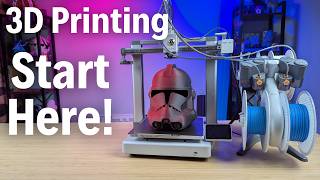

3D Printing Made Easy in 2024
45sQuick, beginner-friendly overview hooks viewers overwhelmed by 3D printing options.
▶ Play Clip"The title accurately promises a beginner's guide to 3D printers in 2024, and the video delivers exactly that."
This guide offers a quick, easy overview for beginners on how to get started with 3D printing in 2024, covering printer selection, filament, setup, finding models, slicing, and printing.
Recommend Bambu Lab A1 Mini ($199) or A1 ($339). The AMS add-on enables multi-color printing.
PLA is the easiest for beginners. Popular brands include Bambu Lab, Polymaker, Atomic, TH3D, Coex.
Most new printers take 30 minutes or less from unboxing to first print.
Free sites: Thingiverse, Printables, MyMiniFactory, Bambu Lab Maker World. STL Flix offers a lifetime pass with commercial license.
Slicers like Cura, PrusaSlicer, Bambu Slicer convert models to printer instructions. Start with the slicer that comes with your printer.
Print via SD card or Wi-Fi. Many printers have bed leveling. Monitor via printer panel, computer software, or phone app.
Let the build plate cool before removing prints. Use snips, pliers, or spatula to clean up supports. Optional: sand, prime, paint.
With the right printer, filament, and a bit of practice, anyone can start creating amazing 3D prints. The community is welcoming, and the possibilities are endless.
What is the recommended 3D printer for beginners under $200?
Bambu Lab A1 Mini ($199).
00:42
What does AMS stand for and what does it do?
Automatic Material System; allows printing with up to four filaments for multi-color prints.
00:55
Which type of filament is easiest for beginners?
PLA.
01:34
Name three free websites to find 3D models.
Thingiverse, Printables, MyMiniFactory (or Bambu Lab Maker World).
03:58
What is a slicer in 3D printing?
Software that converts a 3D model into a file (G-code) that the printer can understand.
06:34
Why should you let the build plate cool before removing a print?
If the plate is warm, the print may break when removed.
09:08
What tools are recommended for removing supports?
Snips, needle nose pliers, and sometimes a spatula.
09:22
Filament matches Ryobi tools
The host points out a filament color that matches Ryobi tools, showing a creative application.
02:28STL Flix lifetime pass
The host promotes a lifetime pass to STL Flix with commercial license, a compelling offer for beginners.
04:36Pride in finished print
The host emphasizes the joy of showing off a finished print to friends and family, capturing the emotional reward.
10:15[00:00] If you're new to the world of 3D printing, it can be very overwhelming at first. But don't worry, the quick tips in this video here will give you the knowledge you need to start creating some amazing 3D printed models.
[00:13] Here's an easy, quick guide on how to get started in 3D printing. My name's Jim, and this is The Edge of Tech. First, you're going to need to choose a 3D printer. There are a ton of different 3D printers out there on the market,
[00:26] and the right one for you is going to depend on the space you have, your budget, and what you're trying to print. A couple of my favorites are the Bamboo Lab A1 and the Bamboo Lab A1 Mini. The difference is really in the size of these machines. They both print incredibly well,
[00:42] but you can get the A1 Mini for $199. That's an awesome price to get yourself into 3D printing, and you can get the A1 for $339, another amazing price for the amount of features that actually
[00:55] come on these printers. For a little bit more, you can get what you see here. This is called an AMS, or Automatic Material System, and it will allow you to print up to four filaments at a time on the
[01:07] same print to get multi-color prints. It's really cool. So if it was up to me, I would actually go with the combo if I had the money right away, because it actually saves you a little bit of money than ordering the AMS later. But if you can't, if you just don't have the extra budget,
[01:21] one of these two printers is an amazing option to get you started in 3D printing in 2024. Once you've chosen your 3D printer, you're going to need some filament. Filament is the material that you put into the 3D printer that goes through the hot end,
[01:34] onto the build plate, and creates your 3D models. There are many different types of filament out there. In my opinion, PLA is the easiest one to start with. It's actually super easy to print with and a lot of times cheaper than the other filaments as well.
[01:49] Filament comes on rolls like this, and it kind of looks like Wee Whacker or Strange Trimmer line, if you've ever seen that. And you always want to make sure that the end of the filament is either in the spool, in your fingers, or in the 3D printer.
[02:02] If you let this go, it'll unwind, it'll cause tangles, and trust me, that is not a fun mess you want to play with. There are many, many different types or brands of 3D filament out there, and PLA pretty much is prominent across all the different brands.
[02:15] Some of my favorites are Bamboo Lab, Polymaker, I have some Atomic, some TH3D is in here. Coex is actually made in Wisconsin where I'm from, very good filament as well.
[02:28] And if you want to get crazy, this Sliceworks here is actually the same green as those green Ryobi tools out there. It's not called Ryobi on the filament, but this is really close.
[02:40] So you can actually print some cool accessories for tools if you find filament that actually matches your tools. And another thing is if you use the Bamboo Lab printers I talked about before and use their filament here which is actually very reasonably priced The printer with the AMS that we showed with the four colors will automatically detect the filament you load
[03:00] It makes printing that much easier. You put it on the roll, it pulls it in for you, and it automatically detects in the slicer, which we'll talk about soon, the filament that you loaded based on an RFID code. That makes printing so easy, but anywhere you go, you're going to need filament, and there's a ton to choose from.
[03:16] Now, when your 3D printer comes, you're going to need to do the setup. But don't worry, because most of the time, that's just following the manufacturer's instructions that come in the box, and a lot of newer 3D printers in 2024 are only about 30 minutes or less from unboxing, setup, and your first print.
[03:33] So it's not that big a deal. The A1 Mini and the A1 that we talked about earlier are no exceptions to this. You can have them built and ready to go in 30 minutes or less, and printing your very first models straight from the printer
[03:45] and watching it print your very first print right before your eyes. So don't worry, the setup seems more scary than it really is. It's actually not that bad. So once your 3D printer's set up, you're going to need to find some 3D models to print on it.
[03:58] Some cool stuff to print is what I'm trying to say. But don't worry, there are a ton of free and paid 3D sites and communities that you can get these models from. Some of my favorites include Things, Thingiverse, Printables,
[04:11] my manufacturing, and even Bamboo Lab's Maker World. The cool thing about Bamboo Lab's Maker World is that you can actually print straight from your phone or your computer and just choose the model or the thing you want to print,
[04:23] your printer, and it sends it straight to there. There's nothing else to do. It's really cool. I love that about Bamboo Lab Maker World, and I actually use that quite often. Speaking of places to get models, I want to jump in real quick and talk about STL Flix.
[04:36] It is an awesome place to get 3D models, especially if you're a beginner, because each model has recommended settings and instructions on how to print it. With more than 40 dedicated 3D designers, they add a ton of models each week with their drops,
[04:49] and in each model, you can actually open it straight into your Bamboo Lab slicer and slice it straight to your printer from there. It's actually pretty dang awesome. If you're watching this in November of 2024, then there is still time to grab the lifetime pass to STL Flix.
[05:05] That means you get access to every single model they have, and every model they release for life. Not only that, but you can sell the models you print. That's right. With the Lifetime Pass, you get a commercial license to sell anything you want.
[05:21] So if you're looking to make money with your 3D printer as a beginner, you can jump on, find some really cool stuff to print, and then actually go to local shows and sell it. The other cool thing you get is the STL Academy. If you're new to 3D printing, it's actually perfect for you
[05:35] because the STL Academy will teach you how to print It teach you how to model in Fusion 360 It teach you how to sell your models how to show your models better on social media and stuff like that But like I said it kind of perfect for a beginner because it like training built in with your subscription
[05:51] And if that's not enough, they actually have a storefront that you can set up and sell your models on there too. So it's all pretty cool, especially if you're a beginner. It's all kind of wrapped in one big package. So don't forget to check out STL Flicks. There's a link in the
[06:05] description below if you're watching this after November 2024 the link in the description will take you to STL Flicks and you can still join you just won't have the option of that lifetime membership now let's get back to the video the other thing you can do is create your own models and I highly
[06:19] suggest you're learning how to do this sometimes because it's super cool to create your own thing and have it printed it's just there's something about that you'll need some software to do that something like Tinkercad or SketchUp or Fusion 360 there's a bunch of them out there so I'm not gonna go into that
[06:34] because I'm not great at it. You can find them if you really want to go that route. Maybe start with like Tinkercad and go from there. At least Tinkercad's free, right? Now, once you have your model, you're going to need something called a slicer.
[06:46] A slicer is just the software that takes your 3D model and slices it or creates a file that your 3D printer can understand. There are a ton of 3D printer slicers out there, but some of the best ones include Kira,
[06:58] Prusa Slicer, and Bamboo Slicer. But I highly suggest sticking with the slicer that comes with the printer you get at first, and then branching out once you learn a little more to other ones and seeing which one you like the best.
[07:10] It really actually makes things a lot easier because the profiles should come loaded on that slicer you can use when you get your printer. For example, if you have the bamboo printers we talked about a couple times now, all of the printers and the profiles are already loaded.
[07:25] You literally choose the printer you're using, the type of filament you're using, what layer height or how thick of layers you want, and go. and it's really almost that simple to get your very first print going.
[07:37] It takes a lot of the guesswork out. So, like I said, start with what comes with your printer, and then you can kind of branch off and see which ones you like the best. Real quick, if you're getting value from today's video, please smash that like button. And if you want more videos about 3D printing, CNC, and lasers,
[07:52] please consider hitting that subscribe button now. It really helps out the channel. Now back to it. Now you have your model chosen and sliced, it's time to actually print it. A lot of times you can take your model, throw it on an SD card, bring that to the printer and print it straight from that SD card.
[08:07] But the cool thing about 2024 is that many of the new printers are coming with Wi-Fi or network connectivity that allows you to connect that printer to your network if you want to and print straight from your computer right to that printer.
[08:20] From there your printer will start heating up It probably go through bed leveling which is a very very common feature in 2024 and I highly suggest you get it on any new 3D printer you have and then it start printing that file and building that model layer by layer like we talked about Now while your 3D printer is printing you can monitor the
[08:39] progress on the control panel on the printer, on the software on your computer if it's connected, and sometimes even an app on your phone. This will allow you to monitor the print and make the necessary changes if needed to make sure that print succeeds. It's also pretty cool to see from
[08:53] your phone how your 3D printer is doing, and I love it because I'm able to monitor my prints from my phone pretty much anywhere I'm at and make sure that it's going well and see when it's done too. Once your 3D print is done, you're going to wait till your plate is cooled down all the way.
[09:09] I know it's super exciting, but if that plate is warm and you try to take that print off, it's probably going to break the print. So wait till it's cooled all the way down and then many times you'll be able to take the plate because most of them are flex plates these days and flex
[09:22] the print right off. Then you're going to need to clean up any excess material or support structures you have, so you might need a couple of tools, like the snips that probably came with the printer, maybe needle nose pliers or pliers would be good, and sometimes to get the print off, you'll need a
[09:38] spatula. Now, a lot of printers come with the tools, especially a snips, but just in case you don't have them, you may need a spatula sometimes. A lot of the plates are really good now, and I don't
[09:50] really use this anymore, but many times I use a needle nose pliers to get my supports off if I'm making something with a bunch of supports on it, and I even use the snips to get those supports off as well. Something to think about is that these are actually really sharp,
[10:03] not for kids, and they will cut you, so just be careful with the snips. Finally, your 3D print is finished. Now it's time to check it out, enjoy it, and love that thing that just came off your 3D printer.
[10:15] There are a ton of things you can make, and it's so cool to be able to show your friends and your family all the different things that you did. From here, you can actually take that 3D print and be done, or you can do cool things like sanding and priming and painting your 3D prints
[10:29] to make them look like finished helmets, for example. The sky is kind of the limit on how you finish your 3D prints, but straight off the printer, a lot of these come off really, really good. That's the really cool thing about 3D printing is you can make everything you do unique and personal to you
[10:46] and the best thing about it is actually seeing that thing that just came off the printer and showing it to your family and friends. It's at this time that you really get to soak it in and enjoy that model that just came off your 3D printer.
[10:58] And that's it. With some of the knowledge and tools that you've seen here today, you'll be able to start 3D printing and creating amazing 3D printed stuff in no time. Over the next couple weeks, I'm actually going to be making videos going a little more in depth
[11:12] in some of the categories that we talked about today, so stay tuned. I'll put that playlist right here once I start getting more of those videos out. But for now, I hope you love 3D printing, and welcome to the 3D printing community.
⚡ Saved you 0h 11m reading this? Transcribe any YouTube video for free — no signup needed.