
Choose the Right Encoder for OBS
32sMany streamers don't know which encoder to use, making this a critical first step for quality.
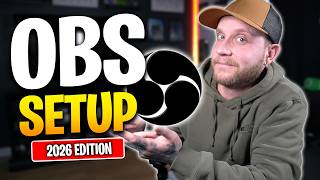
▶ Play Clip"The title accurately describes the video's content: a guide to OBS settings for 1080p 60fps streaming in 2026."
This video provides a comprehensive guide to configuring OBS settings for a high-quality 1080p 60fps live stream in 2026. It covers essential settings from general preferences to advanced encoder tweaks, tailored for platforms like Twitch, YouTube, and Kick.
Enable source alignment snapping with sensitivity 9.0 for easy alignment of stream elements.
Set output mode to advanced to access critical encoder settings.
Use NVENC H.264 for Nvidia GPUs; AMD equivalent for AMD GPUs.
Max bitrate for Twitch/Kick is 8000 kbps; for YouTube at 1080p 60fps, use 16000 kbps.
Set rate control to constant bitrate, keyframe interval to 2 seconds, preset to slowest/best quality, tuning to high quality, multipass mode to two passes full resolution, profile to high.
If encoding overload occurs, lower preset to P5 or reduce multipass mode.
Set base canvas resolution to monitor resolution, output scaled resolution to desired stream resolution, and use Lanczos downscale filter if downscaling.
Set common FPS values to 60 for a smooth stream.
What is the first setting to enable in the General tab for better alignment?
Enable source alignment snapping and set snap sensitivity to 9.0.
2:14
Which video encoder should you use for Nvidia and AMD GPUs?
NVENC H.264 for Nvidia GPUs; AMD equivalent for AMD GPUs.
3:50
What is the maximum bitrate for Twitch and Kick?
8000 kbps.
4:16
What bitrate is recommended for YouTube at 1920x1080 60fps?
16000 kbps.
4:28
What rate control setting is recommended?
Constant bitrate.
4:44
What keyframe interval is recommended?
2 seconds.
4:47
What preset setting is recommended for best quality?
Slowest or best quality.
4:50
What tuning setting is recommended?
High quality.
4:54
What multipass mode setting is recommended?
Two passes full resolution.
4:55
What profile setting is recommended?
High.
4:57
What should you do if you experience encoding overload errors?
Lower the preset to P5 or reduce multipass mode.
5:08
Which downscale filter gives the highest quality?
Lanczos.
8:08
What common FPS value is recommended?
60 fps.
8:16
Output Mode to Advanced
Switching to advanced output mode unlocks critical encoder settings for quality.
3:22Twitch/Kick Bitrate Limit
Knowing the 8000 kbps limit prevents encoder nerfing and ensures viewers get the best quality.
4:16Encoder Settings for Quality
Specific encoder settings (constant bitrate, keyframe interval, preset, tuning, multipass) are key to a crystal-clear stream.
4:44Output Scaled Resolution and Downscale Filter
Setting output scaled resolution and using Lanczos filter ensures optimal downscaling quality.
7:27Update Settings Periodically
Regularly updating OBS and driver settings maintains stream quality over time.
8:18[00:00] What's going on, guys? And welcome back
[00:01] to another video. It's that time of the
[00:03] year again. You guys need to update your
[00:06] settings on OBS to make sure that you
[00:08] have a crystalclear and professional
[00:11] looking stream. Now, for those of you
[00:13] who've been streaming for a long time or
[00:15] maybe trying to start streaming just now
[00:16] for the first time, you know how
[00:18] important it is for your stream to stand
[00:20] out in that sea of millions of people
[00:23] trying to become streamers, especially
[00:25] in 2026. Now, that is where our sponsor
[00:28] for today's video is going to come in.
[00:29] They're going to help you make your
[00:31] stream look great and give you the
[00:33] graphics and the alerts and everything
[00:35] you need to take it to the next level.
[00:37] The first step is going to be watching
[00:39] this video to get the quality boosted up
[00:41] on your stream. And then definitely
[00:43] check out our sponsor for today's video,
[00:45] Own.tv.
[00:46] Owned.tv is your one-stop shop for fresh
[00:49] new graphics for your stream. Whether
[00:51] you're on Twitch, YouTube, or Kick,
[00:53] you'll find something that's a perfect
[00:55] fit for your channel. They offer full
[00:57] themed overlay packages, which are great
[00:58] if you're trying to give your stream a
[01:00] complete makeover. But let's say you're
[01:02] looking to pick up some new alert
[01:03] graphics. Don't worry because they've
[01:05] got you covered there, too. You could
[01:07] find single graphics such as alerts,
[01:09] emotes, [music] banners, panels, and
[01:10] logos as well. And one of the best parts
[01:13] about these overlays is that they are
[01:14] completely modular. So, if you and your
[01:16] friends all pick up the same overlay,
[01:18] such as this Rodan one right here, you
[01:20] could change the colors and tweak it to
[01:22] match your brand, and none of you will
[01:24] have the exact same overlay. If you're
[01:26] looking to take your stream to the next
[01:28] level, be sure to check out own.tv using
[01:30] my link below to support the channel.
[01:33] And don't forget, use code hammer at
[01:35] checkout for an additional 50% off your
[01:37] order. Now, back to the video. Okay, so
[01:40] now we're back. Thank you guys for
[01:41] watching that sponsored segment. We're
[01:43] going to switch over to my split screen
[01:44] view so that you guys can see my screen.
[01:46] Now, this is my OBS, what you guys are
[01:48] seeing on the screen right here. I am
[01:50] recording currently. I have it put in
[01:52] the center of my screen. And we're going
[01:54] to do the first thing, and that's going
[01:56] to be to come down to the bottom right
[01:58] hand corner and click on settings. Now,
[02:00] we have our little settings window. I'm
[02:01] going to put it right here so that you
[02:03] guys can see it. And actually, I can
[02:05] move it over a little bit this way. It's
[02:07] perfect. Yeah, there we go. Okay. So,
[02:09] starting off up here in the top left in
[02:11] the general tab. There's one thing here
[02:12] that'll help you guys set up your
[02:14] stream. And that's going to be source
[02:15] alignment snapping. I want you guys to
[02:17] enable this. And then I have my snap
[02:19] sensitivity set to 9.0. You could kind
[02:21] of set this to whatever you want. It's
[02:22] all personal preference. This is going
[02:24] to help you when it comes to aligning
[02:26] things on, you know, your your stream
[02:27] preview to make everything line up
[02:29] perfectly. That's all this is. So, I
[02:31] would suggest enabling that and then
[02:32] messing around with the sensitivity to
[02:33] get it to what you want. Next, on the
[02:36] left hand side, we're going to go to
[02:37] appearance. Again, this is all personal
[02:38] preference. I use the Yummy theme on
[02:40] default with a font size of 10. And then
[02:43] the density I have set to comfortable.
[02:45] And on the left hand side here, this is
[02:47] where everything starts to, you know,
[02:49] take place with setting up your stream.
[02:51] You are going to come over here and
[02:53] whatever service you're streaming to,
[02:54] whether it's Twitch, Kick, YouTube,
[02:56] multireaming, whatever. If you are
[02:58] multireaming, just pick one. I stream
[03:00] mainly on Twitch and I multiream to Kick
[03:02] and YouTube. So, I have Twitch selected
[03:04] here. right here in this destination
[03:06] box. It's going to have you log into
[03:08] your Twitch account or whatever it is.
[03:09] If you're using Kick, you're going to
[03:10] use a custom uh one right here and put
[03:12] in your stream key. If you're using
[03:13] YouTube, you're going to select YouTube,
[03:15] Facebook, you know, so on and so forth.
[03:17] You're going to set that up. You're
[03:18] going to log in. And then that's all we
[03:20] do in this tab as well. Now, the most
[03:22] important tab is going to be over here
[03:23] in the output section. Come over to
[03:26] output at the top. Output mode. Set this
[03:28] to advanced. Make sure you're on the
[03:30] streaming tab here so that we're not
[03:31] messing with recording audio or replay
[03:33] buffer settings. Make sure you're
[03:34] selecting streaming here. And as you can
[03:36] see, a lot of this stuff is grayed out,
[03:37] but that's just because I'm recording
[03:39] currently, and you can't change these
[03:40] settings while recording or while live.
[03:42] So, in the streaming tab, the first
[03:44] thing you're going to notice over here
[03:45] is your audio encoder. Just leave that
[03:47] as default. For your video encoder, if
[03:50] you're using an Nvidia GPU, you're going
[03:52] to want to use Envank H.264. If you're
[03:54] using an AMD GPU, use the AMD
[03:56] equivalent. Rescale output. Make sure
[03:59] this is disabled and then have this set
[04:00] to whatever. It doesn't really matter
[04:02] because it's disabled anyway. Now coming
[04:04] down your encoder settings. This is
[04:05] where the magic actually does happen,
[04:08] right? This is where, you know, we get
[04:10] that crystal clear quality on our
[04:11] stream. So your bit rate is going to
[04:14] change depending on where you're
[04:15] streaming. If you're streaming on Twitch
[04:16] or Kick, you can't go higher than 8,000
[04:19] bit rate. If you're streaming on
[04:20] YouTube, you can go way higher than
[04:22] that. Uh so, you know, if you're, let's
[04:24] say, I'll give you an example. If you're
[04:25] doing 1920 x 1080 at 60 fps on YouTube,
[04:28] you'll want to set your bit rate to 16K.
[04:31] On Twitch, do not go higher than 8,000
[04:33] because they will nerf your encoder
[04:35] settings and people will only be able to
[04:36] watch your stream in 720p or lower, no
[04:39] matter how high you set it. The max you
[04:41] could set it on Twitch is going to be
[04:43] 8,000 kbps. Make sure your rate control
[04:45] is set to constant bit rate. Your key
[04:47] frame interval set this to 2 seconds.
[04:49] Preset, I have mine set to slowest or
[04:51] best quality. Tuning, I have set to high
[04:54] quality, multipass mode, two passes,
[04:56] full resolution. Profile is set to high.
[04:58] Look ahead is unchecked. Adaptive
[05:00] quantization is checked, B frame set to
[05:02] two, and then no custom encoder options.
[05:04] Now, just so you guys are aware, if you
[05:08] are streaming and getting some encoding
[05:10] overload errors or maybe dropping some
[05:12] frames, you can come in here to this
[05:14] preset and drop this down to like five.
[05:17] It's really going to be a very minimal
[05:18] difference between P5 and P7. You only
[05:21] start to really lose quality once you
[05:23] hit P4, and even then, it's not that
[05:24] much, especially if people are not
[05:26] watching full screen. So, if you don't
[05:28] have the best computer on the market, I
[05:30] suggest just starting at P5 right off
[05:31] the rip here. Uh, and then again, you
[05:33] can also go down to tuning and leave
[05:35] this on high quality. I wouldn't go low
[05:37] latency or ultra low latency. This does
[05:39] does change it quite a bit. But another
[05:41] one that you can tune down a little bit
[05:43] if you are having encoder encoding uh,
[05:45] you know, errors. You can come down here
[05:46] to multipass mode and drop this down to
[05:48] quarter resolution or even single pass.
[05:50] Again, not a setting that affects the
[05:53] quality of your stream that much. It's
[05:55] not going to be, you know, a super crazy
[05:57] amount of of of quality loss by dropping
[06:00] down, you know, those settings by a tiny
[06:03] bit. The preset and the multipass mode.
[06:05] Okay. You're going to come over here to
[06:07] audio on the lefth hand side. And this
[06:08] is where you're going to set up the
[06:10] audio for your stream. If you're using a
[06:12] gaming headset, right, that's just a
[06:13] headset with a microphone. This is going
[06:15] to be very simple. Your desktop audio
[06:17] will just be set to default or your
[06:18] headphones. And then your microphone
[06:20] will be set to the microphone on your
[06:22] headphones. [music] If you're looking at
[06:23] mine and you're a little bit confused as
[06:24] to how mine is set up, it's because I'm
[06:26] using a Go XLR. So, all of my audio is
[06:29] mixed down into the Go XLR and then it's
[06:31] broadcasted through this broadcast
[06:32] stream mix. All of my mixing happens on
[06:35] the Go XLR and then one single output
[06:37] comes out which is my broadcast stream
[06:39] mix. So, general rule of thumb here,
[06:42] depending on what your setup is, if you
[06:44] have a simple setup, like I said, gaming
[06:45] headset, gaming microphone, or even a
[06:47] Blue Yeti, you know, a USB microphone,
[06:49] or even a standalone XLR microphone, you
[06:51] don't if you don't have an audio mixer,
[06:53] set your desktop audio to whatever
[06:55] you're listening to audio on. And then
[06:57] your microphone, whatever your
[06:58] microphone is, set it to that. Uh,
[07:00] scrolling down in here, there's not much
[07:03] else we need to mess with. Nothing in
[07:04] here is going to affect the quality of
[07:06] your stream. So, we're going to go over
[07:08] here to another really important tab,
[07:10] and that's going to be the video tab.
[07:12] So, [music] if you're gaming in 1920 x
[07:14] 1080 or 2560x440
[07:16] or 4K, whatever it is, that is what your
[07:19] base canvas resolution is going to be.
[07:21] Whatever you're staring at, whatever
[07:22] your gaming monitor's resolution is,
[07:24] base canvas resolution is set to that.
[07:27] The output scaled resolution is going to
[07:30] then be um what you want your stream to
[07:34] be at. If you want to stream in 2K, you
[07:36] would have to set your output scaled
[07:37] resolution to 2560 by440p if your base
[07:40] one is the exact same. If you're gaming
[07:43] in 2K and you wanted to scale your
[07:45] stream down to 1080p for Twitch,
[07:48] whatever, whatever you want to do, you
[07:50] would then set your output scaled
[07:52] resolution to 1920x 1080 and that would
[07:55] downscale it. And then that will give
[07:57] you access to these downscale filters.
[07:59] I'm not downscaling right now. I'm
[08:00] recording in 2K. Um, so if I was
[08:03] streaming on Twitch, I downscale to
[08:05] 1080p. That opens up the options here.
[08:07] And you're going to want to choose the
[08:08] Lancos uh downscale filter option. This
[08:10] is going to give you the highest
[08:12] possible quality. And then your common
[08:14] FPS values, you're going to set this to
[08:17] 60fps. [music]
[08:18] Okay, that's all you're going to do. Um,
[08:20] and now you're going to have a nice high
[08:22] quality 60fps stream. And to be
[08:25] completely honest, guys, these settings
[08:26] have been helping people for years. I
[08:28] update my settings here and there a
[08:30] little bit as the years go on. you know,
[08:31] we tweak with things and get it looking
[08:33] even better. OBS does some updates. Uh,
[08:35] you know, graphics card drivers update,
[08:37] so things do change a little bit. So, if
[08:39] you haven't messed with your stream
[08:40] settings in a really long time, now is
[08:43] the time to do it. Uh, definitely go and
[08:45] tweak your settings and you're going to
[08:47] thank me later because your stream is
[08:48] going to look absolutely [music]
[08:50] crystal clear. But anyways guys, that's
[08:53] it. Those are the settings. Again, check
[08:54] out the sponsor for today's video,
[08:56] own.tv. Thank you for sponsoring this
[08:58] video. Follow me on Twitch,
[08:59] twitch.tv/hammerdance. TV/hammerdance
[09:01] and subscribe to the channel if you are
[09:03] someone who is up and coming trying to
[09:04] become a content creator, trying to
[09:06] become a streamer, a YouTuber, whatever
[09:07] it is. I have a 12 video series coming
[09:10] out on how to become a streamer uh in
[09:13] 2026 moving forward. That's going to be
[09:15] starting in January. So, subscribe if
[09:17] that's something that you're interested
[09:18] in. But anyways guys, thank you all so
[09:20] much for watching and listening in. I
[09:22] will see you all in the next
⚡ Saved you 0h 09m reading this? Transcribe any YouTube video for free — no signup needed.