
See JSON Data Types Instantly in Tree View
30sVisually appealing syntax highlighting and expandable tree mode make data exploration intuitive and satisfying.
▶ Play Clip"Title promises building instructions, but video is a feature demo and sales pitch for purchased source code."
This video demonstrates a fully functional JSON editor built with Next.js and React, running entirely in the browser. It showcases features like formatting, validation, minification, comparison, and conversion to YAML/XML/CSV, all without an internet connection. The presenter highlights the offline capability and provides a link to purchase the source code.
The video shows a complete offline JSON editor developed in Next.js and React, running in the browser as a single-page application.
The editor displays total data types present in the JSON, e.g., six objects, with tree view and syntax highlighting.
Users can format or minify JSON with a single click, instantly transforming the output.
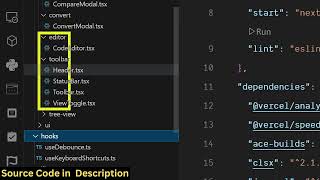
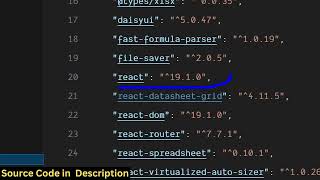
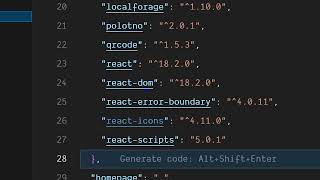
Built with the latest Next.js and React 19, using TypeScript files for components, making the code easy to understand and extend.
The validate button scans JSON and provides bottom notifications, indicating validity or errors with exact line numbers.
If a bracket or comma is missing, validation reports the error at a specific line and position (e.g., line 8, position 4).
The editor includes a split-view comparison feature to find differences between two JSON files.
JSON can be converted to YAML, XML, or CSV formats, with output displayed and copyable to clipboard.
The app works offline without internet, and the purchased source code can be deployed or run locally.
The video presents a polished offline JSON editor with conversion, comparison, and validation features, aiming to sell the source code rather than teach how to build it.
What framework and library are used to build the JSON editor?
Next.js and React 19.
01:27
Name three core features of the JSON editor.
Format, validate, and minify JSON.
00:57
How does the editor indicate a validation error?
It shows a notification at the bottom with the exact line number and position.
03:18
What file formats can the editor convert JSON to?
YAML, XML, and CSV.
04:38
Does the editor require an internet connection to work?
No, it is an offline editor and does not require internet.
05:54
Full offline JSON editor
Demonstrates a complete single-page application with advanced features running entirely in the browser without internet.
00:03Precise error detection
Validation highlights exact line and position of syntax errors, making debugging efficient.
03:06Multi-format conversion
Ability to convert JSON to YAML, XML, or CSV adds versatility beyond standard JSON tools.
04:38[00:03] So in this video, I'll show you I built out a complete uh NexJS out a complete uh NexJS uh ReactJS uh JSON editor directly in the browser. So I'm running it inside the browser. As you can see, it's
[00:17] developed in ReactJX. So it has all the features. It can format your JSON code, validate it, minify it directly in the browser, single page application. So right here this is either you can paste
[00:32] your JSON directly as you can see I pasted the JSON right here on the left pasted the JSON right here on the left hand side it also shows me the total data types which are present. So there are six objects right here. You can view
[00:45] it inside the tree mode with the syntax highlighting. It clearly shows you the actual property, the actual type like this. You can actually expand this.
[00:57] So it clearly shows you if you have a bunch of JSON inside the split view. And then we have a bunch of buttons right here. We can actually format this JSON by clicking this button and JSON will be formatted. We also have the option to
[01:11] minify it as well. If I click the minify button, JSON will be minified instantly. [snorts] And now you can simply see all the JSON has been minified. So it's basically developed in Nex.js and ReactJS. So this is actually you can see
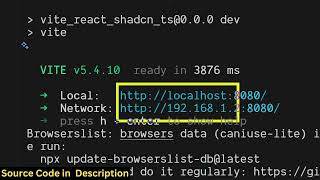
[01:27] we using the latest NexJS version and also the React version 19 syntax highlighting. So I'm just running this locally as you can see on my terminal. So if you need the full source code of this project, I've given the
[01:42] link in the description. You can directly purchase it. So once you zip file from Google Drive automatically. All the components are divided into its appropriate uh TypeScript file here. As you can see,
[01:56] application has multiple components. So once you get the source code, it will be easy for you to see how I coded this application and also be able to add additional features on top of it and also modify the user interface if you
[02:11] want to. So this is the overall structure of the application. Each file structure of the application. Each file has its own TypeScript file here. So apart from that, we also have the validate button as well. So once you
[02:23] click the validate button, it will actually scan the entire JSON and it will give you at this bottom notification that your JSON is valid. You can even clear out everything by clicking the clear button and you can
[02:37] even load an external JSON file as well by clicking this load button. So right here now you can actually basically load an external JSON file that needs to be edited. And now again you click the format button. It will
[02:52] instantly with a single click it will uh format your JSON file. So it will save you a lot of time. If you purchase it this project this project uh you will be able to format minify
[03:06] validate JSON file in a single click. you click the validate button and if you make let's suppose I make any sort of mistake here I forgot this uh bracket or
[03:18] [sighs] comma then I click the validate button exactly at line number it tells you the so line position four of 4.4 four line number eight. So here if I fix this by adding this
[03:40] so once again the JSON will be validated and you can minify it format this copy to clipboard as well. You can even compare it as well. So you can here you can compare it with different JSON file as well. So right here on the right hand
[03:55] side you can compare it. No difference is found. So if you make No difference is found. So if you make any sort of
[04:07] between the two two files. So you can even do comparison of different JSON files as well. So this is a split view. This is a tree view. This is the overall you can directly purchase the full nextJS project. uh after purchasing it
[04:24] you will be getting the source code from Google drive automatically. So this is the full directory structure. I coded this from scratch. So definitely check out this. The link is given in the description. So I basically show you all
[04:38] the feature here. And then we also have the basically this feature as well. You can convert your JSON file into vable XML CSV all these things. So if you want to convert this into CSV, you basically
[04:52] first of all you need to paste it. from anything. So if you are searching from a
[05:07] if you're working with a API response as well let's suppose I
[05:27] you can see you can copy to clipboard as well. You can see now it successfully converted and show the output. Again,
[05:39] you can copy to clipboard. So, apart from these uh formatting, validating and minifying capabilities, we also have option to convert your JSON into YML, XML, CSV. So, if you're interested guys, this is a full fullyfledged single page
[05:54] application having all the features. It's an offline editor. It doesn't require internet. So once you purchase it, it will be easy for you to deploy the application and also run this locally as well. So definitely check out
[06:07] locally as well. So definitely check out this
⚡ Saved you 0h 06m reading this? Transcribe any YouTube video for free — no signup needed.