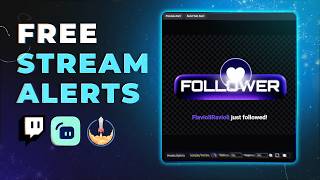

Free Stream Alerts That Don't Suck
45sOffers a free solution to a common pain point for streamers, with a direct call to action.
▶ Play Clip"Delivers on the promise of free alerts with a clear installation guide, though it's essentially a product promo."
The video is a promotional guide for a free pack of stream alerts available on Gumroad, demonstrating how to install and customize them across popular streaming platforms like Streamlabs, StreamElements, and OBS Studio. The creator, Gaellevel, walks through the installation process for each platform and highlights additional premium alert packs.
The video introduces a free pack of stream alerts available at Gumroad.com/gaellevel, designed to replace default Twitch alerts. The pack is 'pay what you want', including free.
Demonstrates uploading alert files in StreamElements by clicking 'upload file' and selecting the desired alert (e.g., follower alert). The pack includes ten alerts in total.
Alerts are primarily designed for Twitch, but can be customized for other platforms. Users can select specific alerts to modify, such as prime sub alerts or resub alerts.
In Streamlabs, go to the alert box, click the image upload button, select the file, and wait for it to appear. Then click to select and confirm.
In StreamElements, click the plus icon to add an alert box, select the desired alert type (e.g., follower), upload the file, and submit. Use 'emulate' to preview.
Alerts are 10 seconds long and can have custom animations like fade out. Copy the overlay URL and add it as a browser source in OBS. In Streamlabs, copy the widget URL.
The creator offers additional premium alert packs, including custom 3D alerts with multiple colors and animations, suitable for Twitch and YouTube.
Gaellevel promotes an OBS Studio Basics course playlist and encourages viewers to follow on Twitch for graphic design tips.
The video effectively demonstrates how to install and customize free stream alerts across major streaming platforms, offering a cost-effective solution for streamers. It also promotes premium options for those seeking more advanced alerts.
Where can you get the free stream alert pack?
Gumroad.com/gaellevel
How many alerts are included in the free pack?
Ten alerts in total.
00:41
What platforms are the alerts primarily designed for?
Twitch, but they can be customized for other platforms.
01:10
How do you add the alert as a browser source in OBS?
Copy the overlay URL (StreamElements) or widget URL (Streamlabs) and add it as a browser source in OBS.
03:01
What is the duration of the alerts?
The alerts are 10 seconds long.
03:01
Free alert pack available
Provides a cost-effective solution for streamers to enhance their streams.
Cross-platform installation
Demonstrates compatibility with multiple streaming tools, increasing accessibility.
01:36Premium upgrades offered
Shows a business model where free content leads to paid options.
03:31[00:00] Do your stream alerts look like this? Or this? Or Then I might have a little something for you Over at Gumroad.com/gaellevel.
[00:12] That is super easy to install and customize. Streamlabs, and StreamElements, but also directly in OBS studio. is a pay what you want, including nothing.
[00:28] It will tell you absolutely everything you will get in the pack. it was mostly created for people who are tired of having the default Twitch once you get the pack, let me show you just how easy it is to install.
[00:41] You click upload file. This is for follower alerts, so I'll click open. There's ten of them in total.
[00:54] they were mostly made with twitch in mind everything from charity alert. hype. Train alert. Prime sub alert if you want to have like a different one for a resub alert
[01:10] Now I'm aware that Twitch doesn't support tips directly, All you have to do is go select the ones that you want to modify
[01:22] And now we'll do the same thing and just select subscribe. For example just click prime sub click open. Now of course you can do all the twitch customization stuff.
[01:36] so go watch it if you have no idea. And in Streamlabs, for example, you want to go to your alert box. Logo where it says image here and we'll go to the upload button.
[01:50] So same thing as before. Wait a couple seconds. It's going to appear here. You just want to click to select it and click select bottom right.
[02:05] And now you have it if I preview it. That's between you and Streamlabs. You click on the plus here and you go add an alert box.
[02:19] when you have it selected, you can take what you want to be showing, for example. Here you can see this I can click on the X,
[02:31] My upload button is going to be over here. Click follower, Wait a few seconds and select it by clicking submit.
[02:47] now at the bottom I can click emulate and click follow. Okay, the alerts are 10s. And when it comes to like custom animations, you can make it fade out
[03:01] but that's up to you to decide. All right. And then just copy the overlay URL here. Just put it in OBS as a browser source in Streamlabs you want to save.
[03:16] And then you can copy the widget URL up top here. That's top or right okay. It's at the bottom right here.
[03:31] I cannot guarantee that it will be free forever. And if you're looking for more cooler alerts, I actually have a bunch of them This one, for example, custom made 3D with a bunch of alerts.
[03:47] So you'll have joined for example. okay, so YouTube member YouTube sub YouTube super chat YouTube gift. Same thing custom made by me
[04:03] and those have multiple colors and those were mostly for Twitch. So those ones were mostly for Twitch. And you can see you have this animation, this one animates in and also animates
[04:17] And this one is kind of like a template for to put the text on top of it. So when it comes to the layout on Twitch stream elements, you can basically choose to have the image, the text be over the image, right?
[04:32] So this is how you would use the switch one because it's basically a canvas. And then put the alert in the middle here and do whatever you want with it. I'm currently doing an OBS Studio Basics course playlist right here.
[04:51] how to install it, how to use it, and then I made one for alerts specifically, and then a third one for overlays specifically. So check it out And while we're at it
[05:04] make sure you check me out over on Twitch Twitch.tv/gaellevel. more often, but most importantly, I started checking out people's streams and giving you a few pointers on the graphic design, follow me.
[05:20] That's it and I'll see you next time.
⚡ Saved you 0h 05m reading this? Transcribe any YouTube video for free — no signup needed.