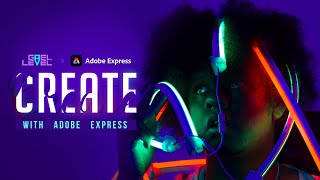

Free Twitch Templates from Adobe Express
60sPromises free assets, a high-value offer that drives clicks and saves creators money.
▶ Play Clip"Delivers on the promise of free Twitch templates and a solid Adobe Express tutorial, though it's a bit long-winded."
In this stream, Guy Level demonstrates how to use Adobe Express to create graphics for content creators, including Twitch overlays, banners, panels, and profile pictures. He provides free templates and walks through the basics of the editor, from adding text and images to using design assets and animations.
Guy Level introduces the stream, explaining that he previously did a sponsored Twitch stream about Adobe Express and will now relay that info on YouTube, providing free templates.
He explains the interface: templates, projects, and the ability to create custom designs. The free version includes many features, including animations and access to a large library of photos.
Shows how to start a new project, choose a format (e.g., YouTube thumbnail), and use templates to quickly create graphics by changing text and images.
Demonstrates adding text, using text templates, and the intuitive nature of Adobe Express which suggests fonts and styles based on the project.
Explains that some photos are premium (marked with a crown), but there are about 15 million free photos available. Also mentions the ability to remove backgrounds for free.
Shows how to add shapes (like shields, swords) and design assets (PNG images, brushes, light leaks) which are transparent and can be recolored, saving time compared to searching Google Images.
Covers the right-side panel: Colors (with Adobe Color and shuffle feature), Animation (with variations like typewriter, dynamic, flicker), Layout, and Design suggestions.
Explains the layer stack at the bottom, allowing users to reorder, duplicate, and delete layers, similar to Photoshop.
Demonstrates the one-click background removal tool, which works well and allows for easy overlay creation.
Guy Level shows the free templates he created, including a stream labels bar, starting soon screen, stream schedule, Twitch banner, profile picture, and YouTube thumbnails. He explains how to customize them by replacing images and text.
Shows a labels bar template with transparent background, which can be exported as PNG and added to OBS. He explains how to replace icons (e.g., heart for followers, crown for top donator).
Demonstrates an animated starting soon screen with a loop option, and how to replace the image with your own photo.
Shows a thumbnail template with background removal, filters, and easy text editing, allowing for quick customization.
Explains the stream schedule template, which can be customized with days and times, and used for social media posts.
Shows a Twitch banner template with social icons that can be edited, and how to replace the background image.
Demonstrates a profile picture template with a circle outline, and how to use the layer stack to select and modify elements.
Mentions other templates like a simple thumbnail and a more complex one with splotches, all available for free in the description.
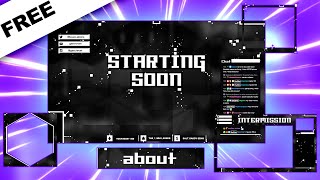
Lists all available templates: profile picture, Twitch banner, YouTube thumbnail, starting soon screen, stream schedule, and Twitch panel. Emphasizes that they are free and can be edited on mobile.
Mentions that Adobe Express also includes video editing capabilities like trimming clips and converting formats, but focuses on graphic design in this stream.
Adobe Express is a powerful, free tool for content creators to quickly design graphics for Twitch and YouTube. With the provided templates and the intuitive editor, anyone can create professional-looking assets in minutes.
What is the name of the tool demonstrated in this video?
Adobe Express
00:07
How many free photos does Adobe Express have?
About 15 million
06:15
Can you export transparent PNGs with the free version of Adobe Express?
Yes, you can export transparent PNGs for free.
03:40
What is the 'shuffle' feature in Adobe Express?
It randomly changes the color palette of your project.
11:49
Name two animation options available for text in Adobe Express.
Typewriter and Dynamic (also Flicker).
12:45
How do you remove the background from an image in Adobe Express?
Select the image, click the 'Remove background' button, and wait for it to process.
18:22
What is the purpose of the 'capitalize and fit' alignment option?
It makes the single word on top or bottom big and fits it to the box, great for thumbnails.
16:03
How can you add a custom image to a template?
Click on the image, then click 'Replace' and upload your own photo.
22:34
What file format should you export for a transparent overlay?
PNG with transparent background.
24:37
What is the 'design' tab in the right panel used for?
It suggests modifications to your project and shows them in real time.
14:12
Free transparent PNG export
This is a key feature for streamers who need overlays without backgrounds, and it's free.
03:40Color shuffle feature
This saves time for creators who struggle with color schemes, allowing instant palette changes.
11:49One-click background removal
This simplifies a task that usually requires advanced photo editing skills.
18:22Free Twitch templates
Provides immediate value to viewers by offering ready-to-use assets for their streams.
24:22Adobe Express includes video editing
Highlights the tool's versatility beyond graphic design, making it a one-stop solution for creators.
37:30[00:07] should be live right now hi my name is guy level I will be your host today and today we have a very very special stream actually we are going to be checking out Adobe Express now recently I had a sponsored stream on Twitch about Adobe
[00:20] Express where basically I went on Twitch we had this uh two-hour live stream where I showed people how to use Adobe Express and also how to create basically stuff for Content creators we created a starting Zoom screens for twitch we
[00:33] created YouTube thumbnails I showed them how to make a stream schedule how to do a twitch Banner profile picture all of that good stuff basically and I'm basically gonna try to relay that info to you guys here on YouTube I'm gonna
[00:46] because I feel like it's easier for me to express myself that way but um what I'm gonna do essentially is basically give you access to all of the things that we created over on my twitch Channel I'm gonna give you access to all
[01:00] using right now for completely free plus Adobe Express is available on mobile so modify those things and have them ready from your phone like super fast anyways
[01:12] without further Ado uh let me switch this scene real quick and um this is my Adobe Express account so as you can see we have a couple of uh templates here and those are the ones that we're gonna that are already available for free all
[01:25] description but I'm gonna go over um the basics of adobe Express first so that if you're watching this video in the future or if you're watching right now you have a reference to how it
[01:39] actually works so that you can actually modify those templates because if you templates are going to be useless not really but you're gonna figure it out it's super intuitive but anyways um so when you when I go to buy Adobe
[01:52] in projects you're going to put me here it's gonna give you a ton of inspiration and there's a bunch of stuff now there isn't much like gaming stuff basically and show you how you can make all that game and stuff but if you're
[02:07] looking to make things like planners and schedules and flyers for events like type in Express is free to use they have a premium version but
[02:19] the free to use version already gives you a bunch of stuff including animations like you can you can create like small videos for social media and stuff but anyways we're gonna click on the big plus here and we're gonna create
[02:31] something custom basically right so we're gonna go to popular and here it's gonna tell you are you trying to make an Instagram story uh maybe a Facebook Banner a YouTube thumbnail a poster something landscape or whatever
[02:43] let's go with um custom actually or just standard and now we're gonna have like more more options if you pick social posts for example you can have more Instagram formats you can have still YouTube
[02:56] thumbnail let go let's go with YouTube thumbnails so I can just show you use yes absolutely there is a premium version so you can have access to things like specific Adobe stock photos but you can use everything else for free like
[03:12] unless you're really looking for Adobe stock photos free like right now click the links in the description description and then there's my link for for Adobe Express in general
[03:26] um all right so to explain everything on the left Adobe Express is gonna give you basically um the assets that you're gonna add to background is kind of separated so you can pick a background and that's its own
[03:40] that has a transparent background yes you can export transparent pngs for free you don't have to pay wink wink looking at another anyways so if you don't want if you want to transparent background you just don't
[03:55] you're gonna have as a background you add it as an image but you have um templates for example if you just want to start and you don't know like you you have this blank page and you don't know where to start you click on template and
[04:08] it automatically picked a thumbnail because I picked like the format of a thumbnail and I can just click on this and I have a thumbnail and all I have to do is change the text um change the the picture here and then
[04:22] type whatever I want you know um this could be a good thumbnail for example if you made a cooking stream and that's your highlight video right
[04:39] that and you click on this and you put your your channel you know anyways but that's how easy it is to to just like pull up a thumbnail and just make like pull up a thumbnail and just make it happen I select everything now
[05:01] added this um this background here we're gonna
[05:18] adding a text and then you have to modify it actually gives you it has templates for text right so one thing you can do is actually change this um you can actually just click on text and then find a thumbnail that you like
[05:33] and then you immediately change that and then boom it's working right instead of font and finding the right format finding the right decoration you can you're good all right and if you don't like the thumbnails that's fine you just
[05:46] going to add your text right if I click here it's going to be like boom it background was black so it put a white text on it or Gucci that's the other thing with Adobe Express is that it's intuitive in the sense where it it knows
[06:01] Photoshop you don't get like complete freedom because it's it's trying to help you all the way through right so for photos this is where I talked about um Adobe Express premium certain photos will have that little crown on there and
[06:15] those are premium photos right so you don't have access to that with your free account but there's I think they have something like 15 million photos or something like there's a ton of photos so you should be able to get by just
[06:29] fine let me type something let me do something very gamer boyish since I know I know my audience I know that's the type of stuff that you guys would enjoy right so if I have this boom let me get
[06:43] right so if I have this boom let me get rid of the text for now all the things that you can do with your um with your photo later on but for example okay I picked this picture and um and it has this white background
[06:58] pretty easily actually but anyways let's continue on that left panel photos you can also have shapes very basic shapes sometimes you shield if you're creating logos for example this is where you're gonna go to
[07:13] create those those basic shapes at the bottom just so that you can have those like the if you want a shield you want swords you want all that kind of stuff would you would want to go and some of them are like
[07:26] they're logo ready pretty much there's a ton type whatever type of thing that you're looking for and then you um just import it look at that you just appear but whatever color you want
[07:41] so that's the shapes and then you have design assets which is what I love the most I'd say because as a graphic designer this is something that I do a lot is I go look for design assets but I look on them I look for them on Google
[07:55] Images right and sometimes I end up using things that are non-copyright free all that and I'm stressing about it um those are a lot of PNG images with of my favorite things to use is the brushes as you're going to see a pair of
[08:09] thumbnails and things like that you know completely transparent and on top of that if I click on it I can add a filter that we're gonna go through filters I can just change the color
[08:23] as I want right this may not seem like much but if you were to do like if you're looking for that kind of asset you're gonna go on Google you're gonna find fake fake PNG images you're gonna have to separate
[08:35] have a bunch of stuff that is that is Watermark and all of that so Adobe gives Adobe Express gives you all that stuff I should say I'm holding control on my keyboard and scrolling to zoom out there's a couple
[08:49] of shortcuts but you don't have to use them you also have the zoom up top here assets which means like if you're looking for things like lens flare let me type flare or maybe lens flare or light leaks light leaks
[09:09] but those are interested nevertheless there you go and now we have some light leaks
[09:22] and those are pretty nice and here for example we have the slight leak I know it may not seem like much for now if I place it here because it's using the wrong blending mode I can go here and select screen
[09:37] and I can do enhancement to bump up the contrast lower the brightness but it Blends in it's basically completely transparent right now I can completely transparent right now I can just place this wherever I want
[09:54] like my picture or something like that that is definitely something that you could do anyways let's delete this so design assets is everything you can think right you want to add like a cool I don't know um
[10:12] anything that you can overlay on top of your stuff design anything you can really think of just like design elements that you can um to your thumbnail if you're making like a a YouTube thumbnail this is like
[10:26] super great logos um this is like supposed to be for your branding this is a premium feature so I'm not really gonna go over it this is your logo basically Adobe Express has this thing with the premium uh stuff
[10:38] where you can set up your logo set up your color scheme and set up your branding basically and then when you pick a a template you just click one button and it swaps out all the logos in the template it swaps
[10:52] out the fonts it softs out the color scheme just to make it yours it just including your logo and you're in your selected font but going to be showing that today all right
[11:07] um okay now that we have access to I'm gonna add a text just to show you left side I want to show you everything you can do on the right side so when
[11:21] selecting anything first of all you have access to Colors this is basically your videos you know that I'm always rambling about your color scheme your color palette you have to pick like matching colors and all that stuff whoa
[11:35] um Adobe has something called Adobe colors where it's basically showing you a bunch of different color schemes so you can you can um set up a color but even better than that as you can see here there's a shuffle button where it
[11:49] can basically Shuffle the color palette for you but also Shuffle it on the for you but also Shuffle it on the project itself it on the the project itself so you can make a project and then just click
[12:04] Shuffle until the the whole color scene you don't have to think about the color click Shuffle and boom it just gives you a different a project right now because this is the test but you get the point if I were to
[12:19] would switch out the color scheme so that's one of the options you have here animation yes you can animate it's slight gonna do like some After Effects anything but
[12:31] um there is an animation button if you create like a normal thumbnail and you example on Twitter because you think the video is gonna have uh more impact you um you click on animation and you just click typewriter for example
[12:45] and you can export this as a video and it can Loop right uh Dynamic is another animation that you can have so it shows every word and then it puts the whole thing you can have a flicker is one of them I actually like this one
[12:58] because it Loops in a little bit better there's variation for each animation as you can see right here right so there's three variations for dynamic um and there's two variations for a typewriter this one for example
[13:11] right um there's additional animations here Color Shuffle is one of them there's fading in and now there's slide I don't not only you can animate the text but it's basically one animation tab for the
[13:26] whole project so if you have a picture behind that text you can also choose to animate it here now in this case it doesn't work because our image is like a doesn't work because our image is like a square here
[13:44] but it doesn't go all the way into Focus this there's also color where it can swap colors and stuff like that I'm going to click on none because we're not we don't want to work with that and
[13:59] you can export as an mp4 also for completely free by the way anyways so animation we have layout if you want to change the layout a little bit I don't really use this I usually pick my layout manually and then there's
[14:12] design where it actually gives you um it can like you can create a project and then it basically gives you um variations it shows you hey your the picture was there and the text was there so if you finish a project and you
[14:27] don't really like it it will basically suggest modifications that you could do and you can see them in real time which is kind of amazing you know anyways let's talk about the options that you have of course when you select anything
[14:41] to have duplicate you're going to have layer order I'm going to show you where the layer stack is and then you have delete right bottom here is where the layer stack is going to be because yes it may be like something that that you
[14:53] can um that you can modify super fast and all that but you can also click and drag layers and stuff like that um as if it was Photoshop right as if it is really really cool um what else
[15:07] actually let me change I can color pick here for example if I background I'm going to do the same thing
[15:19] automatically to the color palette so you can go back to it and make sure that shades of that one color that you really want right um so for the text you have uh multiple
[15:34] to make things fit and all of that but you can also pick on top of like your paragraph like align left align Center align right there's also like magic not familiar with but you can you can make it do some some pretty cool stuff
[15:49] for example uh curved you can make it in a circle semi-circle and that way that way and then there's Grid in a certain way where it it forces it to match like that specific format it can be middle it can be left and then there's what I
[16:03] really love especially for YouTube thumbnails which is capitalize and fit so it's gonna it's gonna take that box that you have and it's basically gonna make whatever word is on top or bottom the word that is single without is going
[16:15] to be big but this is great for thumbnails this is like super as you can see click is gonna be the big word here depending on what we're doing double of course and it's just gonna match whatever size you want it to fit
[16:28] it's gonna magically basically make everything of that so that's one of the Align options we're gonna keep it here nice all right um okay something that's kind of
[16:42] only text is the the shape here well it's not really only text but you're gonna see if I want um a background basically it says shape and here I can do this wouldn't want to do this really but
[16:55] let's say right and you actually want the text to be White you can do that mask the text you can make it fit like this and stuff like that easy like logos
[17:09] two seconds and you have a logo going right but this is not necessarily something that I would use personally but hey if you're making is font recommendation so you will make
[17:21] really match for example here we have an army thing and we have this serif font this font and you can click Explore More and it keeps it's going to keep giving you suggestions so you can see what your text is going to look like in a
[17:35] choose it and this is I don't know how this works I'm not gonna lie I don't know if this is AI it's figuring out uh you know the project and what you would Shadows of course you can color that chat or whatever you want really want
[17:49] little bit of um settings here but the shadow can't be um soft for example right you do have your limitations but the whole point is fast right
[18:08] that's a fast look at text basically what I'm going to do now color to white and I'm going to show you something that is amazing with Adobe our picture it's part of the Adobe Express thing but we can use it for
[18:22] example if I were if I wanted to make this an overlay you can remove the white background it doesn't really fit you just go here you click remove you wait a little bit and then you can actually refine that background if it
[18:35] didn't cut it right but it turns out that it cut it right on the on the first on the first try so boom now you have this background and now this is your this background and now this is your project right
[18:49] let me actually change the color a little bit maybe I want to array and let's see how fast we can make something
[19:15] to have my chat somewhere I would probably go to shapes in order to find like a rounded rectangle under basic shapes probably oh it doesn't have to be rounded to be fair we just find an outline right here
[19:29] a fill I can just turn it off and then I have a little bit of a border have a little bit of a border turn that down
[19:44] over here and I I would have um actually no I would have my chat somewhere like a separate label that you can put underneath if you wanted to have
[19:59] that keep in mind if you don't like the font just scroll down a little bit and boom it it gives us another suggestion and uh this look a little bit better right this is basically those are the basics for the image I want to go back
[20:12] like the filters and all the things that you can do um filters here is basically color filter so you can change the color of an image in order to make it match your color scheme if you have to right
[20:25] there's multiple um you have multiple settings so you change the color for example for me I would probably go with with this I would go with purple definitely or you have different types of grayscale or you
[20:39] um what am I saying or you have grayscale darken contrast all that stuff basically little filters to make your image look this is like manual things that you can use to make your image look better so
[20:53] you can lower the brightness I would probably lower it here um saturation of course highlight Shadow warm sharpen all of that good um actually I'm going to keep this one because I like the way it looks we can
[21:07] collapse that we can blur it for example this is good for backgrounds if you have too um two uh you don't want it to basically capture the attention too much
[21:20] and then you can add a different color by the way if you cut out an image you you know what I actually want another color for the background in my case once because you guys know I love purple right
[21:36] those were the basics the very very very very very basics of adobe Express and I'm gonna show you these templates that you guys can download right now in the description there's a bunch of links to multiple things and I'm gonna well based
[21:50] how long was that 20 minutes 20 minutes I explained everything pretty much based off of that what you can do is modify those the colors and everything like that right and you can do them on your phone
[22:05] and it and the app works like super well on phone right I that I didn't show you really on the editor here there's a couple of things but I don't think you you can create multiple Pages
[22:20] you can copy the pages um you can replace stuff I think that's um if you click on an image here let's say you want to replace it it automatically opens this up and you can replace it
[22:34] with this for example and I think a while this is a huge image I think I just clicked on right you see that upload your photo same thing it would just replace it with your photo so on my
[22:47] templates I have a couple of um well I creating templates to show you what it would look like there you go you would you would just click and replace with your own photo if
[23:00] you have like a video game character if you don't show your face on Twitch or replace it with a video game character right here if I want the background to be a little more edgy I can type something like grunge
[23:19] and millions of backgrounds I don't even know what this is Place background and they're all like super high quality which is not always like the best thing oh I think I messed up
[23:36] they're like to keep everything super high detailed you can just blur them if they're you know too visible for example here is off obviously I would go to filters and I would find like a filter that kind
[23:50] of matches the overall feel of the project anyways so uh this is going to everything you're doing you don't have to worry about saving and all that stuff it is all saved automatically once again you can click on the link in the
[24:04] projects and let's uh talk about the templates that I have as you can see it's it uh created this project it's called my project uh which I'm probably gonna delete because I don't want to use it
[24:22] um here we have a stream label a labels bar basically so you as you can see here there's no background which means that I can actually click download and Export with PNG transparent background as you can see here and that is completely free
[24:37] you can start downloading if you want a JPEG if you want a PDF you can also do that uh for I think it's premium only they have a thing about scheduling for social media which I haven't used yet even though I have premium
[24:52] um I'm it's wild that means you can create stuff straight in Adobe Express and then immediately plan it to be posted at a specific date on your social media likes to the Instagram and all that stuff right so
[25:04] the labels bar is intuitive you would click here if you want to replace for have um let's say that you're not you're not affiliate yet right and the diamond represent bits and the star represents
[25:17] diamond you will click replace and then you would find a shape that matches you we all know that heart would be the thing closest to representing um follows for example so you would want to have follows and boom there it is it
[25:32] it gives you a little guide so you can Center it and just like that you just replaced it um in this case you would probably want to Crown for like top donator because I believe yeah if you're not if you want
[25:45] three things three labels labels as a non-affiliate you would want followers donator and then top donator right I would just replace this by a crown in would just replace this by a crown in this case I can uh just type crown
[26:06] because it's not a basic shape I should have seen that coming and if you just go can find a crown of your liking I like this one isn't that the actual twitch Prime crown there you go and then when you're done
[26:20] you just export it download PNG transparent background download it and uh you have it there it is
[26:32] actually I don't have uh I don't have a labels bar on this stream so what I can do is in my OBS right now what I'm doing is clicking on a new source going to image clicking OK browsing and finding that
[26:46] clicking OK browsing and finding that one that we just downloaded can upload this in stream elements or if you're using streamlabs you can go find you can just add the labels and just like that
[27:04] scheme for example I chose purple because that's my color scheme all you do is click on colors here and just click on shuffle if you don't know what get rid of the background eventually though right
[27:22] the shapes what you can do is oh wait setting up your brand you would have to setting up your brand you would have to set up your brand to make this work but as you can see it's giving it's giving you ideas
[27:37] there we go and here you can still even if there's a background by the way even me go back and actually add let's say it transparent background it doesn't matter it just added a color to the background
[27:50] if you click download you can still download it as a transparent background right it can still be like hey do you want to to export with the background or want to to export with the background or without you know
[28:04] um that's how you basically modify this I actually did not want to mine I I actually do not want to um to change that project but it's my project anyways it's different from the template hopefully and uh starting soon screen
[28:16] for example I created this one I put an image in a shape I added two brush uh two brush assets it's load it's still loading and as you can see it's animated right so you can animate your starting screen and as long as you click on Loop
[28:30] screen and as long as you click on Loop it's going to Loop it button at the bottom here actually I think my webcam is in the way right now for free uh links in the description
[28:45] but this is what it looks like and if you want to replace it of course just click on this uh click replace if you have your own photo you can click upload photo right and then you go find a picture that
[28:57] would match here I have this picture a random picture that I'm uploading and boom there you go just like that I replaced enhancement but you can turn that off if you want you can add your own filters if
[29:10] you want all of that good stuff so it's that easy it really really is that easy for the socials of course you click on the text would have to ungroup right and then you click on each text
[29:24] right and then you click on each text and you put whatever your ad is
[29:47] exactly the same thing so this has the uh remove background so if you were to upload an image I believe it would I believe it would remove the background Let's test it actually
[30:10] there you go this automatically just like that congrats you can put your own face and then just change the text by clicking on the text and editing the that easy you can click on the the um those brush those dry brush filters
[30:26] and the color is actually under filters right remember when I said you can make this whatever color you want right if you want this to be yellow for some reason boom there you go change the color here
[30:40] click on the text it's part of the color palette and now we have a completely palette and now we have a completely different looking thumbnail
[31:01] it takes like a couple seconds when you have those templates right keeping in background color and all that stuff it's it's it's super duper easy so I'm just gonna go through the rest I don't I think you got it I'm gonna explain
[31:14] everything that I can explain here uh this is a stream schedule a lot of streamers should be using especially as post for social media if you want to about your scheduling I think it's pretty cool to use like a schedule I
[31:27] whatever you can just call it stream schedule it doesn't have to have a name you can click on those individually change them um you can put the hour next to the next to the deck to the specific day
[31:41] to the deck to the specific day and um and yeah tell what your days off are uh if you stream more than that you can add just more text and all that you can put your Twitch Channel up there easy clap
[31:54] let's show you some more um this is a twitch Banner so this is the exact size for a twitch banner and it already has like some socials here again you can well that's actually not normal
[32:12] um it already has social so you can click on here change the social names just to make sure you can hold Ctrl and scroll down to zoom out a little bit you can hold space to grab and move and uh again you can replace the
[32:25] click replace you upload your own or you pick up a picture that uh that is pick up a picture that uh that is already here
[32:54] there you go and just like that we replaced it like or you can just pick one of the color
[33:08] schemes that adobe is suggesting you right depending on the vibe you what the mood it's pretty cool anyways
[33:21] example of adding a picture removing the background adding a brush at the background adding this dark blurry background and also adding those assets uh those little um light leaks
[33:37] profile picture and this is just a while it's a circle outline I don't think I I need to tell you that the circle outline keep in mind that if things are hard to select you can always get go in the layer stack right here you can see all
[33:49] the layers right there and it's not a lot really background that brush stroke the picture the circle and then the two bite leaks so I made that also available links in the description right now Chad
[34:04] the description right now Chad uh one of the important ones the um this one is simple I don't think I need to explain it you just click on the text you modify the text if you want to
[34:16] right here right or you can let Adobe basically suggest you which font you would want here by clicking Explore More
[34:31] switching the filter basically getting uh accommodated with this this this one is not available I haven't made this as a template because I was just playing around with with it uh crypto is a character from Apex
[34:43] Legends by the way I'm not this is not cryptocurrency but I wanted to to see if I if I downloaded an image like for game if I could make the color scheme match the background would probably have
[34:57] match the background would probably have to be a little darker replaced as background I can do that too I can just type dark
[35:21] but this is like quick quick YouTube thumbnails just in a couple minutes I was gonna say seconds but it it can be done in in seconds to be this one has a little bit more um layers because I added a bunch of
[35:37] um layers because I added a bunch of different Little Egg splotches like that um this has a filter go change it like that maybe we have but available because I was just messing around basically that took me a couple
[35:51] minutes to actually make you can make that too the templates you have a profile picture a twitch Banner a YouTube thumbnail a
[36:03] can add to your starting soon screen once once it once it's done a stream schedule you also have a twitch panel um all of that for free that you can probably gonna ask you to download the app download the app and you can just
[36:19] tap modify super fast and Export uh if you're on desktop preferably if you're using OBS studio and things like that you can just it's just gonna bring you um the first link is just going to be Adobe Express we're gonna have it for
[36:33] free and then the rest is just the templates just Link in the description templates just Link in the description chat Link in the description and that's it that's pretty much it
[36:50] haven't used it in a while I uh I know I have made videos I think about how to make uh emotes with it but uh yeah hey man I want to say thank you so much for all your help and videos actually let me let me go to this scene and bring Chad
[37:04] thank you so much for your help and videos that they are really easy to follow especially for someone my age 48 trying to make a go at content creation I appreciate that thank you Mike uh Don't Panic says your guides are awesome
[37:18] man thanks uh for all you do thank you thank you thank you for watching what I you guys are the reason why I keep going and um yeah I just uh I made this I made
[37:30] this stream on um it took me two hours because I because I really wanted to show all of the different things that adobe Express does what I showed is just a part that's just the editor of the Adobe Express you can trim clips you can
[37:42] Twitch Clips you can trim them you can put them at the right format things like that there's so much that you can do you can convert Clips all of that good stuff but I just wanted to show you the graphic design part because
[37:57] I have those templates for you that are free right now so uh yeah grab them just wanted to say uh thank you so much for your knowledge and tutorials thank you thank you thank you I appreciate it
[38:14] on this thank you thank you thank you stream I absolutely appreciate you all for stopping by I actually went a little faster than I expected uh that's 38 minutes in uh but but that's all the
[38:28] Adobe Express and and start using it make sure you click on the links in the up uh I don't know if it's gonna be unlisted at first but I'm gonna make sure that it's up and running basically for you guys to come back and still
[38:42] click on the links and um and if you have any questions but you're going to right okay now how do I end a stream on oh yeah I found it thank you so much for watching once again this was a exclusive
[38:55] I will see you next time go out there maybe proud guy level out
[39:08] are you not waving you better be waving at your screen right now
⚡ Saved you 0h 39m reading this? Transcribe any YouTube video for free — no signup needed.