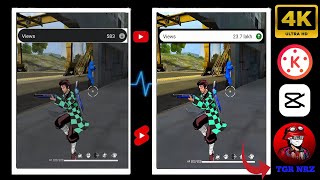

How I Monetized a 3 Million View Short in 1 Month
42sPromises insider secrets to achieving million-view shorts, directly appealing to creators' desire for viral success.
▶ Play Clip"The title promises editing secrets of TGR NRZ; the video delivers a specific workflow, but is padded with excessive calls to subscribe and stay tuned."
This video reveals the editing secrets of popular short-form video creator TGR NRH (also referred to as TGR NRZ) to help viewers achieve millions of views on their own shorts. The tutorial walks through a step-by-step process using CapCut and Kinemaster apps to enhance video quality through specific adjustments and effects.
The creator promises to reveal editing secrets that helped a short garner 3 million views in one month, encouraging viewers to watch the entire video without skipping.
Open CapCut, create a new project, add gameplay footage. Set the ratio to 3.4 (likely 3:4 aspect ratio) and crop/zoom as needed.
Increase brightness to 5, contrast to 10, saturation to 20-30, exposure to 5, sharpness to full. Then increase HSL for richer colors, set highlight to 10, and reduce shadow to -5.
Open Kinemaster, select the clip, add a layer with Effect Apex Sharpen. Drag the layer over the entire clip, then set properties: Strength, smooths, distance to full; alpha cupi city to 100; back to 180 at 60 degrees.
Save as video from Kinemaster, then import back to CapCut. Apply additional sharpen (50), ensure ratio is 3.4, zoom if needed, and export at 2K/4K resolution and 60fps high quality.
By meticulously following these audio and video adjustment steps in CapCut and Kinemaster, YouTubers can significantly sharpen and enhance the visual appeal of their shorts, mimicking the high-quality look of top creators like TGR NRH.
What brightness value does the tutorial recommend?
5
01:47
What contrast value is recommended?
10
01:47
What saturation range is suggested for low-color shorts?
25 to 30
02:03
What exposure value is used?
5
02:15
What aspect ratio is used for the shorts?
3:4 (3.4)
01:15
What app is used for the additional sharpen effect?
Kinemaster
02:43
What are the three property values to set full in Kinemaster's Sharpen effect?
Strength, smooths, distance
03:11
What final export resolution and frame rate are recommended?
2K or 4K at 60fps
04:13
Color Adjustment Formulas
Provides specific numeric values for brightness, contrast, saturation, and other adjustments that can be directly applied.
01:31Kinemaster Sharpen Layer
Introduces a secondary app for an extra sharpen effect, highlighting a multi-app workflow to achieve professional quality.
02:43Final CapCut Tweaks
Emphasizes re-applying sharpen and confirming aspect ratio after the Kinemaster export, ensuring consistency.
03:56[00:02] millions of views and thousands of subscribers by editing next-level quality shorts like TGR NRH. Today, I'm going to reveal TGR NRH's editing secrets. Using TGR NRH's secret editing skills, I monetized a short worth 3 million in one month,
[00:15] which you can watch live. You That's why I thought why not share TGR NRH's
[00:29] secret editing skills with you, so you can also make This is why his shorts reach millions. If you
[00:44] want millions of views like this, do n't skip the video at all. If you skip, you wo n't be able to learn what to do properly. Therefore, do n't skip the video at all. Be sure to like and subscribe
[00:59] because it's my job to grow your channel. So, first, you have to come inside the Cupcakes app and click on New Project to add your gameplay. Friends, you have to do it, so now I will tell you step by step, so please watch carefully, click on your video
[01:15] and scroll down like this and click on this ratio and scroll a little here and tap on 3.4, then click on this very video and scroll forward and click on this edit and then tap on crop and
[01:31] scroll a little again and keep it at 3.4, it is getting a little zoomed, so zoom it out a little as per your requirement and then zoom it completely here, click on your video again and scroll down and click on adjustment and you have to
[01:47] increase it as much as I increase it and I will keep the brightness at five, if your brightness is low then you can increase it further but I will keep it at five only and I will keep the contrast at 10 and now we will increase the saturation, if the
[02:03] color in your shorts is very low then you can keep it at 25 to 30 and if the rest is fine then you have to keep it at around 20 and then the exposure at around five I will keep it too much, keeping it high can
[02:15] spoil the quality of your shorts and you have to increase the sharpness completely and then here we will increase the HSL, by doing this the shorts will look a little colorful and good, in this all the different colors have to be increased, it will glow a little and then
[02:31] here the highlight has to be increased to 10, the shadow has to be reduced to -5 and after doing all this, shadow has to be reduced to -5 and after doing all this,
[02:43] come to the Key Master app, click on Correct New, by clicking on Correct, this will appear in front of you, click on All here and select your shorts,
[02:55] look, click on Layer here, as soon as you click, so many options will come in front of you, from this you have to click on Effect Apex and look at this Sharpen, tap on it, as soon as you tap, some such effect will come in front of you, click on it, see, the
[03:11] layer has been shown from the bottom, drag it here on the entire shorts and then tap on the properties option at the top, circle and React Shape Sharpen Strength, smooths, distance, all have to be made full, then come back from this arrow, alpha cupi city,
[03:27] tap on it, it should be 100, keep it according to your requirement, I am keeping it 0, then click on back back, keep it at 180 and this at
[03:41] 60, then click on save as video from here and tap on skip here, then as soon as this line is filled, it will be saved in the gallery and once again come to cupcake, select that short whichever short you have saved, then click on this video,
[03:56] scroll down like this and click on adjustment and keep the sharpen here according to your video quality, I will keep it at 50 and then click on this ratio here and scroll to the side here, tap on 3.4 and make it right,
[04:13] then click on this video, zoom it and set it properly and zoom it and set it properly and then above here keep 2k 4k, this 60 and this by making it high Export it, after exporting the sorts are ready which you
[04:27] can see before vs after. If you liked the video then do like and liked the video then do like and subscribe.


⚡ Saved you 0h 04m reading this? Transcribe any YouTube video for free — no signup needed.