
Green Screen Setup in 2022 (Easy Steps)
45sDirectly addresses a common streaming need with a clear tutorial hook, appealing to aspiring streamers.
▶ Play Clip"Delivers exactly what the title promises: a clear, step-by-step green screen setup guide for Streamlabs in 2022."
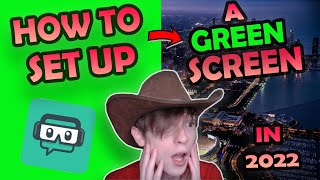
This video provides a step-by-step guide on setting up a green screen with Streamlabs OBS in 2022, which also applies to other streaming platforms like Stream Elements and OBS. The creator demonstrates the process using a webcam, a green curtain, and the chroma key filter, including adjusting settings and positioning the camera.
The video is a facecam tutorial on setting up a green screen with Streamlabs in 2022, also applicable to other streaming platforms.
You need streaming software (Streamlabs, Stream Elements, OBS), a webcam, and a green curtain (folds are okay).
In Streamlabs, create a new scene and add a display capture or image source for the background.
You can use any image, video, or game capture as your background. The example uses a display capture.
Add a video capture device source for the webcam. The example shows a green wall as the background.
Right-click on the video capture device, go to Filters, add a Chroma Key filter. Set similarity to 1 initially, then copy recommended settings: color key spill reduction 1, smoothness 100, opacity 0.11, contrast 0, brightness 0, gamma 0.
Similarity is the key setting to remove the green color. For the creator, 520 works best. Adjust until the background is clean.
Hold Alt and drag the camera to crop out unwanted areas. Resize and reposition as needed.
If the camera is inverted, right-click, go to Transform, and select Flip Horizontal.
After following these steps, the green screen is set up. The creator encourages experimenting with settings for better results.
Setting up a green screen with Streamlabs is straightforward: add a background, apply a chroma key filter, adjust similarity, and position the camera. With these steps, you can easily switch between backgrounds for streaming or content creation.
What are the three basic requirements for setting up a green screen?
Streaming software (Streamlabs, Stream Elements, OBS), a webcam, and a green curtain.
00:15
What filter is used to remove the green background?
Chroma Key filter.
02:27
What is the recommended setting for Smoothness in the Chroma Key filter?
100
02:41
What is the recommended setting for Opacity in the Chroma Key filter?
0.11
02:41
What is the recommended setting for Contrast in the Chroma Key filter?
0
02:41
What is the recommended setting for Brightness in the Chroma Key filter?
0
02:41
What is the recommended setting for Gamma in the Chroma Key filter?
0
02:41
What is the recommended setting for Color Key Spill Reduction?
1
02:41
What is the key setting to adjust to remove the green color effectively?
Similarity
02:57
How do you crop the camera view in Streamlabs?
Hold Alt and drag the camera to the cutoff point.
03:41
How do you fix an inverted camera?
Right-click, go to Transform, and select Flip Horizontal.
04:09
Chroma Key Filter Settings
Provides specific, actionable settings for the chroma key filter, which is the core of green screen setup.
02:27Similarity is Key
Emphasizes that similarity is the most important setting for removing the green color, a crucial insight for troubleshooting.
02:57Cropping with Alt+Drag
Shares a quick tip for cropping the camera view to hide unwanted background areas, improving the final output.
03:41Fixing Inverted Camera
Provides a simple solution for a common issue (inverted camera) that many users encounter.
04:09[00:02] what's up mate madison [ __ ] twitter here this video is obviously a bit different you may know me for making videos about how to grow on twitch or other social media but i'm using a facecam for the first time since my zero three one two exposed video because i'm gonna be showing you guys how to
[00:15] set up a green screen with streamlabs in 2022. this will also work with stream elements obs and the other major streaming slash recording platforms it will look basically the same and consist of the same steps if you don't know green screens are extremely easy to use to have whatever
[00:29] background you want so if you want lieutenant twatter or mr twater and easily switch between multiple scenes and multiple different backgrounds first this is what you need to get started one you need streamlabs stream elements or any of the other streaming slash recording platforms
[00:42] two you need a webcam three a green curtain it doesn't have to be perfectly straight or even but if you do want a curtain you can get this one here on amazon like i said you don't need to worry about folds or anything like that so this is my stream lab this is what it looks like ignore all
[00:57] of these scenes over here you just want to make a new scene i made a new one called twitter live streaming this is just the display capture so you guys can see what's on my screen right now first you're going to want to pick your background so we go here go to image add source add a new image
[01:13] instead what i want to call this um if you don't know i'm working on a gta 5 rp server it should be coming out very soon so you want to go and do your pictures or whatever and pick your background you could also use a video like if you want to use a video of a hot tub or fighting going on behind you
[01:30] or whatever you want to use you could choose any picture or video to use you could also use your game captures so if you want to have call of duty in the background or whatever game you're playing it works just the same we could use my display capture for an example so because this picture
[01:43] is over the display capture that is what will be seen here so let's go back to the display capture for now just so you can see exactly what i'm doing add another source we'll do video capture device add source i'm already going to add my existing source let me take off the filters so this is what
[01:58] it looks like right now with just the webcam as you can see i just have a green background this is a wall that just got painted green it's not even the exact green screen color it's a lot darker in real life than it looks on camera it looks really light on camera but in real life
[02:12] it's basically the same color as a green screen and you can't see but right behind the webcam to the left of it is where i have my ring light and it's aimed right at the back of here so as you can see it's lighting up the wall behind me let's go ahead and make this small so you can see so what
[02:27] you're going to want to do next right click on video capture device go to filters edit filters you're going to want to add a new filter filter type chroma key filter name name it whatever you want all of these settings you want to pretty much make exactly what mine is except for similarity
[02:41] keep similarity at one right now and just copy these settings one color key spill reduction one smoothness 100 opacity 0.11 on contrast zero on brightness zero on gamma just do this to set it up and then afterwards you could play with it and see what works best for you but most
[02:57] of these you're not gonna even wanna mess with you got green you got blue you got magenta or custom once you got those sorted similarity is what's really important so this is what's going to take and get rid of the color see for me 435 doesn't really pull any of the color 507 starts to pull
[03:13] color but you still see you know this right here this over here i don't want to see none of that 600 i'm gone the magic number for me 520 that's the best i can get still you know it's not perfect and i can even mess with these settings to try to oh i don't look right to try to fix it
[03:28] or whatever but similarity is what's going to pull the color away so how it works it just pulls all the green and makes it black so then once we close this out make this big again and now hold alt
[03:41] and then drag your camera over to the cutoff point because otherwise you can see my desktop in the background i don't like that drag that cut that off perfect just hold alt drag cut that off
[03:53] now you can drag this around you can resize it make it smaller put me in the corner or you can got this setup of something important see how my camera it's inverted right now and
[04:09] if you don't want it inverted just go to right click go to transform and then flip horizontally boom the camera's normal that's how it should be some people like having it inverted i do not so
[04:23] now if we turn off that and turn on this let's resize it up that's how you set up a green screen in 2022 with streamlabs or any of the other streaming platforms all you have to do is follow these steps and you'll have a green screen it's very easy you can even make it look way
[04:36] better than mine pretty easily but i don't [ __ ] with my settings i hope this video was helpful leave a like subscribe if you can send this to anybody who's a streamer send us to any rappers rappers love using green screens you can do a lot with this as far as content creation and i
[04:51] hope this was helpful and i hope you guys can take this and make something dope with it see ya mate
⚡ Saved you 0h 04m reading this? Transcribe any YouTube video for free — no signup needed.