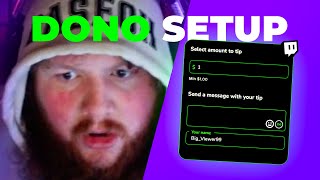

Make Money Streaming Day 1!
45sThe promise of earning money immediately without waiting for platform milestones is a compelling hook for aspiring streamers.
▶ Play Clip"Delivers a practical guide as promised, though some fluff and self-promotion reduce the score."
This video provides a step-by-step guide on how to set up tips and donations for streaming platforms like Twitch, YouTube, and Kick. It covers using popular services like StreamElements and Streamlabs to create tipping pages, connect payment methods, and integrate alerts into your stream.
Streamers can start making money immediately by using tipping services that connect to PayPal, avoiding the need to wait for platform monetization.
StreamElements and Streamlabs are the two popular services that provide tipping pages and can be integrated with Twitch, YouTube, or Kick accounts.
Log in with your streaming account, navigate to Revenue > Tipping Settings, connect PayPal and other payment methods like credit cards via ESP.
Set minimum tip amounts, configure alerts, and enable anti-spam features to manage your tipping page effectively.
Download a panel image, unzip it, and add it to your Twitch channel's About or Chat panels, linking it to your tipping page URL.
Create an overlay with an alert box widget, copy the URL, and add it as a browser source in your broadcasting software to display tip alerts.
Streamlabs offers similar functionality: log in, find tip settings, customize tip page design, and set up alerts through their dashboard.
Streamlabs has a built-in panel maker to create a 'Tip' button, download it, and add it to your Twitch panels.
For a professional-looking channel, consider downloading overlay packs from Gumroad (e.g., getlevel) to maintain a consistent design.
Setting up tips and donations is straightforward with services like StreamElements and Streamlabs, allowing streamers to monetize early and enhance their channel with alerts and cohesive overlays.
What are the two major services for setting up tipping pages?
StreamElements and Streamlabs.
00:30
How can you start making money on day one as a streamer?
By using a tipping service that connects to PayPal, allowing viewers to tip immediately.
What is the purpose of the 'ESP' payment method in StreamElements?
It allows people to use credit cards and other payment methods.
00:55
Where do you find the link to your tipping page in StreamElements?
In the Tipping Settings section, after scrolling down.
01:10
How do you add a tip panel to your Twitch channel?
Download a panel image, unzip it, and add it as an image panel in your Twitch channel's About or Chat sections, linking it to your tipping page URL.
01:51
What is the purpose of the alert box widget in StreamElements?
It displays tip alerts on your stream when someone tips.
03:01
How do you add the StreamElements overlay to your broadcasting software?
Copy the overlay URL and add it as a browser source in your broadcasting software.
03:31
What are the tabs available in Streamlabs for tipping?
Tip settings, Tip history, and Tip page design.
04:13
How can you create a tip button using Streamlabs?
Use the panel maker feature to create a 'Tip' button and download it.
05:30
Monetize from day one
Highlights a key advantage of tipping services over platform monetization.
Two major services
Identifies the primary tools for setting up tips.
00:30Panel integration
Provides a practical step for adding a tip link to Twitch.
01:51Alert box setup
Explains how to display tip alerts on stream.
03:01Overlay packs
Suggests using overlay packs for a professional channel design.
06:13[00:00] streaming is that you can actually start making money on day one. And the way you do it is usually by going through a service that allows you to connect your PayPal, and then people can go to a tipping page.
[00:14] otherwise on platforms like Twitch, you would have to wait to be affiliated on YouTube, you would have to get monetized and unlock super chat. go and actually help you build the stream so you can get to those goals.
[00:30] in just a couple of clicks. So there are two major popular services that provide tipping pages. You click top right on login.
[00:43] You log in with your Twitch account or your YouTube account or your Kik account. Then on the left here you will see a part that says revenue. Click on that and then click on Tipping Settings.
[00:55] And this is where you'll be able to connect different payment methods. it'll open up your PayPal account and you'll be able to connect it. and then there's ESP which allows people to use credit cards and things like that.
[01:10] now let's scroll down a bit. So this is the point that I showed you earlier to bring them to my tip page.
[01:24] And then you'll find a link to your tipping page. Like your page settings you're going to have like hey,
[01:36] What's the minimum amount that you will accept? And when it comes to the alerts, if you want the tipping message. You can set up anti-spam and things like that.
[01:51] So I'm going to click on one. I'm going to click download. So what I'll do is probably just unzip it, put it in my pictures. then back on my Twitch channel under about or chat
[02:06] you want to make sure you are logged in to your actual account, Okay, now all your panels are editable. We're going to click Add Text. Our image panel.
[02:18] Add Image to go find that image that we just downloaded and unzipped. And then this field right here where it says image links to. So in StreamElements we're going to make sure we copy it.
[02:34] And we can finally click submit. Nice. And it's, very small compared to my other panels, but it's right there. So now if I click on this, it automatically opens this.
[02:48] something to remember is whatever website you choose to set your tipping page on For I said, tipping.
[03:01] Well, when you got a tip right? Overlays. Here you can create a new overlay. and that widget will be an alert box.
[03:18] through Twitch alerts for example, you can turn off all the alerts. Name. Up top you want to name it alert. You want to save it and then copy the URL.
[03:31] Then in your broadcasting software you want to add a browser source or a web source or a web link, whatever it's called in your broadcasting software. And you can see it asks you for a URL. Boom.
[03:45] Now I can even test it. As you can see right here. just go in there and play around with them. Okay.
[03:59] Now after doing the first method with stream elements, you'll realize Except this time the website is called streamlabs.com. So go to Streamlabs login with your Twitch account or whatever account you want.
[04:13] you want to find something that sounds like your tipping page. So here you're going to have all the tabs. Tip settings is where you set the currency.
[04:26] Tip history is where you can see, like people who have previously tipped. And then tip page design is where you can kind of customize center page. And that is your tipping page.
[04:41] It's just the link that you put on a panel. Click Edit Panels and it will open up your tipping page. And for the alerts in Streamlabs it's going to be right here.
[04:58] If you want all your alerts to go through Streamlabs, you can immediately go up If you only want the tips, you can filter events. Okay, then you can copy this.
[05:14] I'm just going to double click on the previous one we made. In your broadcasting software, you just put post the URL here, click okay Streamlabs tip and.
[05:30] It's my old tipping alert. and you go on the left here, you will see a panel maker. It already has like the button that says sip and then download panel.
[05:45] Then up here click Download Panels. Same as before it put it in a zip file. And switching it out on Twitch.
[05:59] Now this is all cool, but if you really want to have, you know, a whole Twitch page that, you know, look homogenous and looks like you actually, you know, spent some time and took good care of it, this will probably be
[06:13] one of my next videos how to actually, like, set up everything. But you can also go to gumroad.com/get level and download an overlay pack. I actually advise you to get a free one before getting a paid one.
[06:29] channel look like you know it's part of the same design. if you want to upgrade, you can go ahead and get like a paid one.
[06:42] make sure you thoroughly read the description. Especially since I'm going to make that video Also, make sure to turn notifications on
[06:54] I do not post shorts so I will not be spamming your notification box. And I'll see you next time.


⚡ Saved you 0h 07m reading this? Transcribe any YouTube video for free — no signup needed.