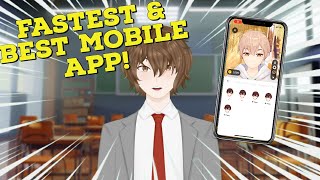
This App Lets You Be a 3D VTuber on iPhone
41sInstantly shows the three biggest features viewers want: 3D avatars, VRM import, and all-in-one streaming.
▶ Play Clip"Delivers a solid walkthrough of Hyper, but 'best app' is an opinion backed by no comparisons."
The video is a comprehensive tutorial on using the Hyper mobile app for VTubing on iPhone. It walks through installation, creating or importing 3D avatars, and setting up streaming to platforms like YouTube, Twitch, and Twitter, along with tips on file sizes and facial tracking.
Hyper lets you create 3D avatars, import custom VRM models, and stream to YouTube, Twitch, and Twitter directly from the app.
Open the App Store, search for Hyper, install the app, and verify your date of birth to confirm you are over 13.
The home page shows banner updates and online users. The book icon opens news/guides, the search icon lets you find users, and menus cover live streams, notifications, and profiles.
In the profile section you can edit posts, avatars, and settings, including name, username, bio, website, linked services (YouTube, Twitch, Discord, Twitter), and content maturity preferences.
Use the Avatar button to pick a free model, choose gender, customize iris, pants, shoes, and accessories, plus select backgrounds and animations.
To import your own VRM, go to the avatar menu, swipe to browse pre-loaded VRMs, then upload your VRM file and take a profile picture.
VRMs larger than 200 MB may take a long time to load or fail entirely; smaller, optimized files work much better.
In settings, go to services, choose a streaming platform, enter your stream key, then hit Live and Go Live. The app provides OBS tools, props, and shows chat on your phone.
After hitting 'Start Hyper Live', chat appears on screen, eliminating the need for external software like Streamlabs OBS.
Hyper turns an iPhone into a complete VTubing studio, offering free avatars, VRM support, and integrated streaming with solid facial tracking — as long as you keep VRM files small.
What is the minimum age required to use the Hyper app?
13 years old.
00:58
What file size limit is recommended for VRM models in Hyper?
VRMs larger than 200 megabytes may take long to load or not load at all.
04:32
Does Hyper include built-in hand tracking?
No, it only has facial tracking, which is described as top-notch.
05:00
What feature must a VRM model have to take advantage of Hyper's facial expressions?
Blend shapes or something similar installed on the model.
05:14
What steps are needed to stream from Hyper?
Go to settings, scroll to services, select the streaming platform, enter the stream key, return, hit live, then go live.
05:14
Which platforms can you stream to using Hyper?
YouTube, Twitch, and Twitter.
00:03
Keep VRM files under 200 MB
Practical optimization tip directly from testing that prevents load failures.
04:32Facial tracking excels, hand tracking absent
Clarifies a key limitation and strength of the app, helping users set expectations.
05:00Integrated chat simplifies mobile streaming
Shows how Hyper reduces the need for extra streaming software on mobile.
07:12Free avatar customization is robust
Highlights that users can create a fully personalized avatar without spending money.
02:30[00:03] 3D V tubers hyper gives you the opportunity to make your own 3D avatars inside the app import your own vrm models into the app and even stream to YouTube twitch and Twitter all with inside the app so let's take a deep dive
[00:17] setup hyper and see how we do everything I just previously mentioned if you happen to find today's video useful make sure you comment and subscribe it really really helps out the channel and if you happen to be new or old to vtubing
[00:31] consider joining my Discord where I have thousands of fellow YouTubers that are just like yourself links for the Discord in the pin comment and in the description down below first thing we gotta do is open up the app store type
[00:44] in hyper and install the application allow the application to install once it's done open up the app once you have hyper open it will ask you to verify your age put in your date of birth make sure that you're over the age of 13 and
[00:58] then you are good to go great now that we have all that done let's take a look at some menus on the home page we can find nice updates given to us by the banner and fellow YouTubers that are currently online using the application
[01:11] if we hit the book icon on the top right hand side we're going to see news and guides things like updates to the application and different little if we hit the search icon on the top right hand side we can search for people
[01:24] by their username find them from our own contacts and even invite friends to the application itself we also get a list of suggested contacts that we might be interested in following the next menu after that we get to see suggested live
[01:37] streamers that we might be interested in watching and the notification menu after that is our inbox giving us updates to the application or notifications of friend requests or messages the final screen is our profile this is where
[01:50] we're going to edit our profile inside our vrms create our models and update our settings great now that we went through all the basic menus let's check out some settings at the profile menu we can see different posts that we've made
[02:03] avatars that we've uploaded and or made and things that we've liked on the application at the settings menu we're able to do things like change our name change our username edit our bio at our own website like your YouTube or your
[02:17] Twitch your account details services that you might be using like like your YouTube twitch Discord or even Twitter and have different announcements instead of your content is mature or not with all that out of the way let's Now set up
[02:30] a free Avatar to set up the free Avatar all we're going to do is hit the Avatar button and as you see there's a lot of free options there are some paid options that we can select but I suggest we do the free ones as much as possible we got
[02:43] genders that we could even choose from I'm going to choose a male model change up my Iris type then I'm going to change up maybe my pants to actually wearing some pants then after that I'm going to change up
[02:57] my shoes and get some black shoes to match my black pants once I'm done that you could add a few accessories to your avatar if you wish but I'm going to just take off the accessories because I don't want any now if we hit the smiley face
[03:10] underneath the T-shirt we're gonna see that there is tons of free animations have some Idol animations that we can pick from we also have some face idle animations that we could choose from so
[03:23] when we are not making any faces this is the default face our Avatar will go to the default face our Avatar will go to and we got some default emotes that we can actually set our Avatar to as well so if we want to click on something like
[03:35] punching our Avatar will do punching repeatedly until we tell it to stop we do also have backgrounds so you can change the color of the background if you choose to do so there are also different Community made backgrounds
[03:48] that you could have for your avatar and thankfully enough you could also upload your own background if you choose to do so once you're done selecting everything all you got to do is hit that check icon take a profile picture of your avatar
[04:02] and that is it your avatar is now set up and ready to go now let's import our own vrms we need to hit the Avatar button once we load it into that menu we gotta click on the back button swipe right ones we're gonna see a whole bunch of
[04:17] pre-loaded vrms all ready for us to use scroll one more and then hit vrm you'll we're gonna hit Stefan and then we're going to upload the Avatar and take its picture one quick note during my testing it did
[04:32] seem that vrms that were larger than 200 megabytes took a long time to load or didn't load at all so the smaller the vrm file the better optimized it is it seems it will work far far better on this application
[04:46] as we can see the application doesn't have a lot of customization for custom vrms which is fully understandable so we do get some limited options like backgrounds and that's pretty well it one thing I will say is hyper has
[05:00] amazing facial tracking it doesn't have any built-in hand tracking but the facial tracking is absolutely Top Notch especially with its default models if your vrm model has blend shapes or something similar installed onto it you
[05:14] can definitely take advantage of that with Hyper now that's all done let's get hyper setup for streaming to accomplish this all we need to do is hit the settings again scroll down to the services area select the streaming
[05:28] platform we want to stream to enter the stream key of our stream once that is done you are going to hit the return button once you've done that you're going to
[05:42] hit the live button then you're going to hit go live OBS tool
[05:55] with the menu right at the bottom left is going to say set up we're going to click the setup button really quick and we're gonna see that we got a topic for the stream so we could type in whatever we wish we got some OBS tools
[06:09] but what we are going to do is type in the topic and the topic we're just going the topic and the topic we're just going to put in as hello
[06:21] going to click stream to YouTube but for now what we're going to do is hit close then what we're going to do is hit on Avatar we're going to select an avatar take a little bit with the Avatar loaded now what we're
[06:35] going to hit is props we're going to select a microphone for an example again props might take a little bit to load we are going to click on the Move button we'll move the prop down and we can actually adjust it by pinching our
[06:47] then what we're going to do is hit props again we are going to add a gaming chair that looks like a pretty good chair right there right there once it's loaded we will also again hit
[07:00] the position we are going to hit behind Avatar and we are going to adjust the size of it to our fingers and that looks like a pretty good setup so far now that we're ready stream all we got to do is hit the setup and now click
[07:12] Start hyper live as long as we are happy with the settings and the objects we have on our Avatar really cool thing streaming with Hyper is your chat actually shows up on your phone screen so you don't have to worry
[07:24] anything like that like you would with like streamlabs OBS it's all there in one space let me know in the comments down below about what you think about hyper if you're going to use hyper or maybe suggest it to one of your friends
[07:39] again I'm your V2 percent Pi I stream here on YouTube every Monday and Friday here on YouTube every Monday and Friday come on by say hi let's talk about anime come on by say hi let's talk about anime gaming v-tubing whatever and well
[07:52] I'll catch you on the next one bye special shout out to our patreon member chitra thank you so much for your continued support
⚡ Saved you 0h 08m reading this? Transcribe any YouTube video for free — no signup needed.