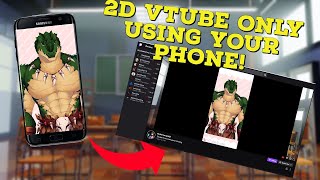
What's the Best Live2D Vtuber App on Mobile?
40sThis opening directly answers a popular question and sets up an easy-to-follow mobile VTubing guide that is perfect for beginners.
▶ Play Clip"Delivers a solid mobile VTubing tutorial, but the title glosses over the fact you still need a PC to upload your own models."
This tutorial demonstrates how to set up VTube Studio on a smartphone to do live 2D VTubing without a PC. It covers installation, permissions, camera calibration, importing custom avatars on Android and iOS, and streaming using Streamlabs. The video is aimed at beginners who want to go live with just a phone and an existing Live2D model.
VTube Studio Mobile is a lightweight app available for both Android and iOS, enabling live 2D VTubing from a phone.
Download VTube Studio from the Play Store or App Store, then allow camera, microphone, and local network access during setup.
Calibrate the camera to sync face movements with the avatar. The app offers avatar selection, background changes, and a settings menu; most settings are best left on defaults for beginners.
Users can add custom hotkeys and change the app language, making it accessible to non-English speakers.
To upload custom Live2D models, the phone must be connected via USB to a PC or Mac. There is no fully mobile import method yet.
On Android, paste your model folder into android/data/com.deni.vtubstudio/files/live2d/models to import it.
On iOS, use iTunes File Sharing, open the VTube Studio live2d models folder, and drag-and-drop the model into it.
Install Streamlabs, enable screen capture, connect to YouTube or Twitch, and create an event to go live directly from the phone.
With VTube Studio Mobile and Streamlabs, you can run a basic VTuber stream using only a smartphone, provided you have access to a PC for the initial avatar upload. It's a practical entry point for just chatting streams and beginners.
Which mobile operating systems are supported by VTube Studio?
Android and iOS.
00:18
What permissions does VTube Studio request during setup?
Camera, microphone, and local network access.
00:43
On Android, what is the file path for importing Live2D models?
android/data/com.deni.vtubstudio/files/live2d/models
03:18
How do you import a custom model on iOS?
Use iTunes File Sharing, open VTube Studio's live2d models folder, and drag-and-drop the model file in.
04:07
What is required to upload a custom avatar to VTube Studio Mobile?
A PC or Mac connected to the phone via USB (or iTunes on iOS).
02:50
Which app is used to stream from the phone?
Streamlabs.
05:31
Which platforms can you connect to Streamlabs for streaming?
YouTube and Twitch.
06:01
What is the recommended approach to VTube Studio settings for beginners?
Leave most settings at default until you gain more experience with the app.
01:41
PC is Still Needed for Initial Avatar Upload
Contrary to the video title, a PC is required to transfer custom models to the phone, which is an important caveat for potential users.
02:50Streamlabs Enables Phone-Based Streaming
This is the key integration that turns VTube Studio mobile into a full streaming setup without a PC.
05:31Camera Calibration is Essential
Proper calibration ensures accurate face tracking, which is critical for a convincing VTuber experience.
00:59Mobile VTubing Works for Just Chatting
The creator confirms that a phone-only setup is viable for chatting streams, making VTubing accessible for beginners.
06:58[00:03] The best live 2D software on PC is arguably VT Studio. But what's the best live 2D software on mobile? I guess that's V Studio 2. Hello everyone, I'm your VTuber senpai and in today's video I'm going to teach you on how to set up
[00:18] I'm going to teach you on how to set up V Studio on mobile. V Studio Mobile is an incredibly lightweight and easy program to use on your phone, and it program to use on your phone, and it works on both Android and iOS devices.
[00:30] The first thing we need to do is head to the Play Store if you're on Android, and on the App Store if you're on an iOS device. Once there, we're going to type in V Studio. We're going to download and install it. With the program now
[00:43] installed, let's do the setup. With the application now open, we want V2 Studio to access the camera, the microphone, our local networks, and anything that might pop up on the screen. Now that the initial setup's all done and ready to
[00:59] go, let's go through some settings. The first setting we're going to look at is camera calibration. This will calibrate your face properly with the app itself. avatar selection. We don't have an avatar loaded just yet, but it does have
[01:14] a few avatars we can use for free. The next one we're going to look at is change our backgrounds to whatever we have pre-selected or even upload our own. To change it back, all we got to do is click on the icon again, scroll down,
[01:29] is click on the icon again, scroll down, and hit default, then select. We're now going to pull up the settings menu. And from here we can see we have some general configuration streaming settings that we're going to be sending
[01:41] settings that we're going to be sending to the PC and things like mouse input configuration. VC face configuration, configuration, I will leave that to default. All these settings I would
[01:55] probably just leave to default and maybe mess with that as you gain a little bit more experience with the app. Now that we've loaded one of V Studios default models, we go into settings and model settings. We see that we get a lot of
[02:09] different configuration and settings that we could use to control the model. So again, you guys can play through this as much as you need to or want to. It is as much as you need to or want to. It is a cool way to customize the avatar.
[02:24] Next menu we see here is hotkeys. So, we could actually add on custom hotkeys if we wish to do so, which is fantastic. The next menu that we have here is language settings. So, if you don't speak English and you speak something
[02:38] different, you can change the language settings here. Great. Now that we've done all the basic settings for V Studio, let's look at uploading some Studio, let's look at uploading some avatars. To upload our avatars onto our
[02:50] phones, we actually need to have a PC. So, if you don't have a PC, just head over to a friend's house and you're going to have to upload it that way. I'm sorry, but that's just how V Studio is working at this particular time. We will
[03:03] also need to connect the phones via USB to our computers. So, if you're using a PC or a Mac, make sure you connect it via USB. But let's start on the Android version. So, when we click on avatar selection on the Android version and
[03:18] click on import your own model, you're going to see this screen here. basically telling us that we have to go to your phone android data phone android data com.deni.vtubstudio/filelive2d
[03:36] So we're going to click on the Android folder data then com then we're going to click on files live 2D models and then we're going to paste our model into this folder. And just
[03:52] like that, it's uploaded to VTube Studio. Now that we know how to upload the model onto Android, let's work on our iPhone. As we click on the model selection on our iPhone and we click on import model, we see that it requires
[04:07] iTunes to do this setup. So, let's do that right now. With iTunes open, all we need to do is head to file sharing. Make sure we select V Studio. We are going to click on live 2D models. And then we are going to select save. Then we are going
[04:22] to download this folder to a trusted place on our computer, usually the desktop, but I'm going to save it on my local disc. And I'm going to click on select folder. It will download. And as we see on the local disc C, our live 2D
[04:36] models are right here. All we need to do now is copy and paste our model into now is copy and paste our model into that folder, which is located right here. And as we see, it's in there right now.
[04:49] So, all we need to do is now drag and drop this back. Click on replace. And just like that, it'll upload. And your avatar is now on your phone.
[05:03] And now with V Studio open on the phone, we see that the avatar is loaded. So, a little error message. We're going to click okay. And there's our avatar right there. We click on the X on the bottom left. adjust ourselves to where we need
[05:17] left. adjust ourselves to where we need to be. And well, we're good to go. Even though we have our V Studio all done and ready to go, we aren't done just quite yet because what's the point of having a V Studio on your phone if
[05:31] you can't actually stream it from your phone? So, let's do that right now. We want to go back to the app store and look up Streamlabs. We're going to download and install it. During the setup, we will click on capture desktop
[05:46] and then continue and following the onscreen prompts allowing everything that pops up. With that done, let's calibrate some settings in Streamlabs. the top left hand side. We're going to click on screen capture. We're going to
[06:01] make sure we connect the application to the platform we want, either it be YouTube or Twitch. We're going to create a event. We're going to click on tutorial and we're going to do what it tells us to do for iOS. Android we don't
[06:15] really have this much of a problem. It's a lot easier on Android. capture. We're going to click on our platform. We're going to create an event. We're going to call it test access. I set mine to private. You can
[06:29] set it to public or unlisted. Then we're going to click on save. Once we click on save, it will pop up with a window. We're going to click on got it and we're We're going to click on got it and we're going to click on go live. On iOS, it
[06:44] will try to stream to the photos aka making a video. Make sure you click on Streamlabs. Once you do that, you will now see that we are streaming here on YouTube. So, if you are someone that doesn't have a computer, but you do have
[06:58] a live 2D model and you don't mind doing just chatting, this is the perfect solution for you. And I really hope this video helps you out. If you found today's video helpful, make sure you share it around, smash that like button,
[07:12] and hit subscribe. I do upload here every Wednesday. I also stream here on YouTube every Monday, Wednesday, Friday evenings. So, come on by and say hi. And well, I'll catch you in the next one. Bye. Special thank you goes out to our
[07:28] very first Patreon, Blue_Devil. Thank you so much for your support.
⚡ Saved you 0h 07m reading this? Transcribe any YouTube video for free — no signup needed.