Why You NEED a Home Server
35sUniversal appeal to PC enthusiasts and budget builders by promising benefits like file sharing and hosting media, creating curiosity.
▶ Play ClipThis video explains how to build a budget home server for NAS, Plex media streaming, gaming, and virtualization. The creator shares hardware choices and setup tips, emphasizing that even old laptops can be used. The goal is to make home servers accessible to beginners.
A home server can serve as NAS, Plex server, gaming PC, and virtualization playground, benefiting even budget-conscious users.
The server is built for NAS, Plex media server, home theater gaming, and virtualization.
Use Windows 10 Pro, right-click drive > Properties > Sharing tab to share drives. Use a cheap 3.5" HDD for storage.
Plex is recommended for easy setup, organizing media, transcoding, and remote access. Keep Windows and Plex updated.
The server can double as a gaming PC. A GTX 1650 low profile is used for light 1080p gaming.
Windows 10 Pro includes Hyper-V for creating VMs. Download an ISO, create a VM, and experiment with Linux distros safely.
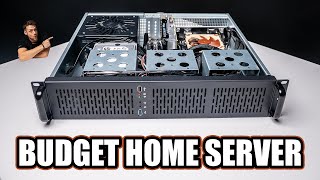
Use any old system (desktop or laptop). Specific build: Rosewill 2U case, Gigabyte B460M motherboard, Intel i3-10100F, 32GB RAM, GTX 1650.
Building a budget home server is accessible and versatile, offering NAS, Plex, gaming, and virtualization capabilities. Even old hardware can be repurposed, making it a rewarding project for beginners.
"Title accurately reflects the content: a budget home server build with multiple uses."
What are the four main purposes of the budget home server discussed?
NAS, Plex media server, home theater gaming PC, virtualization playground.
02:31
How do you share a drive as NAS in Windows 10 Pro?
Right-click the drive, click Properties, go to the Sharing tab, and enable sharing.
03:03
What is the recommended software for hosting a media server?
Plex, but there are alternatives like Jellyfin and Emby.
03:55
What built-in Windows 10 Pro feature allows creating virtual machines?
Hyper-V.
06:27
What CPU is used in the build?
Intel i3-10100F.
09:58
What GPU is recommended for gaming on a budget home server?
GTX 1650 low profile.
10:30
Why is a laptop recommended as a home server?
It has a built-in monitor, keyboard, mouse, and battery backup for uptime during power outages.
08:24
Home Server for Everyone
Opens with a strong claim that almost anyone can benefit from a home server, setting an inclusive tone.
Satisfaction of Hosting Plex
Describes the joy of providing a resource for friends and family, highlighting the emotional reward.
04:34Learning Linux via VMs
Shares personal story of learning Linux through VMs, making the concept relatable and encouraging.
07:06[00:00] Almost everybody watching this video, including PC flippers or even people on a really tight budget, can benefit from having a home server, and this project doesn't have to be expensive at all. Trust me when I say that building a NAS or a centralized storage solution that you can access from anywhere in your house takes so much time when you're trying to transfer files from one computer to another,
[00:20] or if you just want to keep a big download like a Steam library on your NAS so you don't have to download it from the internet every time you want to benchmark a game on a new PC flip. You can also be the cool guy at home or even in your friend group that hosts the Plex server or the Meteor server that has a bunch of movies and TV shows.
[00:35] It's actually a super satisfying position to be in. And you can indeed even use your server for gaming like how I'm going to be doing by hooking the server up to my projector in my home theater. We'll also talk about how to set it up to be a virtualization playground so you can dabble with other operating systems like Linux distros that you want to try out without having the risk of messing up your main system.
[00:54] We have a lot to talk about today. A lot of people don't know this, but I actually used to work in IT, specifically in building and configuring servers, so I have a lot of knowledge about this, and I'm super excited to share it with you. Just like always, everything that we talk about today will be linked down in the description.
[01:08] Let's get into it. Okay, so I want to break down the different parts of this video first, in case some of you aren't interested in the whole thing and just want some specific information about something.
[01:23] For the first part, we'll talk about some specific purposes of why I built this budget home server for myself and the reasons why you might want to build one for yourself as well. And after that, we'll talk about the specific hardware choices that I made and how you can keep your own server nice and cheap.
[01:36] All of that, though, after a quick word from today's sponsor. PulseSuite is a remote monitoring and managing solution that allows you to completely control devices around your network to do things like run and schedule Windows and third-party updates, apply security patches, run custom scripts, auto-remediate IT issues,
[01:51] and my personal favorite, simply being able to remote desktop into any machine so you can control them from anywhere in the world. The monitoring side of things is incredibly useful and now beautiful as well since their latest updates. You can easily see the status of every virtual machine, server, or even your network devices
[02:07] in a nice-looking map diagram. This platform will suit advanced sysadmin users as well as complete IT beginners as it's super easy to set up and navigate with tons of documentation. and training videos on how to do everything.
[02:19] Pulseway is hooking you guys up with a free trial and 20% off if you click that first link down in the description and start your free trial today. Thanks again to them for sponsoring today's video. Starting with the main purposes, there's actually four of them that I'm going to go with today.
[02:31] First is being a NAS, a Plexa media server, just a home theater gaming PC, and finally a virtualization playground. And just as a quick note, this video is indeed going to be geared towards beginners that don't know a ton about home servers in general.
[02:43] This will be super easy to follow and understand if you want to try any of this for your Okay so starting with the first purpose which is mass or network attached storage this concept allows you to share your hard drive or multiple drives from your computer to any device that connected to your home network And honestly if you still using like a USB drive to transfer files from one computer to another please listen up
[03:03] This is actually super simple to do, but I'm not going to be giving specific instructions because it depends on which operating system you're using. But you can indeed use something like Windows 10 Pro, and that's exactly what I recommend doing if you're a beginner. In Windows, it's actually as simple as right-clicking your hard drive, clicking properties, and going to the sharing tab, and then every device that mounts or connects to that share drive will have access to it.
[03:23] For a budget home server like this, I recommend just putting any 3.5-inch spinning hard drive that you can get for cheap and using that as the NAS. I personally recommend just using a smaller NBME drive as your boot drive, and then, like, I just threw this 2-terabyte use HP spinning hard drive on here that I found on eBay for, like, $21.
[03:40] Now, all of my computers have easy access to 2KB of storage. Alright, but now that you have that hard guy ready to roll, you're starting to keep some files and backups from other computers on there, now it's time to load up some movies and TV shows which you may or may not have downloaded illegally and you want to share
[03:55] them with other people. As of right now, there's three main pieces of software to use for hosting a media server. You've probably heard of at least Plex already, and that's what I recommend starting off with, but just know there's certainly some advantages of using the other two. Plex is super easy to set up, and I recommend you're following their online documentation
[04:09] documentation behind to do that, and once you're up and running, you'll now have a super clean, almost like a streaming service that you're hosting for your friends and family, or even just yourself. Flex allows you to fully organize your library with opera artwork, set all sorts of
[04:21] transcoding settings so you can watch your media on different devices, and it even allows you to set up your server so you can access it outside your network when you're on the go. Trust me when I say it's a really fun and satisfying experience setting this up for your friends and family.
[04:34] I just love being able to provide this resource for my own family, but just know, once people start to rely on your Plex server, you're going to have to maintain it and make sure it stays up and running. If you're using Windows 10 Pro like I recommended earlier, then definitely be sure to disable that sleep option so your server stays up and running,
[04:50] and I would definitely recommend getting into the habit of keeping both Windows and your Plex server software fully updated so your server is secure and doesn't start crashing or anything. And before getting into that virtualization playground where we're going to spin up some virtual machines and all that,
[05:02] this may sound obvious to some of you, but you can also just use your home server as a normal gaming PC while it's also functioning as like a NAS and a Plex server as well. Here in my own home theater, I have this massive server wrap, which I want to make more videos about in the future,
[05:15] so click that subscribe button if you'd be interested in that. But the projector that's displaying my movies and games and all that is simply plugged in directly to the back of this server that we're looking at today, and it's simply just functioning as a normal computer plugged into a monitor. Don't let this weird looking case or elaborate home server rack fool you, this is still just a normal gaming PC that's also functioning as a server.
[05:35] If you use a 2U case like this you are pretty limited in GPU choices, but I was able to snag up this UTX 1650 low profile and that's enough for me doing some light gaming on a 1080p 60Hz projector. Being able to grab a controller and play games like Forza from my couch is a super fun experience and it a nice changer of pace from just sitting at my desk and chair all day I highly recommend building a setup like this even if you don have a dedicated home theater setup
[05:57] But now I want to talk about some virtualization stuff that you can do with a build like this. Hopefully you guys saw that Linus Tech Tips series where they tried Linux gaming for like a month or whatnot. It was actually super entertaining, you can check it out up here. But maybe you now, after watching that, have the itch to download like a new Linux distro and just try something new out.
[06:14] You certainly could try to replace Windows with Linux and survive like Linus and Luke did, but a much safer and less permanent way is to simply create a virtual machine on your new home server. You don't need super high-end hardware to do this, and you don't even need special or difficult software,
[06:27] because Windows 10 Pro actually has an option built right in. It's called Hyper-V, and all you gotta do is press start and type in Hyper-V. You'll most likely have to install this specific feature, but it's still natively just a part of Windows, and most people don't know about it.
[06:39] Do keep in mind that there are other options like VirtualBox that you can use as well, use as well, but if you have Windows 10 Pro already, I actually like using it better. Once you get the feature installed, you'll have to learn this interface a bit, but it's not difficult at all. Everything that you need is in the upper right hand corner, such as creating a new virtual
[06:53] machine. You'll of course also have to download your Linux operating system ISO file of choice, because after you get these basics down, you'll be able to easily spin up, destroy, rebuild, back up, and just play with whatever type of system that you want to experiment with.
[07:06] If you haven't tried this on an old laptop or desktop or anything ever in your life, This is also a super satisfying experience, and trying out new Linux distors like TopOS is super fun, and you'll learn a ton while you're doing it. My specific IT job that I had before I quit and became a content creator required a lot of Linux work that I definitely wasn't prepared for when I first took that job,
[07:25] and just spinning up Linux VMs like this is exactly how I learned and got up received from that. There's also the added benefit of being able to build even more servers, virtually of course, inside your home server. This is actually how a lot of servers are run these days, and the basic concept is that you can create a dedicated virtual machine to each individual task, like the NAS or Plex server that we talked about earlier, and then once they're separated, you have even more flexibility.
[07:47] I'm not going to dive any further for this video, but for now, I recommend just playing around with building some virtual machines and learning this concept. This is super valuable out in the IT world if that's something you're interested in, or if you're just looking to dabble when you're bored. Hopefully at this point in the video you aren't too bored though, but the whole point of that was just to open up your mind and see the possibilities of what you can do with even just a super budget home server like this.
[08:08] But now, let's talk about the specific hardware in mind and some considerations that you should consider when building your own. First up, which is easily the most important, just know that you don't have to build a dedicated machine like I did, and you can literally use any system that you already have, such as an old desktop or, my favorite, an old laptop.
[08:24] The home server video that Linus uploaded recently talked exactly how you can turn something like an old Dell Optiplex into a home server with some similar concepts that I'm talking about today, but even better than that in my opinion is using a laptop. A laptop functions just like a desktop and it can host all of the same home server things
[08:40] including the virtualization platform but it also has a monitor a keyboard and a mouse built right in and technically it even has a battery backup as well Remember that once people start to rely on your home server specifically that Plex server
[08:53] they're going to get upset if their service ever goes down. To easily maintain some uptime, just use a laptop with a good battery in it. That way, whenever the power goes out in your house, the Plex server stays online until hopefully the power comes back on again, but just know you'll also have to have your
[09:06] networking gear like your router on a battery backup solution as well to make it worth it. Regardless, I'm just trying to say that you can basically use any system that you already have, but now let's talk about what's specifically in mind. Alright, so starting with this case, this is a 2U chassis from Roseville, which only costs around $130, but you can throw this entire system into a normal desktop case if you wanted to, but I specifically wanted to get this build inside my server rack.
[09:27] The cool thing about this unit is that it allows for a standard micro-ATX motherboard like my Gigabyte B460M DS3H, which I picked up for just $61 to use on NuE, and the case also allows for a standard ATX power supply like the EVGA650GT that I picked up off EVGA Vstock for $45.
[09:42] Keep in mind that some 2U cases like this may require some server-specific power supplies or have some funky motherboard compatibility, just make sure you do your research if you're buying a 2U case like this. Also inside my build is the Intel i3-10100F which is just a 4 core and 8 threaded budget kit.
[09:58] Remember that although it's super budget and only costs like $100 on Amazon, it's still enough for everything that I've listed out today for a home server. For RAM, this wasn't the most budget selection but it was honestly kind of an accident. On Black Friday, came Mariotti and her Discord server linked what we all thought was a 2x8GB G-Skill Rickjaw RAM kit which was only a really good deal.
[10:17] Naturally I bought 5 of them because they'd be perfect for flips, but they ended up being 1x16GB 6 and now I have 5 of them that I don't know what to do with. I used 2 of them for this build just because I had them, but you can certainly go with a much more budget option for a home server build like this.
[10:30] And finally for the GPU, because I'm using this build for gaming like I said earlier, I threw the GTX 1650 low profile in here. The 1650 is currently the best gaming graphics card on the market that has a low profile option like this. But if you aren't gaining the need, you can either use integrated graphics with a different CPU, or you can use something really cheap for display-out purposes like a GT710 or GT1030.
[10:50] Now everything else in here isn't really worth explaining. I did spend a few extra bucks on the Noctua NHL9i low-profile CPU cooler just because you gotta have some Noctua colors inside a home server built. And I also upgraded the fans to the Be Quiet Pure Wings, which are 80mm, and they'll be much quieter and better performing than the stock Molex fans that the case came with.
[11:08] For storage, you'll have to decide what your goals are ahead of time. Like I said earlier, I think it's a good combo having a smaller MB&E drive as your boot drive for Windows and maybe even some games, but then also throwing a cheaper spinning hard drive in there to do your math if that's what you want to do.
[11:21] Hopefully you got some value out of this or maybe even just some ideas. I've been wanting to make this video for so long, and definitely let me know down in the comment section if you want to see other home networking or home server style of videos like this one.
[11:33] Also, feel free to click the video that's on the screen now to see a different home server build that I built a long time ago. But just like always, I hope you enjoyed this video.
⚡ Saved you 0h 11m reading this? Transcribe any YouTube video for free — no signup needed.