
AI Summary
This video provides a comprehensive overview of Linux file permissions, covering ownership, basic read/write/execute permissions, their binary, octal, and string representations, and practical use of the chmod command. It also explains special permission bits—setuid, setgid, and the sticky bit—and how they enhance security and collaboration in Linux environments.
Chapters
Every file or directory has three owner types: user (creator, most control), group (users sharing permissions), and others (everyone else, least control).
Three permissions: read (open/read contents), write (modify/edit), execute (run as program).
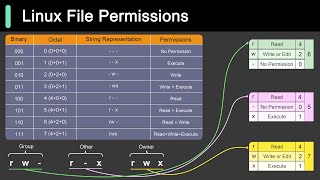
Permissions shown as binary (111), octal (7), or string (rwx). Octal values: read=4, write=2, execute=1.
Owner rwx (7), group rw- (6), others r-- (4). Set with 'chmod 764 filename'.
On executables, runs with owner's permissions. Example: passwd command. Displayed as 's' in owner execute position.
On files, runs with group's permissions; on directories, new files inherit directory's group. Displayed as 's' in group execute position.
On directories, only file owner, directory owner, or root can delete/rename files. Used on /tmp. Displayed as 't' in others execute position.
Use chmod with symbols or numbers. Example: 'chmod 4755 important_script' sets setuid, owner rwx, group/others rx.
Properly configuring file permissions and special bits is essential for preventing unauthorized access and ensuring secure, collaborative Linux environments.
Mentioned in this Video
Tutorial Checklist
Study Flashcards (9)
What are the three owner types in Linux?
easy
Click to reveal answer
What are the three owner types in Linux?
User, group, and others.
What does the write permission allow?
easy
Click to reveal answer
What does the write permission allow?
Modifying or editing file contents.
00:46
What is the octal value for rwx?
easy
Click to reveal answer
What is the octal value for rwx?
7 (read=4, write=2, execute=1).
00:58
What does chmod 764 mean?
medium
Click to reveal answer
What does chmod 764 mean?
Owner rwx (7), group rw- (6), others r-- (4).
01:40
What does the setuid bit do on an executable?
medium
Click to reveal answer
What does the setuid bit do on an executable?
Runs the file with the permissions of the file owner, not the user running it.
02:05
How is setuid displayed in the owner execute position?
easy
Click to reveal answer
How is setuid displayed in the owner execute position?
As 's'.
02:21
What does the setgid bit do on a directory?
medium
Click to reveal answer
What does the setgid bit do on a directory?
Ensures new files/directories inherit the group ownership of the directory.
02:36
What does the sticky bit do on a directory?
medium
Click to reveal answer
What does the sticky bit do on a directory?
Only the file owner, directory owner, or root can delete or rename files within.
03:01
What command sets setuid with owner rwx and group/others rx?
hard
Click to reveal answer
What command sets setuid with owner rwx and group/others rx?
chmod 4755 important_script
03:31
💡 Key Takeaways
Ownership model
Foundation of Linux access control—user/group/others is the core concept.
Octal representation
Read=4, write=2, execute=1 is the key to understanding chmod numbers.
00:58Setuid example
Passwd command shows real-world use of setuid for privilege escalation.
02:05Setgid for collaboration
Group inheritance on directories is a practical technique for shared projects.
02:36Sticky bit for security
Prevents users from deleting others' files in shared directories like /tmp.
03:01Full Transcript
[00:00] Today, we're diving into a fundamental concept in Linux, file permissions. Understanding file permissions is crucial for maintaining security and proper access control in any Linux environment. So let's get started. First, let's talk about ownership. In Linux,
[00:16] every file or directory is assigned three types of owners, the user, the group, and others. The user is the owner who created the file or directory. They have the most control over it. The group consists of users who share the same permissions to access the file or directory.
[00:32] Others are users who are neither the owner nor members of the group. They have the least control. To manage access, Linux uses three types of permissions, read, write, and execute. Read allows the user to open and read file contents.
[00:46] Write allows modifying or editing file contents. Execute allows the file to be run as a program. Permissions are represented in three ways, binary, octo, and string representation.
[00:58] Consider the permission rwx. In binary it is 1 1 1 where each bit represents a permission Read is 1 write is 1 and execute is 1 In Octo this is represented as 7 with read being 4 write being 2 and execute being 1 added together
[01:16] In string representation, it's simply RWX. Let's consider a practical example. Suppose you have a file where the owner has full permissions, which is RWX and translates to 7.
[01:28] The group can read and write, which is RW- and translates to 6. Others can only read, which is r dash dash, and translates to 4. In Octo,
[01:40] you could represent this as 764. Using the chmod command, you can set these permissions like this, chmod 764 and the file name. The owner can read, write, and execute the file. The group can read
[01:53] and write, and others can only read. Now let's talk about special permissions bit, setuid, setgid, and the sticky bit. These provide additional control over files and directories.
[02:05] The set UID bit, when set on an executable file, allows it to run with the permissions of the file owner not the user running the file This is useful for tasks that require higher privileges For example the password command which changes user passwords
[02:21] has the setuid bit set. This allows regular users to change their passwords, which requires modifying sensitive system files. When the setuid bit is set, the execute bit for the owner shows as S. The setuid bit can be set on files
[02:36] on files or directories. On the executable file, it allows the file to run with the permissions of the group that owns the file. On the directory, it ensures that the new files and directories created within the directory
[02:48] inherit the group ownership of the directory. This is useful for shared project directories, ensuring all files created within have the same group ownership, allowing team members the necessary access permissions.
[03:01] When the setGid bit is set, the execute bit for the group shows as s. The sticky bit, when set on a directory, ensures that only the file owner, the directory owner, or the root user can delete or rename the files within the directory.
[03:16] This is commonly used on directories like temp to prevent users from deleting each other files When the sticky bit is set the execute bit for the others is shown as T To set these special permissions you can use the chmod command with specific symbols or
[03:31] numeric representations. For example, let's say you want to set the setuid bit on an executable file named important script, along with the typical permissions of read, write, execute for the owner,
[03:43] the read and execute for the group and others. In this command, for set the setuid bit, 7 gives the owner read, write, and execute permissions, and 5 gives the group and others read and execute permissions.
[03:55] Understanding these permissions and special bits is essential for managing access and ensuring security in your Linux environment. Correctly setting file permissions and special bits can prevent unauthorized access
[04:07] and accidental modifications, safeguarding your data and ensuring smooth collaboration. That's it for today's video on Linux file permissions. If you like our videos, you might like our system design newsletter as well.
[04:21] It covers topics and trends in large-scale system design, trusted by 500,000 readers.