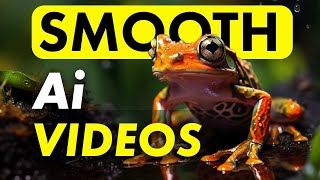

8 FPS vs 32 FPS AI Video Comparison
45sThe dramatic side-by-side comparison of choppy vs smooth AI video immediately grabs attention and demonstrates the value of frame interpolation.
▶ Play Clip"Title accurately describes the tutorial; video delivers on making smoother AI videos with frame interpolation."
This tutorial demonstrates how to increase the frame rate of AI-generated videos using Flowframes, a free AI frame interpolation tool. It covers upsampling low-frame-rate videos from Pika Labs, creating smoother motion, and generating seamless looping videos.
Pika Labs generates AI videos at 8 FPS, which is choppy.
Flowframes is a free AI tool that upsamples frame rate using interpolation.
Download Flowframes, run installer, let it auto-detect settings. Close installer before starting software to avoid issues.
Browse video, set output FPS: input FPS (e.g., 8) and multiplier (e.g., 4x to get 32 FPS). Choose output format (MP4) and AI model (e.g., latest for Nvidia).
Click interpolate; Flowframes processes the video and saves output in the same folder as input.
8 to 32 FPS shows huge improvement; 32 to 64 FPS less noticeable but beneficial for fast motion.
In quick settings, check 'loop' box, then interpolate to generate a seamless loop between start and end.
Flowframes effectively smooths AI videos by upsampling frame rate, with simple settings for basic interpolation and loop creation.
What is the default frame rate of videos generated by Pika Labs?
8 frames per second.
0:02
What tool is used to increase the frame rate of AI videos?
Flowframes.
0:18
What are the system requirements for Flowframes?
Windows system and a graphics card.
0:32
Why should you close the installer before starting Flowframes?
Starting the software right after installation can cause issues.
0:43
How do you set the output frame rate in Flowframes?
Enter the original video's FPS in the first box and the frame rate multiplier in the second box.
1:19
What is the effect of increasing frame rate from 8 to 32 FPS?
Huge improvement in smoothness; motion becomes much smoother.
2:07
How do you create an infinite looping video in Flowframes?
In the quick settings tab, check the 'loop' box, then click interpolate.
2:22
Frame Rate Difference
Visually demonstrates the problem of low frame rate in AI videos.
0:10Free AI Frame Interpolator
Introduces a free tool to solve the low frame rate issue.
0:18Comparison of Frame Rates
Shows quantitative and qualitative improvement from 8 to 32 FPS.
2:07Seamless Infinite Loop
Demonstrates an advanced feature for creating smooth loops.
2:22[00:00] here's an AI video generated with Pica
[00:02] Labs it runs at 8 frames per second and
[00:05] here's that exact same video upsampled
[00:07] running at 32 frames per second notice
[00:10] the difference Pico Labs generates cool
[00:12] AI videos but it's limited to a low
[00:14] frame rate here's how to increase the
[00:16] frame rate using a free AI frame
[00:18] interpolator we'll use flow frames to
[00:20] upscale the frame rate it's free and
[00:21] uses AI for frame interpolation check
[00:24] the description for the links click
[00:26] download now there's an option to leave
[00:28] a donation on patreon but you can also
[00:30] just get the software for free this will
[00:32] require a Windows system and a graphics
[00:34] card open up your downloads folder and
[00:36] run the installer I'll click through and
[00:38] let the software automatically detect
[00:40] the ideal settings for my system the
[00:42] installation will take a minute when
[00:43] you're finished don't automatically
[00:45] start up the software close installer
[00:47] first I found that if you start the
[00:49] software right after installation it has
[00:51] some issues running startup flow frames
[00:53] go to the interpolation tab when you
[00:56] open up flowframes for the first time
[00:57] it'll take a second to load I'll go over
[00:59] the basic set settings to make this work
[01:01] first click on browse video and navigate
[01:03] to the video file you'd like to upsample
[01:05] I'll start with this bear walking the
[01:07] original video was choppy and you can
[01:09] see the frames jittering between each
[01:10] other the output directory is where the
[01:12] output video will be saved by default
[01:15] it's in the same location as where your
[01:16] input video is I'll leave this as is the
[01:19] output FPS determines how much your
[01:21] video will be upsampled in the first box
[01:23] is the original video's FPS my video was
[01:26] generated using Pico Labs so it has 8
[01:28] frames per second and the second box is
[01:30] the frame rate multiplier I'll set this
[01:32] to four four times age is 32 so that'll
[01:34] be the final frame rate of my
[01:36] interpolated video you also have the
[01:37] option to change the video speed I'll
[01:39] leave this as normal finally you can
[01:41] choose the output format of the video
[01:42] I'll use MP4 the AI model itself might
[01:45] depend on your system I've got an Nvidia
[01:47] graphics card and I'll use the latest
[01:49] model click on interpolate and flow
[01:51] frames will automatically up sample your
[01:53] video frame rate if you got a long video
[01:55] this will take a minute you'll find the
[01:57] upsampled video save to where your
[01:59] original input video was let's take a
[02:01] look
[02:02] the motion in the up sampled bear video
[02:04] at 32 frames per second is much smoother
[02:07] here's that video of the flowers
[02:08] compared between 8 32 and 64 frames per
[02:11] second the difference is huge between 8
[02:13] to 32 frames wow 32 to 64 has less of a
[02:17] difference for videos with faster motion
[02:19] the 32 to 64 FPS difference will be more
[02:21] clear
[02:22] you can also create automatic infinite
[02:24] looping videos in flow frames I'll
[02:26] interpolate a video of this ballet
[02:28] dancer the original video is extremely
[02:30] choppy and looks like an animated gif
[02:32] instead of an actual video let's see how
[02:34] flow frames does with this dancer in the
[02:36] quick settings tab check the loot box
[02:38] leave the other settings the way they
[02:40] are now click interpolate flow frames
[02:42] will generate a loop between the start
[02:43] and the end of the video it's pretty
[02:45] impressive how smooth that transition is
[02:47] and the infinite Loop effect is seamless
[02:51] here's another loop video of a model
[02:53] walking
[02:55] here are some more frame interpolation
[02:56] results I got for a rainforest Wildlife
[02:59] themed video I generated using
[03:01] mid-journey and Pico labs
[03:05] now I haven't played with the other
[03:06] settings too much to get more details
[03:08] check out the original GitHub page for
[03:10] the project which has a more detailed
[03:12] guide if you're interested in learning
[03:13] more about AI video generation make sure
[03:16] to go watch my beginner tutorials also
[03:18] make sure to subscribe for the latest
[03:19] news and updates on AI images and videos
[03:22] [Music]
[03:24] thank you
[03:25] [Music]
⚡ Saved you 0h 03m reading this? Transcribe any YouTube video for free — no signup needed.