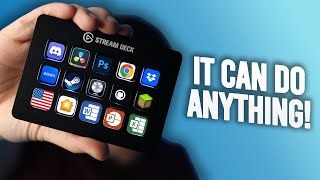

Best accessory you can buy?
45sOpens with a bold claim that hooks viewers to see if the Stream Deck lives up to the hype.
▶ Play Clip"Title accurately reflects the video's content: a review and how-to guide for maximizing productivity with the Stream Deck."
The Elgato Stream Deck is a versatile macro keypad that can boost productivity across various tasks, from video editing to smart home control. Originally designed for streamers, it now offers endless customization through plugins and even a free mobile app.
The Elgato Stream Deck is hailed as the best accessory, limited only by creativity.
Created in 2017 for streamers, by 2023 it has become a versatile productivity tool.
Models include Mini, Mark II, XL, Foot Pedal, and Plus with touchscreen and knobs.
15-key Mark II is the best balance of size and function, with replaceable face plates.
Plastic build with rubber base, USB-C for power and data, no external power brick.
Mark II stand offers only two angles, unlike the Mark I's multiple angles.
LCD screens have 72x72 pixels; XL has 96x96, but Mini and Mark II do not.
Requires Elgato's Stream Deck software running in background for customization.
Create macros for hotkeys in DaVinci Resolve or Adobe Lightroom for faster editing.
Plugins for Visual Studio Code, Xcode, Unity, JetBrains IDE for debugging and code actions.
Integrates with Home Assistant and Homebridge to control lights, plugs, etc.
MuteDeck plugin for Zoom/Teams, control PowerPoint, Keynote, Slack, iCal meeting timer.
Bitfocus Companion allows control of ATEM switchers, ProPresenter, audio mixers, etc.
Stream Deck Mobile offers 6 free buttons; Pro subscription ($25/year) gives 64 keys.
Mark II is $130; Stream Deck is a top productivity accessory.
The Elgato Stream Deck is a powerful productivity tool with endless customization through plugins and a free mobile app option, making it accessible to everyone.
Elgato Stream Deck
tool
DaVinci Resolve
tool
Adobe Lightroom
tool
Microsoft Visual Studio Code
tool
Apple Xcode
tool
Unity Engine
tool
JetBrains IDE
tool
Home Assistant
tool
Homebridge
tool
MuteDeck
tool
Microsoft PowerPoint
tool
Apple Keynote
tool
Slack
tool
iCal
tool
Bitfocus Companion
tool
Stream Deck Mobile
tool
What year was the Elgato Stream Deck originally created?
2017
0:29
How many models of the Stream Deck are available as of 2023?
Five: Mini, Mark II, XL, Foot Pedal, and Plus.
0:46
What is the resolution of the LCD screens on the Mark II Stream Deck?
72 by 72 pixels.
2:04
Which Stream Deck model has replaceable face plates?
The Mark II.
1:16
What software is required to configure the Stream Deck?
Elgato's Stream Deck software.
2:24
Name two smart home platforms that integrate with the Stream Deck.
Home Assistant and Homebridge.
4:01
What is the name of the app that allows advanced control of hardware like ATEM switchers?
Bitfocus Companion.
4:49
How many free buttons does Stream Deck Mobile offer?
Six.
5:52
What is the annual cost of the Stream Deck Mobile Pro subscription?
$25 per year.
6:30
What is the price of the Stream Deck Mark II at the time of recording?
$130.
7:04
Best Accessory
Sets the tone for the video's strong endorsement of the Stream Deck.
Display Resolution Discrepancy
Points out a notable difference in screen resolution between models.
2:04Companion App Power
Highlights the advanced capabilities of the Companion app for professional workflows.
4:49Free Stream Deck Option
Provides a cost-effective entry point for users to try the Stream Deck.
5:41Cost Comparison
Demonstrates the value of the mobile subscription versus buying hardware.
6:30[00:00] This is the Elgato Stream Deck,
[00:02] and it is hands down the
[00:03] best accessory you can buy.
[00:05] The possibilities are only
[00:07] limited by your creativity.
[00:09] So let's check this thing out,
[00:11] give you some thoughts or
[00:12] ideas on how you could use this
[00:14] and how you can even get
[00:16] a Stream Deck for free.
[00:18] Hey there, macro lover,
[00:19] it's Brian from Accessify.
[00:20] And on this channel, we
[00:21] do unboxings, reviews,
[00:23] and much more of
[00:24] accessories for your tech.
[00:26] So if any of that
[00:27] interests you, you know what to do.
[00:29] So back in 2017, Elgato
[00:31] created the Stream Deck,
[00:32] and it was originally
[00:33] targeted for streamers
[00:34] to automate basic tasks for
[00:36] controlling their streams.
[00:38] But now it's 2023,
[00:39] and it's become so much
[00:41] more than we ever thought.
[00:42] Now we wanna use it to
[00:43] improve your workflow
[00:45] like it did for me.
[00:46] Now there are five
[00:47] models of the Stream Deck
[00:48] that you could buy right now.
[00:50] There's the Stream
[00:50] Deck Mini, the Mark II,
[00:53] the XL, the Foot
[00:54] pedal, and the newer Plus
[00:55] with a bunch of buttons,
[00:57] a nice little touchscreen,
[00:58] and four rotatable knobs.
[01:00] But today we are gonna talk about the
[01:01] version that I have,
[01:02] which is the 15 key Mark II,
[01:05] which I think is the
[01:05] best of size and function.
[01:08] Now it comes in two
[01:09] colors, which are black or white,
[01:11] and you even have replaceable face plates
[01:13] so you could personalize
[01:14] your Stream Deck to your liking.
[01:16] From what I understand, the Mark II
[01:17] is actually the only
[01:18] model in the whole lineup
[01:19] that has these face
[01:20] plates that you could swap out.
[01:22] I don't even think the Mini or even the
[01:24] XL have this option.
[01:26] So if you really want customization,
[01:28] the Mark II is where it's at.
[01:30] The Stream Deck comes
[01:30] in an all plastic finish
[01:32] with a decently big rubber anti-slip
[01:34] surface at the bottom.
[01:35] Now build quality feels very good
[01:37] and I have no complaints here.
[01:39] At the bottom you
[01:40] will find the USB-C port
[01:42] that's used to provide power
[01:43] and data to your Stream Deck.
[01:45] So yep, no external power
[01:47] bricks here, thank goodness.
[01:50] Included also is a
[01:51] stand to change the angle
[01:52] of your Stream Deck if you choose.
[01:54] And unfortunately with the Mark II,
[01:56] you only get two angles to choose from,
[01:59] which kind of stinks
[01:59] since the Mark I had a stand
[02:01] which allowed you to have
[02:02] multiple angles to choose from.
[02:04] Each LCD screen has a
[02:06] resolution of 72 by 72 pixels,
[02:09] but the XL version actually has 96 by 96.
[02:13] I'm not sure why
[02:13] there's a higher resolution
[02:15] in the XL model.
[02:16] If you know, let me
[02:17] know in the comments below,
[02:19] but kind of wish I saw that in the Mini
[02:21] and the Mark II models.
[02:23] I think that'd be really cool to see.
[02:24] To configure your Stream Deck,
[02:25] you will need to download
[02:26] Elgato's Stream Deck software
[02:28] on your computer and then
[02:29] have it run in the background.
[02:31] But once that's done,
[02:32] you can now start
[02:32] configuring your Stream Deck
[02:34] to your liking.
[02:35] But what are some of the
[02:36] things that we can do with this?
[02:38] Well, honestly, you can
[02:39] make it as simple or as complex
[02:41] as you want it to be, and
[02:42] that's the beauty of it.
[02:43] But to unlock more functionality,
[02:45] you can use the Stream Deck plugin store
[02:47] built into the software
[02:49] to add on different plugins
[02:50] to interact with
[02:51] different hardware and software.
[02:53] So let's talk about just some of the ways
[02:55] that you can use this for yourself.
[02:58] The first way you can use
[02:58] this is for creating macros
[03:00] for photo or video editing.
[03:02] Now for me, I do video for a living,
[03:04] and I use DaVinci
[03:05] Resolve as my editing software.
[03:07] And I've been slowly
[03:08] creating buttons on my Stream Deck
[03:10] for my most used keyboard keys
[03:12] to have quick and easy editing.
[03:14] I just use the keyboard
[03:15] customization settings in Resolve
[03:17] and then assign a hotkey
[03:18] button to whatever I need.
[03:20] For example, let's say
[03:21] cutting a video clip in a timeline.
[03:23] You can also use the same
[03:25] method for Adobe Lightroom.
[03:26] Just use hotkeys to
[03:27] make small or big changes
[03:29] to your photos, or even use
[03:31] a button to quickly add a LUT
[03:33] to your photo for faster editing.
[03:35] The second way you can use
[03:36] this is as a software engineer.
[03:38] Now, I know nothing about coding,
[03:41] but just in the Stream
[03:42] Deck store alone are ways
[03:43] for you to interact with
[03:44] Microsoft Visual Studio Code,
[03:47] Apple's Xcode, Unity
[03:48] Engine, and even JetBrains IDE.
[03:51] So maybe you want some
[03:52] simple debugging actions
[03:53] starting or stopping your code,
[03:55] whatever it may be, that's a possibility.
[03:58] Third way you can use this
[03:59] is to control your smart home.
[04:01] And with Home Assistant being the best
[04:02] smart home software,
[04:04] this is a no-brainer.
[04:06] You can control
[04:07] lights, turn on smart plugs.
[04:09] And honestly, if you can control
[04:10] something on Home Assistant,
[04:12] you can control it on your Stream Deck.
[04:15] Now, Homebridge is here too as well
[04:16] for people that may have
[04:17] HomeKit focused smart homes
[04:19] like myself, so I'm glad to
[04:21] see this as a secondary option.
[04:23] Fourth way I could see using this,
[04:24] if you do a lot of business work,
[04:26] if your business uses Zoom
[04:27] or Microsoft Teams often,
[04:29] you can have a plugin called MuteDeck,
[04:30] which then you can control your webcam,
[04:32] turning it on and off,
[04:33] mute your microphone,
[04:35] leave a meeting, whatever you want.
[04:37] There are also plugins to control
[04:38] Microsoft Powerpoint,
[04:40] Apple Keynote, if you do
[04:41] a lot of presentations,
[04:42] update your Slack status.
[04:44] And if you use iCAL, you can
[04:46] even have your deck display
[04:47] how long until your next meeting.
[04:49] Finally, this is the
[04:50] best third-party application
[04:53] you can get and it's called Companion.
[04:55] Now, this allows you to
[04:56] control a massive list
[04:58] of hardware and software
[05:00] and how it all communicates
[05:01] together to create
[05:02] literally the ultimate workflow.
[05:05] I mean, check this out,
[05:06] this Stream Deck controls
[05:07] an ATEM video switcher from Blackmagic.
[05:09] And these Stream
[05:10] Decks are working together
[05:11] to fire ProPresenter slides
[05:13] and give useful information
[05:15] on how long videos have before ending
[05:17] for someone controlling a live stream.
[05:19] Your Stream Deck can control a whole
[05:22] audio mixing console.
[05:24] What?
[05:25] There are some things you
[05:26] will need to do to set this up,
[05:28] but I'll leave the
[05:28] Bitfocus Companion website
[05:30] in the video
[05:31] description below for instructions
[05:32] on how to set this up.
[05:34] But you don't even need a Stream Deck
[05:35] to actually make that stuff work.
[05:38] If you can access a
[05:39] webpage, you can use Companion.
[05:41] Now, like I mentioned in the beginning,
[05:42] do you want a Stream Deck for free?
[05:45] Well, we're gonna be
[05:46] using the application
[05:47] from Elgato called Stream Deck Mobile.
[05:49] And as of June 27th,
[05:51] 2023, Stream Deck Mobile
[05:52] gives you six Stream Deck buttons
[05:54] completely for free.
[05:56] That's having a
[05:57] Stream Deck Mini for free,
[05:59] heck, even with full
[06:00] wireless connectivity.
[06:02] Now, like the name
[06:03] implies, you will need to use
[06:04] a mobile device for this to work.
[06:05] So if you have a spare
[06:06] phone or tablet lying around,
[06:08] this will be ideal.
[06:09] But you could still
[06:10] use your current device
[06:11] if that's all you have.
[06:13] Download the Elgato Stream Deck software
[06:15] and I'll leave a link
[06:16] in the video description
[06:16] that will take you directly there.
[06:18] Then download the Stream Deck
[06:20] mobile app on your app store
[06:22] and follow the
[06:23] instructions on how to pair.
[06:25] And now you have six
[06:26] completely free buttons to use.
[06:28] There's also the Pro Mobile subscription
[06:30] that gives you up to 64
[06:32] keys and some features
[06:34] that aren't even possible
[06:35] with the regular Stream Deck
[06:36] for just $25 a year.
[06:38] If you were to buy two Stream Deck XLs,
[06:40] which would give you the 64 keys,
[06:43] it would take you 20
[06:45] years before you reach
[06:46] the full retail price of
[06:48] both of those XLs combined.
[06:51] That's insane.
[06:52] As you could see, I
[06:53] believe the Stream Deck
[06:54] is one of the best
[06:56] accessories that you can own
[06:58] and nothing is
[06:58] stopping you from being able
[06:59] to use the Stream Deck to
[07:01] fully become more productive.
[07:03] Now, the Mark II model
[07:04] we talked about today
[07:05] is currently $130 at the
[07:07] time of this recording.
[07:08] But there are other
[07:09] models of the Stream Deck
[07:10] that you can buy, so go down to the link
[07:12] in the video description and I'll have
[07:14] all of those down there
[07:15] if you're interested.
[07:16] Now, if you have some more free time,
[07:17] I recommend you watch this
[07:19] video that I just put on your
[07:20] screen for your
[07:21] convenience and I'll see you later.
[07:23] Deuces.
⚡ Saved you 0h 07m reading this? Transcribe any YouTube video for free — no signup needed.