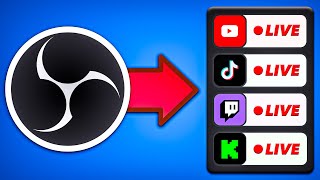

Multistreaming Made Easy: Updated Tutorial
45sDirectly addresses a popular need with an updated guide, promising a solution to a common streaming problem.
▶ Play Clip"Delivers a solid step-by-step tutorial as promised, but the sponsor segment and repeated explanations add some padding."
This video provides an updated tutorial on how to multistream to multiple platforms like Twitch, Kick, YouTube, and TikTok using OBS Studio and the Stream Elements SE Live plugin. It covers installation, platform setup, internet bandwidth requirements, and advanced settings for optimizing quality per platform.
The video is an updated version of a previous tutorial on multistreaming, addressing new updates and improvements. It promises to show how to multistream in different formats at maximum quality without wasting PC resources.
The creator promotes Kissan, a legitimate site for buying Windows and Office keys at low prices, with a 50% discount code AM50. This is a sponsor read that adds no educational value.
OBS Studio, platform accounts, and the Stream Elements SE Live plugin are required. For older PCs (pre-2019), multistreaming may cause performance issues. Minimum specs: Intel 9th gen or AMD Ryzen 3rd gen CPUs, Nvidia 1000/2000 series or AMD 5000 series GPUs.
For Kick and Twitch multistreaming, a minimum of 20 Mbps upload speed is needed. The creator recommends using speedtest.com to check internet speed.
Close OBS, run the downloaded file as administrator, and follow the installation wizard. After installation, the plugin appears in OBS.
In OBS, click on the Stream Elements section, then SE Live Doc, and navigate to the multistreaming part. Log in with a platform account (e.g., Twitch) to enable multistream.
Click the plus button to add platforms like Kick, YouTube, or custom RTMP for Facebook. Connect each platform by allowing access on their respective pages.
Streaming to Twitch at 6000 kbps uses 6 Mbps upload. Multistreaming to Twitch and Kick doubles that to 12 Mbps. Adding YouTube at 2K requires 20 Mbps, totaling 32 Mbps for three platforms.
The 'override settings' option allows independent OBS configurations per platform. This is useful for YouTube, which supports higher quality (up to 4K, but 2K in this case) and better encoders like NVENC AV1.
TikTok streams are vertical. Create a new canvas with 1080x1920 resolution. Add sources like background images and VTuber models to create a TikTok-specific scene.
Link TikTok scenes with main OBS scenes so that scene changes automatically update on TikTok. This is done via the three-dot menu and linking scenes.
To stream only on Twitch, disable other platforms in the multistream control panel. To uninstall the plugin, use Control Panel > Programs and Features.
The tutorial provides a comprehensive guide to multistreaming with OBS and SE Live, emphasizing bandwidth management and platform-specific settings. It concludes with troubleshooting tips and an invitation for questions.
What is the minimum upload speed required for multistreaming to Kick and Twitch?
20 Mbps upload speed.
02:02
What are the minimum CPU and GPU requirements for multistreaming according to Stream Elements?
Intel 9th gen or AMD Ryzen 3rd gen CPU, and Nvidia 1000/2000 series or AMD 5000 series GPU.
01:33
How much upload bandwidth does streaming to Twitch at 6000 kbps consume?
6 Mbps.
04:58
What is the total upload speed needed for multistreaming to Twitch, Kick, and YouTube at 2K?
32 Mbps (6+6+20).
07:47
What encoder is recommended for YouTube in the video?
NVENC AV1.
07:02
What resolution is recommended for TikTok streams?
1080x1920 (vertical full HD).
09:07
Hardware Requirements
Provides concrete minimum specs to avoid performance issues, helping viewers assess their setup.
01:33Bandwidth Math
Clearly explains how to calculate upload speed needs, a critical factor for successful multistreaming.
04:43Override Settings
Introduces a feature that allows per-platform quality optimization, essential for platforms like YouTube.
06:17TikTok Vertical Setup
Demonstrates how to create a separate vertical canvas for TikTok, a common need for streamers.
08:15[00:02] explaining how to do multistreaming super easily. It was even possible to do it with TikTok, but time passed, new updates and improvements came out, and now the video is a little short on information. And since I don't have enough
[00:15] time to answer everyone, today I bring you the updated version of that same video: how to multistream in different formats at maximum quality, but without wasting your PC's resources so that
[00:28] no live stream crashes. But first, I recommend that you become a fan. This is a 100% legitimate page where you can buy keys for Windows 10 and Windows expose yourself to dubious websites , activators, or key
[00:41] generators that only install malware on your PC to hack all your accounts, but you also don't have to pay Microsoft's exorbitant prices . Kissan is the best option; it offers security, a 100% guarantee on your
[00:53] purchase, and super low prices. Furthermore, if you need the Microsoft Office suite, Kissfan offers several options, and one of them is sure to work for you. I'm going to leave my code AM50 so you can get a super discount of 50% if you're
[01:06] interested. Links in the description and in the comments. For this tutorial you will need OBS Studio, obviously accounts on the platforms you are going to use and the Stream Elements SE Live plugin. I'll leave the link in the
[01:19] the plugin is downloading, here are a few details to keep in mind. skip directly to the minute that is appearing on the screen to go directly to the installation. I was saying , if your PC is very old, limited, and you
[01:33] have a very basic internet connection, then maybe multistreaming isn't the best option Stream Elements themselves say that your processor and/or graphics card should be at least from 2019 to avoid performance problems. We're
[01:48] talking about a ninth-generation Intel processor or AMD's third-generation Ryzen processors and Nvidia's 1000 and 2000 series graphics cards and AMD's 5000 series. I 'll explain the internet requirements later because it
[02:02] platforms you're going to use for multistreaming, but right off the bat I'll tell you that if your idea is to do live streams on Kick and Twitch, for example, you're going to need a minimum of 20 MB of upload speed, not download speed, upload speed. If you don't know your internet
[02:17] speed, I recommend using speedtest.com. I've description so you can check out all that information. That's enough text, now let's get to the tutorial. The first thing you need to do is close OBS if you
[02:31] have it open. Next, we go to the file we downloaded and run it as administrator. We agree . And here's the one we've always known. Next. [music] I agree. Next. Uh, install. And we have to wait a few more seconds. Here it
[02:46] open. It's okay, it just closes. And now, we have our Stream Elements plugin installed. In my case there were almost no changes to the previous video, and if not, here's a sample, it may look very
[03:01] different, that's okay, all of that can be removed and added. What interests us is this section up here , the one that says Stream Elements. So let's click on it and go to the second section,
[03:13] S Live Doc. Here you'll find everything you can add to Stream Elements. We're going to go straight to the multistreaming part. appeared down here. And well, I need to
[03:25] back to Stream Elements, log out, and log back in. You can use any account you want. I'm going to use the one from Twitch. And now, I've enabled the multistream feature. Let's make it bigger. And it
[03:38] name will give us an idea, here we will see the chat from all the live streams. Here I have my Twitch channel, my main YouTube channel, my gaming channel, and also my Kik channel. In my case, all the
[03:51] first time using Stream Elements, nothing will appear. And adding the platforms you're going to use is as easy as clicking the plus button. You select the one you want. Look, now we have Kick and
[04:05] wanted to stream, say, on Facebook, you simply click here on custom RTMP and here you will be adding the requirements they ask for, which you will find in the control panel of your streaming page. Let's say I
[04:18] wanted to add Kick again. I'm going to click here, connect. Here, look, it redirected me to the Kick page where I simply have to allow access. Don't worry, this is completely safe. And that's it, it would be
[04:30] added now. And here it's very easy to choose which platforms you want to set to do it on Kick and it's wanted to do it on my main YouTube channel, I would choose this one. I simply
[04:43] transmit to Kick, I would remove it. Simple. Now, pay close attention because the issue of internet and the highest quality in multistreaming is coming up. We know that to be direct in Kick you need a bit rate of
[04:58] 6,000 KB per second, which is equivalent to 6 megabytes of upload speed from your internet . This means that simply streaming to Twitch will use up those 6 megabytes of bandwidth that you have available, I repeat, for uploading
[05:12] your internet service. So let's say you had a service with 10 Mbps upload speed, then you would only have 4 Mbps available, which is playing online and using
[05:24] streaming on Twitch and multistreaming to Kick, you will no longer be using only 6,000 KB, you will be using double that, 12,000, or 12 megabytes of upload speed from your data plan. So, a person with
[05:40] 10 megabytes of internet technically couldn't multistream, at least not one without technical problems. This applies when multistreaming on Kick and Twitch. But what if I also wanted to stream on YouTube? Well,
[05:52] just about multiplying the megabytes, but let me explain. Okay, here I have my gaming channel and what happens if I leave this option as is, I'm also going to use the same settings I have for Twitch. And yes, it would be
[06:05] using another 6 megabytes, which now, with three transmissions, means our OBS will use 18 megabytes of upload. So in this case, you would need at least 20 Mbps upload speed, right? Well, it all depends on the quality you want because
[06:17] thanks to the latest SE Live updates, it now comes with this option, override settings. Let's activate it and we can see this. Right off the bat, it tells you that enabling this option will require more of your computer's resources.
[06:31] can create an independent OBS configuration for your live streams. When multistreaming on Twitch and Kick, this isn't really necessary use the same encoders, the same quality, and the same bitrate. But for
[06:47] YouTube, a platform with higher quality and more encoder options, powerful enough, and obviously has sufficient internet speed, you can get the most out of it Kick, you can only use this encoder if you have an Nvidia graphics card
[07:02] , the NBank H264. But for YouTube you can use this one here, Enveng AV1, which, without going into technical details, is better. So I quality in both their Twitch and YouTube streams, I recommend
[07:17] using this one. Another thing, YouTube can stream up to 4K, although in this case it only lets us stream at 1440p, or 2K. There it is. And most importantly, it lets you set a different bit rate.
[07:33] This is the difference between your stream looking good or it looking pixelated. On YouTube, to be able to stream at 2K and have everything look clear, you need 20,000 everything look clear, you need 20,000 KB per second, or 20 megagb. So
[07:47] if we add up the 6 megabytes from Twitch, the 6 megabytes from Kik and the 20 megabytes from YouTube, it megabytes from Kik and the 20 megabytes from YouTube, it gives us a total of 32,000 KB. In other words, OBS will use 32 megabytes of our internet. Let's remember that it's the internet
[08:01] frame interval, it's always two. Now, if you also wanted to stream on YouTube in Full HD, there's the bit rate that drops to 10,000, or 10 megabytes. I only recommend this setup for streamers who have
[08:15] internet access and a powerful enough machine. It would just be a because you also have the option of simply disabling this and using Twitch, which would save you resources. But by doing this, and speaking
[08:28] specifically about streaming on YouTube, you would sacrifice some quality. Okay, now let's go over the settings, but for TikTok. In my opinion, since the last time I uploaded this video, it's much easier to do live streams on TikTok
[08:40] from OBS. So, all we have to do is give him more. Activate TikTok. We connect. Okay, it's Note, this appears super fast for me now because I already have my accounts active in most likely ask you to log in
[08:54] and then you can continue normally. Okay, so what's up with TikTok? What you need to modify here is the canvas. So let's create a new canvas. TikTok streams are in vertical format. Look, we're going to
[09:07] select this 1080 by 10920 which is full HD but inverted in vertical format. I don't know, I'm going to put TikTok on it. We're going to add it. And here I would already have my little canvas, my setup for TikTok. I'm going to
[09:21] put it in here to see how this is done. Let's put it right here. There it is. I'm going to rearrange this so it doesn't all look squashed. Let's see. There it is. So, down here I have my multistreaming control, which I want to turn on
[09:34] and off. Here next to it I have the multichat where the chat from these applications would appear, and here I have my TikTok canvas. What is the canvas? Basically, it's how people who join your live stream will see you. And
[09:46] create an overlay, but for the TikTok format. If we go to scenes, I'm going to add source and the first thing I'm going to do is add an image that would be my background. And as you can see, we can use the elements we
[09:59] 've already added to OBS. I'm going to use my gamer background. There it is. I put it in and then it's just a matter of arranging it. It 's settled right there. Ideally, TikTok format, but this is just an example, so it's okay. What else
[10:13] can we add here? If I had my camera active, then I would put the video capture device here and I could add my camera. But not going to include it in this case, but I will add Mitch
[10:26] Btuber here. So again I click here Ad source and we'll search in image. I do n't have this one in OBS, so let's create a new one. I'm going to put bituber Add source [music] and here I'm going to click browse and search for my image. Okay,
[10:38] here we have the hard-working Moch. Accept. And here it is. It's just a matter of placing it wherever you want. Now this would be my scene, like, just to chat with people. Next, I'm going to
[10:50] link this TikTok scene with the other scenes I have for the were to change the scene, I don't know, to take a screenshot, only the main OBS scene would be changing, but as you can see on TikTok,
[11:05] changes both on TikTok and other live streams, in the scene section we're going to click on the three dots. I recommend that you rename it here. Here I'm going to put "chatting" again in the three dots. And now we're going
[11:18] what we're going to do is link the scenes together. So I have this one linked, for the main OBS, so to speak. And every time the scene changes, it will automatically update on the TikTok canvas. But let's put it to the test.
[11:33] do this by clicking on this plus button located on the same TikTok canvas. I'll make him react. We added. There it is, we already have two. And here's what I'm going to add in the three dots,
[11:45] let's look for a screenshot. Here it is. I add one that I already have and that's it. This would be capturing OBS itself, right? Let me fix it. There it monitors. If I wanted to capture the second monitor, I would click on the three
[12:00] properties, and here in the reaction section, I'm going to tap the three dots, because this is my scene. Let's give it a link without and I'll put a screen that's the same. Okay. When
[12:13] I switch to the screen, we'll have the screenshot scene on both canvases, and when I switch to Jos Chatting's scene, there it is, it also automatically switched to the TikTok canvas. It took
[12:26] a little while, but it changed automatically. And if I go back to the screenshot, there it is, it also appears on the TikTok canvas. What else is there to do creative to make your TikTok scenes look really cool. Now, if I didn't
[12:40] anywhere, if I only wanted to stream on Twitch, then in the multistream control panel I would simply disable all the others and that way I would only be left If I just wanted to multistream on Twitch on Kick, there it is. And regarding
[12:54] worry about that; the audio you use for a live stream works for all the others, including TikTok. Now, if this plugin was too much for your OBS and instead of helping you multistream, it only caused you problems, that's okay
[13:07] . To uninstall it, you do the same as with any other program. Go to Control Panel, Programs, Programs and Features. And here you simply click uninstall and with that your OBS will be completely clean. And with that
[13:20] I honestly hope has worked for you, that it has been useful to you, and I hope I have made myself you have any reasonable doubt, let me know in the comments box and I
[13:33] contact me on my social media, especially on Instagram where I'm more live, either here or on other platforms. I've included all the links in the description section. Thank you so much for watching this
[13:46] Thank you so much for watching this video.
⚡ Saved you 0h 13m reading this? Transcribe any YouTube video for free — no signup needed.