
M5 Max MacBook Pro: First Impressions
45sThe opening immediately hooks viewers with a new product reveal and the promise of honest pros and cons after weeks of use.
▶ Play Clip"The title accurately promises a review of the M5 Max MacBook Pro, and the video delivers exactly that with thorough testing."
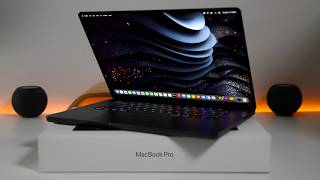
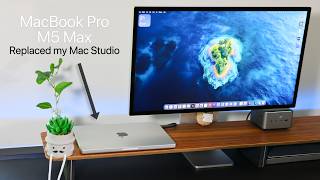
Aaron from Zollotech reviews the 2026 MacBook Pro 14-inch with M5 Max, sharing his experience after weeks of full-time use. He highlights the design, performance, battery life, and key upgrades, while also noting drawbacks like fan noise and the display notch.
Aaron introduces the 2026 MacBook Pro 14-inch with M5 Max, purchased to replace his M1 Ultra Max Studio.
The design is unchanged but solid, featuring SD card slot, Thunderbolt 5 ports, HDMI, MagSafe, and audio jack.
Keyboard keys now have icons instead of text for Shift, Return, Delete, etc., possibly to reduce manufacturing costs.
The nanotexture display is sharp and reflection-free, ideal for bright environments.
120Hz ProMotion display can be adjusted to 60Hz if desired.
Battery life is excellent; Aaron never runs out during normal use, even when editing videos.
The M5 Max is incredibly fast, outperforming the M1 Ultra in tasks like Final Cut Pro editing and export segmentation.
This model has 128GB RAM and 4TB storage. Geekbench scores: single-core ~4, multi-core ~29,576.
Internal SSD speeds exceed 12,800 MB/s write and 12,500 MB/s read.
Speakers are crisp and clear, but bass is limited; 16-inch model has better bass.
Webcam is decent for Zoom calls but not high-resolution; lacks Face ID.
Under heavy load, fans can reach 60 dB and 8,000 RPM, but throttling is minimal for most tasks.
The M5 Max is even faster than an M3 Ultra in some benchmarks.
Notable negatives include the display notch, lack of tandem OLED, and no touchscreen.
The M5 Max MacBook Pro is the ultimate laptop for demanding tasks like video editing, AI, and music creation, offering exceptional performance and a great display. Despite minor drawbacks like fan noise and the notch, it's highly recommended for professionals.
What is the Geekbench multi-core score of the M5 Max MacBook Pro?
Approximately 29,576.
08:51
What is the write speed of the internal SSD in the M5 Max MacBook Pro?
Over 12,800 MB/s.
09:21
How many export segments can the M5 Max handle in Final Cut Pro?
Five segments.
06:42
What is the maximum fan speed (RPM) observed during heavy load?
Around 8,000 RPM.
13:28
What is the decibel level of the fans under heavy load?
Around 60 dB.
13:47
Does the M5 Max MacBook Pro have a tandem OLED display?
No, it does not; it uses a standard LED display with ProMotion.
15:52
What is the charging power of the Anker Prime Thunderbolt 5 docking station?
Up to 140W.
03:50
What is the maximum transfer speed of Thunderbolt 5?
120 Gbps.
03:21
Wish for glowing logo
Aaron expresses nostalgia for the old glowing Apple logo, a fan-favorite design element.
01:01Export segmentation speed
The M5 Max can export five segments simultaneously, significantly faster than previous models.
06:42Fan noise measurement
Aaron measures fan noise at 60 dB, demonstrating a tangible downside of the compact chassis.
13:47[00:00] Hi everyone, Aaron here for Zollotech, and this is the new 2026 MacBook Pro 14-inch. It has the M5 Max CPU in it, and I purchased this to replace my M1 Ultra Max Studio. I've been using it full-time since the day it released, and now that I've used it for a few weeks, I thought I'd share the good and the bad.
[00:17] Now, if you watched the initial unboxing video, you may have seen that I had a 16-inch MacBook Pro. That was actually borrowed from someone so that I could unbox it, since they got it ahead of time. But I was waiting for this as this was a custom order that I purchased myself.
[00:31] So this I've been using full time. Now the first good thing is the design. The design hasn't changed for a few years and that's not a bad thing as it's a great design. You'll see on the right hand side we have an SD card slot, we have a Thunderbolt 5 port along with an HDMI port.
[00:46] On the other side we of course have our MagSafe adapter which I find that I never really use. But we also have Thunderbolt 5 ports along with an audio jack or 3.5mm headphone jack. The ports on the side or the bottom here are good to allow for airflow,
[01:01] and then, of course, the design is pretty standardized at this point. One thing I wish they would bring back is the logo that lights up when you open up the lid. That's something that maybe they'll add in the future would be MacBook Studio that's rumored,
[01:13] or MacBook Ultra, whatever it's called, but hopefully we see them bring that back. With the design overall, the size is great for travel, and that's why I picked up the smaller size so I can use it for full-time editing. Now the design hasn't changed really at all with the exception of some of the keys on the keyboard.
[01:29] For example, you'll see that the shift word here is no longer there along with return, delete, so these have been removed in favor of some icons here. It doesn't really bother me either way, but we have shift, of course catch lock, tab,
[01:42] and then a slight change here with the function and then globe key there along with your delete keys. So these have changed a little bit for symbols. I don't know if this was to make it cheaper to manufacture. instead of having to write these in different languages, but either way it's been updated
[01:56] and it works just like you would expect. The keys are the same as they've been before, the trackpad, everything works really great. Now I did opt for the nanotexture display. I find it to be really great and super sharp. I know some people complain about that. So wait a second for
[02:10] it to turn off, you'll see that there's no reflections on it whatsoever. So it looks great, no issues whatsoever with that, and if I wipe it off here as we do have a spec on it, they do include a special cloth for that, but you'll see it looks great. There's no reflections in it unless you're
[02:24] in super bright sunlight. That's why I use this is when I'm in bright studio lights, you just don't see any reflections on it. So that's great. And then of course the display is 120 hertz. It's Pro Motion. You can go into your system settings and adjust this. So under displays here, you'll see
[02:39] that it says Pro Motion. It's enabled and then you can force it to 60 hertz or something else. I just leave it on Pro Motion. But the display looks great. One issue may be the notch here. We'll talk talk about that in a little bit, but speaking of the display, let me show you my normal setup as
[02:54] I'm typically using this with a studio display XDR, running it at 120 hertz all the time. I also connected it to the OWC ThunderBlade X12. It's a Thunderbolt 5 SSD with 24 terabytes. I edit
[03:06] directly off of that, and I connected it to the Anker Prime Thunderbolt 5 docking station, which cleans everything up, and it's from today's sponsor, Anker. Anker has the industry's first Thunderbolt 5 docking station with a built-in power supply designed to work perfectly with
[03:21] your new MacBook Pro. The Anthraprime Thunderbolt 5 docking station has full speed, 120 gigabits per second Thunderbolt 5 performance, and is backward compatible with any Pro or Max chipset back to the M1 Pro at slower Thunderbolt 4 speeds. The docking station has one Thunderbolt 5
[03:37] upstream port and two Thunderbolt 5 downstream ports, allowing for transfer speeds up to 120 20Gbps. This is only possible thanks to Thunderbolt 5, and we can transfer a file up to 150Gbps
[03:50] in just 25 seconds. It also charges your MacBook up to 140W and supports an 8K display or two 4K displays at 240Hz. You can even use an external GPU if you wanted to with it. It also has one HDMI
[04:03] 2.1 port, one DisplayPort 2.1 port, one 2.5Gbps Ethernet port, one SD card slot along with a micro SD card slot, a 3.5 millimeter audio jack, and multiple USB-A ports. The power supply is
[04:17] fully built into the dock with fans and temperature management to keep everything cool and fast Having the power supply built in also gets rid of any bulky external power bricks that you would typically need to hide under your desk
[04:29] I'll leave a link to this in the description below so you can check it out and replace all of those dongles with a single dock and single cable. When it comes to battery life, I've been using this regularly and never run out the battery.
[04:41] Now, I typically leave it plugged into a Studio Display XDR and it self-manages the battery, but I do use it occasionally off the battery. You'll see we're down to 76% as I've been filming this video, but it normally holds it at 80%, self-manages it, and I typically have it on
[04:55] automatic energy mode. I could bump it up to high power, of course, but I really don't find that I need it, and it will handle this on its own. Now, of course, when I am off battery, maybe using it with Apple Vision Pro or editing a video, I find that it easily edits through a couple different
[05:10] videos without an issue. Typically, while I'm traveling, at least with the previous model, I would normally edit a video or two, then plug it in, maybe go out to dinner or to a different event, come back, and again, it would be charged.
[05:22] I've never found that I don't have enough power, and of course, I could always just plug it in, but the battery life on the MacBook Pros lasts well through the day if you're just using it for normal use. When it comes to performance, it's just incredibly fast.
[05:36] Nothing seems to lag, apps run faster than ever, and the experience is much faster than my M1 Ultra in general. For example, if we go into Final Cut Pro, the number one thing I use on here, we'll give it just a second to load.
[05:48] You'll see this is my 2026 iPad comparison edit. It's fully edited here, and you'll see how fast and smooth the timeline is. This is set to quality, not to performance. So this is footage from a Canon C80.
[06:01] It's set to better quality, and you can see here, if I click on the clip, the clip's actually at 60 frames per second. So this is super smooth, no issues whatsoever. It just breezes through here. But one area where this is even better than the M1 Ultra is with export segmentation.
[06:16] That's one of the downfalls or the downsides of the previous M4 Max is what Final Cut Pro allows you to do is split up the actual export into multiple segments and then export those all at once and then it recombines them.
[06:29] So, for example, if we go to File and then we save this, under Settings you'll see that we have an option for Allow Export Segmentation. With this feature here, this is how we can sort of export multiple segments at once, making it much faster.
[06:42] For example, if I click Next, so here you can see it's exporting, and I have five different segments exporting at once, then it recombines them. The M1 Ultra can do four segments. The M4 Max can do two segments.
[06:54] So this is something that really helps speed up export times, and it's great to see they even have more options here with the M5 Max. So it's much, much faster, and this allows it to export that whole video in probably about 5 to 10 minutes,
[07:09] depending on the length of the video. It's super fast all the time. Also, if you're using something such as Pixelmator Pro to edit thumbnails, it's crazy fast. There's really no slowdown. In fact, Apple actually advertises the MacBook Pro more for AI models,
[07:23] where the MacBook Air, they're now saying, is the editing machine. For example, if we go to Apple's website, and we'll take a look at benchmarks in a moment, But if we go to Apple's website, for example, we'll go to Mac, and then if we go to MacBook Air,
[07:37] and then maybe you just do a quick search for Final Cut Pro. You'll see under Final, it actually sees it even though the website hasn't loaded yet. There we go. We'll find it, and there it is. It mentions Final Cut Pro as a task.
[07:49] If you go back, and this time if we go into MacBook Pro, you won't find a mention of Final Cut Pro here. So, for example, if we put Final Cut, or if you go into all the stats and explore the M5 family of chips,
[08:01] it's basically pushing this device as more of an AI device or for larger tasks, so handling video editing is really no issue whatsoever. Now, this particular model is pretty spec'd out.
[08:13] If we take a look here under System Settings, and then we go to General and About, you'll see I have 128 gigabytes of RAM and 4 terabytes of storage. Typically, I would get 8 terabytes of storage, but since I'm using that external SSD, I really
[08:26] don't need it, and on the go, 4 terabytes is more than enough for what I'm doing. Now, as far as benchmarks, I did run this on Geekbench here, so if we go back in, you'll see this is the website with the information after it ran 4 for single core 29 for multi Let me try it one more time but this time bumping it up to high power and we see if we spin up the fans
[08:51] So, benchmarks completed again, and we basically have the exact same score. 29,576, a little bit higher than what we had before. But overall, this is incredibly fast. Now, if you are going to run AI models on it and things like that, it will handle it without an issue.
[09:08] In fact, when I did it on the 16-inch MacBook Pro M5 Max, Draw Things was four times faster than the previous generation. So I'm not going to use it for that, but I find this just to be incredibly fast all the time,
[09:21] and it just breezes through everything. Something else I wanted to share as far as speed is how fast these internal SSDs are. We'll just click Start Test on Disk Speed Test, and we're over 12,800 megabytes per second write speed, 12,500 megabytes per second read speed.
[09:38] And they stay consistently at this speed. So when you're exporting video or maybe just working on multiple things at once, it never seems to be slow at all. Let me see what the settings are here, though. So we'll go into our settings. We're at 5 gigabytes, so that's what it was set on, running the test.
[09:52] And again, it's just super fast. Now, as far as the good and the bad, Well, the speakers are always something that amaze me coming from something so small, but it's not as good as the 16-inch. So if I play some Royal PC music, for example.
[10:06] The speakers sound crisp and clear.
[10:28] Of course, bass is going to be limited by the size of the woofers here, but it sounds generally very good, even at the highest volumes, around 84 to 85 decibels. So no real issue to complain about here. The speakers are great, but if you want the best speakers, get the 16-inch as they sound even better as far as bass goes.
[10:46] Now, the webcam is another area they could probably improve. I would love to see Face ID and get rid of the notch, or at least just expand the screen a little bit more, or something along those lines. Maybe make the bezel a little bit thicker. It's hard to say why they haven't done that. Maybe it's a hardware limitation.
[11:01] But I do like the webcam. It's just not super high resolution. So let me slide this back. I'll put it on maximum here. Of course, we have our options where we can blur the background and things like that. So let's go ahead and go into portrait mode. It's blurred a little bit.
[11:14] Studio light will make it look a little bit better. We even have edge light to sort of brighten everything up in your face if you want to use that on a call. But let's go ahead and record this, see what it looks like and sounds like. as we have upgraded speakers and microphones as well,
[11:27] compared to what we have with the MacBook Air, for example. So this is the internal webcam that we have with the new MacBook Pro. There's not really a change here, but it gives you an idea of what it looks like and what it sounds like if maybe you needed to use the microphones on the go
[11:40] instead of the studio mic that I have here. But let me know what you think of it as far as the way it looks. I think it's great for something like a Zoom call. Of course, the microphones I would use in a pinch, but I would still typically default back to a studio mic
[11:52] or maybe even a DJI mic that I have on my lapel. So now that the video is done, we'll hit save, get finished, and exported it immediately. So now we already have the file. But let me know what you think of it.
[12:04] I think it's great, again, for Zoom meetings or maybe FaceTime calls and things like that. Now, of course, one bad thing could be throttling for you. Now, this is going to depend on what you're doing, as I haven't really had it throttle for what I do,
[12:17] but I have seen some other people say that in the smaller chassis it would throttle just a little bit. But again, it depends on the task you're doing. That's one of the disadvantages of having a laptop, but again, it gets most of that heat out, but it spins those fans up really loud.
[12:30] Let me see if I can get them to spin up just so you can hear how loud they are. Now, before we run Cinebench, just so we can spin the fans up, this gives you an idea of the internals. We're currently on Fahrenheit, and I haven't switched it over yet, but the CPU is at 135 degrees,
[12:45] where the GPU is, again, around 135 degrees. The fans are spinning at 2,314 RPM for one, 2,502 RPM for the right fan. Let's go ahead and run the GPU performance, and we'll get this to spin up, and again, we can take a look at temperatures and
[13:00] things like that Now the fans are starting to spin up We around 3 to 3 RPM That when you start to hear them We over 200 degrees as far as the temperature Again that Fahrenheit and the fans apparently
[13:13] are around 30 percent, so they can definitely go a little bit louder. So we'll give it a moment, see if it ramps up even more, and see what they max out as as far as hearing the sound of them and what you would expect when doing intensive tasks. The fans are quite loud now. We're at 95
[13:28] percent with 7800 rpm. If I bring the decibel meter here, let me turn the microphone so you can hear.
[13:47] So the fans are right around 60 decibels or so, definitely noticeable, and of course if you're used to a quiet work environment you will definitely hear these if you're using this. So that's one of the downsides of the smaller size. The fan speed is
[14:01] very high and seems to be a little bit louder, but around 8,000 RPM at the highest it seems. So again, it is keeping the CPU nice and cool at 172 degrees, and if you take a look at the actual CPU graph here, you can see the SSD in the memory as well. If you want to just take a look at that
[14:17] with all the different cores and everything else, this is an application called iSatMenu. So I've used it for many years, and you'll see the actual CPU speed around 4 GHz, and the temperature up and down.
[14:29] So, again, it seems to stay about steady there, but I certainly think it would throttle over time, running some intensive tasks over and over. Also, one thing to note, though, before I close this, is it's even faster than an M3 Ultra currently.
[14:42] So, very fast overall, and it definitely feels like carrying a MacBook Ultra with you, or something with an M3 Ultra in it, or even faster. So everything's closed and this gives you an idea of the temperature.
[14:55] Of course, it's going to ramp down and bring the fans down, but it was quite warm. And as far as the temperature itself, let's take a look with the thermal camera just so you can get an idea. So with the fans still running at 90%, this gives you an idea of the thermal signature over the keyboard.
[15:10] It's definitely a bit warm there, about 40.5 degrees Celsius or so, and you can see the heat coming out by the screen. But those fans are starting to ramp down, and if we flip this over, the bottom is quite warm as well,
[15:24] but not so hot that it would burn you or anything like that so far. But you can see where it gets warm, completely normal, of course, but around 37 degrees Celsius. And the fan's just turned off because, well, I flipped it upside down and closed it.
[15:38] But it seems to work well, getting rid of that heat. But again, if you're using intensive tests for long periods of time, this will get you through those where a MacBook Air would not. The other negative, other than the fan noise there, is again the notch here on the display.
[15:52] We don't have a tandem OLED yet, but that is rumored to be coming maybe later this year with a MacBook Studio or maybe a new higher-end MacBook Ultra. And then we don't have a touchscreen, which some people don't care about, but it is rumored for the next MacBooks, but we'll have to wait and see.
[16:06] But the M5 MacBook Pro, or M5 Max rather, is really the ultimate MacBook. I definitely recommend it to anyone who wants a MacBook, and this is great for me for editing and will last me many years.
[16:18] So if it's video editing, music creation, photo editing, AI, or whatever you throw at it, it's just super fast all the time. So I would definitely recommend it. Of course, it is quite expensive, and if you want to just use it for video editing and you're very casual about that, you can even go to a MacBook Neo.
[16:35] But if you want the best display, the brightest display, nanotexture, and all of these things, it's really hard to beat this device. So this is my favorite by far in a long time. It's super fast, and again, can replace a desktop, at least for me for now. So we'll have to wait and see what they
[16:50] do next. Let me know what you think of the MacBook Pro in the comments below, with the M5 Max in particular, and of course I'll link a wallpaper for you in the description like I normally do. If you haven't subscribed already though, please subscribe, and if you enjoyed the video,
[17:03] please give it a like. As always, thanks for watching. This is Aaron. I'll see you next time.
⚡ Saved you 0h 17m reading this? Transcribe any YouTube video for free — no signup needed.