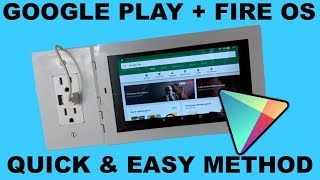

Stop Being Stuck with Amazon's App Store
43sIt taps into the frustration of limited tablet apps and promises a simple solution.
▶ Play Clip"Genuinely helpful tutorial that matches its title; only the giveaway and wall-mount promo add minor fluff."
This video provides a straightforward, step-by-step tutorial for installing the Google Play Store on an Amazon Fire tablet, unlocking access to apps like YouTube, Home Assistant, and Nest. It also highlights a monthly giveaway from Lux Mounts and promotes their wall mount kits.
The video aims to help Fire tablet owners install the Google Play Store so they can enjoy a wider range of apps beyond the limited Amazon App Store selection.
Lux Mounts gives away a tablet and a mount kit every month; this month's prize is an Amazon Fire 7 tablet, with the winner announced on the first Monday in February.
Go to Settings > Security & Privacy, then allow installations from unknown sources by tapping OK in the popup.
Open the Silk Browser and visit the Lux Mounts URL (luxmounts.com/slg/googleplay) to automatically download a zip file containing everything needed for Google Play.
Search for 'RAR' in the Amazon App Store and install 'RAR for Android', which is required to extract the downloaded zip file.
Open RAR, navigate to the downloaded Google Play zip, and install Files 1 through 4 by pressing Next, Next, and then Install for each file.
Do not open the Play Store immediately. Instead, turn off the Fire tablet completely, then turn it back on to ensure proper setup.
After the restart, tap the Google Play icon, sign in with your Google account, and you're ready to download any app from the Play Store.
Installing Google Play Store on an Amazon Fire tablet is a simple process that greatly expands app availability. The video also promotes Lux Mounts accessories and teases a future guide on Google Cast and Apple AirPlay.
What app do you need to install from the Amazon App Store to extract the Google Play zip?
RAR for Android.
01:25
What setting must be enabled before installing Google Play on a Fire tablet?
Allow installation from unknown sources (Settings > Security & Privacy).
00:59
How many APK files are installed from the zip file?
4 files (Files 1, 2, 3, and 4).
02:00
What should you do immediately after installing all APK files?
Do not open the Play Store; turn off the tablet and turn it back on.
02:42
What URL do you visit in Silk Browser to download the Google Play zip?
luxmounts.com/slg/googleplay
01:11
When is the winner of the Lux Mounts giveaway announced?
On the first Monday in February.
00:43
Access to a wider app ecosystem
Installing Google Play Store dramatically expands the Fire tablet's app selection beyond the Amazon App Store, making the device much more versatile.
00:15Single-zip convenience
The Lux Mounts URL bundles all required files into one zip, simplifying the installation process for users.
01:11Critical restart step
Restarting the tablet before opening Play Store ensures the system properly registers the newly installed services.
02:42Google sign-in unlocks the store
After restart, signing in with a Google account is the final gateway to downloading any app from the Play Store.
03:00[00:01] install the Google Play Store on your Amazon Fire tablet so you can enjoy all Amazon Fire tablet so you can enjoy all of your favorite
[00:15] downloading apps from the Amazon app store this is all right because installing the Google Play Store is easy and only requires a few steps once able to install apps like YouTube openhab home assistant nest and millions
[00:29] many things you won't know where to start before we get into this guide I'd like to remind you that every month Lux mounts gives away a tablet and a lux mounts kit for it this month Lux mounts is giving away an Amazon fire 7 tablet
[00:43] the winner will be announced on the first Monday in February to enter the the giveaway tab or the link is in the first from the home screen scroll down and go to settings then scroll down and
[00:59] tap on security and privacy then allow from unknown sources click okay in the popup next go back to the home screen and open up the silk browser then in the
[01:11] search bar type in Lux mounts.com SLG gooleplay and then press search if this is your first time using the silk browser click okay and then allow in the popup it will automatically install the zip file that
[01:25] has everything you need for the play store then go back to the home screen and open the Amazon app store in the search bar type in raar r a r and click search tap on raar for Android and click
[01:40] search tap on raar for Android and click get and then open in the Raw app scroll down and tap on download tap on the Google Play install zip file tap on one press next next and then install
[02:00] on depending on what tablet you have you can just click install right away then once it's installed click done repeat the process for files 2 three and four the process for files 2 three and four so that way they are all installed
[02:42] Google Play Store do not tap on the Play Store instead turn off the Amazon Fire tablet when the device is turned off tablet when the device is turned off turn it back
[03:00] on after it is on go to the home home screen and tap on the Google Play with your Google account once you are signed in you are ready to go and you
[03:13] can download any app you want from the Play Store congratulations you now have the Google Play Store on your Amazon Fire tablet all right that concludes this Lux mounts Monday guide come back next Monday where I'll show you how to
[03:25] googlecast or apple AirPlay your content onto the Amazon Fire tablet if you are interested in picking up a wal mount kit for the Amazon Fire tablets then head on over to Lux mounts.com or you can find it on Amazon but it is cheaper if you
[03:38] get it from Lux mounts.com and you get free shipping
⚡ Saved you 0h 03m reading this? Transcribe any YouTube video for free — no signup needed.