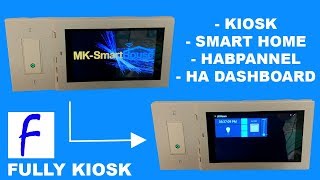

Watch a Tablet Become a Motion-Activated Kiosk
43sThe satisfying screensaver-to-app transition instantly shows the kiosk concept in action.
▶ Play Clip"The title promises exactly what the video delivers—a practical walkthrough of kiosk mode, motion detection, screensaver, and power management."
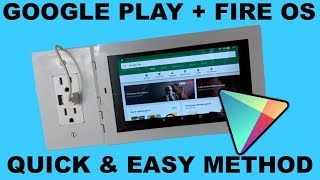
This video demonstrates how to convert an Android tablet, particularly an Amazon Fire tablet, into a locked-down kiosk using the Fully Kiosk Browser app. It covers motion detection, a custom screensaver, power management, and boot resilience settings, making it ideal for smart home dashboards or business displays.
Locks down tablet inputs, displays a webpage or app in full screen, and adds motion detection and power management—ideal for smart home dashboards or customer-facing business kiosks.
The screen sits on a screensaver until motion is detected, then opens the configured start URL; after 5 seconds of no movement it returns to screensaver, and Android navigation buttons are hidden.
Amazon Fire tablets require the APK from the Fully Kiosk website; other Android devices can install from the local app store.
Open Fully Kiosk, choose a start URL, and press 'Start using Fully' to enter full-screen kiosk mode with the URL locked down.
In settings, set the screensaver wallpaper URL to a custom image matching the tablet resolution and set a 5-second inactivity timer.
Schedule the tablet to wake at 6 a.m. and sleep at 10 p.m., turning the display off overnight so the wallpaper doesn't burn in.
Enable motion detection and 'pause when fully in background'; sensitivity and framerate can be adjusted if needed.
Enable kiosk mode (keeping volume/power buttons active), grant device administrator permission, and enable home button detection on Fire tablets so it stays locked to Fully.
Swipe right and enter default PIN 1-2-3-4 to exit kiosk mode; a paid Plus license removes the watermark and adds remote management from a web browser.
Wallpaper screensaver is active; motion returns to the start URL; future guides will show Home Assistant and OpenHAB integrations.
Fully Kiosk Browser turns a cheap Fire tablet into a reliable, motion-activated wall kiosk; the Plus license unlocks the full experience. With the settings covered, the tablet stays locked, avoids burn-in, and resumes automatically after a reboot.
Which devices need the Fully Kiosk APK downloaded directly from the Fully Kiosk website?
Amazon Fire tablets.
01:39
What is the default PIN to unlock kiosk mode in Fully Kiosk?
1-2-3-4.
09:16
What power schedule is recommended to prevent screen burn-in?
Wake at 6:00 a.m. and sleep at 10:00 p.m.
06:19
What actions does Fully Kiosk's motion detection trigger?
It brings the screen back from the screensaver to the configured start URL.
00:57
Which two buttons remain active in kiosk mode in this setup?
Volume buttons and the power button.
07:46
What does the paid Plus license add to Fully Kiosk?
It removes the watermark and allows managing the device remotely from a web browser.
09:16
What three settings in 'Other settings' keep Fully Kiosk always on screen?
Restart Fully after crash, Restart after update, and Run as priority app.
07:32
Why is it useful to enable 'Launch on boot' in device management?
If the tablet restarts due to power loss, it automatically opens Fully Kiosk.
07:17
What is the recommended screen saver inactivity timer in the video?
5 seconds.
05:06
How do you exit kiosk mode to change settings?
Swipe right from the edge and enter the kiosk PIN (default 1234).
08:58
Fully Kiosk Browser core functions
Explains the tool's key value proposition: locking down inputs, full-screen display, motion detection, and power management.
00:14Fire tablet installation path
Critical practical difference: Fire OS devices require the APK from the website rather than a standard app store.
01:39Burn-in prevention scheduling
A concrete technique to extend tablet lifespan by turning the display off at night and on in the morning.
06:01Boot resilience settings
Launch on boot, restart after crash/update, and priority app settings ensure the kiosk self-heals after power outages.
07:17Plus license unlocks remote management
Monetization model and feature hook: watermark removal plus remote browser-based device management.
08:58[00:01] day god I'm going to show you how to turn a tablet into a kiosk using the turn a tablet into a kiosk using the fully kiosk browser
[00:14] a kiosk in particular for this channel we will be using the kiosk setup for one I do the open hand / tab panel video and the home assistant / H a dashboard video want to miss but basically with the software we will be using called fully
[00:28] kiosk browser it locks down the tablet inputs a webpage or app in full-screen motion detection and power management this is also great in the business or professional environment because you can have clients or customers interact with
[00:43] gonna mess it up let me show you a demo of what we will be accomplishing today so this is what we will be accomplishing with the kiosk as you can see right now it's on the screen saver but if we do movement then it will activate and bring
[00:57] movement then it will activate and bring us straight into the automation or a hab specifically doesn't have too many things it just has a that time it has the light and it has the blinds controls but if we stand still for five seconds
[01:12] it'll go back to the screen saver and if we move a little bit it'll go back to the URL that we set as you may have noticed there are no buttons for the Android functionality and it is in full screen and taking the full utilization
[01:26] of the screen there are more things that this configuration does and we'll talk all right now as you guys know what we'll be doing let's get into the guide all right so the first thing we have to do is install the fully kiosk browser
[01:39] now depending on that device there's a different way to install it so for the different way to install it so for the Amazon fire tablets you have to get it directly from the fully kiosk website which I'll show you in a second but for
[01:51] any other place you can just get it from your local app store so we're gonna go into Google Chrome then we're gonna go ahead and search for fully kiosk and
[02:03] then enter okay so after you type it in you want to scroll down until you see you want to scroll down until you see zo0 de you want to tap on that website then once the website loads scroll down until you see on the sidebar all the
[02:19] different apks or different apps that we can install we are looking for the one for fire OS see it says for fire OS right there I'm gonna top on that one
[02:31] and it'll ask you if you want to install it and you're gonna press ok and then once it's downloaded go ahead and open it then go through and install it's gonna say if you want to allow installation press allow alright now
[02:45] installation press allow alright now that its installed press open ok once it is opened up it'll this is your quick start settings so these are just the start settings so these are just the simple settings that you can do and you
[02:58] want to choose a start URL so if you already know your URL to your open app server you can go ahead and type that in here me personally just for demo here me personally just for demo purposes I'm going to do the URL -
[03:13] alright so I've gone ahead and just put a URL I'm not gonna do my open app server in this video so I just put in lux bounce comm in there and you can leave all of this and then get rid of the keyboard
[03:27] this and then get rid of the keyboard and press start using fully so now fully has our start URL it's all locked down well lock down that you can't see the bars and stuff right now and it's in full-screen mode and you can access it
[03:41] so this is the basic setup but let's take it a little bit further and get some cool features going and to start we're gonna go ahead and get the screen saver going so I'm going to exit out of fully to do that you can just swipe up
[03:53] from the bottom I'm gonna go back into Google Chrome and I have created my own custom wallpaper beforehand I took the dimensions or the screen resolution of the Amazon fire tablet I'm gonna open a new tab and go to Lux mounts comm slash
[04:11] new tab and go to Lux mounts comm slash wall paper and then I'm gonna hit enter so this this wallpaper is optional this is just one that I've made and it'll go through and download the wallpaper alright the wallpapers downloaded it's
[04:25] alright the wallpapers downloaded it's called m'kay - Sh gif or gif however you want to call it and so it's like a cool nice animated screensaver alright now we're gonna go back to the fully browser actually while we're here just clear
[04:38] these times go back to fully and so now we're gonna start modifying the settings to modify the settings you simply swipe left tap settings and then then scroll
[04:50] down tap on screen saver screen saver wallpaper URL gonna pick a file and then we're gonna go to download and tap on m'kay - sh gif press select and okay now
[05:06] we're gonna set the screensaver timer me personally I like five this is in you're not using it for five seconds it goes to the screensaver then tap ok and that's it for this screensaver so just
[05:19] take a break from the guy to remind you that every month luck spawns gives away a tablet and a Lux mounts wall mount kit for it this month Lux mounts is giving away in Amazon fire seven wall mounts kit and an Amazon fire seven tablet the
[05:33] winner will be announced on the first Monday in March by the way the giveaway Monday in March by the way the giveaway winner for January is I'll be contacting you via email to get your address on where to send what you've won to enter
[05:47] the giveaway go to locksmiths comm and click on the giveaway tab or the link is in the description and now we're gonna do the power setting so what the power settings does is it turns off the device at the specified time and then turns it
[06:01] at the specified time and then turns it back on so I'll explain it in a bit so back on so I'll explain it in a bit so go to power settings and schedule wake up and sleep so I want the tablet to wake up at 6 a.m. and then I want the
[06:19] wake up at 6 a.m. and then I want the tablet to go to sleep at 10 p.m. because that's around the time that I go to sleep so what will happen is the tablet will the display will shut off at 10 p.m. and then it'll turn on at 6 a.m.
[06:33] and the reason we do this is to prevent and burn in so that way the screen you don't have the burnin of the wallpaper or of half panel okay so now press down to go to the keyboard and press back and back now we're going to set up motion
[06:48] detection so scroll down tap motion detection press the enable switch then there's one more thing that I like to activate and that is pause when fully in background and so I leave everything else those are
[07:04] you want you can mess around with the sensitivity and framerate but for me those are just the only two things that I need so then press back next we're gonna go to device management and then we're going to enable launch on boot
[07:18] just in case the tablet restarts I so like say the power goes out and the battery dies then I want it to turn on on boot I want it to go to fully kiosk and then we're gonna hit the back button scroll down go to other settings and
[07:32] then we want to enable the following things restart fully after crash restart fully after update and run as priority app this is just so that way fully is just constantly on the screen now we're gonna hit back now we're gonna go into
[07:46] kiosk mode so we're gonna press kiosk mode and enable it there's two things disable of it so it would just unsweet and that is the volume buttons and the power button because I still want those
[08:00] to be act then we're gonna press back and back it will now ask you to give it permission so we want to enable fully and we're gonna press ok then we're gonna press the back button it'll ask for a device per administrator press
[08:17] activate and now it's gonna ask for the home button so you want to go open to home button so you want to go open to settings and then scroll down the detect home button on Amazon fire tablets press on that and enable it and press ok now
[08:32] you can press the back button back button again and then press yes it is now in kiosk mode so it'll only stay on fully kiosk if you don't move in the
[08:45] front of the camera for five seconds it'll go to the screen saver and if you waive it it'll go to your start URL so it's kind of dark right now so I'm just going to turn on the light to simulate the activation or the movement in front
[08:58] of the camera you can see the plus features activated watermark to get rid of it swipe right and you're gonna need to type in the pin the default to type in the pin the default is one two three four and press ok it
[09:16] tap get a plus license the license does cost money but I highly recommend it it features you won't know where to begin speaking of it if there are any features the comment section below you can even manage the device remotely
[09:31] from a web browser so give me two seconds and so I can get the license alright I've gone ahead and activated the fully kiosk with my license all right so now if we wanted to we can go ahead and change the pin to change the
[09:47] pin to swipe right again enter the default pin which is again one two three four then go to settings then go to kiosk mode and then the kiosk mode pin I mean personally I'm fine with it being one two three four four now maybe in the
[10:02] demonstrate everything that we did so first up we got the wallpaper going and then if we do motion it goes right to our start URL
[10:14] which as of right now is on Lux mounts comm but in the next week's guide we're in the future we're also going to be doing home assistant and other smart home things with fully keys kiosk so it's very important that we have it
[10:28] Monday guide come back next Monday where I'll show you how panel which is a beautiful way to control open hub in your smart home if you are interested in picking up a wall mount kit for the Amazon fire tablets from lob spouts then
[10:41] head on over to Lux Montcalm or you can find it on Amazon but it's cheaper if you buy it from Lux Montcalm as well as free shipping on all orders supplies limited so pick one up today hey you made it to the end of the video if you
[10:53] found it helpful press the like button if you're a smartest then subscribe if content then check out the videos on the screen anyway see you all next Monday
⚡ Saved you 0h 11m reading this? Transcribe any YouTube video for free — no signup needed.