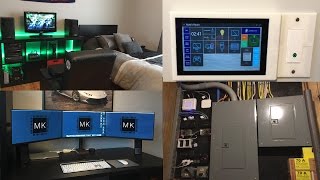

DIY Smart Home for Cheap – No Coding Needed!
45sPromises a low-cost, easy DIY smart home system, appealing to budget-conscious tech enthusiasts.
▶ Play Clip"The title accurately promises a comprehensive demo of the ultimate smart home, which the video delivers, though 'Complete Guide' is slightly exaggerated as it omits detailed instructions."
The video is a demo of the creator's DIY smart home system. The host emphasizes that he designed and coded the system himself but has made it easy for others to follow simple instructions. The channel and website, mksmarthouse.com, will provide low-cost, easy-to-follow guides.
The host, Matt, introduces the video as a demo of his DIY smart home system, which he designed and coded, emphasizing that viewers only need to follow simple instructions.
The system requires minimal brain power to replicate and is low-cost. The channel and website will provide simple guides.
Demonstrates voice control using Amazon Echo Dot to turn on/off lights, computer setup, and TV setup.
Uses Siri on Apple Watch to control Samsung TV, sound system, Xbox 360, Dell monitors, and sprinkler system.
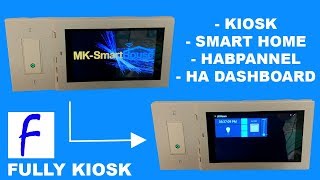
Introduces wall-mounted interface, mobile device interface, and web browser access as control methods.
Demonstrates controlling lights, TV, Chromecast (play/pause/volume), LED strip (color selection), security system (arm/disarm), and blinds (open/close/half).
Shows mobile UI on Android and iOS with device controls, temperature/humidity/fire status. IOS also uses Home app. Web browser access is also available.
Quickly shows control wall, door sensor, sprinkler system, fire sensor, power strips for media center and desk, LED strip, and blinds.
Encourages subscription, likes for faster video release, voting on mksmarthouse.com for next guide, and following social media.
The video demonstrates a fully functional DIY smart home with voice control, multiple user interfaces, and various automated devices. The creator emphasizes the system's low cost and ease of replication through upcoming detailed guides.
What voice assistants are used in the smart home demo?
Amazon Echo Dot and Siri (on iPhone and Apple Watch).
1:10
What does the wall-mounted interface control (list at least three)?
Lights, TV, Chromecast (play/pause/volume), LED strip color, security system, and blinds.
3:47
What notification does the security system trigger when the door is opened?
LED strip turns red and a notification is sent to the phone.
5:41
How many functions do the blinds have?
Three functions: open, close, and half.
8:50
Which devices are individually controlled on the desk's power strip?
Monitors, MacBook charger, and accessories.
9:00
Minimal Effort Required
Assures viewers that replicating the system requires only simple instructions, lowering the barrier to entry.
0:31Voice Control with Amazon Echo
Demonstrates practical home automation using Amazon Echo Dot.
1:10Security System Notification Demo
Shows integration of alert when door opens (LED strip red + phone notification).
5:41Cross-Platform Mobile Interface
Highlights compatibility with both iOS and Android for control.
6:38[00:00] Hey guys Matt here from mksmarthouse.com and
[00:04] channel is all about.
[00:11] [Intro]
[00:14] Welcome to my smart home, this is a system
[00:19] home made smart devices.
[00:21] When I say DIY I mean I designed and coded
[00:24] But, let me emphasize the “I” part, as
[00:30] to.
[00:31] There is very little brain power involved
[00:35] all you would have to do is follow simple
[00:39] home similar to mine.
[00:41] This youtube channel as well as mksmarthouse.com
[00:47] easy to follow guides on how to make these
[00:53] system together.
[00:54] Yes I did say low-cost because the parts for
[00:59] But, enough talking as the explanation part
[01:03] of if this video reaches 100 likes I will
[01:08] anyways let's just get into the demo!
[01:10] To start off let's talk about voice control,
[01:14] dot as well as siri on my iphone and on my
[01:19] into voice control on android.
[01:20] That being said before we continue please
[01:24] please make sure it is set to mute or else
[01:28] “Alexa, turn off MK Light”
[01:37] “Alexa turn off computer setup”
[01:46] off my computer setup it turned off my monitors
[01:51] as well as power to these devices so right
[01:58] can’t.
[01:59] “Alexa turn off TV Setup”
[02:09] off the sound system and it turned off the
[02:11] Let’s move over here for the next ones
[02:17] “Alexa turn on Zone 2”
[02:26] I don’t know if you heard that but there
[02:32] being distributed more on that later.
[02:35] There are many more commands for the echo
[02:38] Next let's move on to siri.
[02:39] So, we are going to be using siri on my apple
[02:43] “Hey siri turn on Samsung Tv”
[02:52] “Hey siri turn on sound system”
[02:59] “Hey siri turn on xbox 360”
[03:10] power it can turn on.
[03:12] “Hey siri turn on Dell Monitors”
[03:20] Let’s go back to the sprinkler system.
[03:23] “Hey siri turn off sprinkler system”
[03:30] they did click, More on that later.
[03:33] Same thing with the echo those were just a
[03:37] to keep this video a little shorter I won't
[03:39] Don’t worry there will be a another separate
[03:41] Now let's take a look at the different user
[03:45] you can control the system from.
[03:47] First and my favorite is the wall mounted
[03:51] anything on or off at any time and it is motion
[03:54] Let's turn off the Lights, turn them back
[04:02] tv, as you can see over there it’s off,
[04:11] Another cool thing is that if I cast something
[04:25] as well as control the volume.
[04:37] Also let's set the LED Strip to blue to set
[04:42] for those wondering it’s my car channel,
[04:46] So, let’s go over to LED Strip control,
[04:52] back over to the TV setup the color is blue
[04:58] is actually blue, we can also set it to green,
[05:12] from, literally any color you would want but
[05:19] In addition I can also control the security
[05:24] the system, the status of the door and I can
[05:29] password and press enter to turn it on.
[05:38] And as you can see the security system did
[05:41] Speaking of let's do a quick demo of one its
[05:45] the LED Strip will turn to red and I will
[05:49] As you can see the door is closed, now if
[05:59] the LED Strip turned to red and I got a notification
[06:02] Lastly, my favorite thing is the fact that
[06:06] close, open and set them to half.
[06:25] And here is a full clip of showing them opening
[06:34] Next is the mobile device user interface which
[06:38] On android as you can see we can have all
[06:42] I can also see the temperature, humidity and
[06:48] Lets just turn on the tv setup
[06:57] IOS control is pretty much the same thing
[07:04] stuff from the home app, such as turn off
[07:18] the sprinkler system but since it is currently
[07:22] have it connected to the fire sensor for demo
[07:26] Finally I can access the system from pretty
[07:31] turn on computer setup” and as you can see
[07:40] all the different control devices.
[07:44] For the last part of the video I am going
[07:48] which ones are controlled as well as which
[07:52] This will not be detailed because the more
[07:55] which is the explanation one.
[07:57] This is the control wall and it is basically
[08:01] Don’t worry about the gray panels we will
[08:06] over here on the network and servers for the
[08:09] Next is the door sensor and it sends information
[08:13] As you can see if we open it then on the tablet
[08:26] Moving to the right we have the sprinkler
[08:29] zones.
[08:30] Attached to that is the fire sensor so, if
[08:35] send a notification.
[08:36] In the media center over here we have a power
[08:40] different devices such as the tv, sound system
[08:46] Also I can control the led strip and choose
[08:50] As we keep moving right we can see the blinds
[08:54] it has 3 functions open, close and half.
[08:58] Then finally we have the desk which also like
[09:02] component can be individually controlled the
[09:07] So, that’s it that is my smart home / smart
[09:13] are some that I did not show and there are
[09:17] If you are interested in making or learning
[09:22] like smart home tech then subscribe because
[09:27] Speaking of if you guys want to see the next
[09:31] get this video to 100 likes.
[09:33] Also, go to mksmarthouse.com and on the home
[09:37] to have a guide for first.
[09:39] While you are there you can get some more
[09:42] Finally, if you want some behind the scenes
[09:47] mksmarthouse on social media the links are
[09:51] Alright thank you for watching and if you
[09:55] section or head over to the mksmarthouse.com
[09:59] getting answered.
[10:00] Good bye!
⚡ Saved you 0h 10m reading this? Transcribe any YouTube video for free — no signup needed.