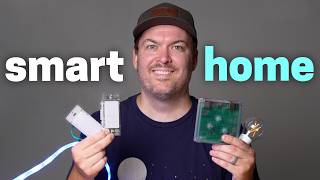

Don't Use Your ISP's Router!
44sRelatable pain point about ISP routers crashing, with a strong warning that resonates with many smart home enthusiasts.
▶ Play Clip"Delivers a solid, practical guide to building a smart home from scratch, though it's more of a walkthrough than a step-by-step tutorial."
The video documents the creator's process of building a new smart home from scratch, emphasizing a reliable network foundation, the choice of Home Assistant as the central platform, and the strategic selection and automation of devices. The creator shares practical tips on device selection, scene creation, and automation techniques to create a seamless and family-friendly smart home experience.
The creator emphasizes the importance of a solid home network as the foundation for a smart home. They changed the ISP's all-in-one modem/router into bridge mode to avoid double NAT and use their own UniFi equipment, including a 10 gig switch and U7 Pro XG access point. They also mention that inexpensive TP-Link mesh systems are suitable for beginners or tight budgets.
After trying various smart home systems, the creator declares Home Assistant as the clear winner due to its compatibility with almost every device, powerful automation capabilities, and being free and open source. They note that it has become easier to use, with options like Home Assistant Green that come pre-installed.
The creator suggests prioritizing devices based on two criteria: the most annoying problem in the home and whether the area is frequently used. They recommend starting with areas that meet both criteria, such as the living room ceiling fan and lights, which cause shadow issues when both are on.
The creator highlights the Zooz ZEN32 switch, which offers customizable buttons with individual colors and brightness to indicate functions. This switch controls the fan, lights, and other devices, and is family-friendly and reliable due to Z-Wave connectivity.
For pendant lights that reflect on the TV, the creator uses smart dimmer switches (Lutron) with dumb bulbs for reliability. Lutron uses sub-1 GHz radio signals, avoiding Wi-Fi interference. They also discuss their device priority order: Z-Wave, Zigbee, Thread, then Wi-Fi, based on reliability.
The creator explains the importance of creating scenes before automations. They created five scenes for the living room (bright, less bright, pendant only, dim for TV, all off) to centralize light control, making it easier to update and reuse across automations and button presses.
An automation prevents the ceiling fan and lights from being on simultaneously. Using Home Assistant, they set up two triggers (fan on, light on) and a choose action with conditions to turn off the opposite device. They also explain the need to change automation mode to parallel for fast button presses.
The creator uses conditions to avoid unwanted light changes while watching TV. They integrate with Apple TV to skip light changes if the TV is playing, and even dim lights automatically when content starts. This enhances the viewing experience.
Desk light strips turn on when the computer turns on, using a computer-based trigger to avoid false detections. In the shop, an automation triggered by the smart lock unlocks turns on lights, adjusts thermostat, and plays music; locking turns everything off.
The creator deliberately avoids motion sensors to prevent false triggers and maintain spouse approval. Instead, they use existing devices like the TV, computer, and door lock as triggers, making automations more predictable and less annoying.
The creator successfully builds a smart home that combines the reliability of a 'dumb home' with the convenience of automation, by focusing on a strong network, using Home Assistant, and automating with predictable triggers. This approach ensures a seamless and family-friendly experience.
What is the first step the creator took to set up a reliable network?
Changed the ISP's all-in-one modem/router into bridge mode to avoid double NAT.
00:15
Why does the creator prefer Home Assistant over other smart home systems?
It connects to almost every device, is powerful, free, open source, and has improved usability.
02:59
What two criteria does the creator use to decide which devices to automate first?
The most annoying problem in the home and whether the area is used frequently.
04:20
What is the device priority order for choosing smart home devices according to the creator?
Z-Wave, Zigbee, Thread, then Wi-Fi.
07:36
Why does the creator use dumb bulbs with smart dimmer switches for pendant lights?
For reliability; the physical switch always works and automations still function.
06:44
What is the purpose of creating scenes before automations?
To centralize light control, making it easier to update and reuse across automations and button presses.
08:01
What automation mode change is needed for fast button presses to work?
Change from single mode to parallel mode.
10:41
How does the creator avoid motion sensor false triggers?
By using existing devices like the TV, computer, or door lock as triggers instead.
13:36
Bridge Mode for ISP Router
Avoids double NAT and prevents weekly crashes, a common pitfall.
00:15Home Assistant as Clear Winner
Highlights the shift from skepticism to advocacy for open-source smart home platforms.
02:59Device Selection Criteria
Provides a simple, practical framework for prioritizing smart home investments.
04:20Device Protocol Priority
Shares a reliability-based ranking of smart home protocols, useful for purchasing decisions.
07:36Parallel Mode for Automations
A crucial technical detail that prevents automation failures during rapid button presses.
10:41[00:01] it's not just going to be any smart home. It's going to be the best, rock solid and bulletproof my family trying to destroy it. Because, trust me, they're going to try. That means better devices, better automations, and none of
[00:15] the mistakes I've made in the past. Let's do this. But wait, before I can even begin, I have to set up a good home network. If I have a bunch of devices all over my house and they can't communicate because of a weak signal or
[00:29] the network crashes, well, my smart home will be terrible from the start. So, the first thing that I did was change the all-in-one modem router Wi-Fi device from my ISP into bridge mode. That way I can use my own device for a router and
[00:44] Wi-Fi without double NATing and causing problems. And warning, if you do end up using that all-in-one device from the ISP as your router, it will crash at least once a week and you'll be miserable. I know because I used to use
[00:57] mine years and years ago, and it was the worst. >> The worst. >> Don't do it. So, I'm going to be using UniFi again, but with some upgrades. And don't feel pressured to use an expensive
[01:11] UniFi system. An inexpensive TP-Link mesh system will work well if you're just starting out or on a tight budget. For UniFi, I've upgraded to a 10 gig For UniFi, I've upgraded to a 10 gig switch and a U7 Pro XG wireless access
[01:23] point plugged straight into it. And hey, I mounted it to the ceiling, which wasn't that difficult to do. I also have a U7 mesh Wi-Fi access point hidden in a cabinet that works surprisingly well in there. I know for a better signal I
[01:36] could put it on top of the cabinet, but do you know where this cabinet is? Right outside the kids' rooms in their little hangout area. Sure, I might have a better signal for a few days until my kids see it and destroy it. When you
[01:50] live with a pack of wild animals, you have to take the proper precautions. These two wireless access points completely cover my house with a good Wi-Fi signal. But, as you will see, I try to use as little Wi-Fi as possible.
[02:05] My computer and devices like the Apple TV have a hardwired connection to the Ethernet port in the room. Those Ethernet wires run to the low-voltage box where I have a 2.5 gig switch connecting them, and all of that
[02:17] connects directly to the 10 gig switch, which is also connected to my smart home hubs and bridges. That way, if a smart home device has to use Wi-Fi, it's not overly congested and much more reliable. I also have a detached shop that I added
[02:30] talking about how I got the network out here in a separate video. So, make sure you're following the channel. And let me tell you, the speeds are extremely fast. going to be. Getting my network to where it is right now took a decent amount of
[02:46] work. It was 100% worth it though to have a solid foundation to build my smart home on. All right, now I can finally start setting up my smart home. First, I need a solid smart home platform to control all my devices. I've
[02:59] used pretty much all the smart home systems out there, and in my opinion, there's one clear winner. That's Home Assistant. When I first started this channel, I'd almost get annoyed by all the people saying, "Just use Home
[03:12] Assistant." Home Assistant. Home Assistant. Home Assistant. But now, I'm a huge Home Assistant fan. It connects to basically every smart home device in existence. It's extremely powerful, so I can dial in my automations exactly how I
[03:26] want them. Plus, it's free and open source. It used to be for the super nerds out there, but it's gotten way easier to use. Like, you can buy a Home Assistant Green, and everything comes pre-installed. Not only that, they've
[03:39] really improved the user experience for people getting started. I can't think of one reason not to use Home Assistant. And if you disagree with me, come at me, bro. I made a step-by-step video on how to get started with it, and I'll link it
[03:53] down below to watch after this video. Now, it might be tempting to go with a you watch this whole video, it'll be systems fall short. So, now that my smart home system is up and running, I'm
[04:06] ready to add devices. I always get asked, "What should I buy first?" or "Where do I even get started?" Well, luckily, it's really simple to figure out. Here are my two main things I consider. One, what's the most annoying
[04:20] problem in my home right now? And two, is it in an area that gets used a lot? If it's yes to both of those, I'll start there. So, my kids' rooms, yeah, sorry, but they can wait. Automating this plant? Not going to make that initial
[04:35] cut. Poor plant, it wasn't automated because of the move, and look what happened to it. Sad. I do have a couple of places in my house that meet both criteria, though. As I showed in my last video, if the ceiling fan and ceiling
[04:48] lights are both on, then the shadows from the fan are super annoying. This is gets used a lot, so these need to be smart ASAP. But, I don't want just any smart fan switch. Remember, I'm trying to build the best smart home, so I need
[05:04] something that can control more than just the fan. I want the switch to have extra buttons to control my smart home devices in the room, and I found this Zooz ZEN32 that perfectly fits the bill.
[05:16] I can customize what each button does, but not only that, I can set the color and brightness for each button light, so I can actually remember what the button does. The white button makes it bright in the room, orange makes all the lights
[05:30] dim, blue controls the fan across the room, and the button with no light turns everything in the room off. That even includes turning off the TV. It's amazing. This switch is super family-friendly and easy to use. Rule
[05:44] number two, check. Grandma can come over and use that no problem. Okay, to be explanation on what the buttons do. Even if she forgot though, she could just everything turned off. Plus, there are no batteries to worry about since it's a
[05:59] wired switch and it's extremely reliable because it uses Z-Wave. This is a good example of why going with a simple smart home system falls short because Apple, Amazon, or Google smart home systems can't connect to the smart switch. But
[06:13] with Home Assistant, just connect a Z-Wave radio USB stick and you're good to go. Another annoyance in my house in this high traffic area are these pendant lights. I love how they look, but they are very visible when we watch TV. It's
[06:28] hit the switch to turn them off when we're watching something. Extra walking? No, unacceptable. I have to make them smart. But how? Well, in my last home, I had smart bulbs in the pendant lights and controlled them with a smart switch.
[06:44] It worked fine, but I'm trying to make everything more reliable. So instead, I put good quality dumb bulbs in. I won't be able to change the color, but they're already my favorite 3500 Kelvin white, so that's okay. And I'm using a smart
[06:58] dimmer switch to control them. That way it works 100% of the time if the physical switch is used and I can still automate them. I'm using Lutron dimmer switches for these pendants and the living room ceiling lights. Just like
[07:10] Z-Wave, Lutron uses sub-1 GHz radio signals to communicate, so it doesn't interfere with Wi-Fi and things like the microwave that uses 2.4 GHz. That's why they work so well. I'm still going to use smart home devices that use Wi-Fi,
[07:24] thread, and Zigbee and I've started setting them up in this house. They also work good. But here's my priority for choosing a device to be used in my smart home. First, I'll see if there's a Z-Wave version. If not, I'll look for
[07:36] Z-Wave version. If not, I'll look for Zigbee, then thread, and Wi-Fi being my last choice. That order is based on my experience with reliability of each protocol. So, until thread gets a lot better, I'll prioritize Z-Wave and
[07:49] Zigbee devices. That's just my preference. Now that I have some smart switches set up, it's time to start automating. But before jumping in and writing automations, it's first helpful to create scenes. Those will set the
[08:02] brightness levels of all the lights, and it'll make it much easier to manage long-term because everything is in one spot. Let me show you what I mean. I created five scenes for this living room. A bright one with all the lights
[08:15] on, another with all the lights on, too, but less bright, a third scene with just the pendant lights on, a fourth that is super dim for watching TV, and a last one with everything off. Now I can run those scenes in many different ways. I
[08:31] on the wall switch, using a smart home dashboard, or even an automation. If I levels or add a light to the room, I just update that one scene, and then it updates all the automations and button presses and all that. So, that's why
[08:46] creating scenes first and using them is super useful. Okay, finally for the best part, automating the smart home devices. Starting first with the ceiling fan and lights in the living room. My kids call these giant spiders, but I call them a
[09:01] giant headache. Luckily, it's an easy fix. I don't want them on at the same time, so I created an automation that makes it so it never happens again. Look, if the fan is on and I turn on the lights, the fan turns off. If the lights
[09:15] then the lights turn off. Take that, family. No one can have both on at the same time. And don't worry, this automation is easy to set up. I could create two automations for this to work, but with Home Assistant, it's possible
[09:29] created [clears throat] two triggers, one if the fan turns on, and another if one if the fan turns on, and another if the light turns on. Click on edit ID and which trigger it is. That way I know what device turned on to trigger this
[09:44] automation. For the action, select choose and for the option, give it two conditions. If the light turns on from the trigger and if the fan is already on, make an action to turn off the fan so
[09:58] they're not on at the same time. Then, the same thing but opposite for the lights. Easy. This is how I program all the buttons on the Zooz switch. The same automation gets triggered for each button press. Using the trigger ID, I
[10:12] do different actions based on a single press, double press, or holding down the double press the fan button to make it go full speed or hold it down to turn off the fan. I was so excited to show my family, I brought them over and guess
[10:28] family, I brought them over and guess what happened? It didn't work. What? My test subjects, I mean, my family were pressing the buttons fast and it wasn't >> No. >> Dad, you said it worked.
[10:41] light. >> I forgot to do one crucial step that allows anyone to press the buttons fast. Change the automation mode. By default, a new automation runs in single mode, which is perfectly fine for most
[10:55] which is perfectly fine for most automations. But for this, it needs to be changed to parallel mode. That way I can press the buttons fast and turn on the fan and then the lights and it won't fail since it can run the same
[11:07] automation with different actions simultaneously. I also created some basic automations to turn the lights on and off. They turn on at 4:30 p.m. right before dinner, they dim at sunset, and turn off around bedtime. And this type
[11:20] remember how those pendant lights reflect on the TV? I don't want them turning on automatically from a schedule while we're watching TV. And if I was using a more simple smart home system, I would be out of luck. But with Home
[11:34] Assistant, it's really easy. I'm using the Apple TV here in my living room, and I can add a condition to skip the lights changing in the evening if the TV is on and playing. I can also take it a step further and automatically dim the lights
[11:48] to that scene I created earlier if the TV is playing something, and turn the lights back up when it's done. Ali and I have been watching Parks and Rec with our 11-year-old every night, and these automations let us settle in and relax
[12:00] quicker. Priceless. This is so much better than getting up and walking around the counter to turn off those pendant lights. And this automation makes me extremely happy and reminded me how much I missed my automations during
[12:14] the move. I didn't stop there though with the new automations. I wanted my desk light strips to automatically turn on when I'm sitting at the computer and turn off when I leave. I didn't want to use a sensor because it could get false
[12:27] detections with Ali's desk right behind mine, and I wanted it to be super automation to turn on the lights whenever my computer turns on and it's the lights aren't turning on when I'm using my laptop on the couch, but only
[12:44] when I'm actually at the desk. Look how responsive it is at turning the lights on and off. I love it. What about automating the lights, thermostat, and music in the shop? Well, I learned a super useful automation technique when I
[12:56] was touring Riley's house years ago. If the smart lock unlocks, then turn on the lights, turn down the temperature, and start playing music. Nothing like an automation to get me focused on work. When I'm all done, I lock the door and
[13:10] When I'm all done, I lock the door and everything turns off. It's so seamless. I'm working, I might have to lock the door while I'm in here. If so, I would just disable the shutdown automation and use this dashboard to turn everything
[13:23] off. But for now, it's working great. All right, now for the elephant in the room. You might have noticed with all of these automations, I didn't use a motion sensor or any kind of typical smart home sensor. Of course, I'm going to use
[13:36] smart home sensors in the future, but they definitely make things more complicated. You could set up a motion sensor really fast and it could work 98% turning on or off when they're not
[13:48] supposed to, spouse approval factor can drop significantly and you could have an angry mob on your hands. But by automating with devices already around the house like the TV, computer, or door lock, it's much more predictable and
[14:00] less annoying. Just something to keep in mind. I'll admit, when moving there were mean, it's about as reliable and predictable as it gets. So, that's why I really like my current setup because I get all the benefits of a dumb home
[14:14] without the annoyances of a smart home. I might have cracked the code. I'm following all my smart home rules and it's working. I'm having so much fun it better than ever. Thanks for watching.
[14:29] >> [music] >> Hey Dad, when can I get smart home stuff >> Eh, it might be a while. Woah, who did this? Hey, you guys need to take this off right now. >> Eh, it might be a while.


⚡ Saved you 0h 14m reading this? Transcribe any YouTube video for free — no signup needed.